

I was trying to open an archive containing old photos, but I couldn't, because of some error. Then I used DataNumen Zip Repair and it did the magic.
Overview
Features
How to Recover
More Information
Related Products
Why DataNumen Zip Repair?

#1 Recovery
Rate

10+ Million
Users

20+ Years of
Experience

100% Satisfaction
Guarantee
Recover Much More than Our Competitors
DataNumen Zip Repair vs. Zip Repair Pro, Recovery Toolbox for ZIP, Diskinternals Zip Repair, Object Fix Zip, etc.
Average Recovery Rate
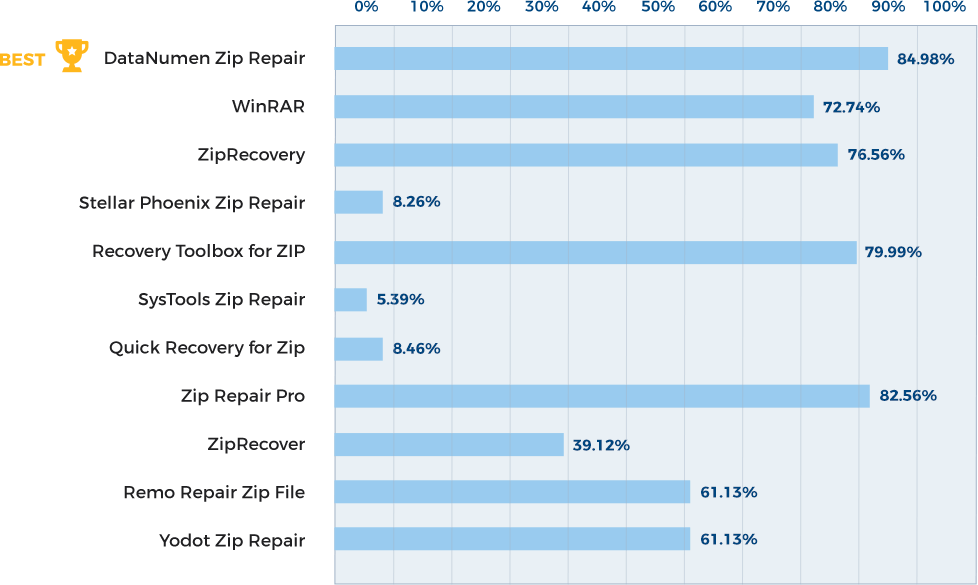
Learn more about how DataNumen Zip Repair smokes the competition
Our Customers' Testimonials

... Read more
I was trying to open an archive containing old photos, but I couldn't, because of some error. Then I used DataNumen Zip Repair and it did the magic. I am glad that I recovered my photos. Thank you for your product!
Ramona P.
Romania
April 22nd, 2020
Thank you for your ziprepair. It was a great software to repair my zip file.
Luca D. M.
Cogeor Consulting
Rome, Italy
April 10, 2020
A great program to restore ZIP archives. I recommend... and simple as a door.
Bohdan Sheretiuk
Retired Marketer
SS-service
Lutsk, Ukraine
October 27, 2019
DZIPR worked wonders & recovered hundreds of MB of digital photos that I thought I'd lost forever.
All the best
An anonymous customer
Fixed the Lot - Life Saver!
Just recovered about 1GB of photos from Zip files. Thought I was truly stuffed but DZIPR just ploughed through the lot
Fixed the Lot - Life Saver!
Just recovered about 1GB of photos from Zip files. Thought I was truly stuffed but DZIPR just ploughed through the lot in batch mode. I didn't lose a single photo. Very simple & fast to use, too. Can't recommend it highly enough.
Bruce Jeffreson
I backed up some files to a Zip file from my Mac G4 notebook. I had no choice than to back them up to a PC, and upon trying to unzip, I found that
I backed up some files to a Zip file from my Mac G4 notebook. I had no choice than to back them up to a PC, and upon trying to unzip, I found that nothing could open a corrupt 10.2 GB archive. Out of skeptisim, I downloaded DZIPR, and found that it could repair my file, so I went ahead and ordered to remove the limitation of the trial version. I ran again, and while it repaired, not only did it recover some data, it recovered it ALL! I am so pleased that Tech Support answered my emails so quickly, and they were extremely helpful (changing my overall opinion of software tech support) Thanks for making such a usefull utility. Are there plans for an OS X version anytime soon?
Benjamin James Chapman
University of Delaware
After the batch repair, all files have been successfully repaired and are extracting to my mac via windows PKZip and a mapped SaMBa Network Drive. I
After the batch repair, all files have been successfully repaired and are extracting to my mac via windows PKZip and a mapped SaMBa Network Drive. I must stress that I am extremely pleased that your product works so well, and that the support has been fantastic
Regards, and thanks again
Benjamin James Chapman
University of Delaware
An excellent product !! I was skeptical but it has just recovered the backup zip of my email archive and I've been converted :)
Many thanks and
An excellent product !! I was skeptical but it has just recovered the backup zip of my email archive and I've been converted :)
Many thanks and best regards
David
Works great. saved me heaps of time rather than downloading the file from a different source because the file is corrupt, this program fixes it. A
Works great. saved me heaps of time rather than downloading the file from a different source because the file is corrupt, this program fixes it. A very Brilliant program!!!!!!!! *****
An anonymous customer
I looked for a place to post praise but couldn't find anything. I like to help others who get into trouble with a corrupt zip file. I have been
I looked for a place to post praise but couldn't find anything. I like to help others who get into trouble with a corrupt zip file. I have been working on PC's since 1982, before IBM or Microsoft and this is the first program that worked quickly, easily and effectively.
David Olenick
I have never had a zip repair program that worked.
This one did!
An anonymous customer
i have had many games, and other types of files that have been corrupt, and before i got this program, was messing up my computer, this is one of the
i have had many games, and other types of files that have been corrupt, and before i got this program, was messing up my computer, this is one of the best programs i have used, im going to reccomend it to friends.
TripleHGogeta6
This worked perfectly! Thank you so much! You have saved my team from
going back to do 16 months of work over again. DZIPR was well worth the
$30 I
This worked perfectly! Thank you so much! You have saved my team from
going back to do 16 months of work over again. DZIPR was well worth the
$30 I spent!
Jeff
I have tried several products in my quest to recover a Zip file that contained a full year of e-mail archives but non were successful, until now. I
I have tried several products in my quest to recover a Zip file that contained a full year of e-mail archives but non were successful, until now. I downloaded the demo version of DZIPR and was encouraged by the recovery report so I invested the small sum and downloaded the full version.
To my dismay, the full product failed to recover my file so I contacted support@repair-zip-files.com. The Tech Support reps requested the error logs from DZIPR and after careful review, suggested a procedure for me to try. It worked!
This product and the company's excellent technical support has saved vital records I had thought were lost for good. Thank you!
Scott Snyder
3GB of photos were just saved! College graduation and girlfriend photos saved! Thank you.
Feature suggestion: ability to list
3GB of photos were just saved! College graduation and girlfriend photos saved! Thank you.
Feature suggestion: ability to list what files were not saved?
Rana Ian
The repaired OpenOffice document works like a charm! A big thumbs-up for DZIPR!
Armin Jakob
This product is great! You have saved us lots of time. Contact us with other apps you may have.
Paul M. Dreskin
"It worked."
Fixed my bad Zip file, as promised.
Andy Duong
I didn't believe it will work, but it does.Too bad it can't repair ACE and RAR files as well.
Jordan Gigov
"It worked for me!"
I tried it with one damaged file from a floppy and it worked for me. Only 5 files out of 40 were damaged in some degree.
Vicky
Recovered all of my damaged *.zip files. The only problem was that it had trouble with *.zip files which themselves had been zipped. Otherwise 10 out
Recovered all of my damaged *.zip files. The only problem was that it had trouble with *.zip files which themselves had been zipped. Otherwise 10 out of 10!
Peter Brook
Many thanks for your prompt email.
I have tried this and everything was working like a dream!
Many thanks, I was able to recover over 900 MB!
Herbert Hackelsberger
" Really Worked"
I have a full product, it help me to repair a 300MB file
Felix A Legere
WOW! You saved me 2 hours worth of time and a trip back and forth across town. Thanks!
It is refreshing to see a simple useful program out there
WOW! You saved me 2 hours worth of time and a trip back and forth across town. Thanks!
It is refreshing to see a simple useful program out there that actually works! I tried it on a whim not really thinking it would work. DZIPR blew me away!
Thanks again!
Joshua Masson
"YAY IT FIXES CRC ERRORS :D"
Most of the time your just plain screwed if you download a zip file and it has a crc error, especially if the zip file
"YAY IT FIXES CRC ERRORS :D"
Most of the time your just plain screwed if you download a zip file and it has a crc error, especially if the zip file only contains an ISO file. This product fixed the CRC error in my zip file and allowed me to extract the ISO file without flaws!
Eric Karp
"Really good"
Is a really good program, for that people that download big sfx files on internet that are damage I recommend this software! it
"Really good"
Is a really good program, for that people that download big sfx files on internet that are damage I recommend this software! it repairs zip files and sfx files is great! but I think this software need the ability to repair rar files too :(
Gary Shaw
Absolutely! You may use the section specified on your website or any promo literature. Do me a favor and edit out the CRC reference, since CRC and
Absolutely! You may use the section specified on your website or any promo literature. Do me a favor and edit out the CRC reference, since CRC and Cyclic Redundancy are really the same error. If you want even more praise, today, I received an update via email for a shareware utility that contained a CAB file in a Zipfile. Well, Winzip, PKZip & WinAce all reported that the file was corrupt and could not be opened. I ran it through DZIPR and not only did the zipfile get repaired, but the enclosed CAB file was an exact byte for byte match to the cabfile I needed for the update. Seems that this little DZIPR Gem is something Microsoft ought to license. Thanks again,
Aron Sebastian
North Carolina, USA
You will get my vote for the best PC utility. Since I bought DZIPR, I've used it a number of times on files that were showing bad CRC or had other
You will get my vote for the best PC utility. Since I bought DZIPR, I've used it a number of times on files that were showing bad CRC or had other problems that caused Winzip or WinAce to shut down and stop processing. DZIPR has fixed everything I've thrown at it. What a remarkable and elegant piece of software engineering.
Aron Sebastian
North Carolina, USA
I would just like to thank you. I purchased DataNumen Zip Repair less than
two hours ago and it worked perfectly!!! My experience can be summed up
I would just like to thank you. I purchased DataNumen Zip Repair less than
two hours ago and it worked perfectly!!! My experience can be summed up in
four words:
YOU SAVED MY JOB!
Thanks again,
Ryan Long
Ardor Computer Service
I download the full program again & all the repair data I send it to my comp. That way the program WORKS very good and fix 91% of my disk!!!
I saved
I download the full program again & all the repair data I send it to my comp. That way the program WORKS very good and fix 91% of my disk!!!
I saved almost, all my important data!!!
Thanks for the program DZIPR! Works very well!
Davey Valentine
Orlando, Florida
That worked great. Thanks for your help.
John and Connie
Hi. I just bought your program, and it fixed an important ZIP file. Thank you.
David S.
Toronto, Canada
Thanks for your help. I am very pleased with DZIPR.
Jim Stacey
Facing Pages Photography
I had a 800 MB zipfile with 97,00 created in Solaris that got an error in its "central dir". Once this happened, I could not access more than the
I had a 800 MB zipfile with 97,00 created in Solaris that got an error in its "central dir". Once this happened, I could not access more than the first ~30,000, and the standard zipfix utilities that come as part of pkzipc and WinZip did _nothing_ to help.
This was particularly frustrating because I knew most or all of the files were still in there - it was simply an error in the archive's "table of contents".
I used Datanumen's DZIPR to recover 98% of the files in the archive! I'm glad to have found a company like Datanumen with the know-how to extract the good stuff from an archive, especially when the central dir is corrupted.
Chris Niggeler
Cleanscape Software International
Albuquerque, NM, USA
This worked perfectly. Thank you!
Tom McLean
Fredericton, New Brunswick
Canada
I found your tool while using the website http://rmse.awardspace.com and i would like to to say that your tool is awesome with lot of features.
I found your tool while using the website http://rmse.awardspace.com and i would like to to say that your tool is awesome with lot of features. Excellent Work. If you have an mailing list or newsletter please sign me up. Regards, JA
Fabio Pinheiro
Madeira, Portugal
Never mind, it WORKED! I am SOOO HAPPY! Thank you very much for all your help! I am now 100% satisfied and I will stop bothering you. lol. THANKS
Never mind, it WORKED! I am SOOO HAPPY! Thank you very much for all your help! I am now 100% satisfied and I will stop bothering you. lol. THANKS AGAIN!
Thank you again for all the help you have offered, and I will recommend this product to anyone with a similar problem!
Glenn Peterson
Andover, MN, USA
Mr. Chen,
Thank you so much.
I have successfully extract data.
I thought I would have to give up all the data...
I really appreciate of your
Mr. Chen,
Thank you so much.
I have successfully extract data.
I thought I would have to give up all the data...
I really appreciate of your help, thank you again.
Regards,
Kayo Nagashima
Funabashi-shi, Chiba, Japan
Dear Chen,
Thank you for your quick and thorough reply. Your solution worked! The Large File Splitter software worked, and then Advanced Zip
Dear Chen,
Thank you for your quick and thorough reply. Your solution worked! The Large File Splitter software worked, and then Advanced Zip Repair recovered every file!
I am now a very satisfied customer, and am happy to continue using the product. Thank you again, and have a perfect day.
Best Regards,
Charles Thompson
Lakeland, FL, USA
We had a 60 Gigabyte zip file which would not open. Advanced Zip Repair could not repair it as it was too large. However, DataNumen provided me with
We had a 60 Gigabyte zip file which would not open. Advanced Zip Repair could not repair it as it was too large. However, DataNumen provided me with another great piece of software whcih split the file into more manageable 1 Gigabyte files, and then Advanced Zip Repair successfully repaired every single one. We had tried a variety of other repair products without success, so I will certainly be coming back to DataNumen if we have any other data problems in future. Invaluable products and great support!
Chris Barton
Vancouver, Canada
Extremely Simple Interface
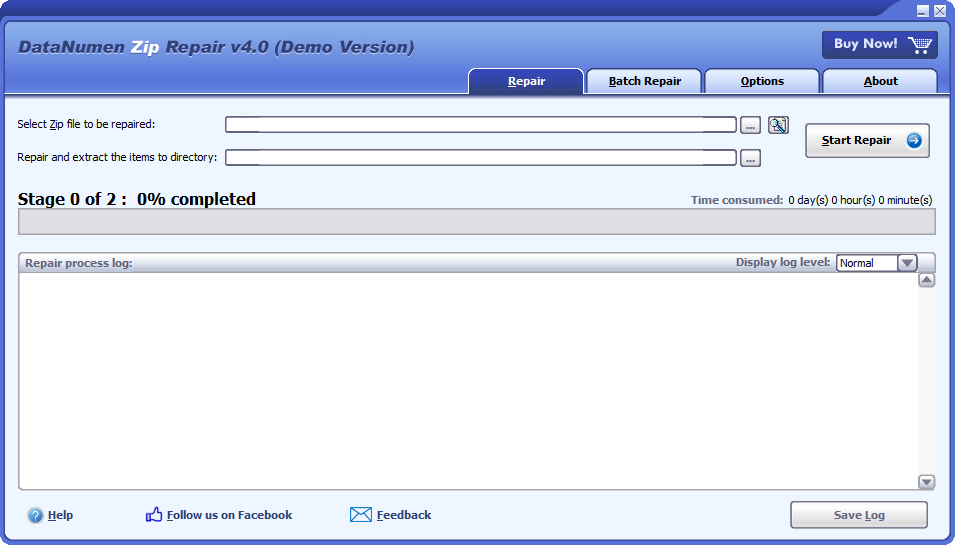
Repair
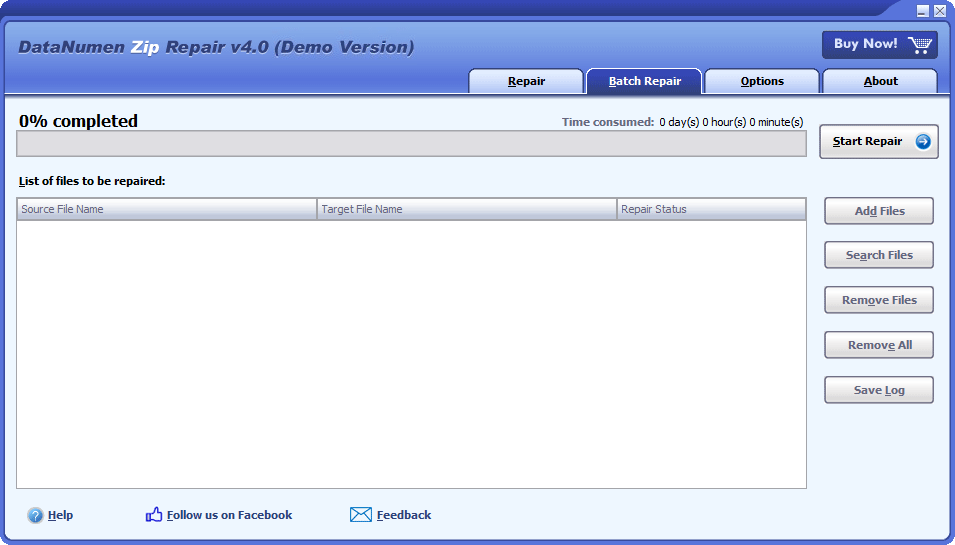
Batch Repair
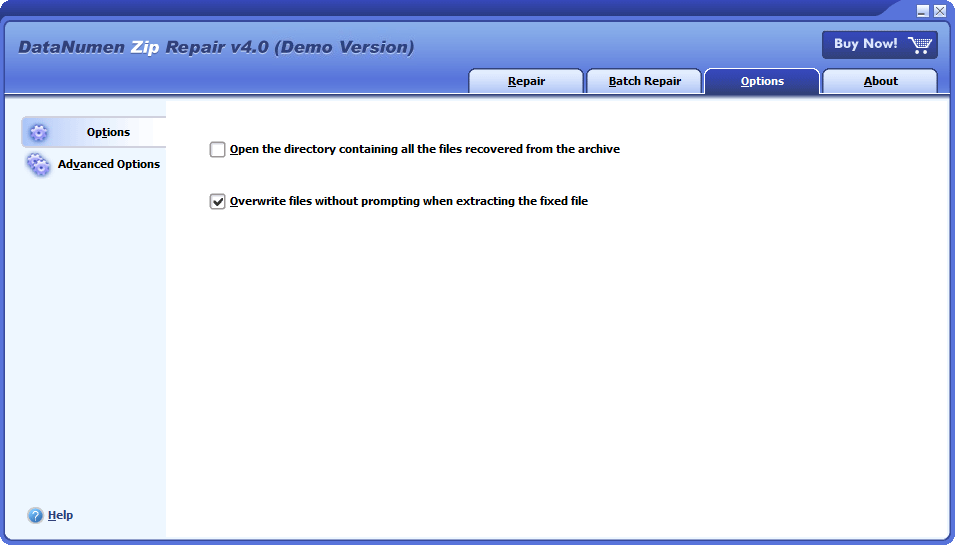
Options
Free Download20+ Years Of Experience
Buy Now100% Satisfaction Guarantee
Main Features
- Fix all sub-types of Zip files and all kinds of self-extracting files created by WinZip, WinRAR, 7-Zip, and other Zip apps.
- Check data integrity and fix incorrect CRC values in the archive.
- Repair Zip archive files and Zip item files larger than 4GB.
- Repair spanned Zip files, split Zip files, and encrypted Zip files.
- Extract files in the fixed Zip or SFX archive.
Free Download20+ Years Of Experience
Buy Now100% Satisfaction Guarantee
Using Our Zip Repair Tool to Recover Damaged Zip Archives
Start DataNumen Zip Repair.
Note: Before recovering any damaged or corrupt zip files with DataNumen Zip Repair, please close any other applications that may modify the corrupt files.
Select the damaged or corrupt zip file to be repaired:

You can input the zip file name directly or click the  button to browse and select the file. You may also click the
  button to find the zip file to be repaired on the local computer.
By default, DataNumen Zip Repair will repair the zip file and extract all items in it to a directory called xxxx_recovered, where xxxx is the name of the source zip file. For example, for source zip file Damaged.zip, the default output directory will be Damaged_recovered. If you want to use another name, then please select or set it accordingly:

You can input the output directory name directly or click the button to browse and select the output directory.
Click the  button, and our Zip file repair tool will start scanning and repairing the damaged zip file. The progress bar

will indicate the data recovery progress.
After the repair process, if the source zip file can be repaired successfully, our tool will extract files in it and output them to the specified directory. And you will see a message box like this:
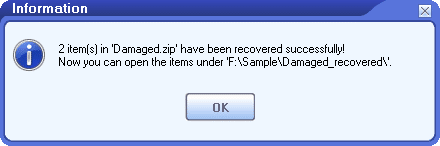
Now you can open the output directory and access the items in the Zip file.
More Information
Revitalizing Nike’s Data Integrity with DataNumen Zip Repair
Advancing Data Accessibility: A Case Study on BP’s Strategic Use of DataNumen Zip Repair
Unzipping Success: A Case Study on GlaxoSmithKline’s use of DataNumen Zip Repair
DataNumen Zip Repair Implementation: A Success Story of Accenture
Morgan Stanley Revolutionizes Data Recovery via DataNumen Zip Repair: A Case Study
Bridgestone Optimizes Data Integrity with DataNumen Zip Repair: A Case Study
Intel Improves Archive Management with DataNumen Zip Repair: A Case Study
Which versions of Windows systems are supported?
Our repair software supports Windows 95/98/ME/NT/2000/XP/Vista/7/8/8.1/10 and Windows Server 2003/2008/2012/2016/2019. Both 32bit and 64bit are supported.
How does a Zip file get corrupted?
There are many reasons that will cause Zip file corruption, such as network issues, viruses, hard drive failures, etc.
When a Zip file is corrupt, you may get error messages such as “Unexpected end of archive” or “Cannot open file: invalid archive” when opening it.
We recommend you to keep a Zip repair tool on hand so that whenever the corruption occurs, you can use it to repair the damaged Zip file and get your data back as soon as possible.
Are there free ways or freeware to repair corrupt Zip files?
Yes, check this https://www.datanumen.com/3-free-ways-to-repair-corrupt-zip-or-rar-archives/
What is the CRC value in Zip files?
Please see this article: https://www.datanumen.com/what-is-the-crc-value-in-zip-and-rar-files/
What are the advantages of your tool over other similar tools?
There are many similar repair software in the market, such as Diskinternals Zip Repair, Object Fix Zip, etc. We have made comprehensive tests on our Zip file repair tool and the main competitors in the market. According to the testing outcomes, our tool boasts the highest recovery success rate and the most extensive range of features.
How does the demo version differ from the full version?
The demo and the full version utilize identical recovery engines. However, after recovery, the demo version will display a catalog of items that can be recovered from the archive, detailing the file name, size, and type. Nonetheless, it will not extract these items for use.
How long does it take to repair a Zip file?
It depends on many factors, including:
- Zip file size. It takes more time to repair a larger file.
- The number of items in the Zip file. It takes more time to repair a file with more items.
- The compression algorithm for each item. If an item uses an algorithm that provides a greater compression, then it takes more time to repair and extract it.
Related Products
DataNumen Archive Repair
Archive data recovery suite, including recovery tools for corrupt Zip and SFX archives, RAR archives, Unix TAR archives, and Microsoft CAB archives.
Details
 DataNumen Zip Repair