

Un poco lento, aunque reconozco que es bueno. Yo sólo lo necesitaba para 1 archivo. Gracias
Overview
Features
How to Recover
More Information
Related Products
Why DataNumen RAR Repair?

#1 Recovery
Rate

10+ Million
Users

20+ Years of
Experience

100% Satisfaction
Guarantee
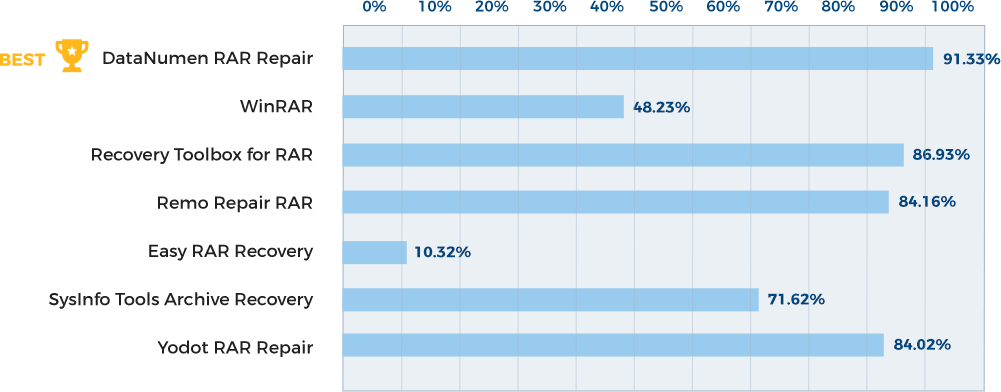
Recover Much More than Our Competitors
DataNumen RAR Repair vs. Recovery Toolbox for RAR, Remo Repair RAR, Yodot RAR Repair, etc.
Average Recovery Rate
Learn more about how DataNumen RAR Repair smokes the competition
Our Customers' Testimonials

Agustín
Cantabria, España
March 27, 2024
RAR file of 115 GB : completely damaged ...
Your program fixed it in 5 hrs and 33 mins ...
1K thanks !!
Paul Van den Bossche
Borsbeek, Belgium
August 30, 2020
I have had no problems with this outstanding progremm. A word to those people who may have had some problems. If the 'DataNemen Rar Repair' Programme
I have had no problems with this outstanding progremm. A word to those people who may have had some problems. If the 'DataNemen Rar Repair' Programme fails to repaire a file in some instances try repairing it in another directory _ a directory on an external flash or hard-drive yealded the best results for me. It is only occassionally that I have to do this though, most of the time it works perfectly.
Chris
Liverpool. UK
Sep 6th, 2014
I would be more than happy to leave feed-back regarding my positive engagement of your product _ some advice too as to the very occassional failur of
I would be more than happy to leave feed-back regarding my positive engagement of your product _ some advice too as to the very occassional failur of the 'DataNewmen Rar Repair' programme to repair a rar file. I find that when this happens, success in repairing the file in question has always been achieve by moving it to another directory and repeating the function there _ typically to an external flash or hard-drive.
If you need to endorce my appraisal of the product with any of my personal details could you just limit it to the region _ 'United Kingdom'. Thanks
C Dolan
United Kingdom
Sep 6th, 2014
Extremely Simple Interface
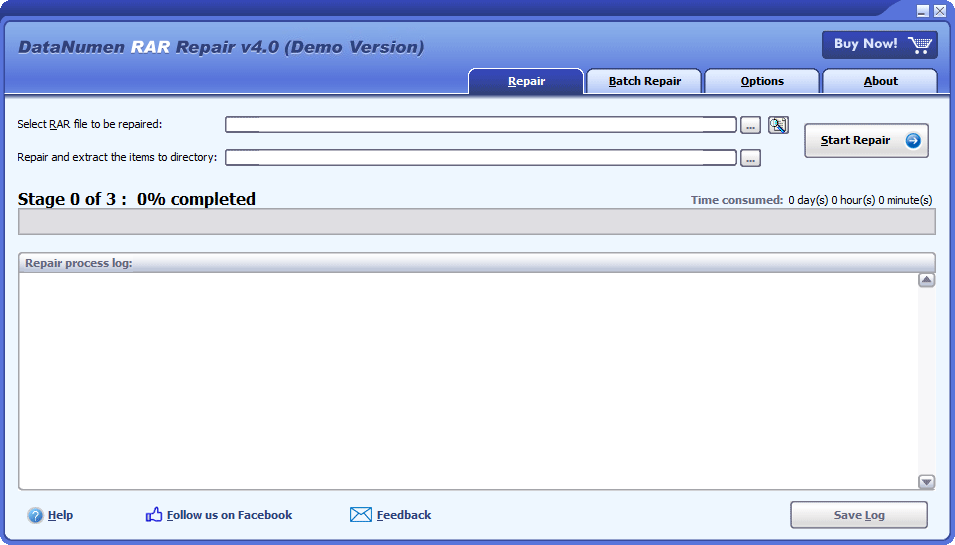
Repair
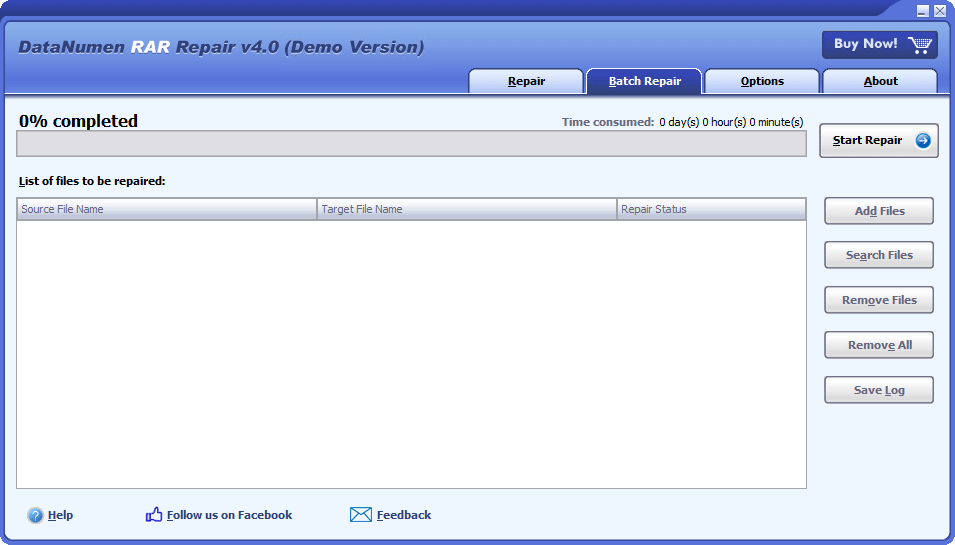
Batch Repair
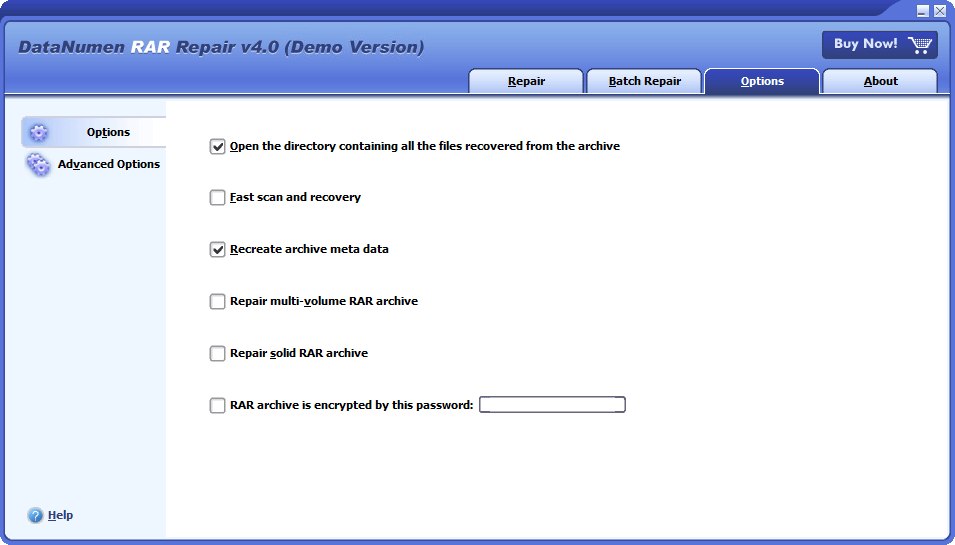
Options
Free Download20+ Years Of Experience
Buy Now100% Satisfaction Guarantee
Main Features
- Repair all versions of RAR and self-extracting (EXE) files.
- Fix corrupt RAR file header.
- Extract files in the corrupt RAR archive to a directory.
- Recover multi-volume and solid archive files.
- Fix WinRAR archives encrypted by a password.
Free Download20+ Years Of Experience
Buy Now100% Satisfaction Guarantee
Using DataNumen RAR Repair to Recover Damaged RAR Archive
Start DataNumen RAR Repair.
Reminder: Prior to repairing a RAR archive, ensure that WinRAR and any other programs that might access the RAR archive are closed.
Choose the damaged or corrupt RAR archive to be repaired:

You can either type in the RAR file name directly or use the  button to navigate and select the archive. Alternatively, you can click the
  button to find the RAR archive on your local machine.
By default, our recovery software will recover the RAR archive and extract files in it to a folder xxxx_recovered, where xxxx is the original RAR file name. For instance, if the source archive is Damaged.rar, the default destination directory will be Damaged_recovered. Should you prefer a different name, please choose or set it accordingly:

You can enter the desired output directory name directly, or use the button to navigate and choose it.
Press the  button, and our recovery software will initiate the scan and repair process with its advanced algorithms. It will show the progress like below:

Once the repair is complete, if our tool has successfully fixed the archive, a message box will appear as follows:
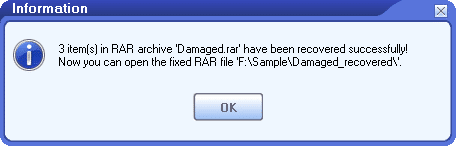
Now, you can check the recovered files in the output directory.
More Information
Why does a WinRAR archive file become corrupted?
There are a lot of reasons, such as viruses, network issues when downloading a file, hard drive failure, unplugging the external USB drive during data transfer, etc. We suggest keeping our RAR repair tool readily available. Thus, if you encounter a corrupt RAR archive, you can use our tool to recover data quickly.
How to repair corrupt RAR files for free?
Yes, see this https://www.datanumen.com/3-free-ways-to-repair-corrupt-zip-or-rar-archives/
Which Windows versions are supported?
32bit & 64bit of Windows XP, Windows Vista, Windows 7, Windows 8, Windows 8.1, Windows 10, Windows 11, Windows Server 2003, Windows Server 2008, Windows Server 2012, Windows Server 2016, and Windows Server 2019 operating systems.
Is Windows 11 supported?
Yes. Our recovery software is 100% compatible with Windows 11.
Which formats of RAR files are supported?
Currently, our RAR file repair tool supports to repair damaged RAR files in format version 1.3 to 2.9. It does not support RAR archives in format version 5.0+, which are created by WinRAR 5.0+.
What is a CRC error? Can your tool fix such errors?
This article contains detailed information: https://www.datanumen.com/what-is-the-crc-value-in-zip-and-rar-files/. And yes, DataNumen RAR Repair can fix CRC errors.
How much time is needed to repair a RAR file?
The time of the repair process depends on many factors, including:
- The WinRAR file size.
- Count of items in the RAR file.
- The compression algorithm for the items.
What is an SFX archive? Can you repair SFX archives?
SFX means self-extracting file. It is an EXE file. It contains both the extractor and the compressed data. So when you execute it, it will extract the compressed data for you.
Our tool supports to repair SFX archives. You can just select the SFX archive as the source file to be repaired, then click the Start Repair button to start the repair process in the same way as the WinRAR archive.
Can you repair corrupt Zip files?
DataNumen RAR Repair is not designed to perform this function. To repair your corrupted Zip files, you should utilize DataNumen Zip Repair instead.
How does the demo version differ from the full version?
Both versions use the same recovery engine. However, the demo version will only show a list of the recoverable items in the archive, but will not output them.
Which kinds of RAR errors can you fix?
Our tool can fix many RAR errors, including compression error, decompression error, extraction error, CRC error, file extension error, file download error, file transmission error, file header corruption, etc.
Can your tool repair RAR files on Mac systems?
Currently, our RAR repair software cannot run on the Mac system. But you can use the following way to repair WinRAR files on Mac:
- Copy the RAR file from the Mac system to a Windows system.
- Install our software on the Windows system.
- Repair the RAR file with our tool.
- Transfer the repaired RAR file back to the Mac system.
What makes your tool superior compared to other competitors?
There are many similar RAR repair tools in the market, such as Remo Repair RAR, Recovery Toolbox for RAR, etc. We have performed comprehensive tests on all these products and our RAR repair software has the best recovery rate.
Related Products
DataNumen Archive Repair
Archive data recovery suite, including recovery tools for corrupt Zip and SFX archives, RAR archives, Unix TAR archives, and Microsoft CAB archives.
Details
 DataNumen RAR Repair