
1. New PST File Format
Since Outlook 2003, a new PST file format is introduced that has many more advantages than the old one. For end users, the most important ones are:
- Support Multi-language Unicode
- No 2GB limitation in PST file size
- No 65,000 limitation (or 16,000 for the more earlier versions) in the number of items per folder
Due to the first one, the new format is also called Unicode format commonly, while the old format is then called ANSI format accordingly. Both names will be used throughout this guide.
2. Why Convert PST?
Below are three scenarios that you may need to convert your PST file format:
- As nowadays the communication data increase so rapidly, the removal of the limitations on the PST file is very vital to the users. Therefore, we highly suggest you to convert your old ANSI PST files into the new Unicode format.
- You encounter the oversized 2GB PST file problem.
- Sometimes (mostly for compatibility reasons) you still need to convert the PST file from the new Unicode format into the old ANSI format. For example, you want to transfer the PST data from a computer with Outlook 2003-2010 to one with only Outlook 97-2002 installed.
Microsoft hasn’t produced a conversion tool. But don’t worry. DataNumen Outlook Repair can do this for you.
Prerequisite for the conversion:
| Target Format | The version of Outlook installed on the local computer |
| Old ANSI format | Outlook 97+ |
| New Unicode format | Outlook 2003+ |
3. Step-by-step Guide
Start DataNumen Outlook Repair.
Note: Before converting the PST file, please close Microsoft Outlook and any other applications that may modify it.
Select the Outlook PST file to be converted:

If the PST file is in the old format, specify its file format to “Outlook 97-2002” in the combo box  beside the source file edit box. Otherwise, please select “Outlook 2003-2010” or “Outlook 2013+” based on its format. If you leave the format as “Auto Determined”, then DataNumen Outlook Repair will scan the source PST file to determine its format automatically, which will take additional time.
By default, DataNumen Outlook Repair will save the converted data into a new PST file named xxxx_fixed.pst, where xxxx is the name of the source PST file. For example, for source PST file Outlook.pst, the default name for the output file will be Outlook_fixed.pst. If you want to use another name, then please select or set it accordingly:

As we want to convert the PST file into a different format, we must select the target format to “Outlook 97-2002” or “Outlook 2003+” based on your requirement in the combo box  beside the output file edit box. If you set the format to “Auto Determined”, then DataNumen Outlook Repair may fail to convert your PST file properly.
Click the  button, and DataNumen Outlook Repair will start scanning and converting the source PST file. Progress bar

will indicate the conversion progress.
After the process, if the source PST file has been converted into the new format successfully, you will see a message box like this:
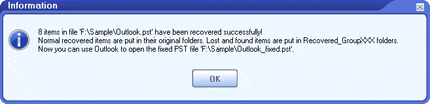
Now you can open the new PST file in Microsoft Outlook and access all the items.
Note: The demo version will display the following message box to show the success of the conversion:
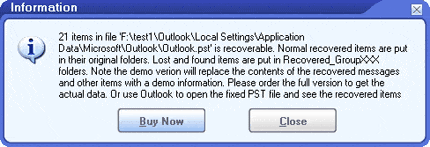
In the new PST file, the contents of the messages and attachments will be replaced with a demo information. Please order the full version to get the actual converted contents.