Note: Before the import operation, please make sure the Outlook Express mail folder where the messages are to be imported works correctly. Otherwise, please backup and then delete the dbx file corresponding to the mail folder.
Start Outlook Express and keep it open.
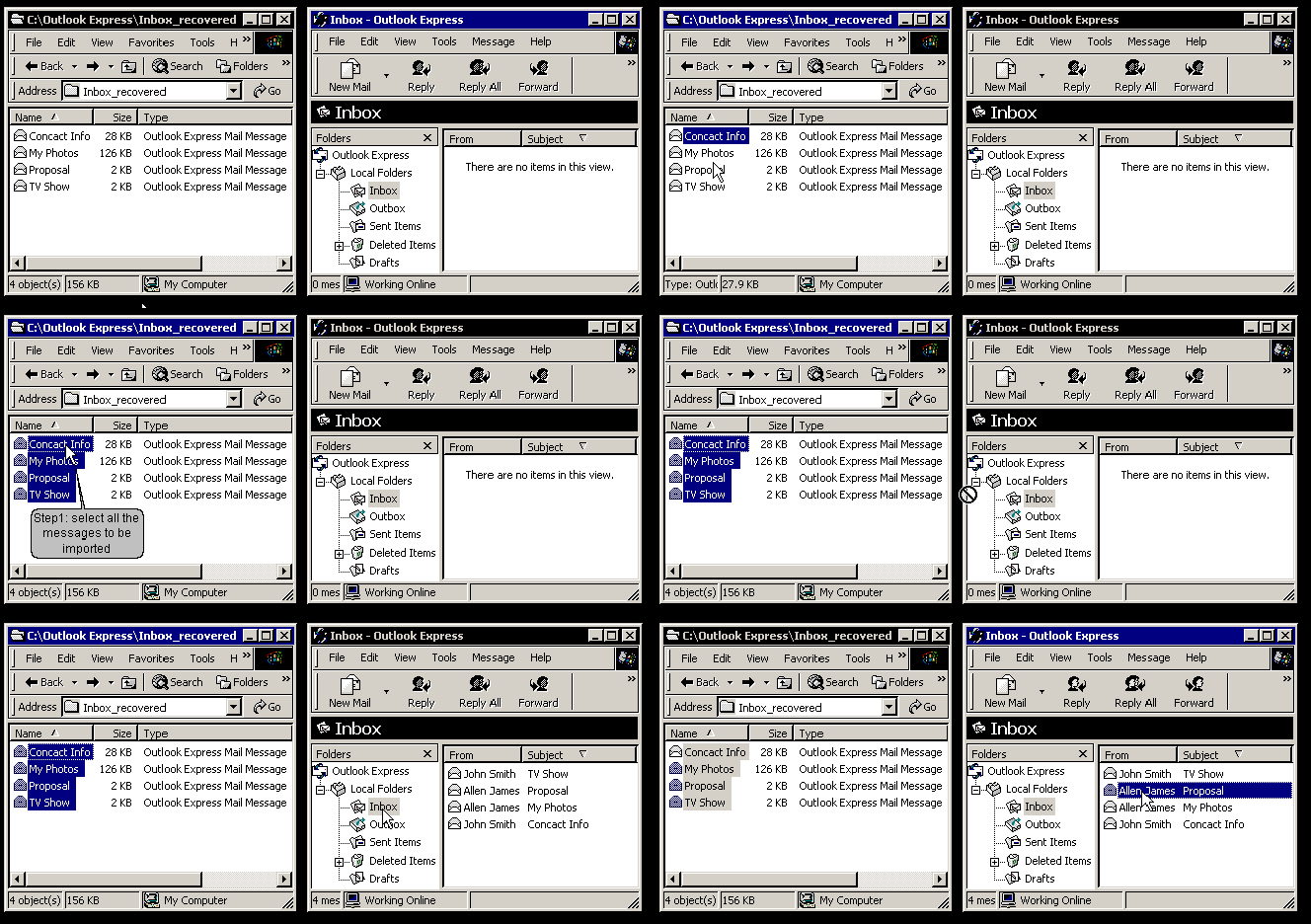
Select all the messages to be imported in the output directory:
Tip: To select a group of message files, hold down the SHIFT key, click the message file at the top of the group, and then click the message file at the bottom of the group. To add message files to a group you have already selected, hold down the CTRL key, and then select the message files you want to add. To exclude selected message files, hold down the CTRL key, and then click the selected message files.
Drag the selected messages from the directory.
Drop the messages into the target mail folder in the opened Outlook Express.
After that, you can operate the imported messages just as normal ones in Outlook Express.
The step 1, 2, 3 in the import process are illustrated in the following animation: