

Overview
Features
How to Recover
More Information
Related Products
Why DataNumen OST to PST Converter?

#1 Recovery
Rate

10+ Million
Users

20+ Years of
Experience

100% Satisfaction
Guarantee
Extremely Simple Interface
Convert
Batch Convert
Options
Main Features
- Support Outlook 97+, and Outlook for Office 365 and Microsoft 365 OST files.
- Support to convert mail messages, folders, posts, appointments, meeting requests, contacts, distribution lists, tasks, task requests, journals and notes in OST files. All properties, such as subject, to, from, cc, bcc, date, etc., are converted.
- Support to convert mail messages in plain text, RTF and HTML format.
- Support to convert attachments, including the documents and images attached to messages and embedded in HTML bodies.
- Support to convert embedded objects, such as another message, Excel Worksheets, Word documents, etc.
- The converted items are saved in personal folder files(.pst) that are readable by Microsoft Outlook and other compatible mail clients.
- Support to convert deleted items, including mail messages, folders, posts, appointments, meeting requests, contacts, distribution lists, tasks, task requests, journals and notes.
- Support to convert OST files as large as 16777216 TB (I.e. 17179869184 GB).
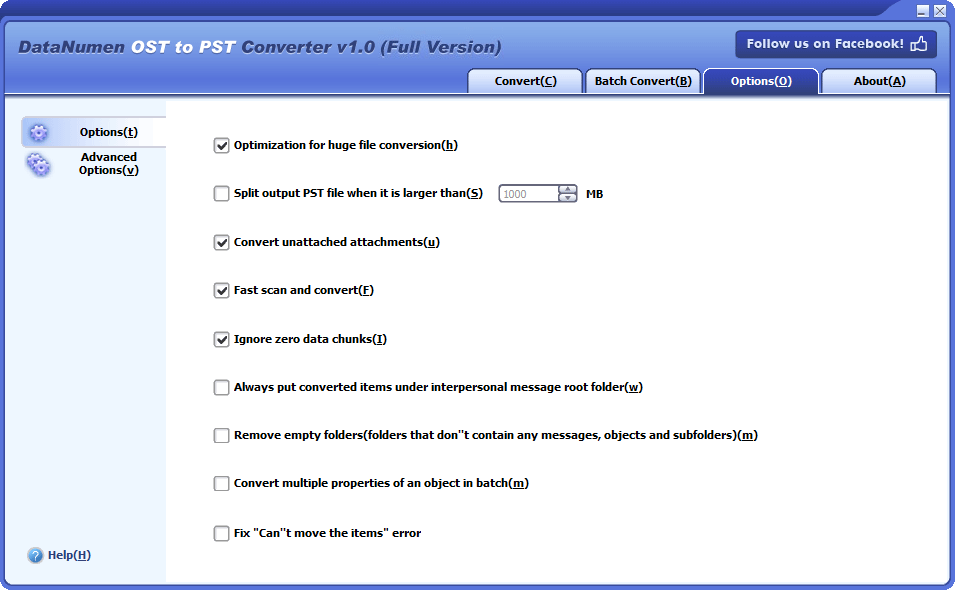
- Support to split the output PST file into several small files.
- Support to convert password protected OST files, both compressible encryption and high encryption(or best encryption) are supported. The OST file can be converted even if you don't have the password.
- Support to generate fixed PST file in Outlook 97-2002 format and Outlook 2003+/Office 365 format.
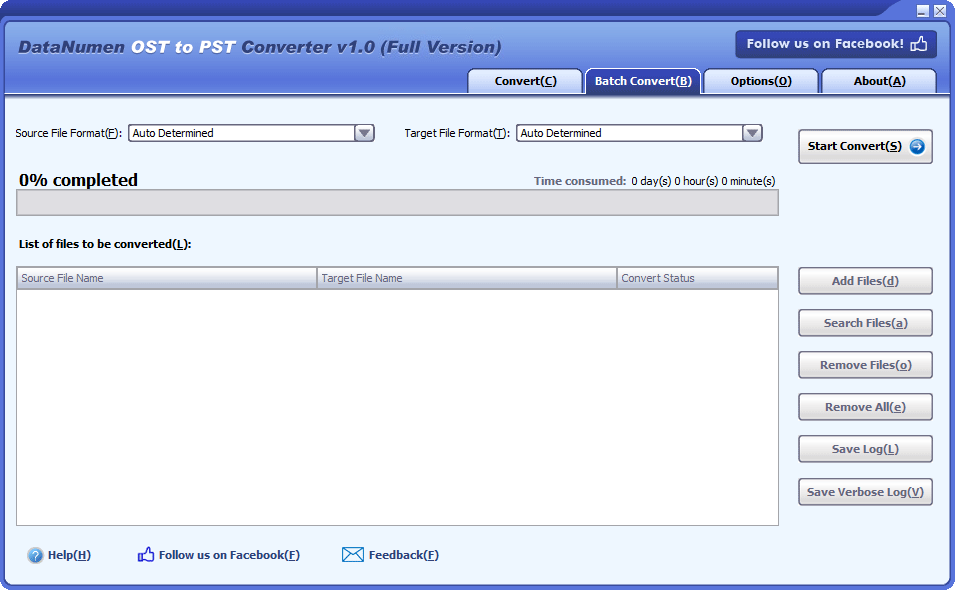
- Support to convert a batch of OST files.
How to Convert Outlook OST to PST Files with DataNumen OST to PST Converter
Start DataNumen OST to PST Converter.
Note: Make sure you shut down Microsoft Outlook and other applications that may access the OST file.
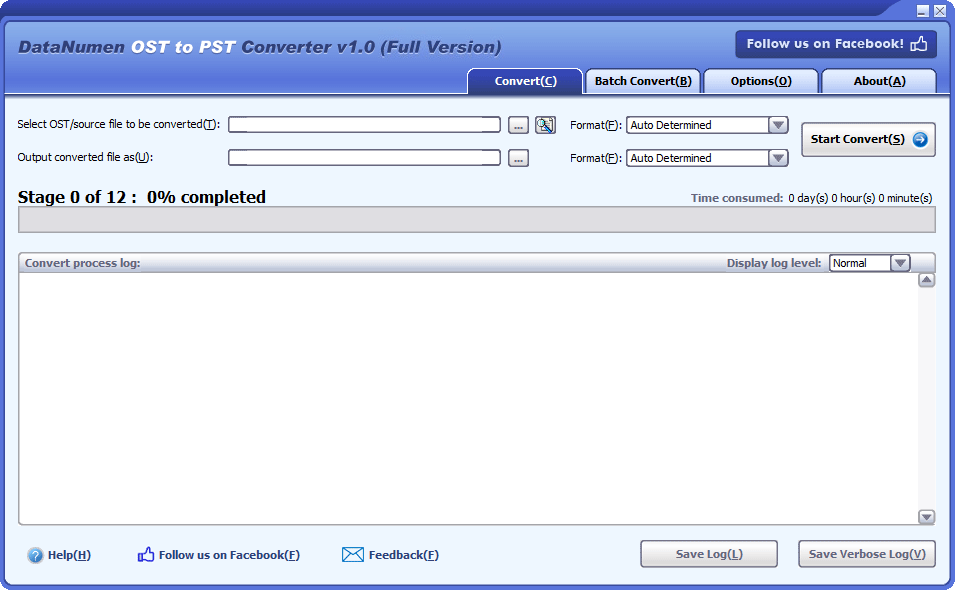
Select the Outlook OST file to be converted:

To select the file, input its name directly, or use the  button to locate the file. You can also use the
  button to search for the file.
Specify the version of Outlook for the OST file in question if you are aware of it. You can use the combo box  to do this. There are a number of available formats such as Outlook 2013-2019/Office 365 OST file. You can also choose “Auto Determined” for the format. If you do this, DataNumen OST to PST Converter will analyze the source file to see what the file format is, which takes more time.
DataNumen OST to PST Converter automatically saves the converted data into a brand-new PST file xxxx_recovered.pst, where xxxx represents the name of the source OST file. For example, if the source file is Outlook.ost, the converted file will be Outlook_recovered.pst. You can rename the output file if you would like to:

You can input the file name directly or use the button to browse and select the file.
You can also select the format of the converted PST file in the combo box which is next to the edit box. There are two possible formats for you to select: Outlook 97-2002 and Outlook 2003-2019/Office 365. DataNumen OST to PST Converter will choose a file format compatible with the Outlook version on the local computer automatically if you leave the format as “Auto Determined.”
Click the  button. After that, DataNumen OST to PST Converter will start converting your OST file and show a progress bar:

Once the convert process is complete, you will see a message that looks like this if it was successful:
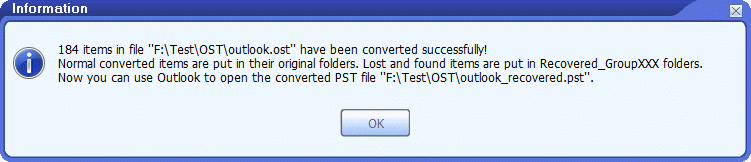
Hit “OK” and you should be able to open the converted PST file with MS Outlook or other email clients that are compatible with the file.
In the converted file, the emails and other objects will be placed in their original folders. Lost & found objects will be put in folders named Recovered_Groupxxx.
More Information
Related Products
DataNumen Outlook Drive Recovery
Recover lost Outlook data, including emails and other objects from raw disks or drives
Details
DataNumen Exchange Recovery
Recover messages and other items from orphaned or damaged Microsoft Exchange offline storage files (.ost)
Details
 DataNumen OST to PST Converter