

DataNumen Excel repair is the most advanced excel repair tool in the world. Backed by excellent technical support , this tool can recreate corrupt
Overview
Features
How to Recover
More Information
Related Products
Why DataNumen Excel Repair?

#1 Recovery
Rate

10+ Million
Users

20+ Years of
Experience

100% Satisfaction
Guarantee
Recover Much More than Our Competitors
DataNumen Excel Repair vs. Excel Recovery, Recovery Toolbox for Excel, ExcelFix, etc.
Average Recovery Rate
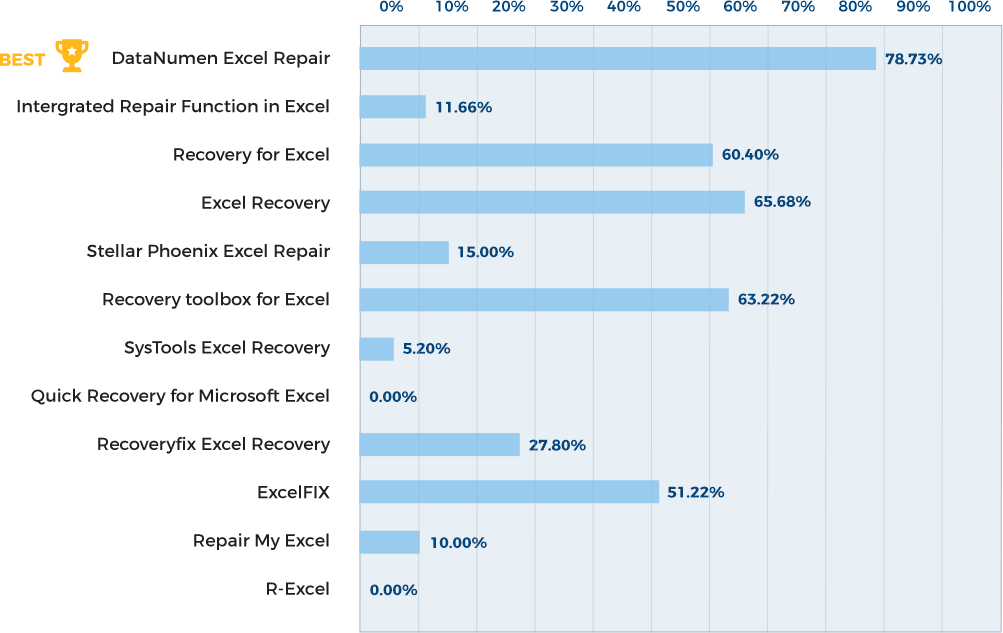
Learn more about how DataNumen Excel Repair smokes the competition
Our Customers' Testimonials

... Read more
DataNumen Excel repair is the most advanced excel repair tool in the world. Backed by excellent technical support , this tool can recreate corrupt excel data in most efficientand accurate manner.I strongly recommend DataNumen Excel repars.
Nilesh Kulkarni
PC Solutions
Pune , Maharashtra , India
December 24, 2025
Thanks for your tool, it really help me fully to repair my excel file.
udom in
August 19, 2019
Your product worked correctly.
Eugenio G. Bahamondes
M.Ss. Senior Electrical Engineer
NorTecnica Engineers Ltd.
Iquique, Chile
It's a very nice program. Sorta' a "no-brainer" which I like.
I am a data base guy and really rather use Foxpro than an Excel spreadsheet.
But
It's a very nice program. Sorta' a "no-brainer" which I like.
I am a data base guy and really rather use Foxpro than an Excel spreadsheet.
But life doesn't go that way when you work with other people.
If your program did not work, my friend and I would have resorted to a manual fix using a hex or ASCII file viewer and hand edited the binary to fix the corruption. What a drag that have been.
Well that did not happen. So I say nice job and you get my vote and future PR.
Thanks again. Well worth the money.
Rick Fayter
Database Consultant
Ohio, USA
DataNumen Excel Repair saved the day and recovered the data I needed from my corrupted file. It is extremely easy to use, it worked very well for my
DataNumen Excel Repair saved the day and recovered the data I needed from my corrupted file. It is extremely easy to use, it worked very well for my needs, and I highly recommend it!
E. Madsen
Chief Engineer
PIN Technology, Inc.
New York, NY, USA
It worked beautifully! All my terms and my (probably overly complicated) cross-referencing data is now back! THANK YOU!! During the summer I had
It worked beautifully! All my terms and my (probably overly complicated) cross-referencing data is now back! THANK YOU!! During the summer I had free time to work on things, but we start back to school soon and I’m more caught up in physical work than computer work, and I DID NOT have the time (or the heart) to sit back down and re-enter SEVEN HUNDRED AND NINETY-TWO biology terms, definitions and references! I was literally sick at my stomach at the prospect.
I hope you have a wonderful rest of the week, and a restful and enjoyable weekend!
Kristi Rankin Teacher
Brownwood, Texas, USA
August 13th, 2014
The Excel repair tool was able to extract all the text data from 2 corrupted Excel files which were open and being saved when I had a PC crash.
The Excel repair tool was able to extract all the text data from 2 corrupted Excel files which were open and being saved when I had a PC crash. However, the tool could not retrieve everything with all the formatting (bold, colours etc) lost along with around half the formulaes (mainly the complicated ones that linked sheets togther). Where there were possible problems, the tool cut an existing worksheet into extra sheets so you knew where to check for losses - a great idea. Overall a terrific result as the data was the hardest part to restore from the original source. One of the files was so badly mangled that it could not be copied, opened (or even deleted!) with any MS program! Overall the tool saved me around a weeks work. It took less than a day to get the files back to normal by repeating the formatting from a much older file version and spot check the data. Note for users, if the tool seems to have halted, have patience, it took nearly one hour to resolve the harder file before it started doing anythin
John Chapman
Melbourne, Australia
Jan 1st, 2017
Extremely Simple Interface
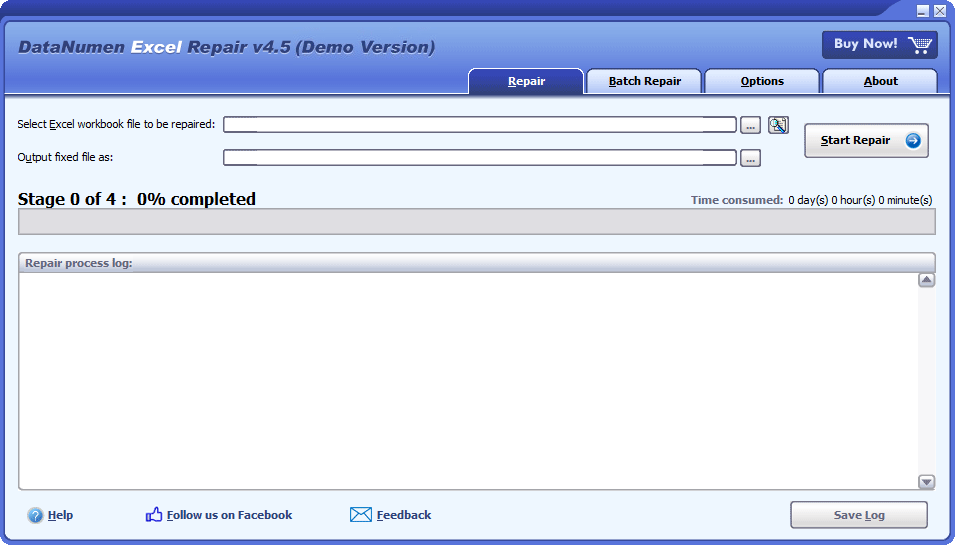
Repair
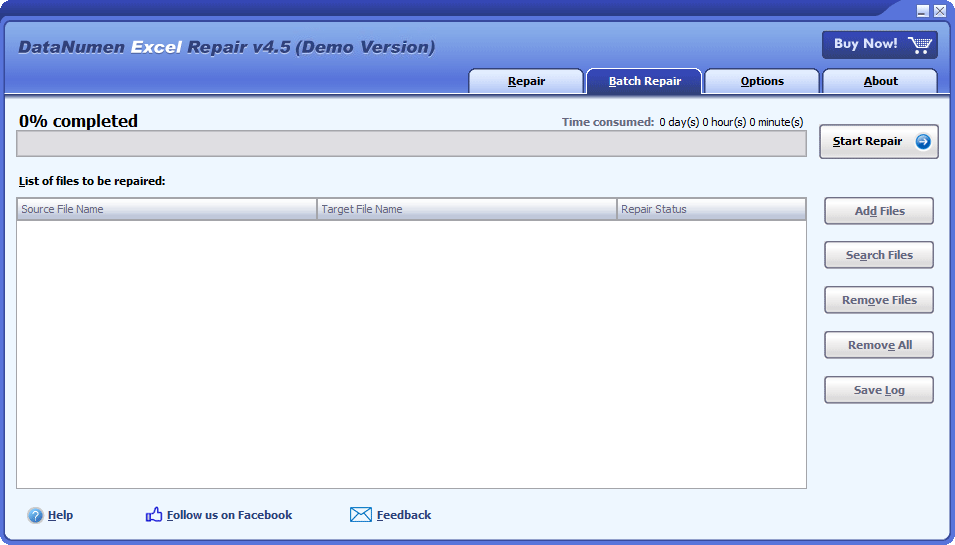
Batch Repair
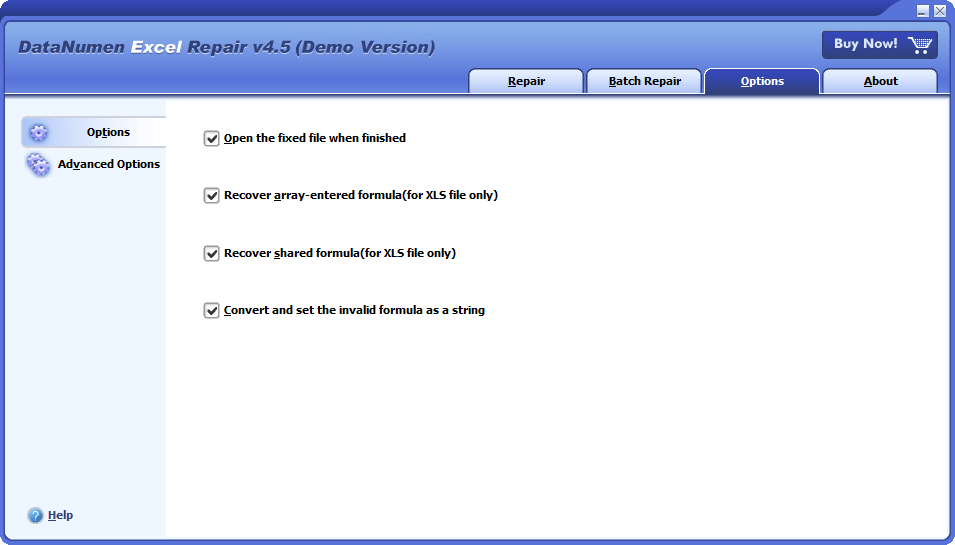
Options
Solution for Following Common Errors and Problems in Excel File

- This file is not in a recognizable format.
- Excel found unreadable content in “filename.xslx”.
- filename.xls’ Cannot Be Accessed.
Free Download20+ Years Of Experience
Buy Now100% Satisfaction Guarantee
Main Features
- Fix Excel xls, xlw, xlsx, and xlsm files in Microsoft Excel 3, 4, 5, 95, 97, 2000, XP, 2003, 2007, 2010, 2013, 2016, 2019, 2021, Excel for Office 365 and Microsoft 365 formats.
- Repair workbook files generated by Excel for Windows and Mac.
- Recover cell data in corrupted Excel files.
- Recover formulas, including shared formula and array-entered formula.
- Recover standard formats and custom formats for the cells and formulas.
- Recover worksheet names.
Free Download20+ Years Of Experience
Buy Now100% Satisfaction Guarantee
Recover Corrupt Excel Files with DataNumen Excel Repair
Open DataNumen Excel Repair.
Note: Close all other applications, including Microsoft Excel, before initiating the recovery process.
Choose the source file to be fixed:

Use the  button to browse the file, or the
  button to find the file on the local computer. You may also enter the file name manually, or drag & drop the file into the edit box.
Once you set the source file name, DataNumen Excel Repair will generate the fixed file name automatically. For example, if the source file is Damaged.xlsx, the auto-generated fixed file will be Damaged_fixed.xlsx.

Of course, you can change it as you like. Or use the button to select the output directory.
Now you can click the  button to start the repair process. DataNumen Excel Repair will analyze the source file and fix errors in it.

The progress bar will show the stage, the progress in the stage, and the total time consumed.
If our program can fix the file successfully, you will see the following message box:

Click the "OK" button will open the fixed file in Excel. You can also double-click the file in Windows explorer to open it manually.
More Information
| Version | 4.5 (Version History) |
| Release Date | November 9th, 2023 |
| Supported File Types | XLS, XLW, XLSX, XLSM |
| Supported Excel Versions | Excel 3.0–2021; Excel for Office 365; Microsoft 365 |
| Recoverable Objects | Worksheets, cells, formulas, shared formulas, array-entered formulas, standard formats, custom formats, worksheet names |
| Supported Languages | 95 languages |
Requirements
| Operating System | Windows |
| Processor | Intel or equivalent (x86, x64) |
| Memory | 32 MB minimum (1 GB recommended) |
| Disk Space | 21 MB |
Bayer MaterialScience Modernizes Excel Recovery with DataNumen Solution
Rescuing Critical Data: Trafigura’s Success Story with DataNumen Excel Repair
Sysco Secures Data Integrity with DataNumen Excel Repair: A Success Story
DataNumen Excel Repair: A Cornerstone of Data Management at New York Life Insurance
Costco Saves Data with DataNumen Excel Repair: A Case Study
Procter & Gamble Enhances Data Reliability with DataNumen Excel Repair: A Case Study
Siemens Overcomes Excel Data Corruption with DataNumen Excel Repair: A Case Study
General Electric Streamlines Excel File Recovery and Efficiency with DataNumen Excel Repair: A Case Study
How to repair a corrupt EXCEL workbook for free?
Yes, Microsoft Office Excel has a built-in function that can repair a corrupt Excel file. Whenever it detects corruptions in your file, it will start File Recovery mode and try to repair your file. However, sometimes, the File Recovery mode will not be started automatically, or you may want to repair your file manually. In such cases, please do as below:
Note: Before repairing your corrupt workbook, try to copy it to a local hard disk if it is stored on a network drive.
- Open MS Excel.
- Select File > Open > Browse.
- In the Open file dialog, browse to find the Excel file to be repaired.
- Do NOT double-click the file, as that will try to open the file directly instead of repairing it. Instead, you should single-click the file.
- Then click the arrow beside the Open button, you will see a drop-down list of open methods.
- Click Open and Repair…
- A dialog box will pop up saying “Excel can perform checks while opening the workbook and attempt to repair any corruption it detects, or extract just the data (formulas and values) from the workbook.”
- To maximize data recovery, click the Repair button.
- If step 8 fails, then you should repeat steps 2 to 7, and click the Extract Data button.
- If the Repair or Extract Data process succeeds, Excel will output the recovered data into a new file called xxx [Repaired].xlsx, where xxx is the name of the corrupt workbook file name. You can click File > Save As to save the fixed file to another name or location.
You can also import the data of a corrupt workbook via external references, as below:
- Assuming your corrupt workbook is called Book1.xlsx.
- Open Excel.
- Create a blank workbook and save it as Book2.xlsx, in the same directory as Book1.xlsx.
- In Book2.xlsx, in Sheet1/cell A1, input the formula =[Book1.xlsx]Sheet1!A1, then press Enter.
- If the data in cell A1 of Book1/Sheet1 can be recovered and imported, then it will appear in call A1 of Book2/Sheet1.
- Now we can apply the formula to all other cells.
- Select cell A1 in Book2/Sheet1.
- Press Ctrl + C.
- Select a range that is larger than the one in Book1, so that all the data in Book1 can be imported.
- Right-click the mouse, and in the pop-up menu, you can see there is a list of options under Paste Options, select Formulas as the paste option.
- Thus you will see all the data in Book1 are imported.
- However, the imported data are still linked to Book1. Now we need to break the links and keep the values only.
- Select a range that covers all the cells having a value.
- Press Ctrl + C.
- Right-click the mouse, and in the pop-up menu, select Values as the paste option.
- Nothing happens. However, when you click one of the cells, such as cell A1, you can find the formula is replaced with the value.
You can also use a macro to extract the data from the corrupt Excel workbook.
If the above method does not work, your file is badly damaged. You should use a professional Excel data recovery tool to do the task.
Which versions of EXCEL are supported?
Currently, Microsoft Excel version 3, 4, 5, 95, 97, 2000, XP, 2003, 2007, 2010, 2013, 2016, 2019 and Excel for Office 365 are supported. Both xls and xlsx file formats are supported.
What are the “DNDEFAULTSHEET#” SHEETS In the recovered workbook?
Our file repair tool will try to recover the name and data of an Excel sheet. However, sometimes due to data corruption, the name cannot be recovered, but the data can. In such a case, we will set the recovered worksheet name to “DNDefaultSheet#” arbitrarily and save the recovered data into it, where # is a sequence number of the worksheet, starting from 1.
DO I NEED TO HAVE EXCEL on my computer to run your APP?
Yes, you need to have Excel installed on your computer to run our repair tool. Before repairing a damaged Excel document, if our tool detects that there are no Excel installed, then it will pop-up an error message and abort the data recovery process.
Need I close Microsoft EXCEL during the repair process?
Yes, we recommend you to do so.
During the repair process, sometimes you will notice that Microsoft Excel will be opened and closed in the background automatically. That is normal, as our repair software will invoke some functions in Microsoft Excel to perform the necessary tasks.
Do you support FILES CREATED BY EXCEL for Mac?
Yes, but you need to have a Windows/PC system to perform the recovery, as below:
- Copy the corrupt MS Excel file from Mac to PC.
- Repair the corrupt Excel file with our file recovery tool and generate a new fixed Excel file.
- Copy the fixed Excel file from PC back to Mac.
NOTHING HAPPENS WHEN I DOUBLE-CLICK An EXCEL WORKBOOK. What SHOULD I DO?
First of all, you should diagnose the problem to determine whether the problem is caused by the file corruption, as follows:
- Copy your Excel workbook to another computer with Excel installed.
- Start Excel
- Click File > Open > Browse
- Select the Excel workbook and click the Open button.
- If the workbook can be opened successfully, then it is not corrupt. Otherwise, it is corrupt and you can use “open and repair” method to repair the corrupted workbook.
If the workbook is not corrupt, then it is Excel installed on your computer that causes the problem, please do as follows:
- Try to launch Excel in safe mode and open the Excel workbook.
- If everything is fine, then try to disable the Add-ins in your Excel one by one until you find the faulty one that causes the problem.
- If Excel cannot be launched even in safe mode, then you need to repair the Microsoft Office installation and fix the corrupt installation files for MS Office Excel.
can you repair Excel MACRO-ENABLED workbook (XLSM) files?
Yes, however, our recovery software can only recover data, not the macros inside the .xlsm file. So the fixed file will be saved as .xlsx format instead.
MY EXCEL CRASHES BEFORE I SAVE MY WORKBOOK. CAN YOU RECOVER IT?
Excel has a built-in feature to recover unsaved workbooks, as follows:
- Start the Excel.
- Click File > Open
- Select the Recent option. By default, it is already selected.
- Then in the right panel, click the Recover Unsaved Workbooks button.
- In the Open file dialog, find your wanted file and open it.
- Click Save As to save the recovered file to your preferred name.
DO YOU SUPPORT TO RECOVER THE CONDITIONAL FORMATTING?
Sorry but currently we do not support to recover the conditional formatting. We have added it to our to-do list and will try to implement it in future versions. Please subscribe to our newsletter to get notifications whenever a new release is available.
Related Products

DataNumen Word Repair
Repair and recover corrupt Microsoft Word documents (.doc and .docx files).
Details
Access Database Repair Tool
Repair and recover corrupt Microsoft Access databases (.mdb and .accdb files).
Details DataNumen Excel Repair