
Your program seemed to work perfectly as I was able to access the files
in windows explorer or an archive program.
Once again, thank you for your
DataNumen CAB Repair can recover your damaged MS cabinet archives and quickly regain access to your data.
With DataNumen CAB Repair, you can:
– Restore crucial data from corrupt CAB files.
– Fix all types of Microsoft cabinet files.
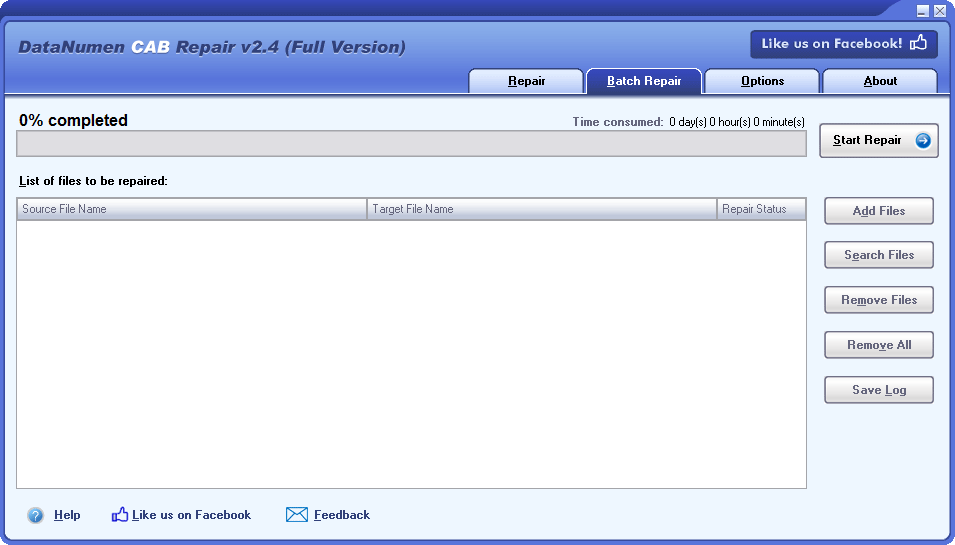
– Repair multiple CAB files efficiently.






Your program seemed to work perfectly as I was able to access the files
in windows explorer or an archive program.
Once again, thank you for your
Your program seemed to work perfectly as I was able to access the files
in windows explorer or an archive program.
Once again, thank you for your assistance with the program and I will
have no hesitation in recommending it.
Neville Harrip
Australia
Jan 17th, 2019
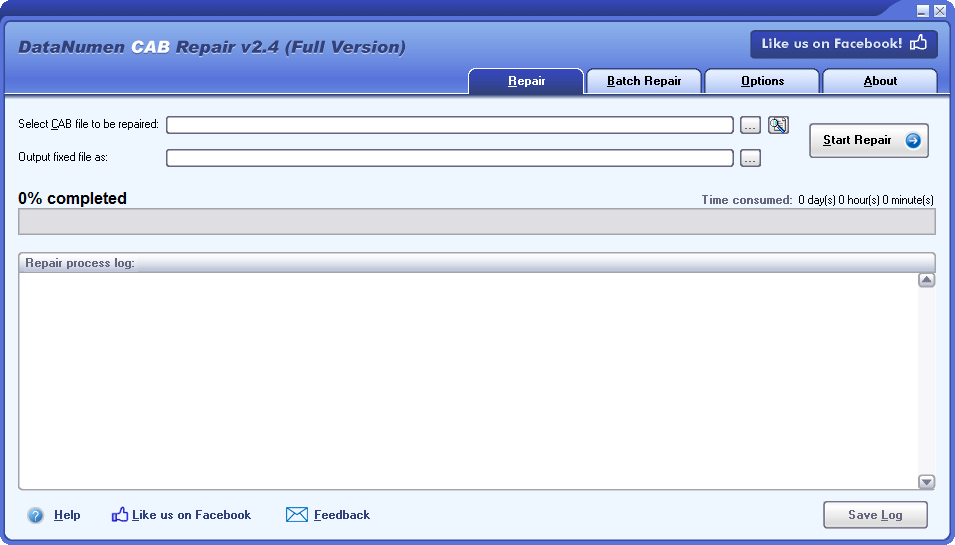
Start DataNumen CAB Repair.
Note: Before recovering any damaged or corrupt CAB files with DataNumen CAB Repair, please close any other applications that may modify the CAB file.
Select the damaged or corrupt CAB file to be repaired:

You can input the CAB filename directly or click the  button to browse and select the file. You may also click the
  button to find the CAB archive to be repaired on the local computer.
By default, DataNumen CAB Repair will save the fixed CAB file into a new file named xxxx_fixed.cab, where xxxx is the name of the source CAB file. For example, for source CAB file Damaged.cab , the default name for the fixed file will be Damaged_fixed.cab. If you want to use another name, then please select or set it accordingly:

You can input the fixed file name directly or click the button to browse and select the fixed file.
Click the  button, and DataNumen CAB Repair will start scanning and repairing the source CAB file. Progress bar

will indicate the repair progress.
After the repair process, if the source CAB file can be repaired successfully, you will see a message box like this:
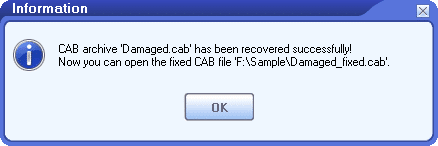
Now you can open the fixed CAB file with WinZip, WinRAR or other applications that support CAB files.
Archive data recovery suite, including recovery tools for corrupt Zip and SFX archives, RAR archives, Unix TAR archives, and Microsoft CAB archives.
Details
 DataNumen CAB Repair