

I try many of backup file, your software is working well, congratulation. Is efficient and easy to use.
Overview
Features
How to Recover
More Information
Related Products
Why DataNumen BKF Repair?

#1 Recovery
Rate

10+ Million
Users

20+ Years of
Experience

100% Satisfaction
Guarantee
Recover Much More than Our Competitors
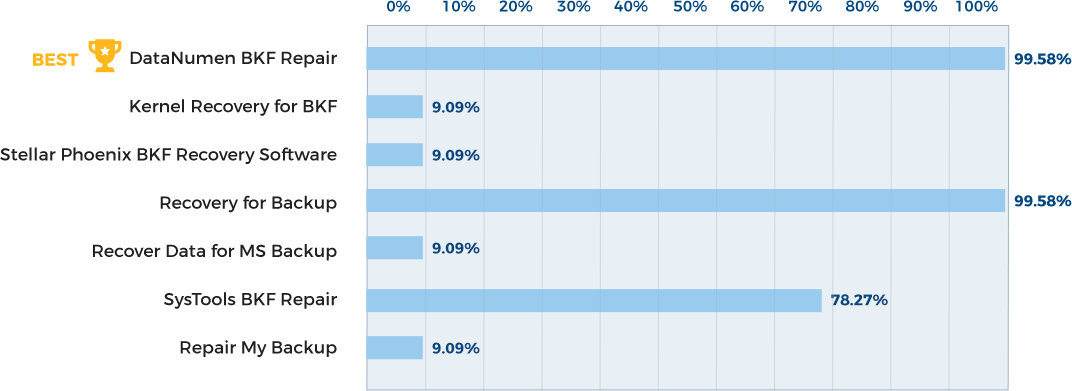
DataNumen BKF Repair vs. Recovery for Backup, SysTools BKF Repair, Kernel Recovery for BKF, etc.
Based on comprehensive tests, our BKF repair software has the best recovery rate, same as Recovery for Backup, and better than any other competitors! As the price of our BKF repair tool is much more cheaper than that of Recovery for Backup, our product has the best price/performance ratio.
Average Recovery Rate
Learn more about how DataNumen BKF Repair smokes the competition
Our Customers' Testimonials

Serge R
Paris, France
March 25, 2024
This software fixed my corrupt Windows backup file! After the scanning process, it recovered data smoothly. Also the support is fantastic!
Samppa Jokinen
Finland
July 25, 2016
I purchase this BKF file recovery tool to repair corrupt BKF files. It does a really good job! It recovered BKF files for me.
Jacoba Arntz
Netherlands
March 5, 2017
I encounter a Windows BKF file created by Windows NTBackup. But NTBackup refuses to restore the backup BKF file. With the help of your tool, I
I encounter a Windows BKF file created by Windows NTBackup. But NTBackup refuses to restore the backup BKF file. With the help of your tool, I recovered BKF file data in it. The quick scanning mode is enough for my file. And it can extract BKF file for me.
Liêm Tran
Vietnam
Feb 10, 2021
With this tool, I can recover Windows BKF files easily. It helps to save some huge data for me.
Yesterday I got a 2TB corrupt Windows backup file
With this tool, I can recover Windows BKF files easily. It helps to save some huge data for me.
Yesterday I got a 2TB corrupt Windows backup file from my customer, it is corrupt due to bad storage media. The customer said he cannot restore BKF file. With your file repair tool, I am able to extract all data from it.
Tuğba Avcı
Turkey
Nov 15, 2019
Needed to restore a Windows XP backup file. Your software worked wonders...
I will definately recommend!
Eric Seeds
IT Administrator
Cable Technology Laboratories
www.cabal.com
New Brunswick, NJ, USA
January 8, 2020
Dear Chen,
I have done as you suggested and it has worked! Thank you for helping me retrieve 10 years of work!!
Cheers,
Tim
Perth, Western Australia
Dear Sir,
Nevernind - got it now, link came via email too, and that one worked.
Thanks
Robert Fletcher
Marietta, GA, USA
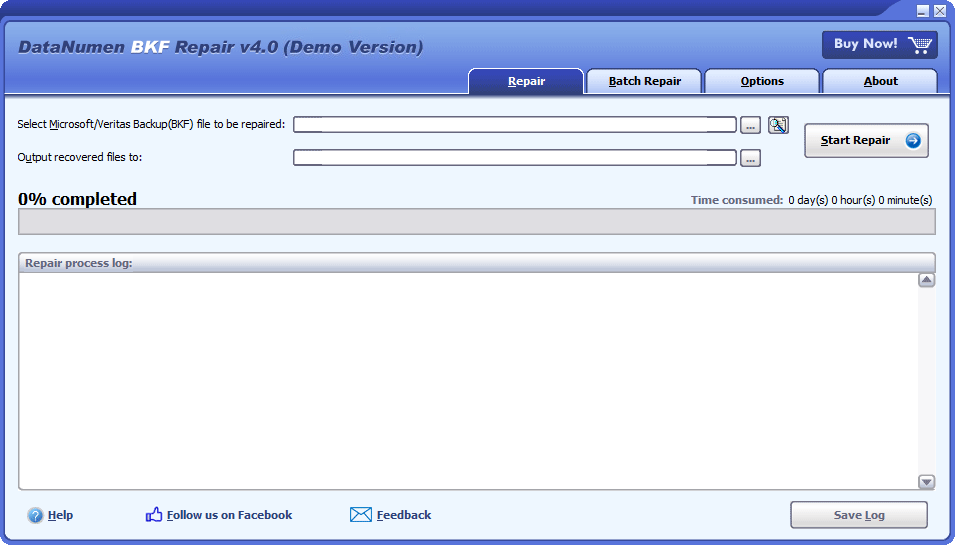
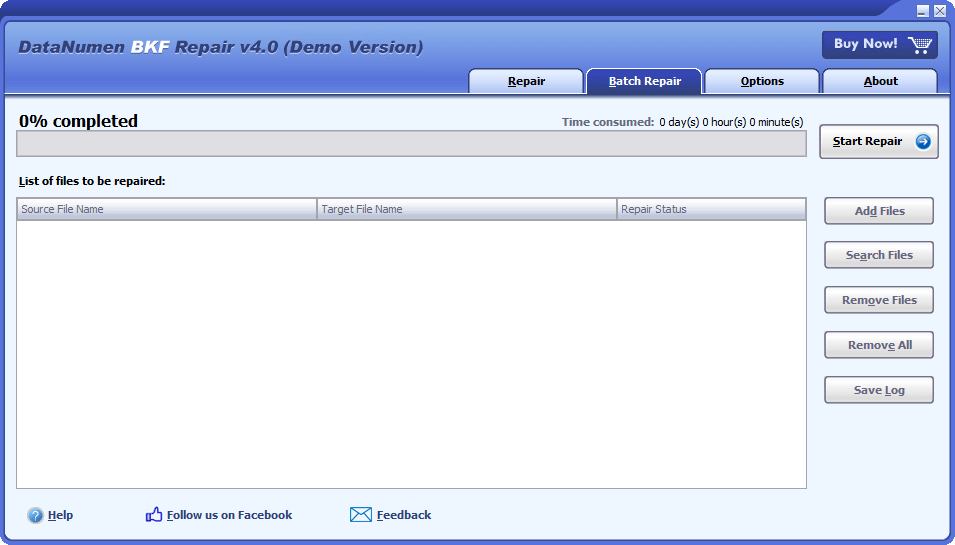
Extremely Simple Interface
Repair
Batch Repair
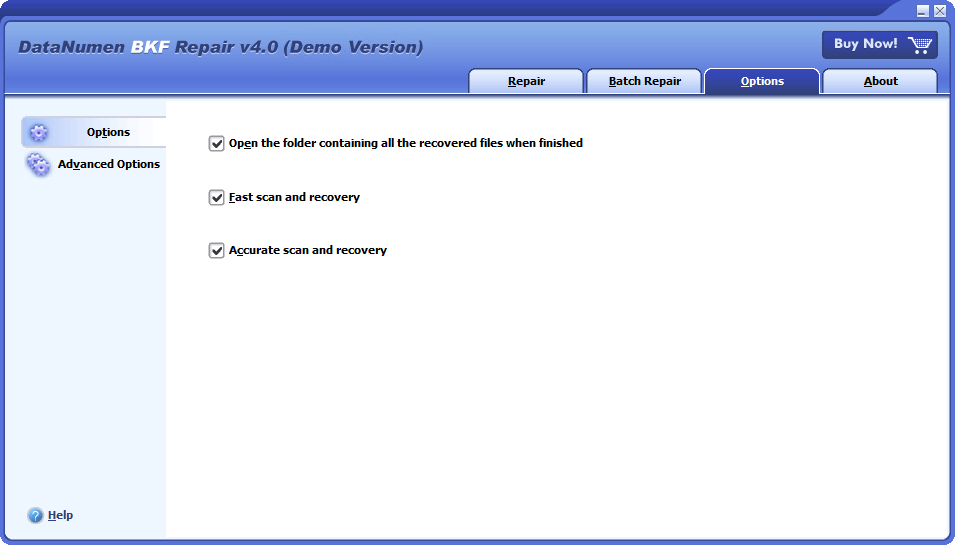
Options
Free Download20+ Years Of Experience
Buy Now100% Satisfaction Guarantee
Main Features
- Repair BKF files created with Windows 95, 98, ME, NT, 2000, XP and Server 2003 backup utility or NTBackup.
- Repair BKF files created with all versions of BackupAssist, Veritas Backup Exec, Veeam Backup & Replication, and all other tools compatible with BKF file format, under Windows OS, Netware, OS/2, or Mac OS.
- Recover dataset, volume, folder structure, and files in the BKF archive.
- Recover compressed BKF archives.
- Extract recovered data from the corrupt BKF backup file.
- Recover multi-dataset and multi-volume BKF archives.
- No administrator privileges are required to restore BKF files.
Free Download20+ Years Of Experience
Buy Now100% Satisfaction Guarantee
Using DataNumen BKF Repair to Recover Corrupt BKF Files
Start our BKF repair software:
Note: Before recovering any corrupt or damaged BKF file with our BKF repair tool, please close Microsoft Backup Utility and any other applications that may modify the BKF file.
Select the corrupt or damaged BKF file to be repaired:

You can input the BKF file name directly or click the  button to browse and select the file.
By default, our BKF recovery software will output the recovered BKF file data into a directory xxxx_recovered, where xxxx is the source BKF file name. For example, for file MyBackup.bkf , the default output directory will be MyBackup_recovered. You can also select or set the desired location:

You can input the directory name directly or click the button to browse and select the directory.
Click the  button, and our BKF recovery tool will start the scanning process, analyze the source BKF file, repair it, and extract data to the output directory. Progress bar

will indicate the repair progress.
After the recovery process, if the source BKF file can be repaired successfully, you will see a message box like this:
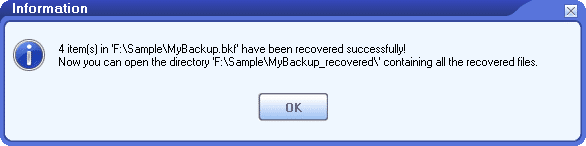
Now you can open the directory MyBackup_recovered containing all the recovered items in the BKF file.
More Information
A Deep Dive into Volkswagen’s Journey with DataNumen BKF Repair
UPS Optimizes Data Integrity with DataNumen BKF Repair: A Case Study
What is a BKF file?
BKF is a kind of backup file. It uses the Microsoft Tape Format (MTF). And it uses BKF as its file extension. Usually, BKF files are created by the built-in backup utility in Windows OS, such as Windows NTBackup. Some other apps, such as BackupAssist, Veritas Backup Exec, Symantec Veritas Backup Exec, and Veeam Backup & Replication also use such a file format to store the backup data.
Why a BKF backup file will get corrupt?
There are many reasons that will corrupt a BKF file, such as hard disk failure, software defects, viruses, power off during the backup process, unplugging an external hard disk during data transfer, etc. Normally you will notice file corruptions when you extract data from BKF files. Our BKF repair tool supports to recover data for all the BKF file corruption issues. This will help to reduce data losses.
Which kinds of backup files can be repaired?
Our BKF file recovery software supports to repair the following kinds of backup files:
- BKF files created by Windows backup utility or Windows NTBackup.
- BKF files created by all versions of BackupAssist, Veritas Backup Exec, Symantec Veritas Backup Exec, Veeam Backup & Replication, and all other utilities compatible with the BKF file format.
Which versions of Windows operating systems are supported?
Currently, our BKF recovery software supports all versions of Windows OS, including Windows XP, Windows Vista, Windows 7, Windows 8, Windows 8.1, Windows 10, and Windows Server 2003/2008/2012/2016/2019. Both 32bit and 64bit are supported.
Do you support to repair corrupt Zip files?
Our BKF recovery tool does not support to do so. You can use DataNumen Zip Repair to repair corrupt or damaged Zip files.
What is the difference between the demo version and the full version?
The demo version is a free version. It will report the list of the data items in the corrupt BKF backup file, including the file name, file extension, file size, volume, etc., but will not output them. You need to purchase the full version to get these files.
The demo version and the full version use the same recovery engine. So what you see from the demo version is what you will get from the full version.
If you want to recover a file, but cannot find it in the list of recoverable files generated by the demo version, then the file is beyond recovery and you cannot recover it via the full version, either.
Where can I download the free demo version?
You can download the free version by:
- Visit https://www.datanumen.com/bkf-repair/
- Click the “Free Download” button to download the free version of our BKF repair tool.
What are the requirements to install your BKF data recovery tool?
Below are the requirements for our BKF file recovery software:
- Intel Pentium compatible processors.
- Operating system: Windows 95/98/ME/NT/2000/XP/Vista/7/8/8.1/10 and Windows Server 2003/2008/2012/2016/2019.
- At least 10MB free disk spaces.
Do you support Windows 10 and 11?
Yes, we have tested our backup recovery tool on both Windows 10 and 11 and do not find any problems. However, the current official release only lists Windows 10 in the supported operating systems. We will list Windows 11 in the next release.
How long will it take to recover a BKF file?
The following factors will affect the time:
- BKF file size.
- The total count of items in the backup BKF file.
- If the items in the backup are compressed, then it will take more time to recover them.
- Hardware and software configuration of your computer system.
Moreover, our BKF recovery software has two scanning modes. You can change the following options to increase/decrease the time consumed in the scanning process:
- Click the Options tab.
- If the Fast scan and recovery option is checked, then our BKF file recovery tool will perform a faster scan and recovery on the corrupt BKF file. This option normally works for minor BKF file corruption issues. However, after the recovery, if some files are not recovered, then you can adjust the scanning mode by unchecking this option, and restart a more thorough scan and recovery on the source file.
Are there any special requirements for the output directory?
Yes, to make sure our tool can extract BKF file successfully, below are some requirements:
1. Enough free disk spaces for recovered data
- If the items in the BKF file are NOT compressed, then the free disk spaces should >= (original BKF file size) * 1.1.
- If the items in the BKF file are compressed, then the free disk spaces should >= (original BKF file size) * 5.
2. Do not use a network drive
Do not set the desired location of the recovered data to a network drive. Network drive will slow down the recovery process and cause data corruption.
Do you offer a search option so that I can search specific files in the BKF file?
Sorry but currently our BKF repair tool does not offer such an option. We have added this to our to-do list and will implement it in the future. You can subscribe to our newsletter to get notifications when we release new versions.
Is there any size limitation on the BKF file that can be recovered?
Our BKF recovery tool can repair corrupt BKF files as large as 16777216 TB. In the real world, you will not encounter such a large file. So, actually, there are no size limitations on the source corrupt BKF files.
Will you output a fixed BKF file, or extract data inside it?
Our file repair tool will extract recovered BKF file data so that you can use them directly. It will extract all the data items, including datasets, volumes, folders, and files.
Do you have screenshots of your tool?
Yes, you can see screenshots of our BKF repair software by :
- Visiting https://www.datanumen.com/bkf-repair/
- In the Overview tab, scroll down to the Extremely Simple Interface section. You can see the screenshots of the user interfaces.
- You can also click the How to Recover tab and see a step-by-step guide and screenshots on how to use our tool.
Can you repair BKF files on Mac systems?
Yes, you can do so to repair corrupt BKF files on Mac:
- Copy the BKF file from Mac system to a PC/Windows system.
- Install our BKF recovery tool on the PC/Windows system.
- Use our tool to repair the corrupt BKF file.
- Copy the recovered data back to the Mac system.
Do your BKF recovery tool support to extract only selected data items in the corrupt BKF file?
Sorry, but currently our BKF repair tool does not support such a feature.
Will you recover all data in the BKF file?
Our backup recovery tool will try its best to get all recoverable data for you. However, if your BKF file is badly corrupt, then some data may beyond recovery. To reduce data loss, we have the following recommendations:
- Back up your data regularly.
- Check your backup files regularly. Some backup utilities can verify the integrity of the backup data.
- Store redundant backup files in different locations, and make sure there is at least 100 km between these locations. Thus if something happens in one location, such as an earthquake, there will still be other copies available in other locations. We recommend you to store one set of backups in your office, and a copy set in online Cloud storage, such as Google Drive.
Your BKF file recovery software fails to recover my BKF file. What to do next?
Please contact our support team. We will help to analyze your problem and backup file manually. We will try our best to reduce data loss in your case.
Related Products
DataNumen Archive Repair
Archive data recovery suite, including recovery tools for corrupt Zip and SFX archives, RAR archives, Unix TAR archives, and Microsoft CAB archives.
Details
 DataNumen BKF Repair