

My mdb file cannot be opened. With your software, I am able to fix it again.
Overview
Features
How to Recover
More Information
Related Products
Why DataNumen Access Repair?

#1 Recovery
Rate

10+ Million
Users

20+ Years of
Experience

100% Satisfaction
Guarantee
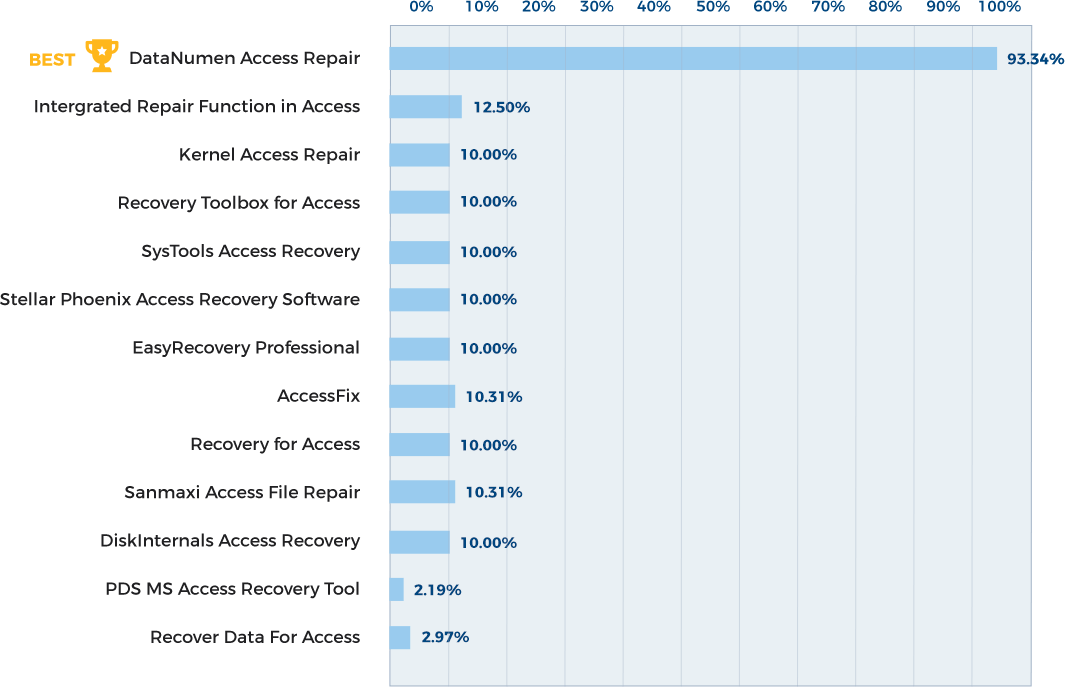
Recover Much More than Our Competitors
DataNumen Access Repair vs. Kernel Access Repair, EasyRecovery Professional, Stellar Phoenix Access Recovery Software, etc.
Average Recovery Rate
Learn more about how DataNumen Access Repair smokes the competition
Our Customers' Testimonials

Ebenezer West
Egypt
April 25th, 2020
Some of my Access database files are corrupt. I try to use "Compact and Repair Database" feature in MS Access but not working. Your repair tool helps
Some of my Access database files are corrupt. I try to use "Compact and Repair Database" feature in MS Access but not working. Your repair tool helps to recover my data!
Thanks a lot!
Thora Hampton
United States
Nov 25th, 2020
Thank you for your help.
The application works fine. The base is also OK.
Marcin K
e-automatyk
ul. Leśna 17C, 62-006 Gruszczyn
Dec 23th, 2020
thanks. The product worked well.
Anthony Latos
Califonia, USA
In fact I found your solution in the first 10 mins!
Anyway even though at first I thought this was a lot of money to spend on a small program,
In fact I found your solution in the first 10 mins!
Anyway even though at first I thought this was a lot of money to spend on a small program, DataNumen Access Repair did recover our database so now I'm very happy ;)
James Murphy
Anything Online
Wow your guys software is awesome I downloaded the trial software and it was able to show me all of the tables that I had in exact. This sofware
Wow your guys software is awesome I downloaded the trial software and it was able to show me all of the tables that I had in exact. This sofware rocks and helped me so much.
Ruff Dog
Thanks for getting back to me. I've since bought the software and got the link to download the software straight away. I installed it and it worked
Thanks for getting back to me. I've since bought the software and got the link to download the software straight away. I installed it and it worked brilliantly!
Many Thanks
Kevin O'Leary
FETAC
Dublin, Ireland
Saved my Bacon! Thanks!
Brian
Atlanta, Georgia, USA
DataNumen Access Repair recovers more data than any other product I have used. It has helped me save many databases that have been corrupted. I am
DataNumen Access Repair recovers more data than any other product I have used. It has helped me save many databases that have been corrupted. I am very pleased to have found this product.
Margaret Messick
Costume Inventory Resources
Davis, CA, USA
June 16, 2015
your tool is the best i was able to repair an access file for the university for personal use and im gratefull
Richard Network Manager Fixsa
Santo Domingo, Dominican Republic
Dec 30th, 2018
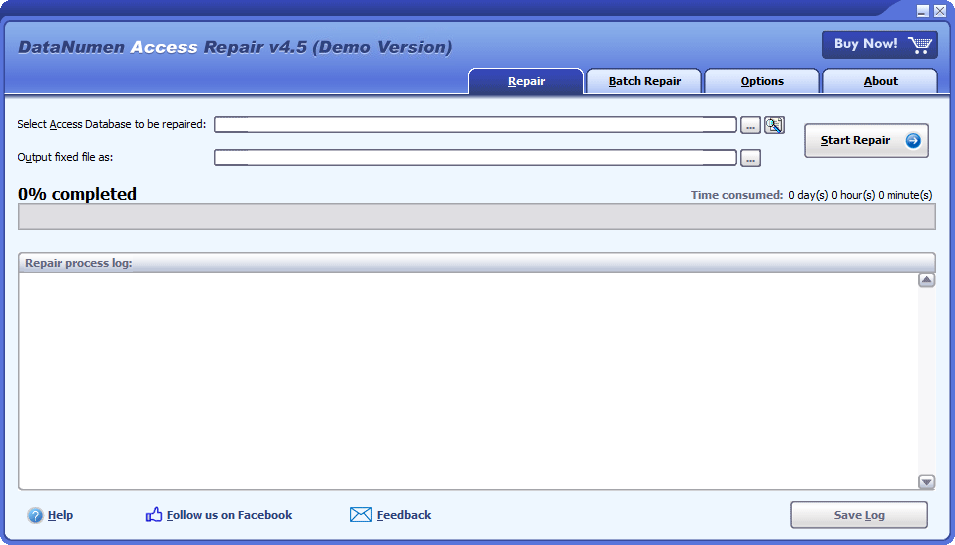
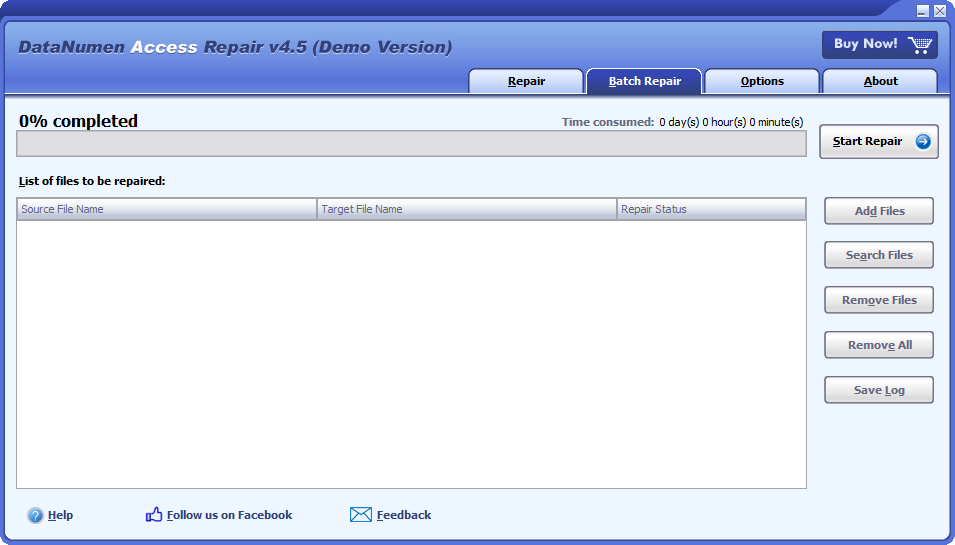
Extremely Simple Interface
Repair
Batch Repair
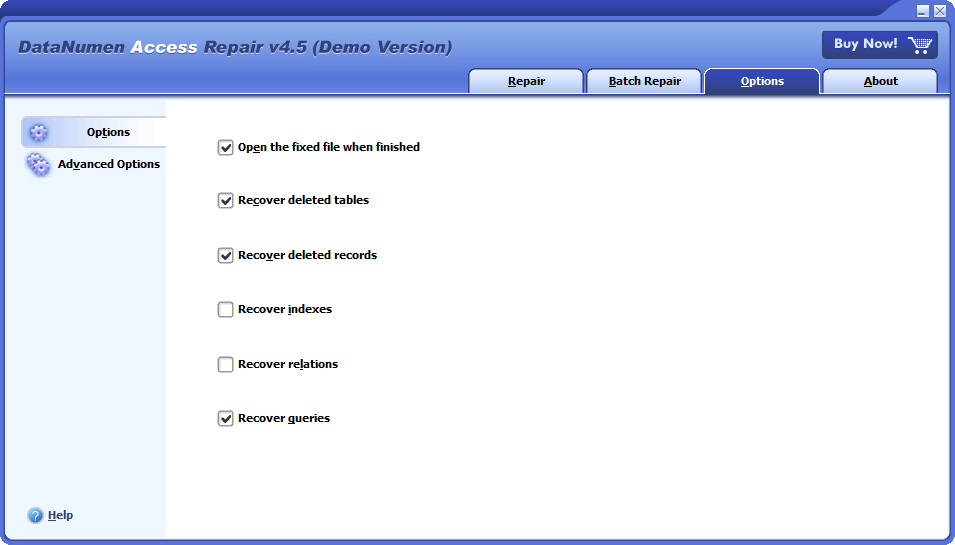
Options
Solution for Following Common Errors Due to Access Database Corruption

- Unrecognized Database Format
- The database ‘filename.mdb’ needs to be repaired or isn’t a database file.
- The Microsoft Jet database engine could not find the object ‘xxxx’.
- Record(s) cannot be read; no read permission on ‘xxxx’.
Free Download20+ Years Of Experience
Buy Now100% Satisfaction Guarantee
Main Features
- Repair Access mdb and accdb database files created by Microsoft Access 95, 97, 2000, 2002(XP), 2003, 2007, 2010, 2013, 2016, 2019, 2021, Access for Office 365 and Microsoft 365.
- Recover the structures and records of the tables in MS Access databases.
- Recover MEMO fields and OLE fields.
- Recover deleted tables and records in Access databases.
- Recover autonumber fields.
- Recover queries, including SQL commands such as “Delete”, “Insert into” and “Update”.
- Recover other database objects, including indexes and relations.
- Recover password-encrypted Access databases.
Free Download20+ Years Of Experience
Buy Now100% Satisfaction Guarantee
Recover Corrupt Access Databases with DataNumen Access Repair
Begin DataNumen Access Repair.
Note: Please shut down Microsoft Access before you start the recovery process for any damaged database file. You should also close other applications that could potentially modify the Access database file.
After that, choose the corrupt or damaged Access mdb/accdb file that you want to repair:

You can enter the file name directly or browse for it by clicking the  button.
DataNumen Access Repair will automatically save the recovered data under a file titled xxxx_fixed.mdb. The xxxx represents the name of the damaged source file. So, the fixed file would be MyAccessDB_fixed.mdb if the name of the damaged file was MyAccessDB.mdb. However, you can rename it if you would like:

You can directly enter the name of the file or use the button to choose the file by browsing.
Next, you can use the  button to instruct DataNumen Access Repair to begin scanning and repairing the corrupt Access database file. The progress bar will look like this:

A message box that looks like this will appear if the file was capable of being repaired:
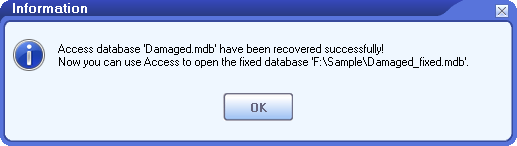
Finally, after hitting “OK” you should be able to open the repaired mdb/accdb database with Microsoft Access or a similar application.
More Information
Reviving Critical Data: How HSBC Leveraged DataNumen Access Repair for Seamless Recovery
Reviving Critical Data: How DataNumen Access Repair Rescued Dr Pepper Snapple Group’s Database
Strengthening Databases with DataNumen Access Repair: A Case Study at Wells Fargo
Charter Communications Harnesses the Potential of DataNumen Access Repair: A Case Study
Honeywell Enhances Database Management with DataNumen Access Repair: A Case Study
RBC Revitalizes Data Management via DataNumen Access Repair: A Case Study
Unilever Optimizes Database Management with DataNumen Access Repair: A Case Study
Monsanto Salvaged Critical Research Data using DataNumen Access Repair: A Case Study
PepsiCo’s Success with DataNumen Access Repair: A Case Study
Is there a free way to fix a corrupted Access database?
Yes, MS Access has a Compact and Repair utility. You can use it to repair a database with minor corruptions, as below:
- Close all other applications that may access the corrupt database.
- Start Access.
- On the templates page, double-click Blank Database to create a blank database.
- Then you will be able to see the menu items appear at the top of Access.
- Click File > Close to close the blank database.
- Click Database Tools > Compact and Repair Database
- In the pop-up Database to Compact From dialog box, select the corrupt MS Access database to be repaired.
- Then, in the pop-up Compact Database Into dialog box, select the location and name of a new database file.
- Then Access will compact and repair the corrupt database, and output the recovered data to the new file as specified in step 8.
The “Compact and Repair Database” function can only fix corruption in tables. If the compiled VBA module codes in your database are corrupt, it will not work. You can try the following way to decompile the VBA codes and fix the corruption:
- Back up your original database.
- Search for “MSACCESS.EXE” on your local computer.
- Invoke MSACCESS.EXE from its location, together with the /decompile command and the database to be decompiled. For example, for Access 2019, the command will look like this:”C:\Program Files (x86)\Microsoft Office\root\Office16\MSACCESS.EXE” “D:\MyCorruptDatabase.mdb” /decompile
- Then Access will open the database, discard all the compiled modules, and keep the source VBA codes only.
- Click File > Info > Compact & Repair Database, Access will compact and repair the current database for you.
“Compact and Repair Database” function will invoke the CompactDatabase method in Microsoft Jet database engine, which will try to open the corrupt database before compacting it. In some cases, the method may not be able to open the database so cannot proceed. In such a case, you can try a stand-alone Jet compact utility, JETCOMP.exe. It will not try to open the database before compacting. So may work for your cases.
For badly damaged databases, the above methods will not work. You need to use DataNumen Access Repair to do the task.
What are your tool’s advantages over other similar tools?
There are many similar Access database repair tools in the market, such as Stellar Repair for Access. Even MS Access has a built-in function which can repair Access database files with minor corruptions. However, our tool performs much more better than all other competitors in the market.
Which types of database objects can be recovered by your product?
The current version of DataNumen Access Repair supports to recover all tables, records, indexes, queries and relationships in the Access database. Other database objects, such as forms, VBA modules, macros are not supported yet.
Which versions of Access are supported?
Our Access data recovery tool supports to repair Access database files generated by Microsoft Access 95, 97, 2000, 2002(XP), 2003, 2007, 2010, 2013, 2016, 2019, and Access for Office 365. Both the mdb file and accdb file are supported.
When repairing the Microsoft Access database, our tool does not require Access to be installed on the local computer. It can generate the fixed Access database in Access 95/97 or Access 2000 format, which can be opened by Access 95+ versions.
How long does it take to repair a corrupt Access database file?
There are many factors that may affect the time consumed in the file repair process. Below we outline some of the most important ones:
- The file size. When dealing with large files, the duration of the scanning and analysis process may increase significantly because our program meticulously examines each byte in your file. This can be a quite time-consuming task. To illustrate, repairing a 2GB Access database typically requires around an hour.
- The hardware and software configurations of your computer system. A computer with a faster CPU, more cores and more memory will normally perform faster.
- Close all other apps when repairing. It will consume a lot of time and resources to repair a large Access database file. Therefore, it is recommended to close any other apps when using DataNumen Access Repair to repair the file.
Is it necessary to close Microsoft Access in the repair process?
Yes, it is recommended to do so when you repair your corrupt Access database file.
In fact, throughout the repair process, you may occasionally observe Microsoft Access starting up in the background, and subsequently shutting down on its own. This behavior is completely expected because our tool will utilize the Jet database engine within Microsoft Access, if it’s installed on the local machine.
What are the requirements of your tool?
Below are the software requirements for our data recovery tool:
Windows 95/98/ME/NT/2000/XP/Vista/7/8/8.1/10 or Windows Server 2003/2008/2012/2016/2019. Both 32bit and 64bit systems are supported.
Microsoft Office Access is not required to be installed on the local computer.
Why my Access file gets corrupt?
There are many reasons that will cause Access database corruption, such as power failure, hard disk/drive failure, software bugs, virus infection, ransomware attack.
The best solution to prevent data loss is to backup your database regularly. Moreover, having a professional Access database recovery tool in hand is also very important, as you can use it to repair corrupt files as soon as possible.
Is it possible to save the database in Access 95/97 format?
Yes, please do as follows:
- Start our file repair tool.
- Select the “Options” tab
- Click “Advanced Options” tab in the left panel.
- Set “Output database format” to “MS Access 95/97 format”
5. Repair the corrupt Access database. - The fixed database will be saved in Access 95/97 format.
Can you recover deleted tables or records in an Access database?
Yes, by default, our tool will recover deleted records and tables in the source Access database. If you find the deleted records are not recovered, then please do as follows:
- Start our tool.
- Click “Options” tab.
- Check “Recover deleted tables” to recover deleted tables.
- Check “Recover deleted records” to recover deleted records.
- Re-repair the corrupt Access database.
- You will see the deleted tables and records are recovered. If not, then the deleted tables or records are beyond recovery, due the file corruption.
Related Products
DataNumen Word Repair
Repair and recover corrupt Microsoft Word documents (.doc and .docx files).
Details
DataNumen Excel Repair
Repair and recover corrupt or damaged Microsoft Excel xls, xlw and xlsx files.
Details DataNumen Access Repair