
在今天的文章中,我們想向您展示兩種在 Word 文檔中批量更改文本為上標或下標的方法。
有時,我們需要將 Word 文件中的某些文字變更為上標或下標,尤其是在存在多個相同文字的情況下。在這種情況下,批量替換是最需要的。因此,我們為您提供兩種快速完成此任務的方法。
方法1:使用“查找和替換”功能
在接下來的內容中,我們將使用示例“DataNumen Word Repair v2.5”作為我們的演示。 我們的目標是取代“v2.5”作為下標。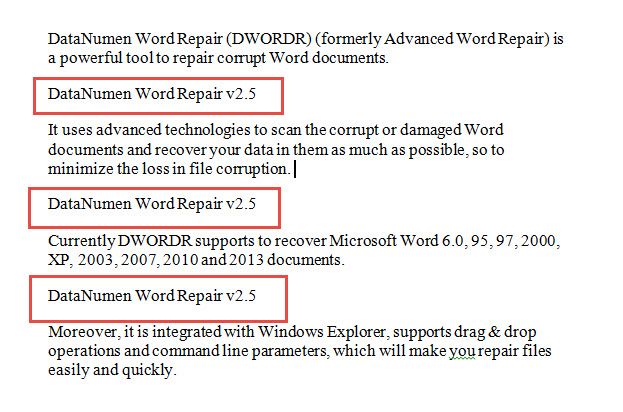
- 首先,點選「首頁」標籤。
- 接下來單擊“替換”以打開“查找和替換”對話框。

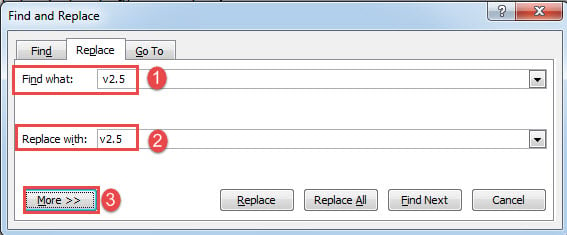
- 首先在“查找內容”文本框中輸入“v2.5”。 不要忘記在文本前輸入一個空格。
- 然後在“替換為”文本框中輸入“v2.5”。 這次文本前沒有空格。
- 接下來單擊“更多”按鈕以展開更多選項。

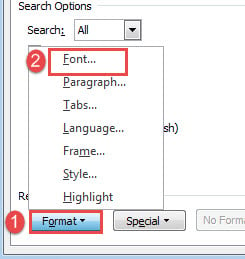
- 現在單擊“格式”並選擇“字體”。

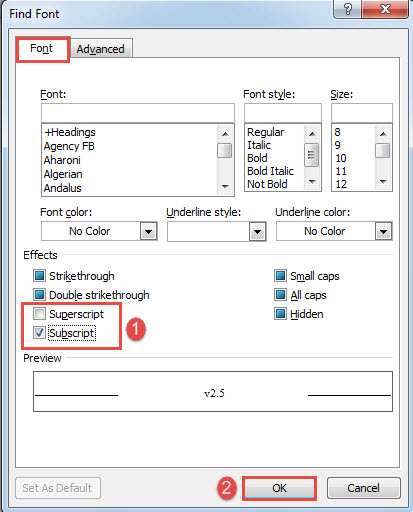
- 在“查找字體”對話框中,選中“上標”或“下標”框。
- 然後單擊“確定”。

- 最後單擊“全部替換”按鈕。


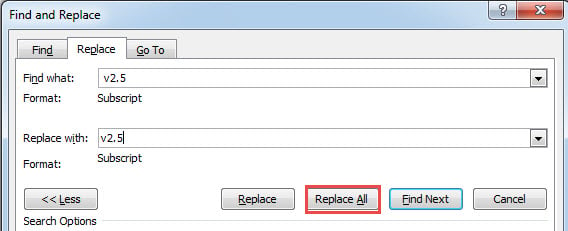
你可以在這裡查看效果: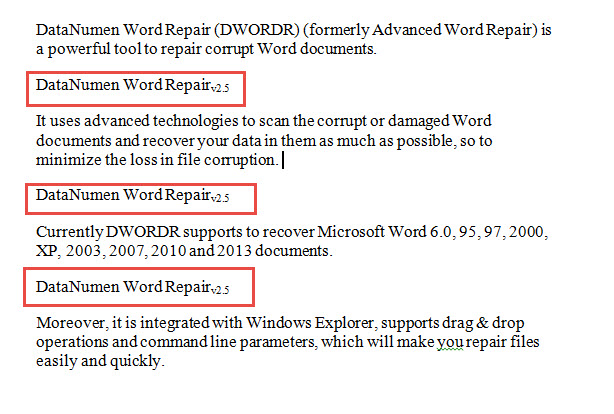
方法二:運行Word宏批量替換
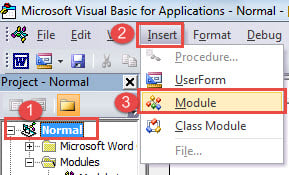
- 首先,按“Alt+F11”觸發 VBA 編輯器。
- 然後單擊“普通”項目和“插入”選項卡。
- 在下拉菜單上選擇“模塊”。

- 接下來雙擊新模塊打開編碼區域。
- 在其中粘貼以下宏:
Sub ReplaceTheTextAsSubscript()
  Dim strSelectText As String
  Dim strReplaceText As String

  strSelectText = InputBox("Enter the text you want to search", "Select text", "For example: v2.5")
  strReplaceText = InputBox("Enter the text you want to replace with", "Replace text", "For example:v2.5")

  Selection.Find.ClearFormatting
  Selection.Find.Replacement.ClearFormatting
  With Selection.Find.Replacement.Font
    .Superscript = False
    .Subscript = True
  End With
  With Selection.Find
    .Text = strSelectText
    .Replacement.Text = strReplaceText
    .Forward = True
    .Wrap = wdFindContinue
    .Format = True
    .MatchCase = False
    .MatchWholeWord = False
    .MatchWildcards = False
    .MatchSoundsLike = False
    .MatchAllWordForms = False
  End With
  Selection.Find.Execute Replace:=wdReplaceAll
End Sub
- 點擊“運行”。

- 首先是“選擇文本”框。 輸入您的查找文本並單擊“確定”。 在這種情況下,鍵入“v2.5”。

- 然後是“替換文本”框。 在那裡輸入替換文本,然後單擊“確定”。 輸入“v2.5”。

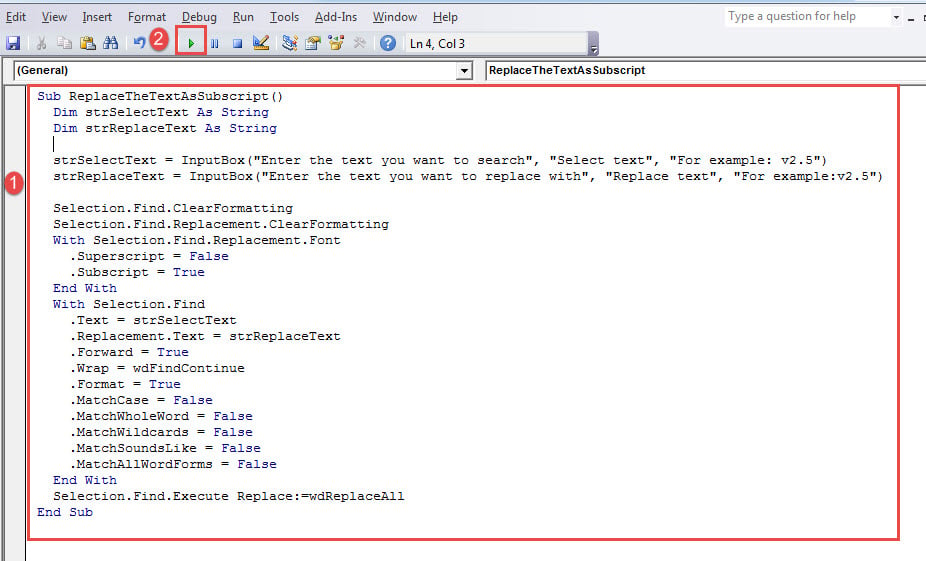
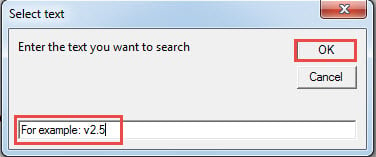
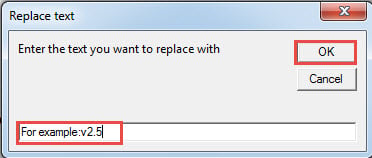
如果需要將文本更改為上標,可以使用此宏:
Sub ReplaceTheTextAsSuperscript()
  Dim strSelectText As String
  Dim strReplaceText As String

  strSelectText = InputBox("Enter the text you want to search", "Select text", "For example: v2.5")
  strReplaceText = InputBox("Enter the text you want to replace with", "Replace text", "For example:v2.5")

  Selection.Find.ClearFormatting
  Selection.Find.Replacement.ClearFormatting
  With Selection.Find.Replacement.Font
    .Superscript = True
    .Subscript = False
  End With
  With Selection.Find
    .Text = strSelectText
    .Replacement.Text = strReplaceText
    .Forward = True
    .Wrap = wdFindContinue
    .Format = True
    .MatchCase = False
    .MatchWholeWord = False
    .MatchWildcards = False
    .MatchSoundsLike = False
    .MatchAllWordForms = False
  End With
  Selection.Find.Execute Replace:=wdReplaceAll
End Sub
修復文檔錯誤
對我們大多數人來說,單字錯誤並不陌生。單字崩潰可能導致… 損壞的docx 文件。 要解決此類問題,您需要使用合格且專業的工具來恢復損壞的文檔。
作者簡介:
陳薇薇(Vera Chen)是 DataNumen,Inc.是數據恢復技術的全球領導者,包括 損壞的xlsx 以及 pdf 維修軟件產品。 欲了解更多信息,請訪問 萬維網。datanumen.COM