
在本文中,我們將為您提供2種快速方法來查找或刪除Word中包含特定文本的句子。
眾所周知,我們可以使用 Word 中的「尋找和取代」功能輕鬆找到特定字詞的所有出現位置。然後,我們可以輕鬆地選取、取代或刪除它們。如您所見,目標是單字或短語。然而,今天我們很高興地向您介紹一種使用巨集來尋找或刪除包含特定文字的句子的方法。
方法1:查找或刪除包含特定文本的句子
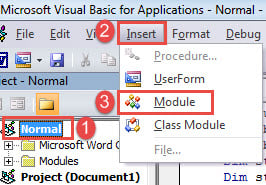
- 首先,按“ Alt + F11”以在Word中觸發VBA編輯器。
- 接下來,單擊“正常”創建一個新模塊。
- 然後單擊“插入”,然後選擇“模塊”以獲取一個新模塊。

- 並雙擊打開模塊。
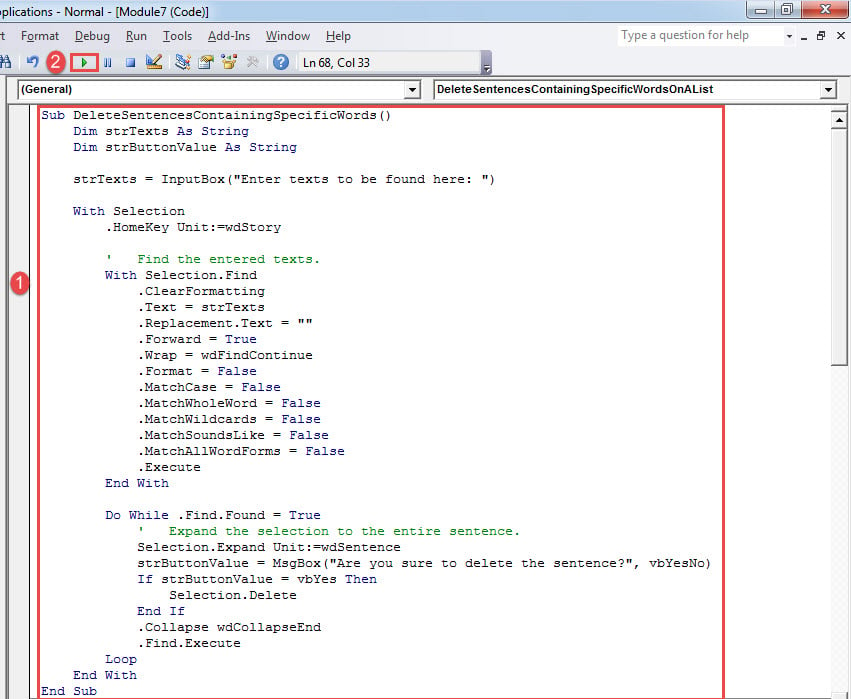
- 現在粘貼以下代碼:
Sub DeleteSentencesContainingSpecificWords()
  Dim strTexts As String
  Dim strButtonValue As String

  strTexts = InputBox("Enter texts to be found here: ")

  With Selection
    .HomeKey Unit:=wdStory

    '  Find the entered texts.
    With Selection.Find
      .ClearFormatting
      .Text = strTexts
      .Replacement.Text = ""
      .Forward = True
      .Wrap = wdFindContinue
      .Format = False
      .MatchCase = False
      .MatchWholeWord = False
      .MatchWildcards = False
      .MatchSoundsLike = False
      .MatchAllWordForms = False
      .Execute
    End With

    Do While .Find.Found = True
      '  Expand the selection to the entire sentence.
      Selection.Expand Unit:=wdSentence
      strButtonValue = MsgBox("Are you sure to delete the sentence?", vbYesNo)
      If strButtonValue = vbYes Then
        Selection.Delete
      End If
      .Collapse wdCollapseEnd
      .Find.Execute
    Loop
  End With
End Sub
- 接下來單擊“運行”。

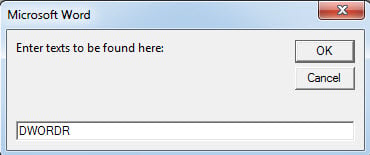
- 將出現一個輸入框,要求您輸入文本。 只需鍵入所有句子包含的通用文本即可。 點擊“確定”。

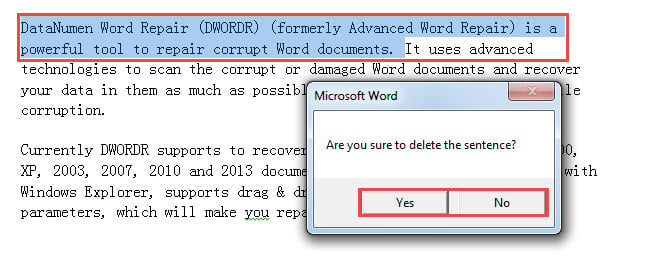
- 然後,您將看到一個句子,其中包含選定的文本,並帶有提示消息框。 單擊“是”刪除該句子,單擊“否”保留該句子。

- 確認後,選取下一句包含指定文字的句子。同時,也會彈出確認框。也就是說,該巨集會引導您遍歷整個文檔,查找目標句子,並每次都要求您確認。
方法2:查找或刪除列表中包含任何文本的句子
使用方法1中的宏,您一次只能搜索一個單詞或短語。 當然,您可以重複運行宏以搜索找到單詞或短語的多個實例。 為了滿足多次搜索的需要,我們將為您提供另一個宏。
- 首先將所有目標文字放入一個新文件中。確保每段文字佔據一個段落,段落末尾不要有空格。關閉並儲存文件。
- 接下來,使用方法1中的確切步驟安裝並運行宏。
- 然後用這個替換宏:
Sub DeleteSentencesContainingSpecificWordsOnAList()
  Dim objListDoc As Document, objTargetDoc As Document
  Dim objParaRange As Range
  Dim objParagraph As Paragraph
  Dim strFileName As String, strButtonValue As String
  Dim dlgFile As FileDialog

  Set dlgFile = Application.FileDialog(msoFileDialogFilePicker)

  With dlgFile
    If .Show = -1 Then
      strFileName = .SelectedItems(1)
    Else
      MsgBox "No file is selected! Please select the target file."
      Exit Sub
    End If
  End With
  Set objTargetDoc = ActiveDocument
  Set objListDoc = Documents.Open(strFileName)
  objTargetDoc.Activate

  For Each objParagraph In objListDoc.Paragraphs
    Set objParaRange = objParagraph.Range
    objParaRange.End = objParaRange.End - 1

    With Selection
      .HomeKey Unit:=wdStory

      '  Find target words.
      With Selection.Find
        .ClearFormatting
        .Text = objParaRange
        .MatchWholeWord = True
        .MatchCase = False
        .Execute
      End With

      '  Expand the selection to the entire sentence.
      Do While .Find.Found
        Selection.Expand Unit:=wdSentence
        strButtonValue = MsgBox("Are you sure to delete the sentence?", vbYesNo)
        If strButtonValue = vbYes Then
          Selection.Delete
        End If
        .Collapse wdCollapseEnd
        .Find.Execute
      Loop
    End With
  Next objParagraph
End Sub
- 現在將打開“瀏覽”窗口。 選擇剛剛保存的文檔,然後單擊“打開”。
- 以下過程與方法1相同。
處理損壞文件的方法
寶貴數據的丟失絕對是災難性的。 它甚至可能危及您的業務。 為避免這種挫敗感,您需要掌握 字詞修復 工具盡快。 這樣的工具將幫助您贏得文檔損壞的勝利。
作者簡介:
陳薇薇(Vera Chen)是 DataNumen,Inc.是數據恢復技術的全球領導者,包括 修復Excel 以及 pdf 維修軟件產品。 欲了解更多信息,請訪問 萬維網。datanumen.COM