
1. Inledning
Papperskorgen är Windows inbyggda skyddsnät för raderade filer. Så länge en fil fortfarande finns i den tar det bara några få klick att återställa den. Den här guiden förklarar hur du återställer raderade filer från papperskorgen i Windows, inklusive filer på externa platser, nätverksplatser och OneDrive-synkroniserade platser.
1.1 Vad den här guiden omfattar
- Återställa filer som fortfarande finns i papperskorgen
- Återställa raderade filer till deras ursprungliga plats
- Hämta raderade filer till en ny plats när den ursprungliga mappen saknas
1.2 Vad den här guiden inte täcker
- Filer raderade med shift + Radera, som helt kringgår papperskorgen
- Filer som raderats eller tömts från papperskorgen. Kontrollera i så fall Denna guide för att återställa filerna.
- Filer som överskred lagringsgränsen för papperskorgen och raderades permanent
2. Återställ raderade filer från papperskorgen
Om filen raderades från en lokal enhet med Radera tangenten eller högerklicka Radera kommandot går den direkt till papperskorgen. Återställ den med följande 3 steg:
2.1 Öppna papperskorgen
Använd någon av följande metoder:
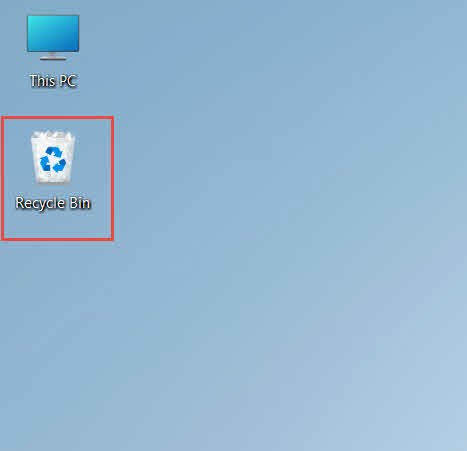
- Dubbelklicka på Papperskorgen korgen~~POS=HEADCOMP ikonen på skrivbordet

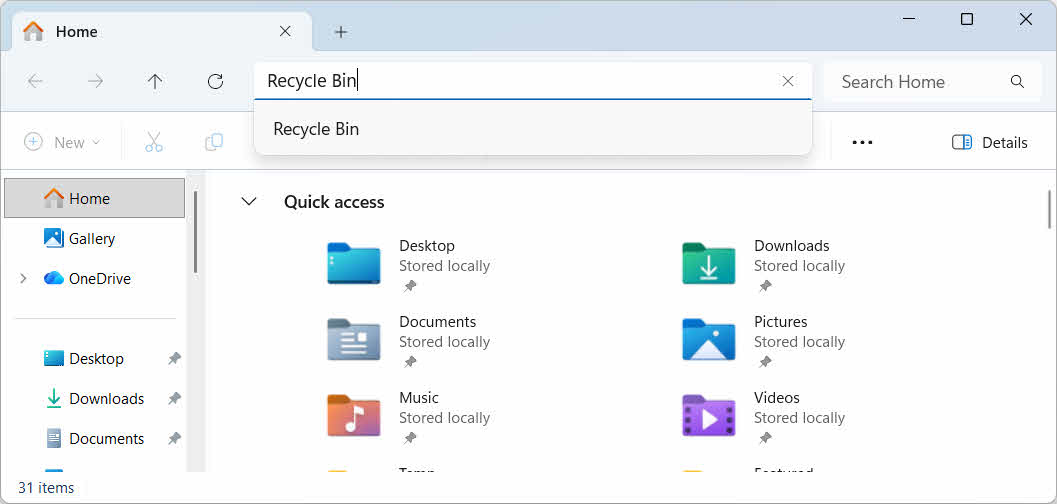
- Öppna Utforskaren och ange Papperskorgen korgen~~POS=HEADCOMP i adressfältet

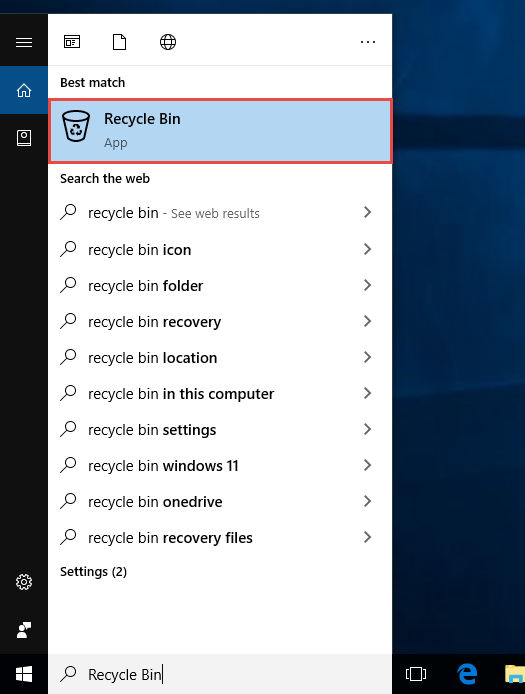
- Typ Papperskorgen korgen~~POS=HEADCOMP i Windows Sök och välj det från resultaten

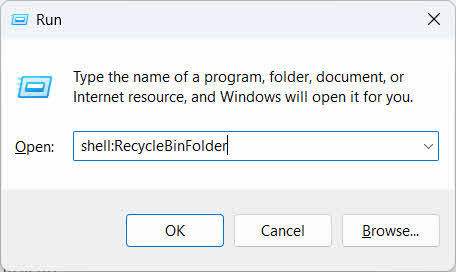
- Klicka Vinna + R, Typ skal:PapperskorgenMappoch tryck på ange

2.2 Hitta den borttagna filen eller mappen
När papperskorgen är öppen, leta reda på de önskade objekten med någon av dessa metoder:
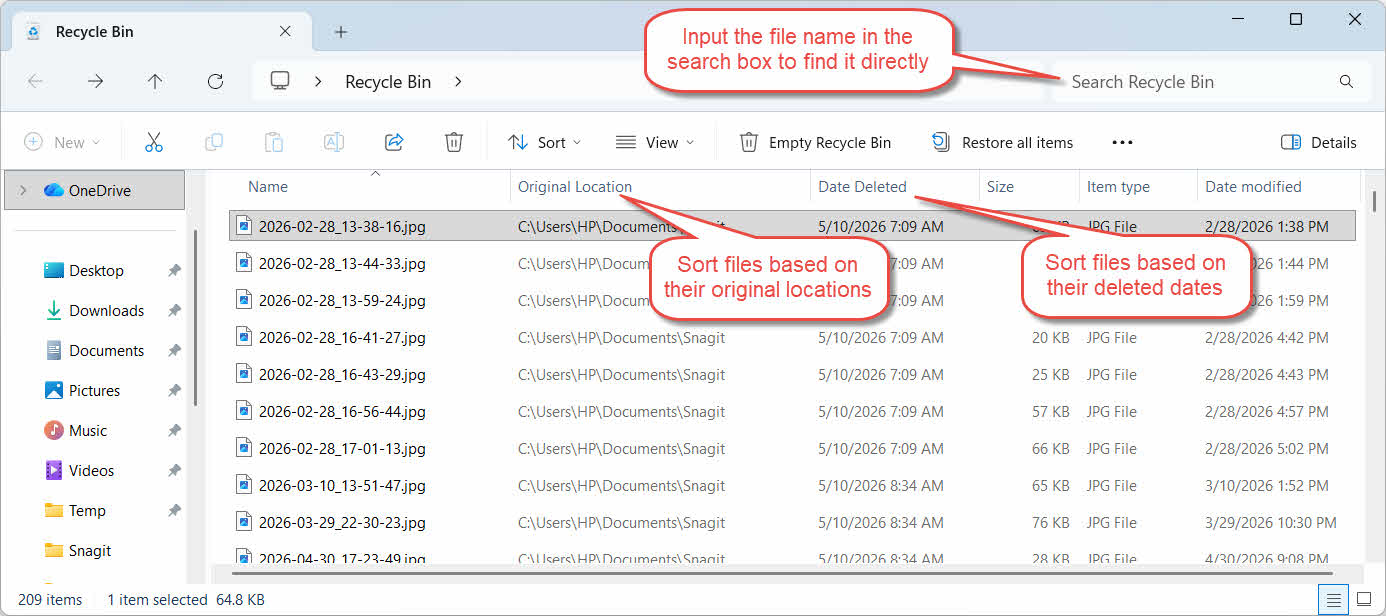
- Skriv filnamnet i sökfältet i det övre högra hörnet
- Klicka på Datum borttaget kolumnrubrik för att sortera efter de senaste borttagningarna
- Kontrollera Ursprunglig plats kolumnen för att bekräfta att filen kom från den mapp du förväntar dig
2.3 Återställ filer eller mappar
Så här återställer du ett eller flera objekt:
- Välj en enskild fil eller håll ned ctrl och klicka för att välja flera filer, eller håll shift och klicka för att välja ett intervall
- Högerklicka på markeringen och välj återställa
- Öppna originalmappen för att bekräfta att filen är tillbaka

Om du vill återställa alla objekt i papperskorgen på en gång klickar du på Återställ alla objekt i verktygsfältet utan att först välja någon enskild fil.
3. Återställ raderade filer från papperskorgen till en annan plats
Ocuco-landskapet återställa kommandot returnerar alltid en fil till dess ursprungliga mapp. I vissa situationer måste den flyttas någon annanstans istället.
3.1 När du bör använda den här metoden
- Den ursprungliga mappen finns inte längre
- En ny fil med samma namn finns redan i den ursprungliga mappen
- Du har inte behörighet att komma åt originalmappen
- Du är inte säker på vilken mapp filen kommer ifrån
- Du vill granska filen innan du lägger tillbaka den på sin ursprungliga plats
3.2 Dra eller klipp ut filen ur papperskorgen
Så här flyttar du en fil från papperskorgen till en valfri mapp:
- Öppna papperskorgen
- Välj den fil eller mapp som ska återställas.
- Använd någon av följande metoder för att flytta filen eller mappen till målmappen:
- Dra den direkt till målmappfönstret
- Klicka ctrl + X för att klippa ut den, öppna målmappen och tryck på ctrl + V att klistra in det
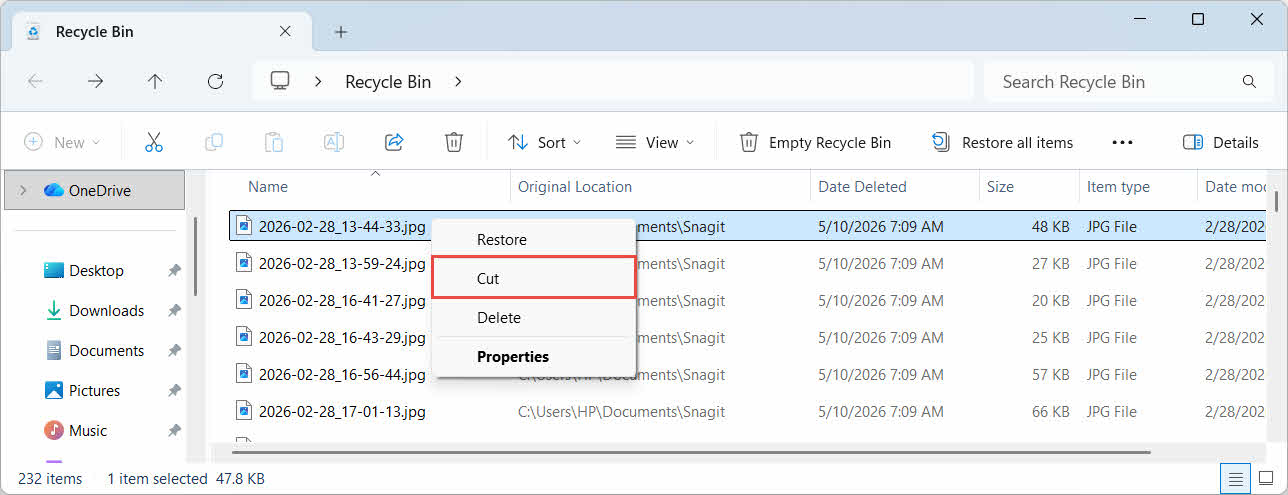
- Högerklicka på markeringen och välj Klipp, öppna målmappen, högerklicka och välj Klistra in att klistra in det

4. Återställa filer från papperskorgen på externa, nätverks- och molnenheter
Stegen in Avsnitt 2 anta att filen raderades från datorns huvudenhet. Extern, nätverks- och molnsynkroniserad lagring beter sig olika.
4.1 Externa hårddiskar och USB-minnen
Windows behandlar externa hårddiskar (inklusive SSD-diskar anslutna via USB) på samma sätt som interna enheter: var och en får sin egen dolda papperskorgsmapp som standard. Flyttbara medier som USB-minnen och SD-kort behandlas annorlunda och får inte en papperskorg som standard, så filer som raderas från dem tas bort omedelbart.
4.1.1 Aktivera stöd för papperskorgen för enheten
För en extern hårddisk, bekräfta att stöd för papperskorgen är aktiverat:
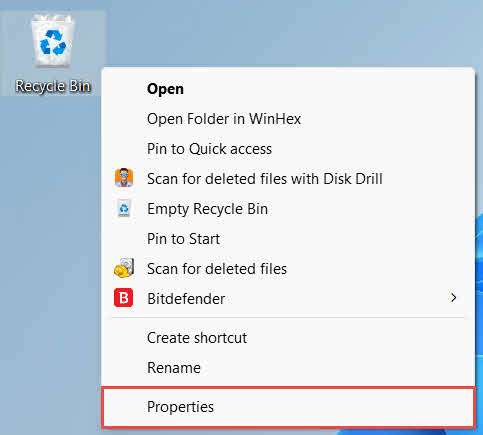
- Högerklicka på Papperskorgen korgen~~POS=HEADCOMP ikonen på skrivbordet och välj Våra Bostäder

- I Papperskorgen Plats lista, välj raden för den externa hårddisken. Den visas bara här när hårddisken är ansluten och har en enhetsbeteckning.
- Enligt Inställningar för vald plats, se till Anpassad storlek är vald, inte Flytta inte filer till papperskorgen. Ta bort filer omedelbart när de raderas.

- Klicka Ansökoch sedan OK
Varje enhet behåller den här inställningen oberoende av varandra, så en extern enhet kan ha stöd för papperskorgen avstängt även om det är aktiverat för systemenheten.
För ett USB-minne eller SD-kort visas det inte alls i Papperskorgens egenskaper, eftersom Windows inte skapar en papperskorgsmapp på flyttbara medier som standard. För att aktivera det krävs en registerredigering:
- Klicka Vinna + R, Typ regedit, Tryck angeoch godkänn uppmaningen
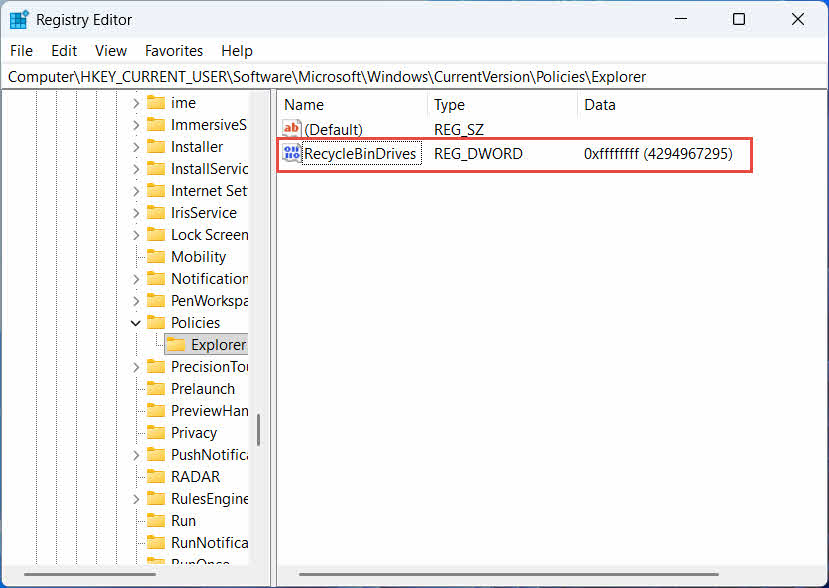
- Navigera till HKEY_CURRENT_USER \ Software \ Microsoft \ Windows \ Currentversion \ Policies \ Explorer. Om explorer nyckeln finns inte under policies, Högerklicka policies, Välj Nytt -> Nyckel, och namnge det explorer
- Högerklicka på ett tomt område i den högra rutan, välj Nytt -> DWORD (32-bit) Value, och namnge det PapperskorgenEnheter
- Dubbelklicka PapperskorgenEnheter, uppsättning Bas till Hexadecimal, stiga på ffffffff som värdedata och klicka på OK

- Upprepa steg 2 till 4 under HKEY_LOCAL_MACHINE \ SOFTWARE \ Microsoft \ Windows \ Currentversion \ Policies \ Explorer
- Starta om datorn
För att återställa ändringen, radera PapperskorgenEnheter värde från båda platserna. Eftersom detta innebär att redigera registret, skapa en återställningspunkt först och överväg om det är enklare att förlita sig på säkerhetskopior för enheter som du bara använder ibland.
4.1.2 Återställa filer
När papperskorgen är aktiverad för enheten följer återställningen av en fil samma process som beskrivs i Avsnitt 2.3.
Om du tar bort en fil från en mappad nätverksenhet eller en delad mapp tas den bort direkt från servern. Den passerar inte genom datorns lokala papperskorg. Men om en serverbaserad papperskorg är aktiverad kan du återställa raderade filer från den.
4.2.1 Papperskorg på serversidan (om aktiverad)
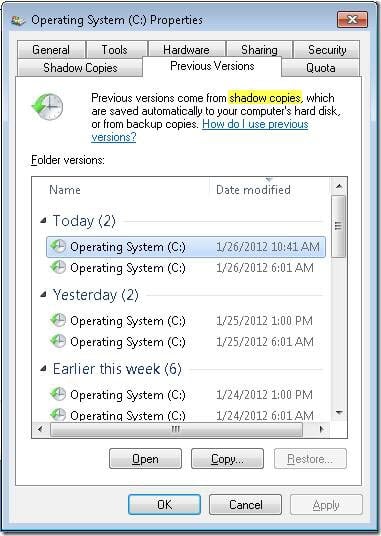
Vissa filservrar möjliggör Skuggkopior (Volymskuggkopieringstjänst), vilket låter dig återställa till tidigare versioner av en delad mapp, så att du kan återställa raderade filer med den här funktionen:
- Högerklicka på den överordnade mappen på nätverksresursen och välj Våra Bostäder
- Öppna Tidigare versioner fliken
- Välj en version daterad före raderingen och klicka på återställa
4.2.2 Vad man ska göra om det inte finns någon papperskorg på serversidan
Om Tidigare versioner Fliken är tom eller otillgänglig, delningen har ingen ögonblicksbildsbaserad återställning konfigurerad. Kontakta din nätverksadministratör för att kontrollera om servern har ett eget säkerhetskopieringsschema.
4.3 OneDrive-papperskorgen (molnsynkroniserade mappar)
OneDrive-synkroniserade mappar kan ha två separata papperskorgar: den lokala Windows-papperskorgen och den webbaserade OneDrive-papperskorgen. Vilken som innehåller din fil beror på var borttagningen skedde.
4.3.1 Lokal borttagning av en synkroniserad fil (går till både den lokala och webbbaserade papperskorgen)
Om du tar bort en synkroniserad fil från Utforskaren på din dator hamnar den i den lokala papperskorgen precis som beskrivs i Avsnitt 2, och OneDrive-synkroniseringsklienten speglar även borttagningen till molnet, så filen kan även återställas från OneDrives webbpapperskorg.
4.3.2 Molninitierad radering (endast webbpapperskorg, sedan maj 2026)
Om filen istället tas bort från molnsidan, till exempel via OneDrive-webbplatsen eller en annan synkroniserad enhet, har beteendet ändrats sedan maj 2026: Microsoft slutade skicka molninitierade borttagningar till den lokala Windows-papperskorgen. En fil som tas bort på det här sättet försvinner från din lokala mapp utan att visas i den lokala papperskorgen, och återställning är endast möjlig från OneDrive- eller SharePoint-webbpapperskorgen.
4.3.3 Återställa från OneDrive.com
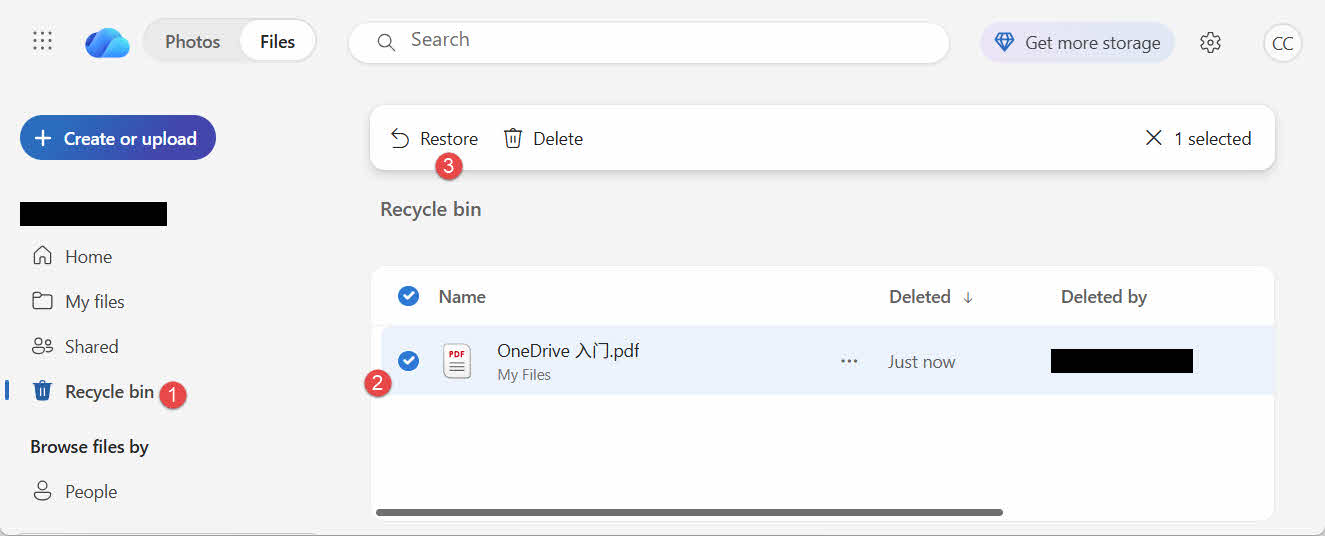
Så här återställer du en fil från OneDrives webbpapperskorg:
- Logga in på onedrive.live.com or onedrive.com
- Välja Papperskorgen i navigeringsfönstret
- Markera filen eller mappen och klicka på återställa
Personliga Microsoft-konton sparar borttagna objekt i upp till 30 dagar; arbets- eller skolkonton sparar dem i upp till 93 dagar.
5. Felsökning av problem med återställning av papperskorgen
5.1 Papperskorgen saknas på skrivbordet
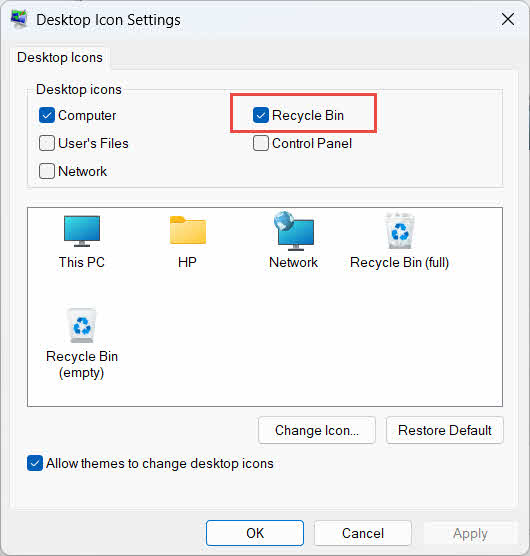
Papperskorgen finns fortfarande kvar även om skrivbordsikonen har dolts. Så här återställer du ikonen:
- Högerklicka på skrivbordet och välj personifiera
- Öppet temanoch sedan Desktop Icon inställningar
- Kolla upp Papperskorgen korgen~~POS=HEADCOMP och klicka OK
Du kan också öppna den direkt genom att skriva Papperskorgen korgen~~POS=HEADCOMP i Windows Sök, Utforskaren eller med Win + R, enligt beskrivningen i Avsnitt 2.1.
5.2 Filen finns inte i papperskorgen
Om dina önskade filer inte finns i papperskorgen, överväg dessa orsaker:
- Den raderades från en extern hårddisk utan stöd för papperskorgen (se Avsnitt 4.1)
- Den raderades från en nätverksenhet (se Avsnitt 4.2)
- Den raderades direkt från OneDrive på webben (se Avsnitt 4.3)
- Den raderades permanent, till exempel med shift + Radera, eller så har papperskorgen tömts
Om filen raderades permanent krävs det en särskild programvara för dataåterställning, till exempel DataNumen Data Recovery, snarare än papperskorgen. Sluta spara nya filer på den enheten först för att minska risken att informationen skrivs över.
5.3 Återställningsalternativet är nedtonat, saknas eller fungerar inte
Detta händer vanligtvis när de valda objekten kommer från en plats som inte längre finns, eller när papperskorgens interna index inte är synkroniserat. Prova dessa åtgärder:
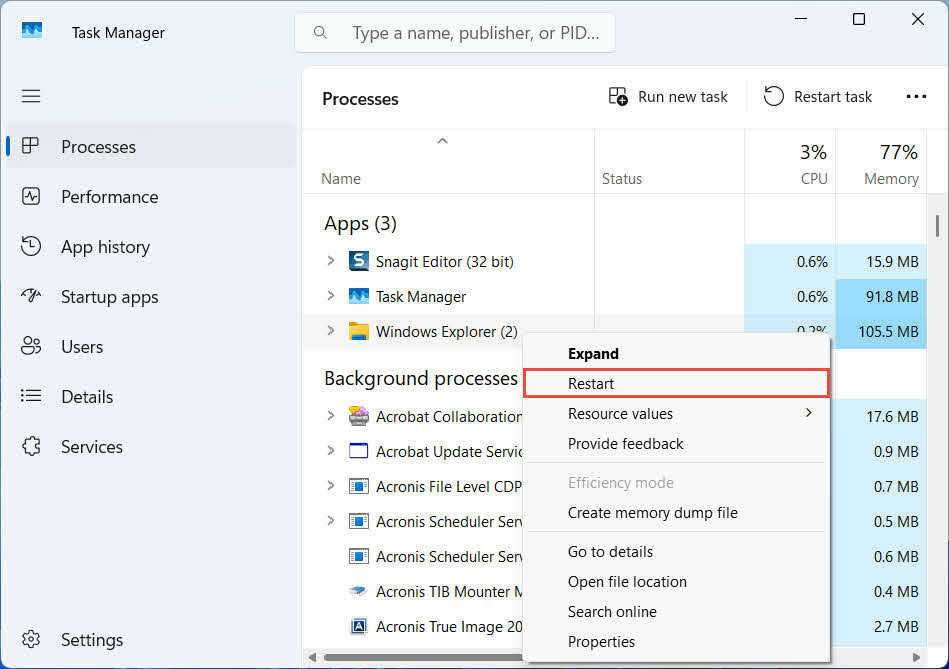
- Starta om Utforskaren: använd Ctrl + Alt + Del för att öppna Aktivitetshanteraren, högerklicka Utforskaren, och välj Omstart

- Återställ objekt ett i taget istället för som en grupp
- If återställa fortfarande inte visas, dra ut filen manuellt enligt beskrivningen i Avsnitt 3.2
5.4 Felmeddelanden om "Åtkomst nekad" eller behörighetsfel vid återställning
Detta tyder på ett behörighetsproblem i den ursprungliga mappen, inte i själva filen. Kontrollera att:
- Du är inloggad med samma konto som raderade filen
- Destinationsmappens behörigheter tillåter fortfarande skrivåtkomst för ditt konto.
- Utforskaren blockeras inte av en policy på en hanterad dator eller arbetsdator
Om den ursprungliga mappens behörigheter har ändrats, återställ filen till en annan plats istället, enligt följande Avsnitt 3.
5.5 Papperskorgen verkar tom men jag tömmer den inte
Filer kan försvinna från papperskorgen utan att någon tömmer den manuellt:
- Storage Sense kan konfigureras för att automatiskt ta bort objekt efter ett visst antal dagar.
- Papperskorgen nådde sin storleksgräns, så Windows rensade de äldsta objekten för att skapa plats (se Avsnitt 6.1)
- Ett annat konto på delad dator tömde det
- En grupprincip på en hanterad enhet framtvingar automatisk tömning
5.6 Återställd fil är skadad, tom eller öppnas inte
Återställning flyttar bara tillbaka filen; den repareras inte. Om filen redan var skadad före raderingen, eller om den skrevs till när den raderades, kan det hända att den fortfarande inte öppnas efter återställningen. I så fall är problemet en korrupt fil, inte ett problem med papperskorgen, och behöver... ett reparationsverktyg passar det filformatet snarare än ett nytt återställningsförsök.
6. Hantera och konfigurera papperskorgen
6.1 Ändra papperskorgens lagringsstorlek
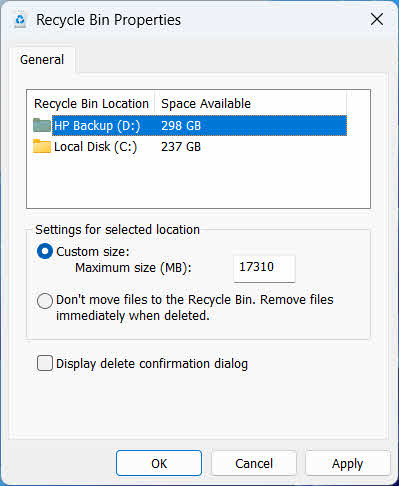
Varje enhet har sin egen papperskorgstilldelning. Så här granskar eller ändrar du den:
- Högerklicka på Papperskorgen korgen~~POS=HEADCOMP ikonen och välj Våra Bostäder
- Välj en enhet från listan över platser i papperskorgen
- Välja Anpassad storlek och ange a Maximal storlek (MB), eller välj Flytta inte filer till papperskorgen. Ta bort filer omedelbart när de raderas. för att inaktivera den för den enheten
- Klicka OK
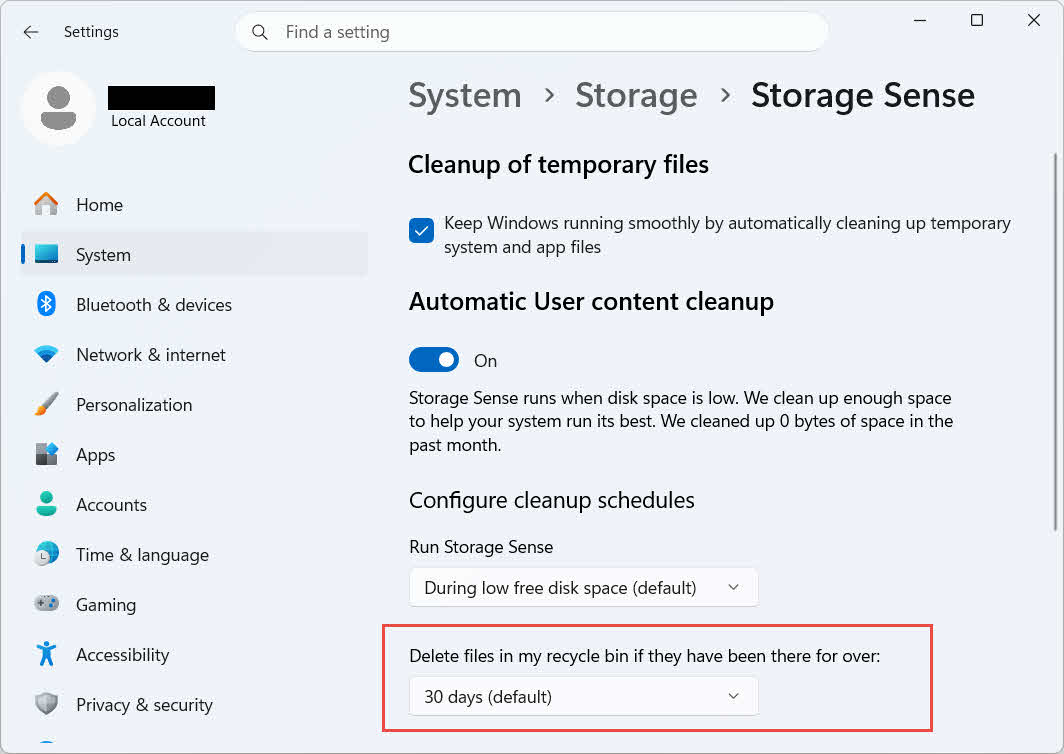
Windows erbjuder också ett separat, åldersbaserat rensningsalternativ: gå till Inställningar -> System -> Lagring -> Lagringsavkänning och ställa in Ta bort filer i papperskorgen om de har funnits där över ett valt antal dagar. Standardlagringsperioden är 30 DAYS.
6.2 Aktivera dialogrutan för bekräftelse av borttagning
Windows 11 visar som standard ingen bekräftelsefråga innan filer flyttas till papperskorgen. Så här aktiverar du det:
- Högerklicka på Papperskorgen korgen~~POS=HEADCOMP ikonen och välj Våra Bostäder
- Kolla upp Visa radera bekräftelsedialogruta
- Klicka OK
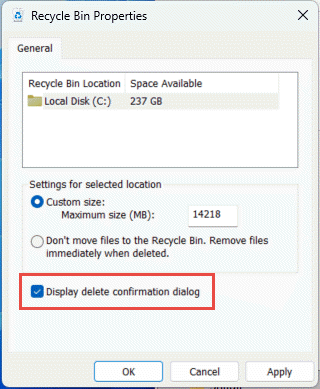
Den här inställningen förhindrar inte permanenta borttagningar, till exempel shift + Radera eller borttagningar från enheter utan stöd för papperskorgen.
6.3 Ställa in filer för att kringgå papperskorgen (och varför man ska undvika det)
Det samma Flytta inte filer till papperskorgen. Ta bort filer omedelbart när de raderas. alternativ som omfattas av Avsnitt 6.1 kan tillämpas på vilken enhet som helst för att göra varje borttagning permanent. Detta frigör diskutrymme omedelbart men tar bort det enda snabbåterställningsalternativet som beskrivs i den här guiden, så det är bäst att reservera det för enheter som inte innehåller några personliga filer, till exempel en dedikerad scratch- eller temporär volym.
7. Bästa praxis för att förhindra framtida dataförlust
7.1 Aktivera filhistorik eller en säkerhetskopieringslösning
Papperskorgen skyddar endast mot oavsiktlig radering, inte mot hårddiskfel eller en papperskorg som redan har tömts. Aktivera filhistorik (Kontrollpanelen -> System och säkerhet -> Filhistorik)

eller ett tredjepartsverktyg för säkerhetskopiering lägger till ett andra skyddslager med sin egen versionshistorik.
7.2 Använd molnsynkronisering för viktiga mappar
Att synkronisera skrivbord, dokument och bilder till OneDrive eller en annan molntjänst ger dig den webbbaserade papperskorgen som beskrivs i Avsnitt 4.3 som en ytterligare återställningsväg, oberoende av den lokala papperskorgen.
7.3 Dubbelkolla innan du tömmer papperskorgen
Innan du klickar Töm papperskorgen, sortera efter Datum borttaget och skanna efter något nytt. När den är tömd är det enda återstående alternativet dedikerad programvara för dataåterställning, och framgång är inte garanterad.
8. FAQ
F: Kan jag fortfarande återställa en fil efter att jag har tömt papperskorgen?
A: Inte via själva papperskorgen. Vid den tidpunkten markeras filen som raderad på filsystemnivå men kan fortfarande finnas fysiskt på hårddisken tills den skrivs över. Verktyg som DataNumen Data Recovery är byggda för att söka efter och rekonstruera den här typen av data. Sluta använda hårddisken så snart som möjligt för att öka chanserna till en lyckad återställning.
F: Har Mac något liknande Windows papperskorgen?
A: Ja, det kallas Papperskorgen och fungerar på samma sätt: öppna Papperskorgen, högerklicka på filen och välj Lägg tillbaka. Den här guiden behandlar specifikt Windows papperskorgen. Och Denna guide täcker specifikt Mac-papperskorgen.
F: Hur länge ligger filer kvar i papperskorgen innan de raderas automatiskt?
A: Den lokala papperskorgen har ingen fast tidsgräns som standard; objekt tas bara bort när storleksgränsen uppnås eller när Storage Sense är konfigurerat för att rensa gamla objekt (se Avsnitt 6.1OneDrives webbpapperskorgen använder ett fast fönster: 30 dagar för personliga konton och upp till 93 dagar för arbets- eller skolkonton (se Avsnitt 4.3).
F: Ska jag återställa en fil till dess ursprungliga plats eller till en ny?
A: Återställer till den ursprungliga platsen (Avsnitt 2) är enklare och bevarar filens ursprungliga sökväg. Återställ till en annan plats (Avsnitt 3) istället om den ursprungliga mappen inte längre finns eller redan innehåller en fil med samma namn.
F: Kan jag återställa filer som raderats från ett USB-minne med hjälp av papperskorgen?
A: Inte som standard. USB-minnen och SD-kort får inte en papperskorgsmapp om du inte aktiverar en manuellt, vilket förklaras i Avsnitt 4.1.
F: Varför är alternativet Återställ nedtonat eller saknas?
A: Detta orsakas vanligtvis av en saknad originalmapp eller ett osynkroniserat papperskorgsindex. Se Avsnitt 5.3 för korrigeringar.
F: Vad händer om papperskorgen är tom men jag aldrig har tömt den?
A: Storage Sense, en uppnådd storleksgräns, ett annat användarkonto eller en grupprincipinställning kan alla rensa det automatiskt. Se Avsnitt 5.5.
F: Vilken programvara kan återställa filer som inte längre finns i papperskorgen?
A: Dedikerad programvara för dataåterställning, t.ex. DataNumen Data Recovery, skannar enheten på en lägre nivå för att hitta data som filsystemet inte längre refererar till, vilket inte är något som papperskorgen-gränssnittet i sig kan göra.
F: Garanterar återställning av en fil att den öppnas korrekt?
A: Nej. Återställning återställer bara filen till en mapp; det reparerar inte eventuella skador som filen redan hade före eller under raderingen. Se Avsnitt 5.6.
9. Slutsats
Att återställa raderade filer från papperskorgen är enkelt så länge objektet fortfarande finns där: öppna papperskorgen, hitta filen och återställ den. Externa enheter, nätverksdelningar och OneDrive-synkroniserade mappar har sina egna villkor, och avsnitten om felsökning och konfiguration ovan täcker de situationer där standardåterställningsprocessen inte går som förväntat. Om filen har raderats permanent eller om papperskorgen redan har tömts är dedikerad programvara för dataåterställning nästa steg, inte själva papperskorgen.
Om författaren
Qian Gua är en dataåterställningsspecialist med över 10 års erfarenhet av Windows-filsystem, lagringstekniker och katastrofåterställningslösningar. Han har framgångsrikt väglett tusentals användare genom kritiska dataförlustscenarier i både personliga och företagsmiljöer.
Qian specialiserar sig på metoder för dataåterställning i Windows, filsystemanalys och förebyggande säkerhetskopieringsstrategier. Hans omfattande praktiska erfarenhet inkluderar återställning av data från hårddiskar, implementering av omfattande säkerhetskopieringslösningar och felsökning av komplexa filsystemproblem. NTFS, FAT-, exFAT- och ReFS-volymer. Han har arbetat med olika återställningsverktyg och tekniker, från inbyggda Windows-verktyg till professionell programvara för dataåterställning.
Genom sitt tekniska skrivande är Qian dedikerad till att ge användare praktisk kunskap för att skydda och återställa sina värdefulla data. Han håller sig uppdaterad med den senaste utvecklingen inom Windows-filåterställningstekniker, innovationer för lagringsenheter och bästa praxis för dataskydd. När han inte hjälper användare att återställa sina ...ost fileQian tycker om att undersöka nya lagringstekniker och dela med sig av tips om datasäkerhet som förhindrar framtida dataförlust.
Har du frågor om den här guiden eller behöver du hjälp med dataåterställning? Välkommen, Qian feedback och förslag för att förbättra dessa resurser för dataåterställning.