
1. Einleitung
Der Papierkorb ist Windows' integrierte Sicherheitsfunktion für gelöschte Dateien. Solange sich eine Datei noch darin befindet, lässt sie sich mit wenigen Klicks wiederherstellen. Diese Anleitung erklärt, wie Sie gelöschte Dateien aus dem Papierkorb unter Windows wiederherstellen, einschließlich Dateien auf externen Speicherorten, im Netzwerk und auf OneDrive.
1.1 Inhalt dieses Handbuchs
- Wiederherstellen von Dateien, die sich noch im Papierkorb befinden
- Gelöschte Dateien an ihrem ursprünglichen Speicherort wiederherstellen
- Gelöschte Dateien an einem neuen Speicherort wiederherstellen, wenn der ursprüngliche Ordner fehlt
1.2 Was dieser Leitfaden nicht abdeckt
- Dateien gelöscht mit Shift + Löschen, die den Papierkorb komplett umgehen
- Gelöschte oder aus dem Papierkorb entfernte Dateien. Prüfen Sie in diesem Fall Folgendes: dem Leitfaden um die Dateien wiederherzustellen.
- Dateien, die das Speicherlimit des Papierkorbs überschritten und endgültig gelöscht wurden
2. Gelöschte Dateien aus dem Papierkorb wiederherstellen
Wenn die Datei von einem lokalen Laufwerk gelöscht wurde mit dem Löschen Tastendruck oder Rechtsklick Löschen Nach dem Befehl landet die Datei direkt im Papierkorb. Sie kann mit den folgenden 3 Schritten wiederhergestellt werden:
2.1 Öffnen Sie den Papierkorb
Verwenden Sie eine der folgenden Methoden:
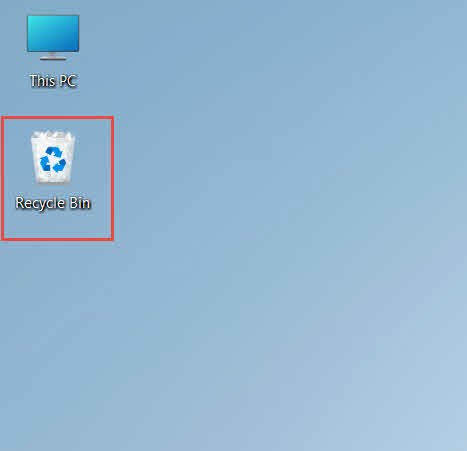
- Doppelklicken Sie auf das Papierkorb Symbol auf dem Desktop

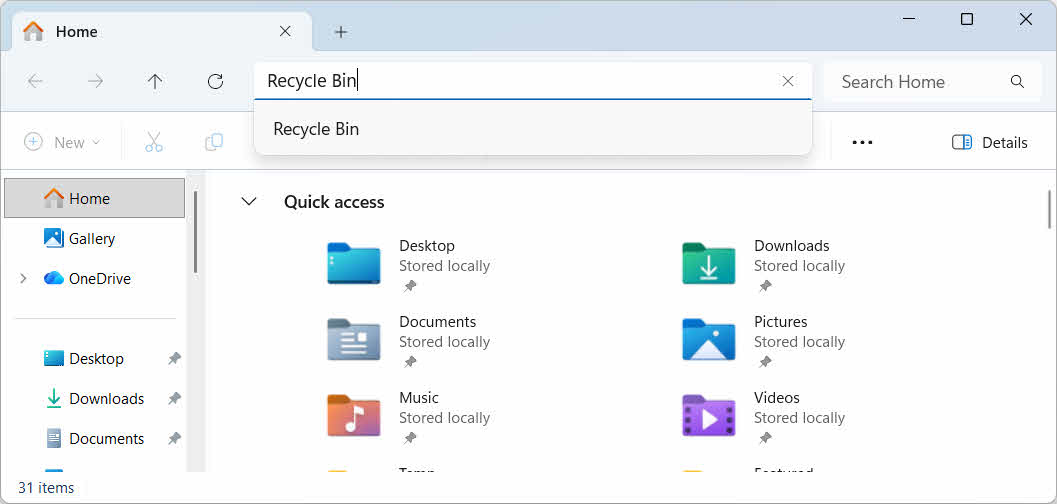
- Öffnen Sie den Datei-Explorer und geben Sie Folgendes ein: Papierkorb in der Adressleiste

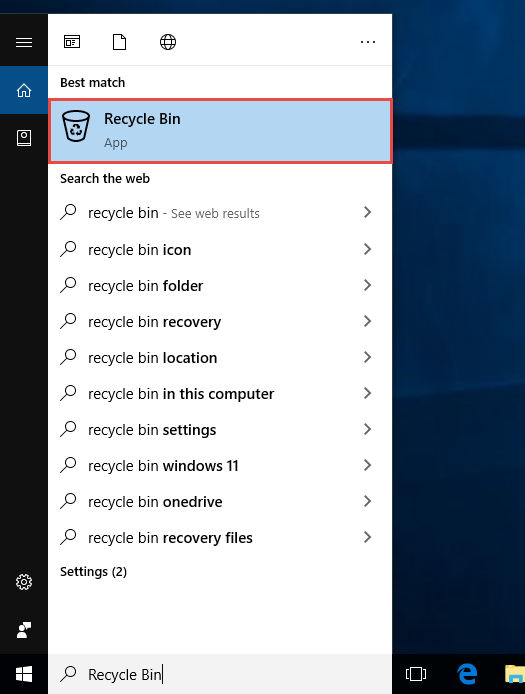
- Typ Papierkorb Geben Sie es in die Windows-Suche ein und wählen Sie es aus den Ergebnissen aus.

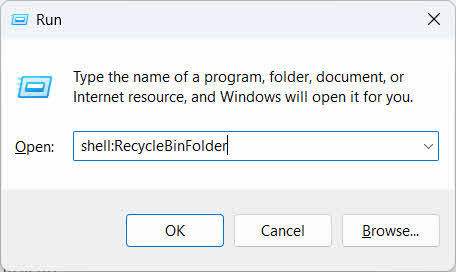
- Presse Win + R, Typ Shell: RecycleBinFolder, und drücke Enter

2.2 Die gelöschte Datei oder den Ordner finden
Sobald der Papierkorb geöffnet ist, können Sie die gewünschten Gegenstände mit einer der folgenden Methoden finden:
- Geben Sie den Dateinamen in das Suchfeld in der oberen rechten Ecke ein.
- Klicken Sie auf Datum der Löschung Spaltenüberschrift zum Sortieren nach den neuesten Löschungen
- Prüfen Sie die Ursprünglicher Standort Spalte zur Bestätigung, dass die Datei aus dem erwarteten Ordner stammt
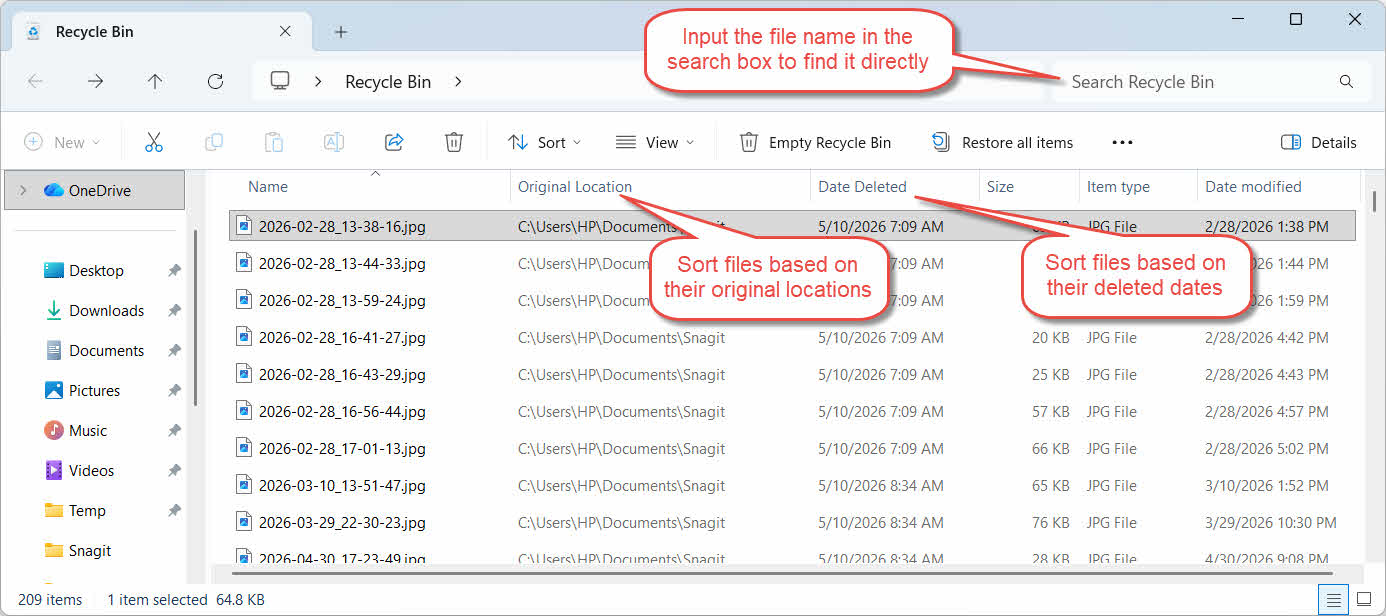
2.3 Dateien oder Ordner wiederherstellen
Um ein oder mehrere Elemente wiederherzustellen:
- Wählen Sie eine einzelne Datei aus oder halten Sie die Maustaste gedrückt. Ctrl und klicken Sie, um mehrere Dateien auszuwählen, oder halten Sie die Maustaste gedrückt. Shift und klicken Sie, um einen Bereich auszuwählen
- Klicken Sie mit der rechten Maustaste auf die Auswahl und wählen Sie Wiederherstellen
- Öffnen Sie den ursprünglichen Ordner, um zu überprüfen, ob die Datei wieder vorhanden ist.

Um alle Elemente im Papierkorb gleichzeitig wiederherzustellen, klicken Sie hier. Alle Gegenstände wiederherstellen in der Symbolleiste, ohne vorher eine einzelne Datei auszuwählen.
3. Gelöschte Dateien aus dem Papierkorb an einem anderen Speicherort wiederherstellen
Das Wiederherstellen Der Befehl speichert eine Datei immer im ursprünglichen Ordner. In manchen Situationen ist es jedoch erforderlich, sie an einen anderen Ort zu verschieben.
3.1 Wann Sie diese Methode anwenden sollten
- Der ursprüngliche Ordner existiert nicht mehr.
- Im ursprünglichen Ordner existiert bereits eine neue Datei mit demselben Namen.
- Sie haben keine Berechtigung, auf den Originalordner zuzugreifen.
- Sie sind sich nicht sicher, aus welchem Ordner die Datei stammt.
- Sie sollten die Datei überprüfen, bevor Sie sie wieder an ihren ursprünglichen Ort zurücklegen.
3.2 Datei aus dem Papierkorb ziehen oder ausschneiden
So verschieben Sie eine Datei aus dem Papierkorb in einen Ordner Ihrer Wahl:
- Öffnen Sie den Papierkorb
- Wählen Sie die wiederherzustellende Datei oder den wiederherzustellenden Ordner aus.
- Verwenden Sie eine der folgenden Methoden, um die Datei oder den Ordner in den Zielordner zu verschieben:
- Ziehen Sie es direkt in das Zielordnerfenster.
- Presse Ctrl + X Zum Ausschneiden den Zielordner öffnen und drücken Ctrl + V zum Einfügen
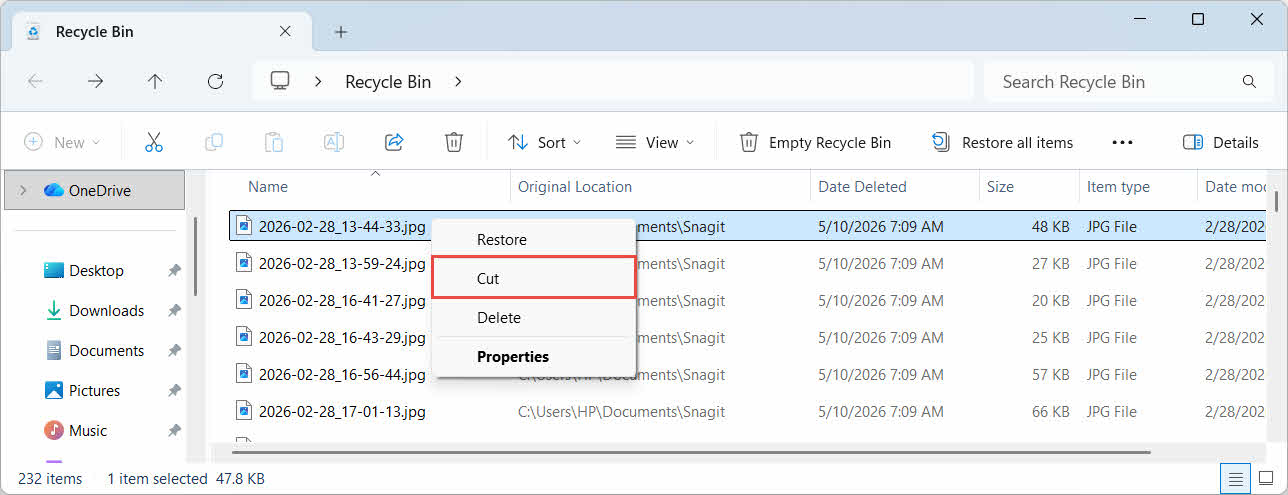
- Klicken Sie mit der rechten Maustaste auf die Auswahl und wählen Sie aus SchneidenÖffnen Sie den Zielordner, klicken Sie mit der rechten Maustaste und wählen Sie aus Pasta zum Einfügen

4. Wiederherstellen von Dateien aus dem Papierkorb auf externen, Netzwerk- und Cloud-Laufwerken
Die Schritte in Abschnitt 2 Angenommen, die Datei wurde von der Hauptfestplatte Ihres Computers gelöscht. Externe Speicher, Netzwerkspeicher und Cloud-Speicher verhalten sich anders.
4.1 Externe Festplatten und USB-Sticks
Windows behandelt externe Festplatten (einschließlich über USB angeschlossener SSDs) wie interne Laufwerke: Jede erhält standardmäßig einen eigenen, versteckten Papierkorb. Wechseldatenträger wie USB-Sticks und SD-Karten werden anders behandelt und erhalten standardmäßig keinen Papierkorb; gelöschte Dateien werden daher sofort entfernt.
4.1.1 Aktivieren der Unterstützung für den Papierkorb auf dem Laufwerk
Bei einer externen Festplatte prüfen Sie, ob die Unterstützung für den Papierkorb aktiviert ist:
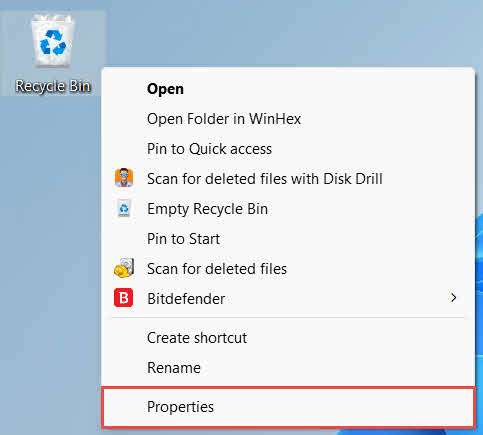
- Klicken Sie mit der rechten Maustaste auf Papierkorb Symbol auf dem Desktop und auswählen Eigenschaften im Vergleich

- Bei Position des Papierkorbs Wählen Sie in der Liste die Zeile für das externe Laufwerk aus. Es wird erst angezeigt, wenn das Laufwerk angeschlossen ist und einen Laufwerksbuchstaben hat.
- Der Einstellungen für ausgewählten Standort, Stelle sicher Benutzerdefinierte Größe ist ausgewählt, nicht Dateien nicht in den Papierkorb verschieben. Gelöschte Dateien sofort entfernen.

- Gehen Sie auf Tragen Sie und dann OK
Diese Einstellung wird von jedem Laufwerk unabhängig verwaltet, sodass die Unterstützung für den Papierkorb bei einem externen Laufwerk deaktiviert sein kann, während sie beim Systemlaufwerk aktiviert bleibt.
Bei einem USB-Stick oder einer SD-Karte wird der Papierkorb in den Eigenschaften gar nicht angezeigt, da Windows standardmäßig keinen Papierkorbordner auf Wechseldatenträgern erstellt. Um ihn zu aktivieren, ist eine Änderung in der Registrierung erforderlich.
- Presse Win + R, Typ regedit, Drücken Sie Enterund die Aufforderung genehmigen
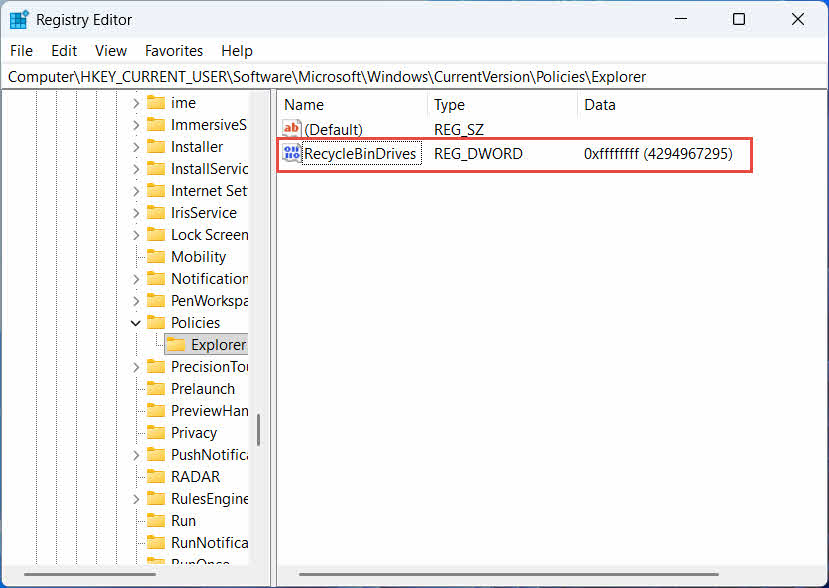
- Navigieren HKEY_CURRENT_USER \ Software \ Microsoft \ Windows \ Currentversion \ Policies \ Explorer. Wenn der Entdecken Der Schlüssel existiert nicht unter Richtlinien, Rechtsklick RichtlinienWählen New -> Wesentliche, und nenne es Entdecken
- Klicken Sie mit der rechten Maustaste auf eine leere Stelle im rechten Fensterbereich und wählen Sie aus New -> DWORD (32-bit) Value, und nenne es Recyclingbehälter-Antriebe
- Doppelklicken Sie auf Recyclingbehälter-Antriebe, einstellen Basis zu Hexadecimal, eingeben ffffffff als Wertdaten und klicken OK

- Wiederholen Sie die Schritte 2 bis 4 unter HKEY_LOCAL_MACHINE \ SOFTWARE \ Microsoft \ Windows \ CurrentVersion \ Richtlinien \ Explorer
- Starte den Computer neu
Um die Änderung rückgängig zu machen, löschen Sie die Recyclingbehälter-Antriebe Die Werte beider Speicherorte sollten abgerufen werden. Da dies die Bearbeitung der Registrierung erfordert, erstellen Sie zunächst einen Wiederherstellungspunkt und überlegen Sie, ob die Verwendung von Backups für Laufwerke, die Sie nur gelegentlich nutzen, einfacher ist.
4.1.2 Wiederherstellen von Dateien
Sobald der Papierkorb für das Laufwerk aktiviert ist, erfolgt die Wiederherstellung einer Datei nach dem gleichen Verfahren, das in beschrieben ist. Abschnitt 2.3.
Wenn Sie eine Datei von einem zugeordneten Netzlaufwerk oder einem freigegebenen Ordner löschen, wird sie direkt vom Server entfernt. Sie landet nicht im lokalen Papierkorb Ihres Computers. Falls jedoch ein serverseitiger Papierkorb aktiviert ist, können Sie gelöschte Dateien daraus wiederherstellen.
4.2.1 Serverseitiger Papierkorb (falls aktiviert)
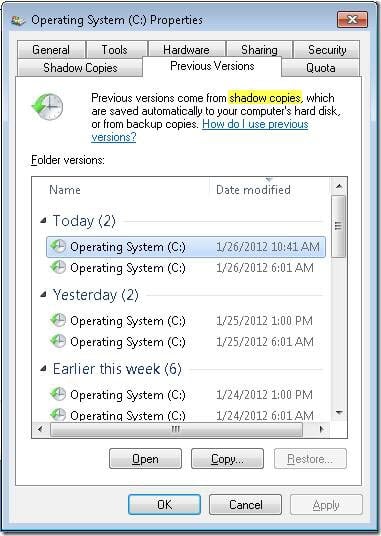
Einige Dateiserver ermöglichen Schattenkopien (Volume Shadow Copy Service), wodurch Sie frühere Versionen eines freigegebenen Ordners wiederherstellen können, sodass Sie mit dieser Funktion gelöschte Dateien wiederherstellen können:
- Klicken Sie mit der rechten Maustaste auf den übergeordneten Ordner in der Netzwerkfreigabe und wählen Sie aus Eigenschaften im Vergleich
- Öffnen Sie den Microsoft Store auf Ihrem Windows-PC Vorgängerversionen Tab
- Wählen Sie eine Version vor dem Löschdatum aus und klicken Sie auf Wiederherstellen
4.2.2 Was tun, wenn kein serverseitiger Papierkorb vorhanden ist?
Besitzt das Vorgängerversionen Wenn die Registerkarte leer oder nicht verfügbar ist, ist für die Freigabe keine Snapshot-basierte Wiederherstellung konfiguriert. Wenden Sie sich an Ihren Netzwerkadministrator, um zu prüfen, ob der Server über einen eigenen Sicherungsplan verfügt.
4.3 OneDrive-Papierkorb (Cloud-synchronisierte Ordner)
OneDrive-synchronisierte Ordner können zwei separate Papierkörbe umfassen: den lokalen Windows-Papierkorb und den webbasierten OneDrive-Papierkorb. In welchem Papierkorb sich Ihre Datei befindet, hängt davon ab, wo die Löschung erfolgte.
4.3.1 Lokales Löschen einer synchronisierten Datei (Wird sowohl im lokalen als auch im Web-Papierkorb gespeichert)
Wenn Sie eine synchronisierte Datei im Datei-Explorer auf Ihrem PC löschen, wird sie genau wie beschrieben in den lokalen Papierkorb verschoben. Abschnitt 2Und der OneDrive-Synchronisierungsclient spiegelt die Löschung auch in die Cloud, sodass die Datei auch aus dem OneDrive-Web-Papierkorb wiederhergestellt werden kann.
4.3.2 Cloud-initiierte Löschung (nur Web-Papierkorb, ab Mai 2026)
Wird die Datei stattdessen in der Cloud gelöscht, beispielsweise über die OneDrive-Website oder ein anderes synchronisiertes Gerät, hat sich das Verhalten seit Mai 2026 geändert: Microsoft sendet keine Cloud-initiierten Löschvorgänge mehr an den lokalen Windows-Papierkorb. Eine so gelöschte Datei verschwindet aus Ihrem lokalen Ordner, ohne im lokalen Papierkorb zu erscheinen, und kann nur noch über den Web-Papierkorb von OneDrive oder SharePoint wiederhergestellt werden.
4.3.3 Wiederherstellen von OneDrive.com
So stellen Sie eine Datei aus dem OneDrive-Web-Papierkorb wieder her:
- Melden Sie sich an bei onedrive.live.com or onedrive.com
- Wählen Sie Papierkorb im Navigationsbereich
- Wählen Sie die Datei oder den Ordner aus und klicken Sie auf Wiederherstellen
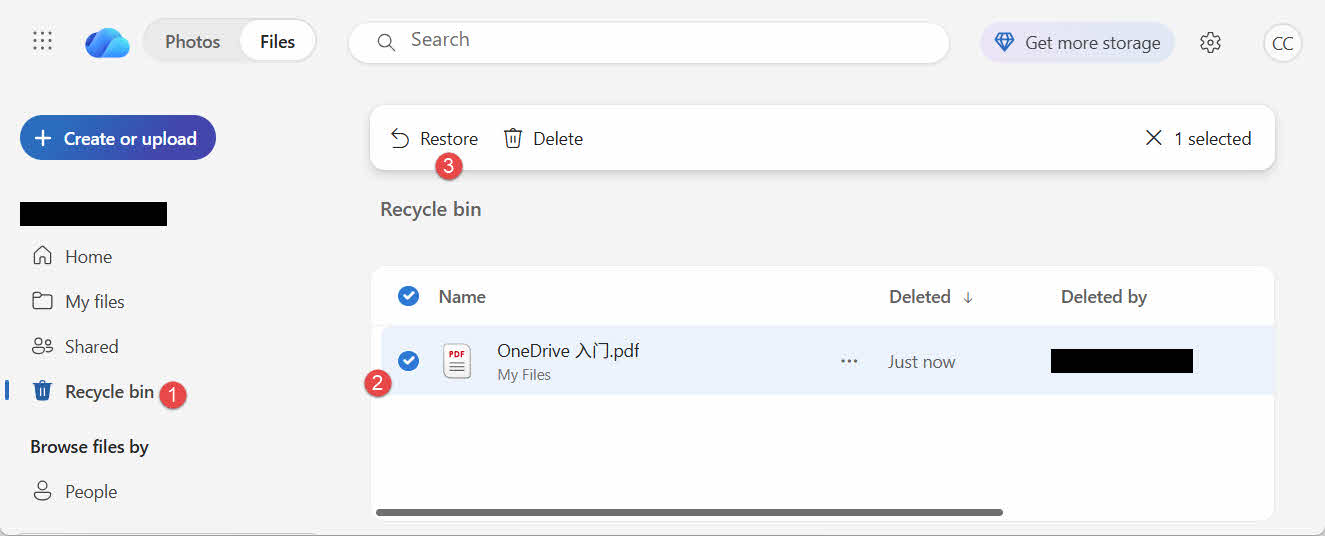
Bei persönlichen Microsoft-Konten werden gelöschte Elemente bis zu 30 Tage lang aufbewahrt; bei Arbeits- oder Schulkonten bis zu 93 Tage.
5. Fehlerbehebung bei Problemen mit der Papierkorbwiederherstellung
5.1 Das Papierkorbsymbol fehlt auf dem Desktop.
Der Papierkorb ist weiterhin vorhanden, auch wenn sein Desktop-Symbol ausgeblendet ist. So stellen Sie das Symbol wieder her:
- Klicken Sie mit der rechten Maustaste auf den Desktop und wählen Sie aus personalisieren
- Öffne Themen und dann Desktop-Icon-Einstellungen
- Einblick in das Papierkorb und klicken auf OK
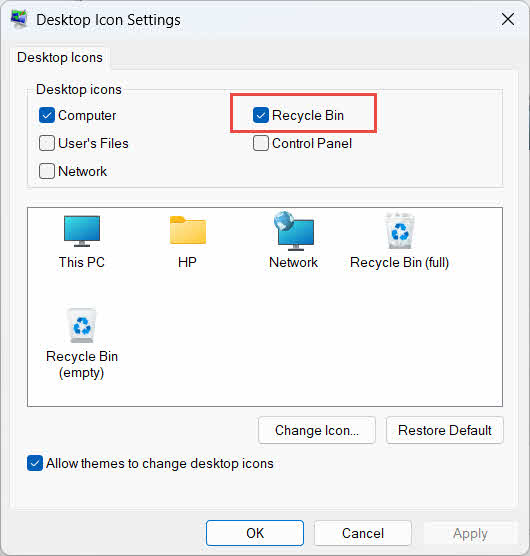
Sie können es auch direkt öffnen, indem Sie Folgendes eingeben Papierkorb in der Windows-Suche, im Datei-Explorer oder durch Drücken von Win + R, wie beschrieben in Abschnitt 2.1.
5.2 Die Datei befindet sich nicht im Papierkorb
Falls sich Ihre gewünschten Dateien nicht im Papierkorb befinden, sollten Sie folgende Ursachen in Betracht ziehen:
- Es wurde von einem externen Laufwerk ohne Papierkorbunterstützung gelöscht (siehe Abschnitt 4.1)
- Es wurde von einem Netzlaufwerk gelöscht (siehe Abschnitt 4.2)
- Es wurde direkt aus OneDrive im Web gelöscht (siehe Abschnitt 4.3)
- Es wurde endgültig gelöscht, zum Beispiel mit Shift + Löschenoder der Papierkorb wurde geleert
Wurde die Datei endgültig gelöscht, erfordert ihre Wiederherstellung eine spezielle Datenwiederherstellungssoftware, wie zum Beispiel DataNumen Data RecoverySpeichern Sie neue Dateien nicht im Papierkorb, sondern zuerst dort. So verringern Sie das Risiko, dass Daten überschrieben werden.
5.3 Die Option „Wiederherstellen“ ist ausgegraut, fehlt oder funktioniert nicht.
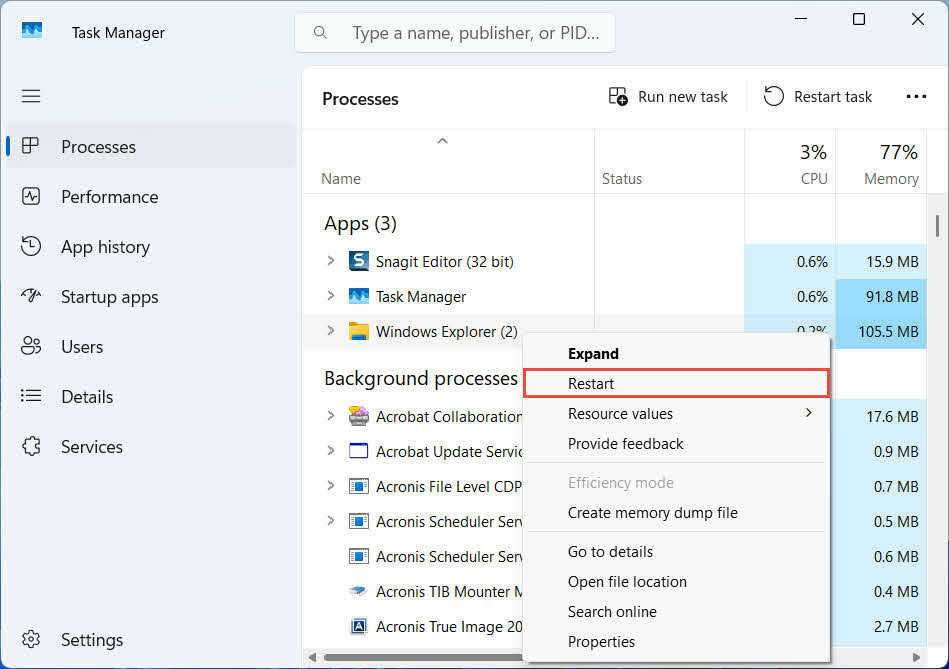
Dies geschieht üblicherweise, wenn die ausgewählten Elemente von einem nicht mehr existierenden Speicherort stammen oder der interne Index des Papierkorbs nicht mehr synchron ist. Versuchen Sie folgende Lösungsansätze:
- Starten Sie den Datei-Explorer neu: Drücken Sie Strg + Alt + Entf, um den Task-Manager zu öffnen, und klicken Sie mit der rechten Maustaste darauf. Windows Explorer, und wählen Sie Wiederaufnahme

- Stellen Sie die Elemente einzeln wieder her, anstatt sie als Stapel zu verwenden.
- If Wiederherstellen Die Datei wird immer noch nicht angezeigt. Ziehen Sie die Datei manuell heraus, wie in folgendem Abschnitt beschrieben: Abschnitt 3.2
5.4 „Zugriff verweigert“ oder Berechtigungsfehler bei der Wiederherstellung
Dies deutet auf ein Berechtigungsproblem im ursprünglichen Ordner hin, nicht in der Datei selbst. Prüfen Sie Folgendes:
- Sie sind mit demselben Konto angemeldet, das die Datei gelöscht hat.
- Die Berechtigungen des Zielordners erlauben Ihrem Konto weiterhin Schreibzugriff.
- Der Datei-Explorer wird auf einem verwalteten Computer oder einem Arbeitscomputer nicht durch eine Richtlinie blockiert.
Wenn sich die Berechtigungen des ursprünglichen Ordners geändert haben, stellen Sie die Datei stattdessen an einem anderen Speicherort wieder her. Abschnitt 3.
5.5 Der Papierkorb wird als leer angezeigt, aber ich leere ihn nicht.
Dateien können aus dem Papierkorb verschwinden, ohne dass ihn jemand manuell geleert hat:
- Die Speicheroptimierung kann so konfiguriert werden, dass Elemente nach einer festgelegten Anzahl von Tagen automatisch gelöscht werden.
- Der Papierkorb hat seine maximale Größe erreicht, daher hat Windows die ältesten Elemente gelöscht, um Platz zu schaffen (siehe Abschnitt 6.1)
- Ein anderes Konto auf einem gemeinsam genutzten Computer hat es geleert.
- Eine Gruppenrichtlinie auf einem verwalteten Gerät erzwingt die automatische Entleerung
5.6 Die wiederhergestellte Datei ist beschädigt, leer oder lässt sich nicht öffnen.
Durch das Wiederherstellen wird die Datei lediglich zurückversetzt, nicht repariert. War die Datei vor dem Löschen bereits beschädigt oder wurde sie zum Zeitpunkt des Löschens gerade beschrieben, lässt sie sich möglicherweise auch nach dem Wiederherstellen nicht öffnen. In diesem Fall liegt das Problem an einer beschädigten Datei und nicht am Papierkorb. ein Reparaturwerkzeug eher für dieses Dateiformat geeignet als für einen weiteren Wiederherstellungsversuch.
6. Verwaltung und Konfiguration des Papierkorbs
6.1 Änderung der Speicherkapazität des Recyclingbehälters
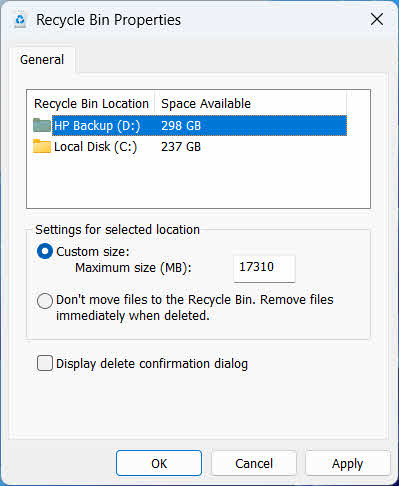
Jedes Laufwerk verfügt über einen eigenen Papierkorb. So können Sie diesen einsehen oder ändern:
- Klicken Sie mit der rechten Maustaste auf Papierkorb Symbol und wählen Sie Eigenschaften im Vergleich
- Wählen Sie ein Laufwerk aus der Liste der Papierkorb-Standorte aus.
- Wählen Benutzerdefinierte Größe und geben Sie ein ein Maximale Größe (MB)oder auswählen Dateien nicht in den Papierkorb verschieben. Gelöschte Dateien sofort entfernen. um es für dieses Laufwerk zu deaktivieren
- Gehen Sie auf OK
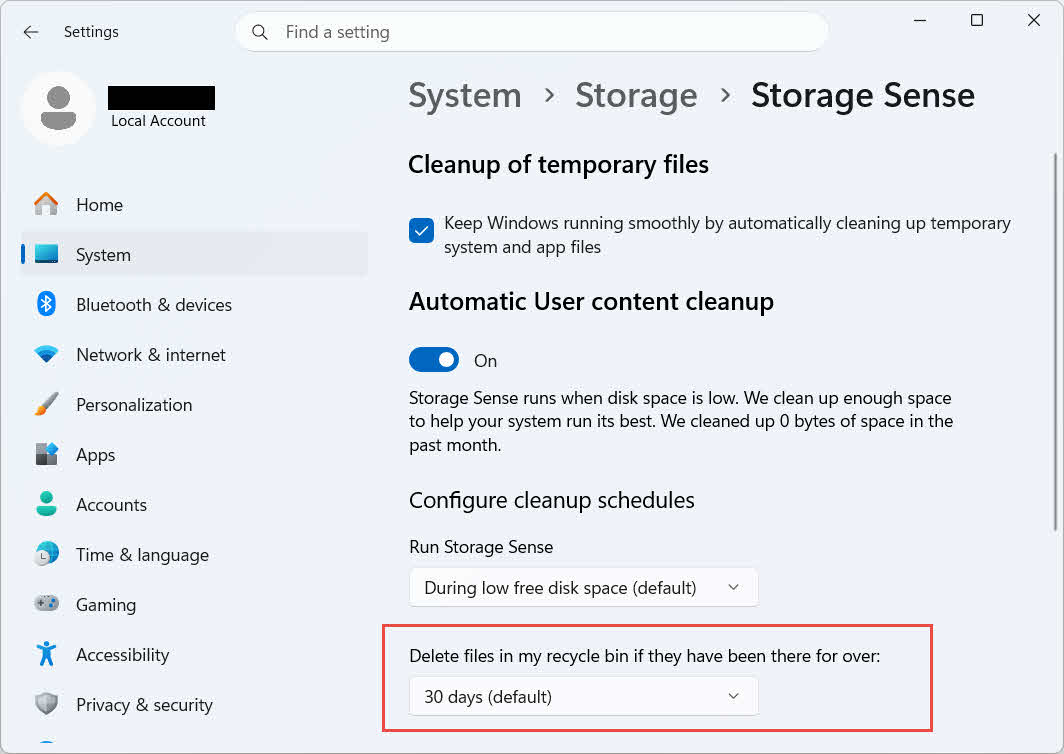
Windows bietet außerdem eine separate, altersbasierte Bereinigungsoption: Gehen Sie zu Einstellungen -> System -> Speicher -> Speicheroptimierung und einstellen Löschen Sie Dateien in meinem Papierkorb, wenn sie schon länger dort waren eine gewählte Anzahl von Tagen. Die Standardaufbewahrungsfrist beträgt 30 Tage.
6.2 Aktivieren des Bestätigungsdialogs zum Löschen
Windows 11 zeigt standardmäßig keine Bestätigungsabfrage an, bevor Dateien in den Papierkorb verschoben werden. So aktivieren Sie diese Funktion:
- Klicken Sie mit der rechten Maustaste auf Papierkorb Symbol und wählen Sie Eigenschaften im Vergleich
- Einblick in das Anzeige löschen Bestätigungsdialog
- Gehen Sie auf OK
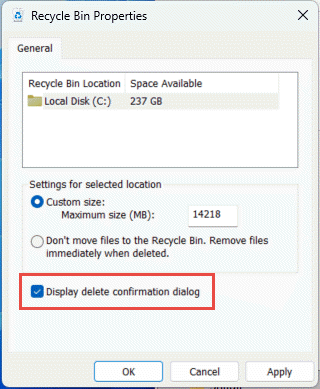
Diese Einstellung verhindert keine endgültigen Löschungen, wie zum Beispiel Shift + Löschen oder Löschungen von Laufwerken ohne Papierkorbunterstützung.
6.3 Dateien so einstellen, dass sie den Papierkorb umgehen (und warum man das vermeiden sollte)
Das Gleiche Dateien nicht in den Papierkorb verschieben. Gelöschte Dateien sofort entfernen. Option abgedeckt in Abschnitt 6.1 Diese Funktion kann auf jedes Laufwerk angewendet werden, um jede Löschung endgültig zu machen. Dadurch wird sofort Speicherplatz freigegeben, allerdings entfällt die einzige in diesem Leitfaden beschriebene Schnellwiederherstellungsoption. Daher eignet sie sich am besten für Laufwerke, die keine persönlichen Dateien enthalten, wie z. B. ein dediziertes Scratch- oder Temp-Volume.
7. Bewährte Verfahren zur Vermeidung künftiger Datenverluste
7.1 Dateiversionsverlauf oder eine Sicherungslösung aktivieren
Der Papierkorb schützt nur vor versehentlichem Löschen, nicht vor Festplattenausfällen oder einem bereits geleerten Papierkorb. Dateiversionsverlauf aktivieren (Systemsteuerung → System und Sicherheit → Dateiversionsverlauf).

Oder ein Backup-Tool eines Drittanbieters fügt mit seiner eigenen Versionshistorie eine zweite Schutzebene hinzu.
7.2 Cloud-Synchronisierung für wichtige Ordner verwenden
Durch das Synchronisieren von Desktop, Dokumenten und Bildern mit OneDrive oder einem anderen Cloud-Dienst erhalten Sie den im Abschnitt beschriebenen Web-Papierkorb. Abschnitt 4.3 als zusätzlicher Wiederherstellungspfad, unabhängig vom lokalen Papierkorb.
7.3 Vor dem Leeren des Recyclingbehälters noch einmal prüfen
Vor dem Klicken Papierkorb leeren, Sortieren nach Datum der Löschung und scannen Sie nach aktuellen Dateien. Sobald der Speicher leer ist, bleibt nur noch die Verwendung spezieller Datenrettungssoftware, wobei der Erfolg nicht garantiert ist.
8. FAQ
F: Kann ich eine Datei noch wiederherstellen, nachdem ich den Papierkorb geleert habe?
A: Nicht über den Papierkorb selbst. Die Datei wird zwar im Dateisystem als gelöscht markiert, kann aber physisch noch auf dem Laufwerk vorhanden sein, bis sie überschrieben wird. Tools wie … DataNumen Data Recovery Diese Programme sind darauf ausgelegt, solche Daten zu scannen und wiederherzustellen. Um die Chancen einer erfolgreichen Datenwiederherstellung zu erhöhen, sollten Sie das Laufwerk so schnell wie möglich nicht mehr verwenden.
F: Gibt es auf dem Mac etwas Ähnliches wie den Windows-Papierkorb?
A: Ja, er heißt Papierkorb und funktioniert genauso: Papierkorb öffnen, mit der rechten Maustaste auf die Datei klicken und „Zurücklegen“ auswählen. Diese Anleitung beschreibt speziell den Windows-Papierkorb. dem Leitfaden behandelt speziell den Mac-Papierkorb.
F: Wie lange bleiben Dateien im Papierkorb, bevor sie automatisch gelöscht werden?
A: Der lokale Papierkorb hat standardmäßig kein festes Zeitlimit; Elemente werden nur dann gelöscht, wenn die Größenbeschränkung erreicht ist oder wenn die Speicheroptimierung so konfiguriert ist, dass alte Elemente endgültig entfernt werden (siehe Abschnitt 6.1Der OneDrive-Web-Papierkorb verwendet ein festes Zeitfenster: 30 Tage für private Konten und bis zu 93 Tage für Geschäfts- oder Schulkonten (siehe Abschnitt 4.3).
F: Soll ich eine Datei an ihrem ursprünglichen Speicherort oder an einem neuen Speicherort wiederherstellen?
A: Wiederherstellung am ursprünglichen Standort (Abschnitt 2) ist einfacher und behält den ursprünglichen Dateipfad bei. Wiederherstellung an einem anderen Speicherort (Abschnitt 3) stattdessen, wenn der ursprüngliche Ordner nicht mehr existiert oder bereits eine gleichnamige Datei enthält.
F: Kann ich mit Hilfe des Papierkorbs Dateien wiederherstellen, die von einem USB-Stick gelöscht wurden?
A: Nicht standardmäßig. USB-Sticks und SD-Karten erhalten keinen Papierkorb, es sei denn, Sie aktivieren ihn manuell, wie hier erklärt: Abschnitt 4.1.
F: Warum ist die Option „Wiederherstellen“ ausgegraut oder fehlt?
A: Dies wird üblicherweise durch einen fehlenden Originalordner oder einen nicht synchronisierten Papierkorbindex verursacht. Siehe Abschnitt 5.3 zur Fehlerbehebung.
F: Was ist, wenn der Papierkorb leer ist, ich ihn aber nie geleert habe?
A: Speicheroptimierung, ein erreichtes Größenlimit, ein anderes Benutzerkonto oder eine Gruppenrichtlinieneinstellung können die Speicherung automatisch durchführen. Siehe Abschnitt 5.5.
F: Welche Software kann Dateien wiederherstellen, die sich nicht mehr im Papierkorb befinden?
A: Spezielle Datenwiederherstellungssoftware, wie zum Beispiel DataNumen Data Recovery, durchsucht das Laufwerk auf einer tieferen Ebene, um Daten zu finden, auf die das Dateisystem nicht mehr verweist. Dies ist etwas, was die Papierkorb-Oberfläche selbst nicht leisten kann.
F: Garantiert das Wiederherstellen einer Datei, dass sie sich korrekt öffnen lässt?
A: Nein. Durch das Wiederherstellen wird die Datei lediglich in einen Ordner zurückverlegt; etwaige Schäden, die die Datei vor oder während des Löschens erlitten hat, werden dadurch nicht behoben. Siehe Abschnitt 5.6.
9. Fazit
Das Wiederherstellen gelöschter Dateien aus dem Papierkorb ist unkompliziert, solange die Datei noch vorhanden ist: Papierkorb öffnen, Datei suchen und wiederherstellen. Externe Laufwerke, Netzwerkfreigaben und OneDrive-synchronisierte Ordner bringen jeweils eigene Besonderheiten mit sich. Die oben beschriebenen Abschnitte zur Fehlerbehebung und Konfiguration behandeln Fälle, in denen die Standardwiederherstellung nicht wie erwartet funktioniert. Wurde die Datei endgültig gelöscht oder der Papierkorb bereits geleert, ist der Einsatz einer speziellen Datenrettungssoftware der nächste Schritt – nicht der Papierkorb selbst.
Über den Autor
Qian Gua ist ein Spezialist für Datenrettung mit über 10 Jahren Erfahrung in Windows-Dateisystemen, Speichertechnologien und Lösungen zur Notfallwiederherstellung. Er hat Tausende von Anwendern erfolgreich durch kritische Datenverlustszenarien in privaten und geschäftlichen Umgebungen geführt.
Qian ist spezialisiert auf Datenwiederherstellungsmethoden für Windows, Dateisystemanalyse und präventive Backup-Strategien. Seine umfassende praktische Erfahrung umfasst die Datenwiederherstellung von Festplatten, die Implementierung umfassender Backup-Lösungen und die Behebung komplexer Dateisystemprobleme. NTFSEr kennt sich mit FAT-, exFAT- und ReFS-Volumes aus. Er hat mit verschiedenen Wiederherstellungstools und -techniken gearbeitet, von in Windows integrierten Dienstprogrammen bis hin zu professioneller Datenrettungssoftware.
Mit seinen technischen Artikeln möchte Qian Nutzern praktisches Wissen vermitteln, um ihre wertvollen Daten zu schützen und wiederherzustellen. Er hält sich über die neuesten Entwicklungen im Bereich der Windows-Dateiwiederherstellungstechnologien, Innovationen bei Speichermedien und Best Practices für den Datenschutz auf dem Laufenden. Wenn er Nutzern nicht gerade bei der Wiederherstellung ihrer Daten hilft, …ost fileQian beschäftigt sich gerne mit der Erforschung neuer Speichertechnologien und gibt Tipps zur Datensicherheit weiter, um zukünftigen Datenverlust zu verhindern.
Haben Sie Fragen zu dieser Anleitung oder benötigen Sie Hilfe bei der Datenwiederherstellung? Qian heißt Sie herzlich willkommen. Feedback und Vorschläge zur Verbesserung dieser Datenwiederherstellungsressourcen.