
Někdy potřebujeme rozdělit velký soubor PST na malé, protože:
- Velká velikost souboru a velký počet položek povede k pomalé rychlosti v mnoha operacích, jako je vyhledávání, přesun atd., Takže jej můžete rozdělit na malé kousky a získat na něm snadnější a rychlejší správu.
- Staré verze aplikace Outlook (97 až 2002) nepodporují soubory větší než 2 GB, takže pokud váš soubor dosáhne tohoto limitu, máte dvě možnosti:
- Pokud máte Outlook 2003 nebo vyšší verze, můžete převeďte svůj příliš velký soubor PST do nového formátu.
- V opačném případě jej můžete rozdělit na malé části, přičemž se ujistěte, že každý kus je <= limit 2 GB.
DataNumen Outlook Repair vám může pomoci automaticky rozdělit velký soubor PST na menší.
Home DataNumen Outlook Repair.
Poznámka: Před rozdělením nadměrně velkého souboru PST na DataNumen Outlook Repair, zavřete prosím Microsoft Outlook a další aplikace, které mohou soubor PST upravit.
Přejít  kartu a poté vyberte následující možnost:

a nastavte limit velikosti na hodnotu menší než 2 GB. Doporučuje se použít hodnotu, která je pouze zlomkem 2 GB, aby váš soubor brzy znovu nedosáhl 2 GB, například 1000 XNUMX MB. Upozorňujeme, že jednotka je MB.
Jít zpět k  Karta.
Vyberte nadměrně velký soubor PST aplikace Outlook jako zdrojový soubor PST, který chcete opravit:

Můžete zadat název souboru PST přímo nebo kliknout na  tlačítko pro procházení a výběr souboru. Můžete také kliknout na ikonu
  tlačítko k nalezení souboru PST, který má být zpracován v místním počítači.
Protože je soubor PST nadměrně velký, musí být ve formátu aplikace Outlook 97-2002. Proto v rozbalovacím seznamu zadejte jeho formát souboru „Outlook 97-2002“  vedle editačního pole zdrojového souboru. Pokud ponecháte formát „Automaticky určeno“, pak DataNumen Outlook Repair prohledá zdrojový nadměrně velký soubor PST a automaticky určí jeho formát. Bude to však trvat déle.
Ve výchozím nastavení, kdy DataNumen Outlook Repair skenuje a rozděluje zdrojový nadrozměrný soubor na několik menších, první rozdělený pevný soubor má název xxxx_fixed.pst, druhý xxxx_fixed_1.pst, třetí xxxx_fixed_2.pst atd., kde xxxx je název zdrojový soubor PST. Například pro zdrojový soubor PST Outlook.pst bude ve výchozím nastavení první rozdělený soubor Outlook_fixed.pst a druhý bude Outlook_fixed_1.pst a třetí bude Outlook_fixed_2.pst atd.
Chcete-li použít jiné jméno, vyberte nebo odpovídajícím způsobem nastavte:

Fixní název souboru můžete zadat přímo nebo kliknout na tlačítko pro procházení a výběr pevného názvu souboru.
V rozevíracím seznamu můžete vybrat formát pevného souboru PST  kromě pevného pole pro úpravy souborů jsou možné formáty Outlook 97-2002 a Outlook 2003-2010. Pokud ponecháte formát „Automaticky určeno“, pak DataNumen Outlook Repair vygeneruje opravený soubor PST kompatibilní s aplikací Outlook nainstalovanou v místním počítači.
Klepněte na tlačítko  , a DataNumen Outlook Repair začne skenovat zdrojový soubor PST, obnovovat a shromažďovat položky v něm a poté tyto obnovené položky umístí do nového pevného souboru PST, jehož název je nastaven v kroku 6. Jako příklad použijeme soubor Outlook_fixed.pst.
Když velikost souboru Outlook_fixed.pst dosáhne limitu přednastaveného v kroku 2, DataNumen Outlook Repair vytvoří druhý nový soubor PST s názvem Outlook_fixed_1.pst a pokusí se do něj vložit zbývající položky.
Když i druhý soubor dosáhne přednastaveného limitu, DataNumen Outlook Repair vytvoří třetí nový soubor PST s názvem Outlook_fixed_2.pst pro uložení zbývajících položek atd.
V tomto procesu indikátor průběhu

postupuje odpovídajícím způsobem, aby označil postup rozdělení.
Po dokončení procesu, pokud byl zdrojový nadměrně velký soubor PST úspěšně rozdělen na několik menších nových souborů PST, uvidíte toto okno se zprávou:
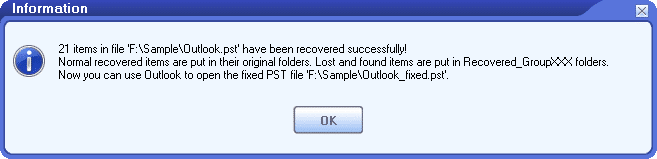
Nyní můžete rozdělené soubory PST otevírat jeden po druhém v aplikaci Microsoft Outlook. A najdete všechny položky původního nadměrně velkého souboru PST, které jsou rozloženy mezi tyto rozdělené soubory.
Poznámka: V ukázkové verzi se zobrazí následující okno se zprávou, které ukazuje úspěch rozdělení:
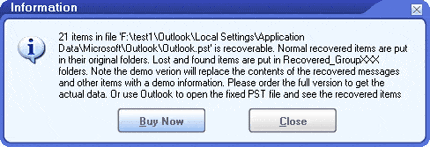
V nových rozdělených souborech PST bude obsah zpráv a příloh nahrazen ukázkovými informacemi. Prosím objednat plnou verzi získat skutečný obsah.