
透過我們的完整指南,學習如何恢復已刪除的 Word 文檔,包括免費技巧、高級方法和專業工具。
1. 介紹
誤刪 Word 文件是 Windows 和 Mac 系統中最常見的資料遺失情況之一。無論您是使用刪除鍵還是清空回收站,只要您迅速採取行動並停止向受影響的驅動器寫入新數據,通常都可以恢復數據。
本指南涵蓋以下三種情況:
- 誤刪-檔案已被刪除,但可能仍在回收站中。
- 永久刪除-回收站已清空或使用了Shift+Delete組合鍵。
- 內容刪除-在開啟的文件中,文字、頁面、圖像或章節會意外刪除。
方法一:使用 Ctrl+Z 撤銷刪除操作
2.1 使用 Ctrl+Z 恢復已刪除的 Word 文檔
如果您只是刪除了檔案而沒有執行任何其他操作,Ctrl+Z 是最快的復原方法。
快速方法:
- Windows:按 按Ctrl + Z (如有需要,可重複此操作以撤銷多次刪除)
- 蘋果機:按 Command + Z (根據需要重複)
圖形使用者介面方法:
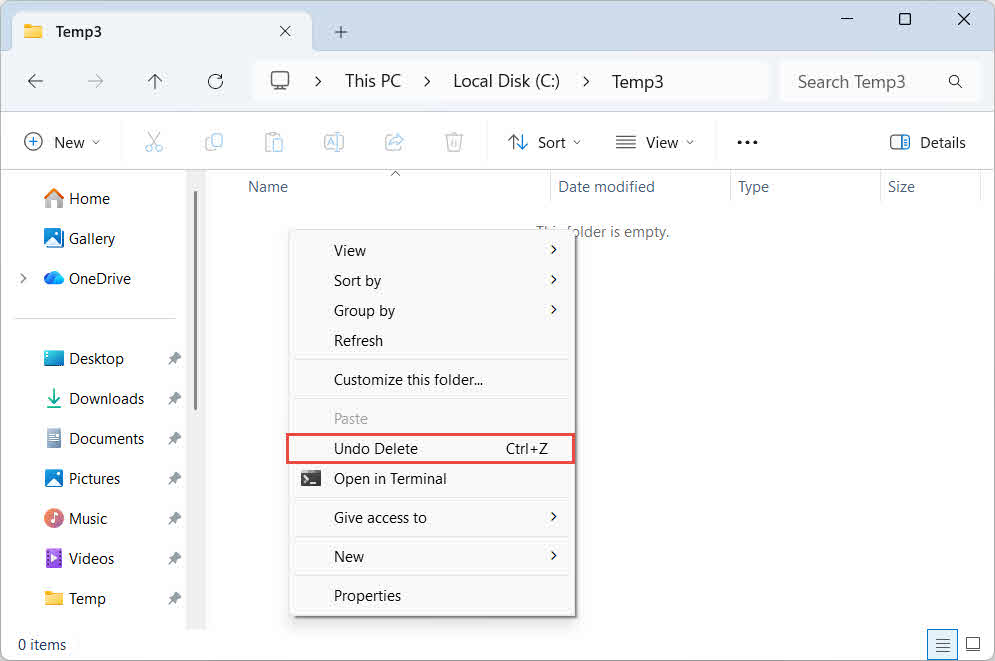
- 在檔案總管中,開啟刪除檔案之前儲存的資料夾。
- 右鍵單擊資料夾中的任意空白區域,然後選擇 撤銷刪除.
2.2 使用 Ctrl+Z 恢復已刪除的內容
如果文字、頁面、圖像或章節意外刪除,且文件仍處於開啟狀態,請按 按Ctrl + Z 立即撤銷刪除操作。
限制:
- 預設情況下,Word 每個會話最多保留 100 次可撤銷操作。如果您在刪除後進行了多次編輯,可能需要重複按下 Ctrl+Z,而此時已刪除的內容可能已經超過了撤銷次數的限制。
- 關閉文件會清除撤銷歷史記錄。文件關閉後再重新打開,Ctrl+Z 將無法恢復已刪除的內容。在這種情況下, 恢復先前版本 而是(第 6.2 節)。
3. 方法 2:從回收箱回收
3.1 方法 2.1:Windows 回收站
當正常刪除檔案(不使用 Shift+Delete)時,Windows 會將其移至回收站,而不是永久刪除。您可以從回收站恢復該檔案:
- 雙擊 回收站 在桌面上找到圖標,或在「開始」功能表中搜尋:

- 找到您的 Word 文件。使用搜尋框或排序方式 名稱 or 刪除日期 為了更快地找到它。
- 右鍵單擊該文件,然後選擇 恢復文件將恢復到其原始位置:



請注意: 對於網路共用驅動器,您需要檢查伺服器端的回收站,而不是本機回收站。
查看我們的指南 如何從回收站恢復已刪除的文件 閲讀更多的細節。
3.2 方法 2.2:Mac 垃圾桶
在 Mac 上,已刪除的檔案會儲存到指定位置。 垃圾桶 在永久移除之前。
- 在操作欄點擊 垃圾桶 Dock 欄中的圖示。
- 找到您的Word文件。
- 右鍵單擊該文件,然後選擇 放回去 將其恢復到原位。

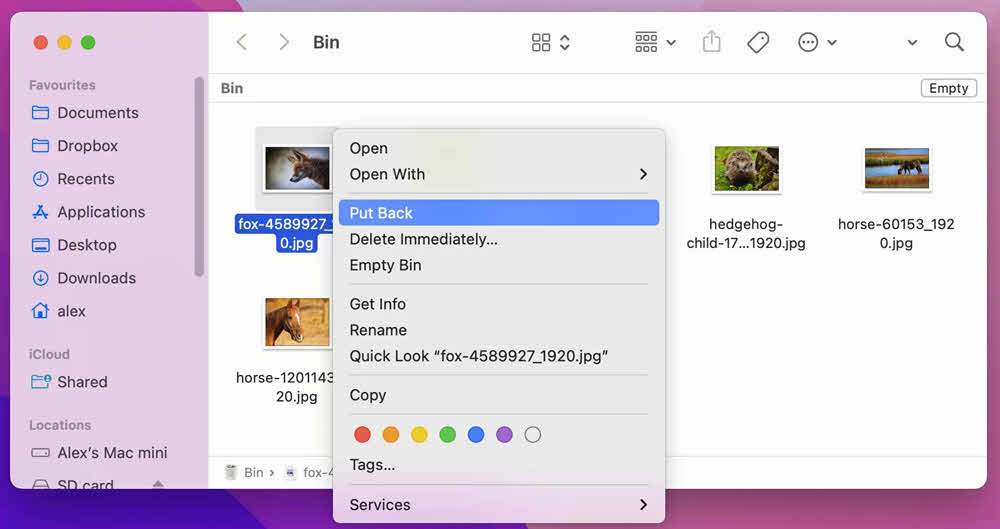
勾選 本指南 有關如何從 Mac 上的「廢紙簍」恢復文件的更多詳細資訊。
3.3 方法 2.3:雲盤回收站
如果文件儲存在雲端盤上,請檢查其單獨的回收站:
請注意: 如果您在 Word 行動應用程式中刪除檔案(三點選單 -> 刪除實際上,您刪除的是 OneDrive 上的雲端文件,而不是本地文件,因此它不會出現在您智慧型手機的本地回收站中。請改用 OneDrive 回收站。
SharePoint 注意事項: 如果最終使用者的回收站中沒有該文件,SharePoint 管理員可以檢查網站集回收站或保留庫。
方法二:重新下載/重新傳送文件
如果刪除的檔案最初是從網路下載的或作為電子郵件附件接收的,那麼重新取得該檔案可能比任何復原方法都更快。請檢查以下內容:
- 電子郵件收件匣和已傳送郵件中是否有包含該文件的附件
- Check the 资料下载 您可以將副本儲存到資料夾中,或瀏覽下載記錄記錄查找直接重新下載連結。
- 請聯絡原發送者或文件託管網站索取新副本。
5. 方法三:從備份或副本恢復
在嘗試磁碟級復原之前,請先仔細考慮檔案備份或副本可能存在的所有位置:
- 定期備份或自動備份: 如果您使用任何備份軟體或服務,請檢查備份檔案。
- 雲端硬碟: OneDrive、Google Drive、Dropbox、iCloud Drive—許多檔案會自動同步。
- 其他雲端服務: 正常使用過程中,許多文件會自動儲存到雲端服務中,例如 Google Docs。
- 共用網路磁碟機: 該文件可能已儲存到團隊或部門資料夾中。
- 外部驅動器: 您可能已將副本儲存或傳送至USB隨身碟或外接硬碟。
- 其他設備: 可能已同步該文件的筆記型電腦、家用電腦或行動裝置。
方法五:透過文件歷史記錄/時間機器恢復
6.1 恢復已刪除的 Word 文檔
如果在刪除之前啟用了檔案記錄(Windows)或時間機器(Mac),則可以將資料夾還原到檔案刪除之前的某個時間點。
6.1.1 Windows 文件歷史記錄
請注意: 必須先啟用文件歷史記錄才能刪除文件。請前往 控制面板 -> 文件歷史記錄 核實。
- 開啟檔案總管,導航至包含已刪除檔案的資料夾。
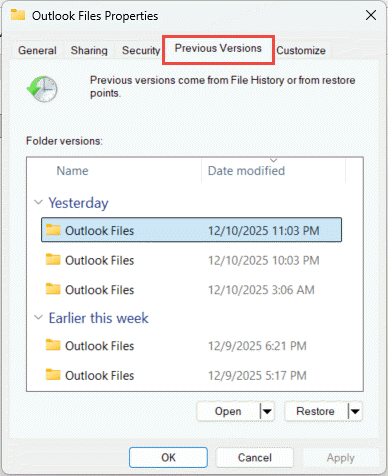
- 右鍵單擊文件夾並選擇 物業.
- 在操作欄點擊 以前的版本 選項卡。將顯示可用備份快照清單。

- 選擇檔案刪除日期之前的版本。
- 若要預覽內容,請展開 未結案工單 並選擇 在文件歷史記錄中開啟.
- 點擊 恢復 恢復整個資料夾。
6.1.2 Mac 時間機器
- 開啟已刪除檔案所在的資料夾。
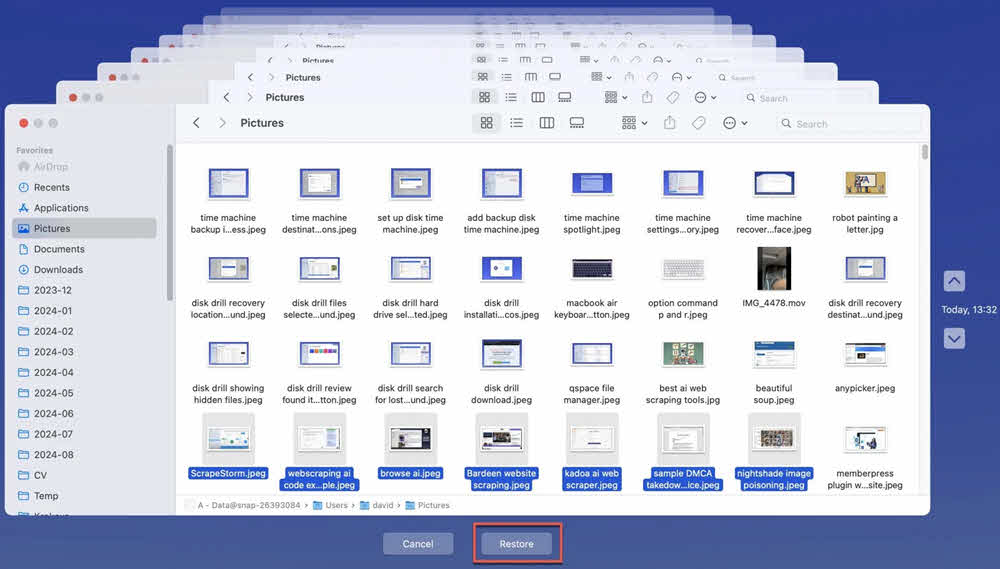
- 未結案工單 時間機器 從選單列或 應用領域.
- 使用右側的時間軸或箭頭導覽至文件存在的某個時間點。
- 選擇文件,然後單擊 恢復.
6.2 透過文件歷史記錄恢復已刪除的內容
如果文件中的內容被刪除,並且文件隨後被儲存並關閉,您可以透過恢復仍包含已刪除內容的文件先前版本來恢復這些內容。此方法適用於本機磁碟機和雲端磁碟機上的檔案:
- Windows 檔案記錄: 遵循中的步驟 第6.1.1但請將這些變更套用至 Word 文件本身,而不是其父資料夾。選擇內容刪除之前的版本。
- Mac 時間機器: 遵循中的步驟 第6.1.2但請將這些變更套用至 Word 文件本身,而不是其父資料夾。選擇內容刪除之前的版本。
- Google 雲端硬碟版本歷史記錄
- OneDrive 版本歷史記錄
- SharePoint 版本歷史記錄
- Dropbox 版本歷史記錄
7. 方法六:透過自動恢復功能恢復
如果 Word 在檔案被刪除之前建立了自動復原快照,則可以從該快照還原已刪除的 Word 文件。
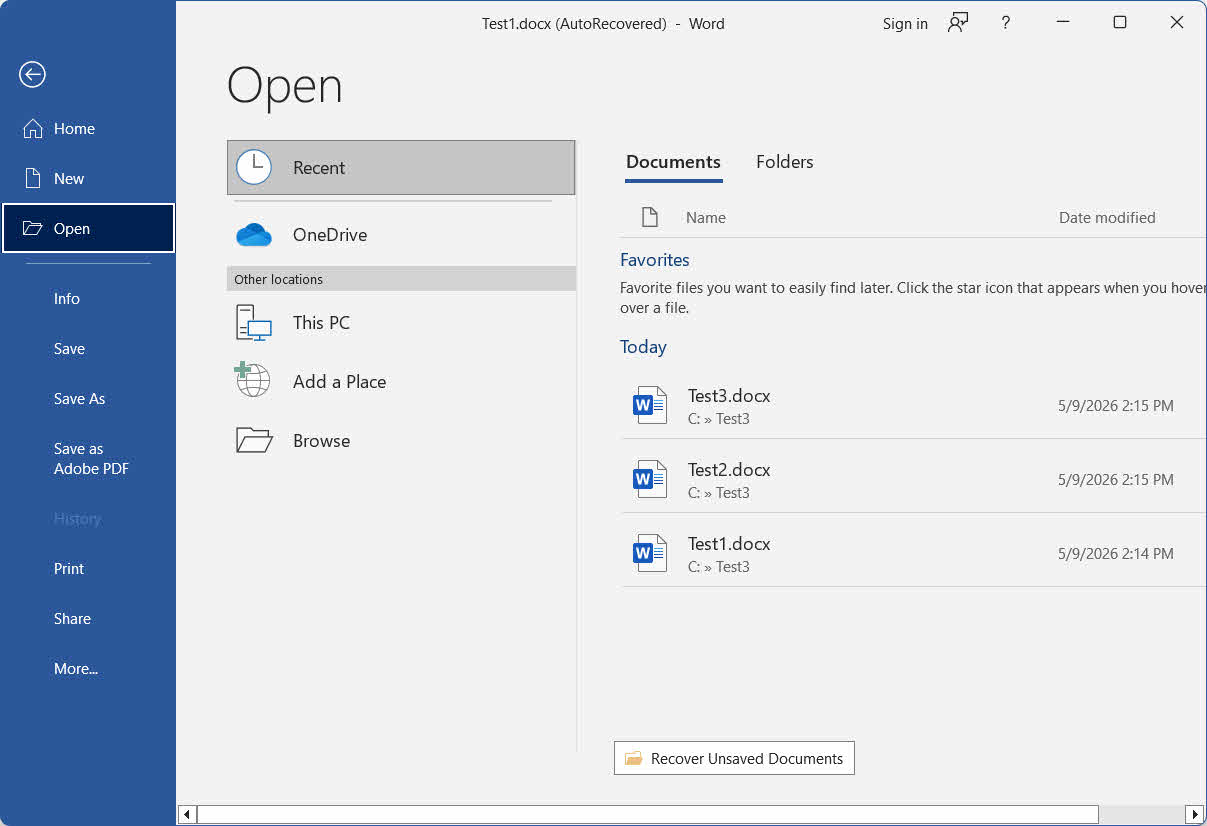
7.1 透過文件 -> 打開
- 打開 Word 並點擊 文件 -> 未結案工單 -> 最近.
- 滾動到列表底部並點擊 恢復未保存的文檔.
- 在 未結案工單 在新視窗中開啟檔案並點擊 未結案工單.
- 立即儲存已復原的文件 文件 -> 另存為.
7.2 手動檢查自動恢復資料夾
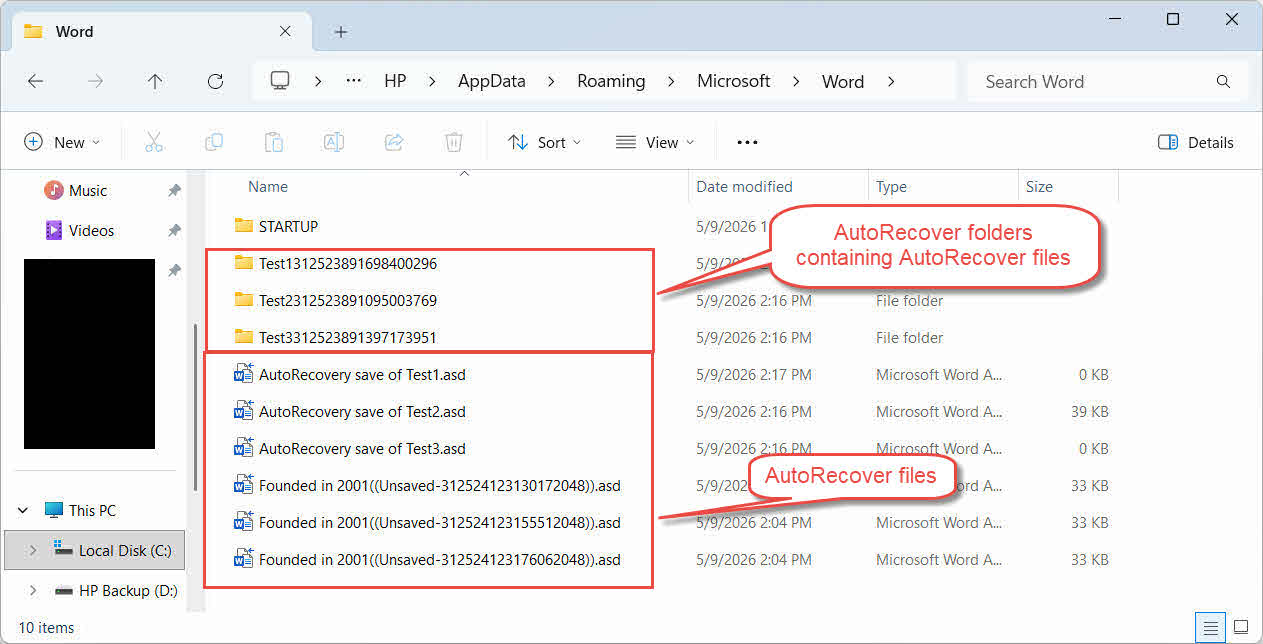
如果上述步驟沒有傳回結果,請直接搜尋自動復原資料夾。
- 媒體中心 Windows Key + R,輸入 %AppData%\Microsoft\Word\,然後按 進入.
- 在操作欄點擊 修改日期 列標題用於按最新文件排序。
- 選擇所有 ASD (自動恢復)文件,以及可能包含這些文件的任何子資料夾。
- 雙擊候選文件,或透過 Word 開啟它 文件 -> 未結案工單以識別您遺失的文件。
- 如果文件無法打開, 更改其擴展名 至 .DOC 然後再試一次。
請注意: .asd 檔案的實際格式是 .doc,因此您需要將其副檔名變更為 .asd。 .DOC 而不是 。的docx. - 立即儲存已復原的文件 文件 -> 另存為.
8. 方法七:從自動備份檔案恢復
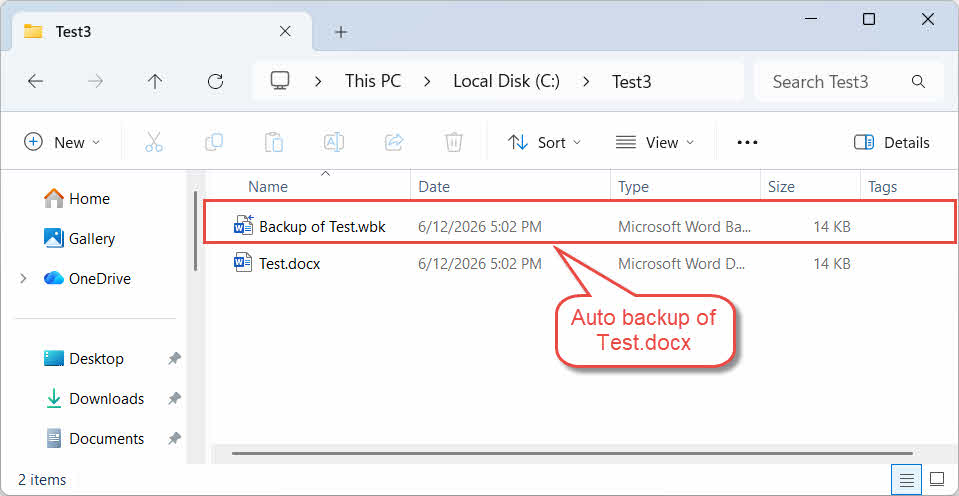
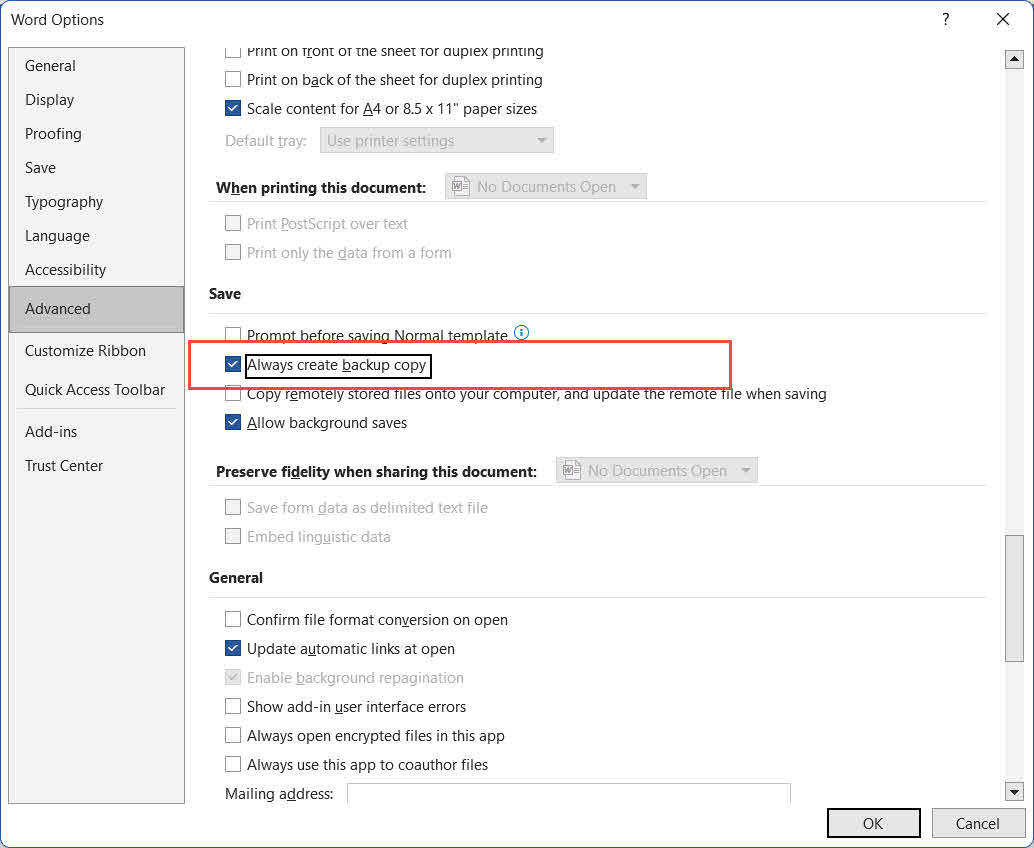
如果 始終建立備份副本 之前在 Word 中啟用了此選項 .wbk 每次儲存檔案新版本時,都會在相同資料夾中建立備份檔案。因此,您可以從備份中還原已刪除的 Word 文件:
- 開啟檔案總管,並導覽至與原始 Word 文件相同的資料夾。
- 查找名為的文件 [您的檔案名稱].wbk 備份.
- 雙擊即可在 Word 中開啟。
- 使用 文件 -> 另存為 將永久副本儲存到安全位置。
請注意: 自動備份的是已儲存文件的先前版本。
9. 方法六:檢查臨時備份檔案資料夾
如果您使用 OneDrive 用戶端同步 Word 文檔,則某些使用者已成功從專門的 TemporaryBackupFile 資料夾中恢復了遺失的文檔:
- 開啟檔案總管並導航至:
C:\Users\<Username>\AppData\Local\Microsoft\Word\TemporaryBackupFile
- 尋找與原始文件名稱相符的文件,並開啟它們以驗證內容。
- 如果文件無法開啟:
- 使用 文件 -> 另存為 將永久副本儲存到安全位置。
10. 方法九:檢查未儲存檔案快取資料夾
Office 維護一個專門的「未儲存檔案」快取資料夾,其中可能包含已刪除 Word 文件的可復原副本:
- 開啟檔案總管並導航到 C:\Users\[使用者名稱]\AppData\Local\Microsoft\Office\UnsavedFiles.
- 在操作欄點擊 修改日期 列標題用於按最新文件排序。
- 開啟任意相關文件。
- 如果文件無法開啟:
- 立即儲存已復原的文件 文件 -> 另存為.
11. 方法八:搜尋臨時資料夾
如果以上方法都無效,您也可以從作業系統暫存資料資料夾中還原已刪除的 Word 檔案。
Windows上:
- 媒體中心 Windows Key + R,輸入 %TEMP%,然後按 進入.
- 在檔案總管的搜尋框中,鍵入 *。TMP 並以以下方式對結果進行排序 修改日期.
- 尋找在工作會話期間建立的大於 0 KB 的候選檔案。
- 然後,複製一份文件。 更改副本的副檔名 至 。的docx.
- 在 Word 中開啟該文件。
- 如果文件成功打開,請立即儲存。 文件 -> 另存為.
請注意: 還要檢查臨時資料夾和原始文件保存資料夾中以 ~、~$ 或 $ 開頭的文件——Word 在活動會話期間會創建這些文件,其中可能包含可恢復的內容。在檔案總管的搜尋方塊中,輸入以下篩選條件:
- 文件以 ~:
System.FileName:~<"~" - 文件以 ~$:
System.FileName:~<"~$" - 文件以 $:
System.FileName:~<"$"
蘋果:
- 未結案工單 終端 (使用 Spotlight 搜尋尋找)。
- 類型 打開$ TMPDIR 並按下 進入.
- 在打開的 Finder 視窗中,導航到 臨時物品 文件夾中。
- 找到您的 Word 文件並打開它以查看其內容。
- 立即儲存永久副本。
12. 方法九:搜尋整台計算機
除了逐一檢查各個資料夾外,您還可以搜尋整個計算機,尋找在工作期間建立的 Word 文件或臨時檔案:
- 開啟檔案總管並點擊 這台電腦 在左側面板中搜尋所有磁碟機。
- 點選右上角的搜尋框,然後輸入
*.doc OR *.docx OR *.asd OR *.wbk OR *.tmp,然後按 進入. - 以以下方式排序結果 修改日期 將最新文件置於頂部。
- 查看結果時請勿開啟 Word,因為這可能會觸發自動復原和臨時檔案的清理。
- 在打開任何有價值的文件之前,請將其複製到單獨的資料夾中。
- 對於 .tmp 文件, 更改擴展名 至 。的docx。 論壇 ASD 文件,將擴展名更改為 .DOC 代替。
- 用 Word 開啟檔案。如果打開成功,請立即儲存。 文件 -> 另存為.
13. 方法 12:使用 Windows 檔案恢復
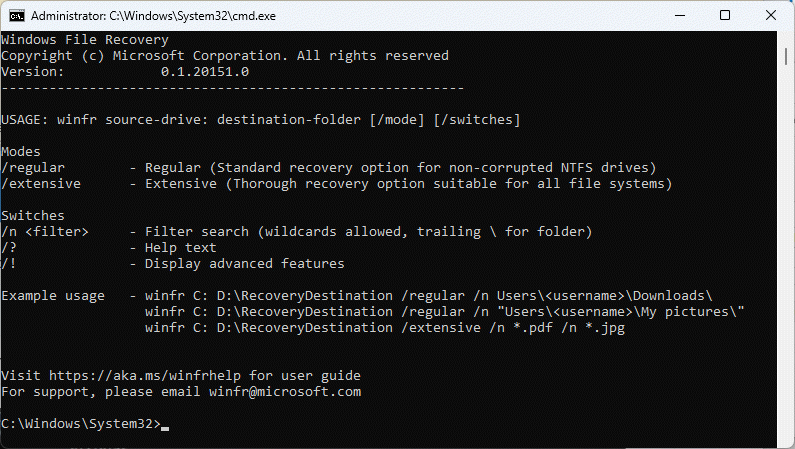
Windows 檔案復原是微軟提供的免費命令列工具,可以恢復永久刪除的檔案:
- 下載並安裝 Windows文件恢復 來自微軟商店。
- 按 Windows 鍵,類型 Windows文件恢復並打開應用程式。選擇 可以 提示時。
- 請按以下格式輸入恢復命令:
winfr 來源磁碟機:目標資料夾 [/模式] [/開關]

使用 正價 針對最近刪除的檔案的模式 NTFS 驅動器:winfr C: E:\Recovery /regular /n *.docx /n *.doc
使用 廣泛 適用於很久以前或非正常情況下刪除的文件NTFS 驅動器:
winfr C: E:\Recovery /extensive /n *.docx /n *.doc
- 類型 Y 收到確認提示後,開始掃描。
- 掃描完成後,打開目標資料夾並檢查已復原的檔案。
- 部分文件可能已遺失原始文件名;請逐一開啟以查看其內容。
14. 方法 13:使用專業文件復原軟體
當以上所有方法都失敗時,可以使用專業的資料復原軟體,例如 DataNumen Data Recovery 可以幫助您恢復已刪除的 Word 文件:
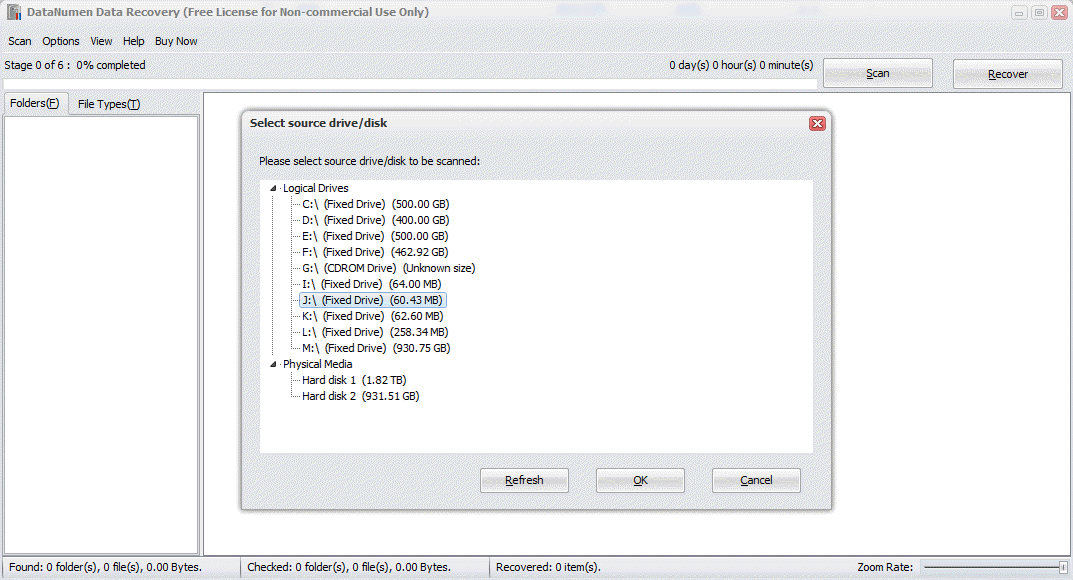
- 開始 DataNumen Data Recovery.
- 選擇先前儲存已刪除檔案的來源驅動器,然後按一下 OK 掃描。

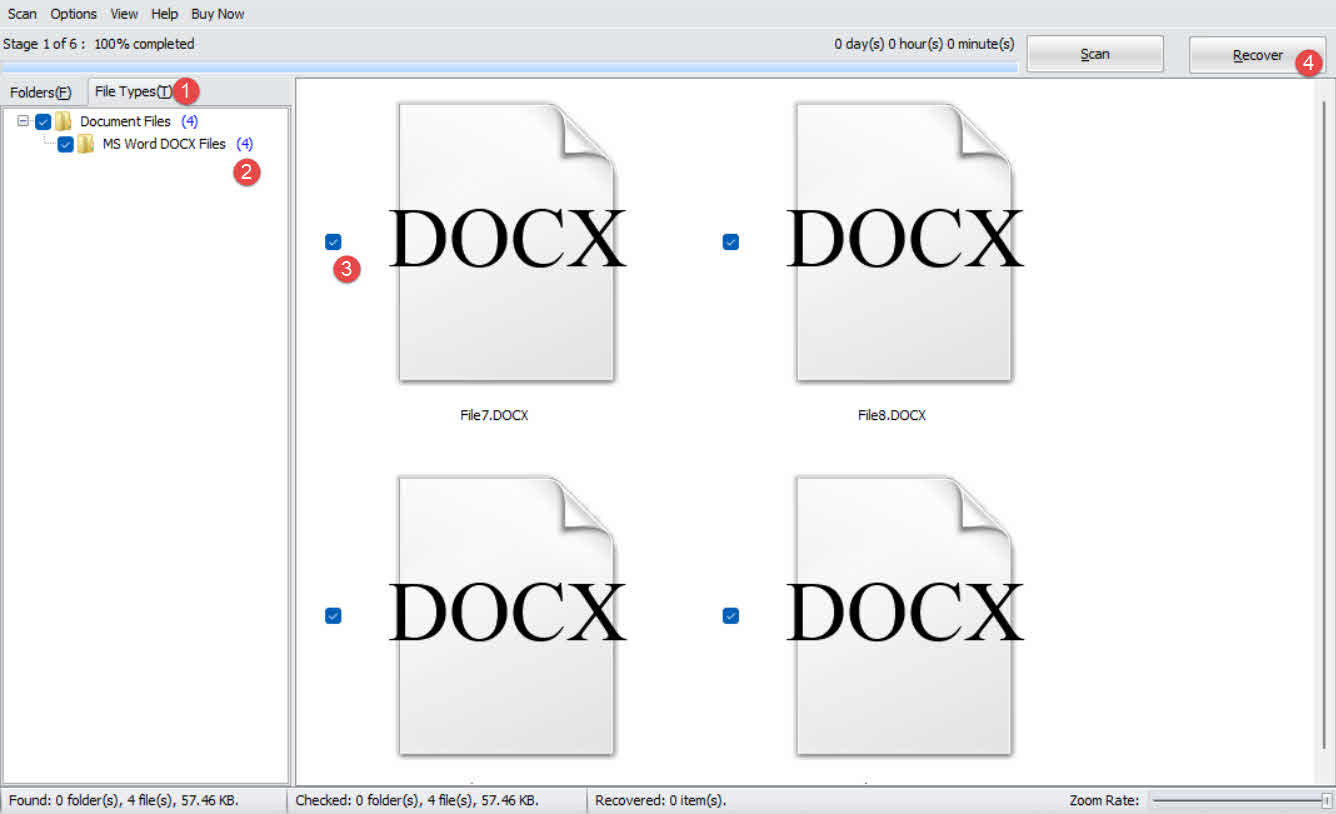
- 在掃描結果中,點擊 文件類型 左側面板中的選項卡。
- 選擇 文件文件 篩選結果,或選擇 MS Word DOCX 文件 以獲得更具體的結果。
- 請查看結果面板中列出的候選人文件。
- 選取要復原的文件,然後按一下 恢復.

- 在 A 上選擇恢復目標 不同 驅動以避免覆蓋數據,然後按一下 OK.
15. 修復已復原的損壞 Word 文檔
復原的檔案——特別是從臨時檔案或資料復原掃描中檢索到的檔案——可能已損壞,無法在 Word 中開啟。在這種情況下, DataNumen Word Repair 可以修復這些文件:
- 關閉 Word 以及任何其他可能開啟了原始檔案的應用程式。
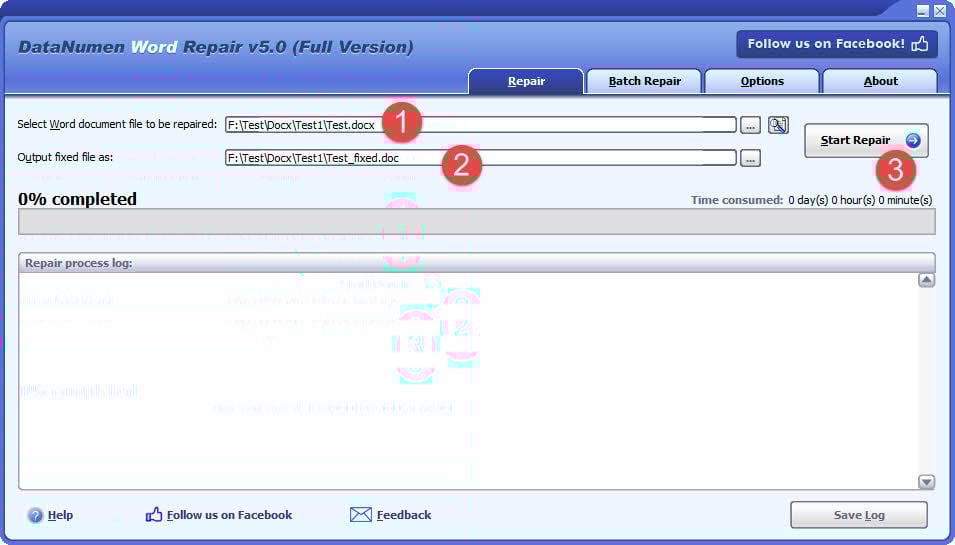
- 開始 DataNumen Word Repair.
- 選擇損壞的Word文件。
- 設定輸出固定檔名。
- 點擊 開始維修.
- 流程完成後,開啟輸出檔案以驗證恢復的資料。
16. 如何防止未來損失
以下措施可大幅降低因誤刪而永久遺失 Word 文件的風險:
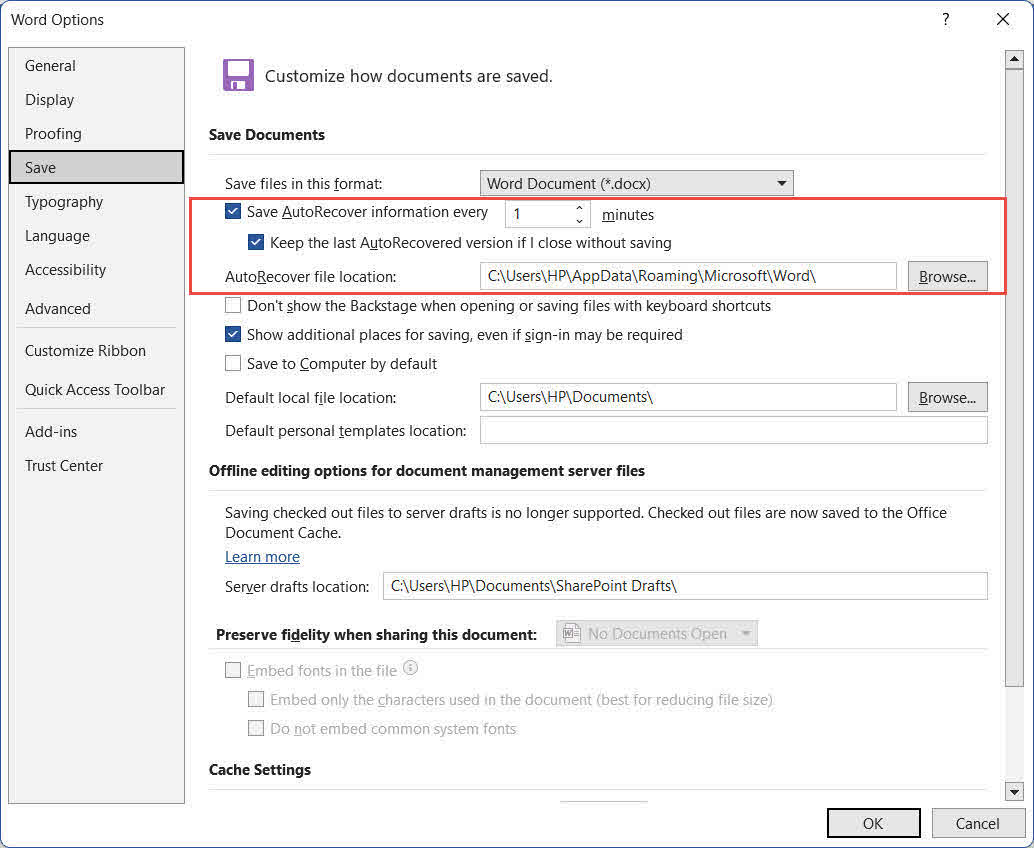
- 啟用自動恢復功能,並設定較短的恢復間隔。 造訪 文件 -> 選項 -> 節省。 確保 每隔 [n] 分鐘保存一次自動恢復訊息 檢查後將間隔縮短至 1-2 分鐘。另外,檢查 如果我關閉而不保存,請保留最後一個 AutoRecovered 版本.

- 啟用自動備份。 造訪 文件 -> 選項 -> 進階功能,捲動到 節省 部分,並檢查 始終建立備份副本Word 將會建立一個 .wbk 每次儲存時,備份檔案都會保存在同一資料夾中。注意:與 Excel 不同,這是一個全域設置,啟用後將套用於所有已儲存的文件。
- 啟用文件歷史記錄。 連接外部驅動器並轉到 控制面板 -> 文件歷史記錄 啟用定期自動備份個人檔案的功能。

- 制定並執行常規備份策略。 遵循 3-2-1 原則:至少保留三份關鍵文件副本,儲存在兩種不同類型的媒體上,其中一份副本異地或雲端。
- 避免使用Shift+Delete組合鍵。 始終使用標準 刪除 關鍵在於將文件發送到回收站而不是永久繞過回收站。
- 使用防毒軟體。 惡意軟體可能會悄無聲息地刪除或損壞檔案。請保持防毒軟體的病毒庫更新,以防止惡意軟體導致的資料遺失。

17.常見問題解答
Q:我能否恢復 Word 文件中已刪除的文字或頁面,而不是整個文件?
答:如果文件仍處於開啟狀態,請使用 按Ctrl + Z 立即執行(第 2.2 節)。如果文件已儲存並關閉,請使用 Windows 檔案歷史記錄或雲端版本歷史記錄 (第 6.2 節)恢復文件的先前版本,該版本仍包含原有內容。 自動恢復快照 (第 7 節)或 自動備份 (第 8 節)也可能包含內容的早期版本。
Q:我的文件永久刪除,回收站也為空-還能找回嗎?
答:是的,前提是磁碟空間沒有被覆蓋。請立即停止使用受影響的驅動器並重試。 Windows文件恢復 (第 13 節)或 專業資料復原軟體 (第 14 節)隨著驅動器繼續使用,恢復成功率會降低。
Q:刪除的檔案位於網路磁碟機上,不在我的本機回收站。我應該在哪裡找?
答:從網路共用中刪除的檔案不會進入本機 Windows 回收站。請檢查網路共用自身的回收站或垃圾箱。如果看不到,請聯絡您的 IT 管理員—網路伺服器可能有一個伺服器端回收站,需要管理員權限才能從中復原檔案。
Q:永久刪除的 Word 文件在多久內無法恢復?
答:沒有固定的時間窗口。在機械硬碟 (HDD) 上,如果硬碟使用頻率不高,刪除的資料可能會保留數天甚至數週。但在啟用了 TRIM 功能的固態硬碟 (SSD) 上,資料可能在幾分鐘內就被清除。請立即採取行動,避免向受影響的硬碟寫入任何新資料。
Q:我儲存變更後覆蓋了 Word 文件。我能恢復到舊版本嗎?
答:去 文件 -> 資料包 -> 管理文件 檢查 自動恢復快照 (第 7 節)如果 始終建立備份副本 已啟用 .wbk 備份文件 儲存的是上次儲存之前的版本(第 8 節)。對於 OneDrive 或 SharePoint 上的文件,請使用 版本歷史 (第 6.2 節)。如果啟用了 Windows 檔案記錄,請還原 以前的版本 文件(第 6.1.1 節)。
Q:使用第三方恢復工具安全嗎?
答:信譽良好的工具在掃描過程中會以唯讀模式運行,不會修改來源磁碟機。務必將復原的檔案儲存到不同的磁碟機(而不是原始磁碟機),以避免覆寫其他可復原的資料。
Q:我不小心刪除了一個 Word 文檔,我應該立即做什麼?
答:立即停止使用受影響的驅動器,因為任何寫入該驅動器的新資料都可能覆蓋已刪除檔案的資料部分,從而導致無法復原。檢查… 回收站 首先(第 3 節)。如果文件不存在,請按順序嘗試以下方法。 第4 繼續。在復原過程中,請勿在受影響的磁碟機上安裝軟體、下載檔案或執行磁碟清理工具。
Q:我恢復的Word文檔已損壞,無法開啟。我該怎麼辦?
答:使用 Word 的內建功能 打開並修復 首先執行功能:前往 文件 -> 未結案工單 -> 瀏覽選擇文件,然後點擊旁邊的下拉箭頭 未結案工單,並選擇 打開並修復如果失敗,請使用 DataNumen Word Repair (第 15 節)對文件結構進行更深層的修復。
18. 結論
要恢復已刪除的 Word 文檔,請先嘗試最快的方法: 按Ctrl + Z (第 2 節)和 回收站 (第 3 節)。如果這些方法都失敗,請先檢查檔案副本是否存在於其他位置,然後再嘗試磁碟級復原(第 3 節)。 4 - 5)。使用 文件歷史記錄或時間機器 接下來(第 6 節),然後依序學習自動還原、備份和臨時檔案方法(第 1 節)。 7 - 12對於永久刪除且沒有備份的文件,請使用 Windows文件恢復 (第 13 節)或專業的恢復工具,例如 DataNumen Data Recovery (部分 14如果已復原的檔案已損壞, DataNumen Word Repair (部分 15可以恢復它。為避免再次發生這種情況,請啟用預防措施。 第16 ——特別是間隔時間較短的自動恢復功能, 始終建立備份副本以及雲端或外接硬碟備份策略。
關於作者
壽勝 是一位擁有超過 10 年 Word、Excel 和 Microsoft Office 實務經驗的 Microsoft Office 專家。 PowerPoint 他擅長解決企業和教育環境中的各種問題。他已協助數千名使用者恢復遺失的工作成果、解決檔案損壞問題並優化其 Office 工作流程。
壽先生致力於透過技術寫作,將複雜的 Office 故障排除方法轉化為清晰易懂、可操作的步驟,供各種技能水平的使用者使用。他密切關注 Microsoft 365 的最新發展,並持續在實際文件損壞場景下測試各種方法,以確保其準確性。
對本指南有疑問或需要其他 Office 的協助?歡迎隨時聯絡 Shou。 回饋和建議 以改善這些故障排除資源。