
一些用戶想要導入幻燈片 PowerPoint 將演示文稿添加到電子郵件中,而不是將演示文稿添加為電子郵件附件。 現在,在本文中,我們將介紹一種方便的方法來實現它。
在微軟 PowerPoint 應用程序中有一個原生功能支持用戶快速發送 PowerPoint 演示文稿作為電子郵件附件。 然而,大多數用戶希望將演示文稿作為電子郵件發送,即將演示文稿的幻燈片導入到郵件的消息正文中。 現在 MS Outlook 和 PowerPoint 不提供這樣的功能,可以使用下面的VBA代碼來實現。 至於如何運行VBA代碼,可以參考文章——《如何在Outlook中運行VBA代碼“。
導入幻燈片 PowerPoint 演示到電子郵件中
- 首先,啟動 Outlook 應用程式。
- 然後,通過“Alt + F11”按鍵訪問 Outlook VBA 編輯器。
- 接下來,在新窗口中啟用“Microsoft PowerPoint 物件庫” 並參考文章——“如何在 VBA 中新增物件庫引用“。
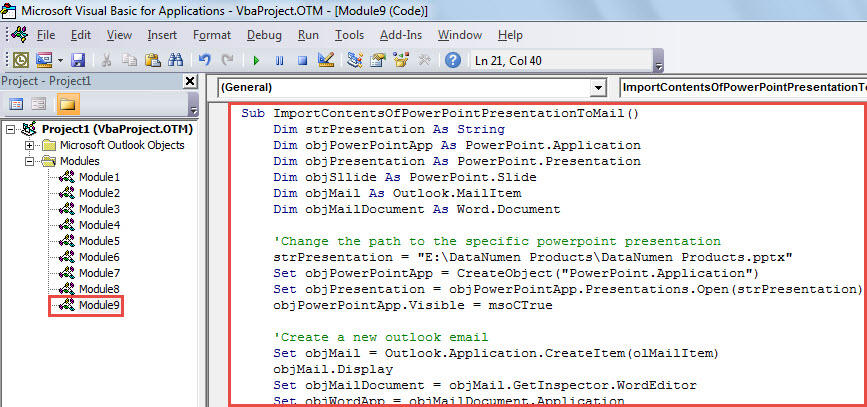
- 隨後,將下面的 VBA 代碼複製到項目或模塊中。
Sub ImportSlidesOfPowerPointPresentationToMail()
    Dim strPresentation As String
    Dim objPowerPointApp As PowerPoint.Application
    Dim objPresentation As PowerPoint.Presentation
    Dim objSllide As PowerPoint.Slide
    Dim objMail As Outlook.MailItem
    Dim objMailDocument As Word.Document

    'Change the path to the specific PowerPoint presentation
    strPresentation = "E:\DataNumen Products\DataNumen Products.pptx"
    Set objPowerPointApp = CreateObject("PowerPoint.Application")
    Set objPresentation = objPowerPointApp.Presentations.Open(strPresentation)
    objPowerPointApp.Visible = msoCTrue

    'Create a new outlook email
    Set objMail = Outlook.Application.CreateItem(olMailItem)
    objMail.Display
    Set objMailDocument = objMail.GetInspector.WordEditor
    Set objWordApp = objMailDocument.Application

    'Copy the contents of presentation into the message body
    For Each objSlide In objPresentation.Slides
        objSlide.Copy
        objWordApp.Selection.Paste
    Next
End Sub
- 之後,您可以運行這個宏。 按“F5”鍵。
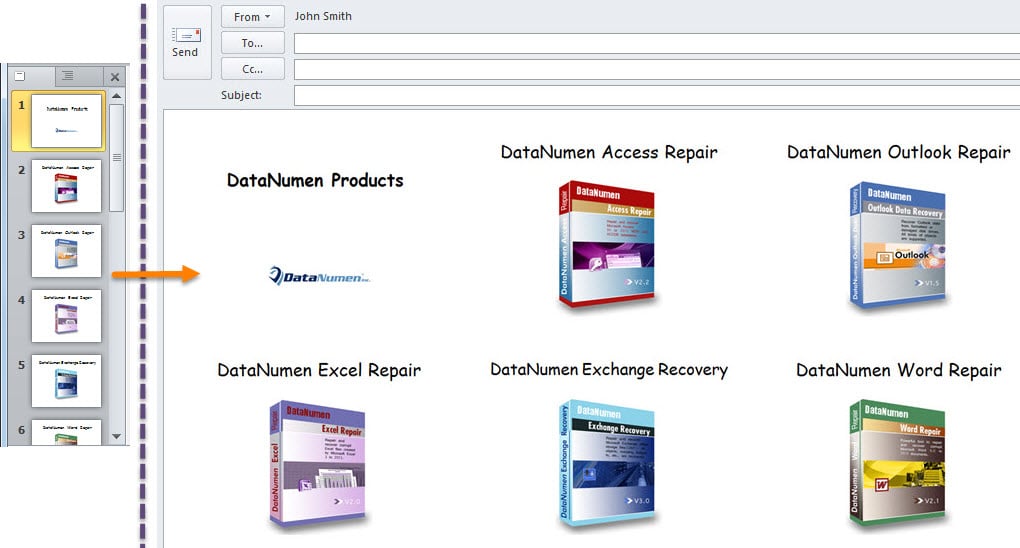
- 宏完成後,您將收到一封新電子郵件。 它包含了源的所有幻燈片 PowerPoint 郵件正文中的展示,如下圖所示:

留意 PST 腐敗
許多用戶抱怨 Outlook 問題和損壞。 老實說,在 Outlook 中很難預測或預防此類問題。 您可以做的是採取足夠的預防措施來減少發生此類情況的可能性。 例如,您應該留意 PST 文件周圍的所有潛在風險,包括惡意軟件、病毒等。 此外,強烈建議您使用附近優秀的 PST 修復工具,例如 DataNumen Outlook Repair。 它能夠幫助您恢復數據 損壞的PST 毫不費力地歸檔。
作者簡介:
Shirley Zhang是的數據恢復專家 DataNumen,Inc.是數據恢復技術的全球領導者,包括 損壞的MDF 和Outlook修復軟件產品。 欲了解更多信息,請訪問 萬維網。datanumen.COM