
許多使用者希望在啟動 Outlook 時所有資料夾都能自動展開。但實際上,Outlook 本身並不支援此功能。因此,要實現此功能,您需要使用 VBA 程式碼。本文將為您提供一個快速指南。
您可能在 Outlook 的預設資料夾下建立了許多子資料夾。面對如此多的資料夾,為了隨時快速訪問,您可能希望所有資料夾始終保持展開狀態。第一步是讓 Outlook 在啟動時自動展開資料夾。顯然,Outlook 本身並沒有這樣的功能。因此,您需要使用巨集。接下來,我們將教您如何使用 VBA 實現此功能。至於如何使用 VBA,您可以參考另一篇文章—“如何在Outlook中運行VBA代碼“。
啟動 Outlook 時自動展開所有資料夾
- 首先,在 Outlook 中按“Alt + F11”以訪問 VBA 編輯器。
- 然後,在新窗口中,將代碼放入“ThisOutlookSession”項目中。
'Auto expand all folders on startup
Private Sub Application_Startup()
    Call ExpandAllFolders
End Sub

Private Sub ExpandAllFolders()
    Dim objCurrentFolder As Outlook.Folder
    Dim objStore As Outlook.Store
    Dim objFileFolders As Outlook.Folders
    Dim objFolder As Outlook.Folder

    Set objCurrentFolder = Application.ActiveExplorer.CurrentFolder

    'Process all email accounts in your Outlook
    For Each objStore In Outlook.Application.Session.Stores
        Set objFileFolders = objStore.GetRootFolder.Folders

        For Each objFolder In objFileFolders
            Call LoopFolders(objFolder)
        Next

        DoEvents
        Set Application.ActiveExplorer.CurrentFolder = objCurrentFolder
    Next
End Sub

Sub LoopFolders(ByVal objCurFolder As Outlook.Folder)
    Dim objSubfolder As Outlook.Folder

    Set Application.ActiveExplorer.CurrentFolder = objCurFolder
    DoEvents

    'Process all subfolders recursively
    If objCurFolder.Folders.Count > 0 Then
       For Each objSubfolder In objCurFolder.Folders
           Call LoopFolders(objSubfolder)
       Next
    End If
End Sub
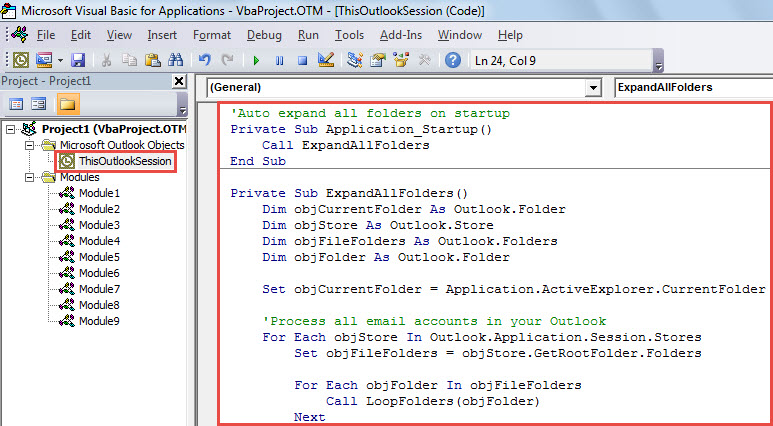
- 之後,關閉VBA編輯器。
- 隨後,正確退出 Outlook 應用程序。
- 稍後,啟動 Outlook。此時,巨集將自動運作。
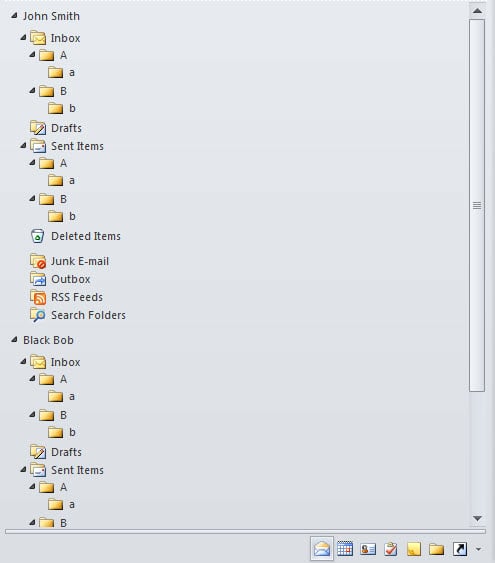
- Outlook 啟動後,您可以看到所有資料夾都已展開,如下圖所示。

阻止所有惡意宏
您是否收到過附有可疑文件或嵌入未知鏈接的電子郵件? 通常,面對此類電子郵件,您必須提高警惕。 您永遠不應該輕易相信它們,因為它們可能攜帶病毒。 一旦您下載附件或打開鏈接,不僅 Outlook 甚至計算機都可能受到攻擊。 到時候你就得 維修展望 文件。 除非您有更新的 Outlook 備份或使用強大的恢復工具,例如 DataNumen Outlook Repair.
作者簡介:
Shirley Zhang是的數據恢復專家 DataNumen,Inc.是數據恢復技術的全球領導者,包括 SQL Server 腐敗 和Outlook修復軟件產品。 欲了解更多信息,請訪問 萬維網。datanumen.COM