
有時,您可能只想打印出電子郵件的文本,而不包括嵌入的圖像。 您可以應用本文介紹的方法,而不是在打印之前刪除圖像。 打印時可以自動排除圖像。
眾所周知,打印圖像會浪費墨水。 因此,有時在打印電子郵件時,您可能會認為插入的圖像無用。 因此,您可能希望在打印電子郵件時排除圖像。 在這種情況下,您可以輕鬆地使用以下方法來實現它。
打印電子郵件時排除嵌入式圖像
- 首先,啟動Outlook應用程序。
- 然後,根據以下文章訪問Outlook VBA編輯器:如何在Outlook中運行VBA代碼“。
- 隨後,您需要啟用“MS Word 物件庫”,您可以參考“如何在 VBA 中新增物件庫引用“。
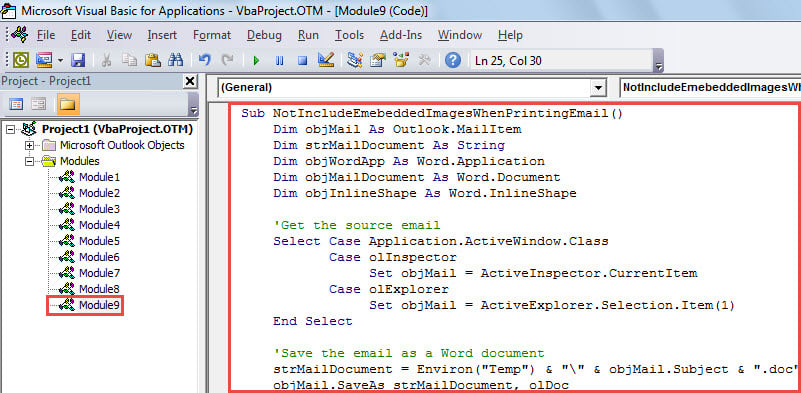
- 之後,將以下VBA代碼放入未使用的模塊中。
Sub ExcludeEmebeddedImagesWhenPrintingEmail()
    Dim objMail As Outlook.MailItem
    Dim strMailDocument As String
    Dim objWordApp As Word.Application
    Dim objMailDocument As Word.Document
    Dim objInlineShape As Word.InlineShape

    'Get the source email
    Select Case Application.ActiveWindow.Class
           Case olInspector
                Set objMail = ActiveInspector.CurrentItem
           Case olExplorer
                Set objMail = ActiveExplorer.Selection.Item(1)
    End Select

    'Save the email as a Word document
    strMailDocument = Environ("Temp") & "\" & objMail.Subject & ".doc"
    objMail.SaveAs strMailDocument, olDoc

    'Remove the embedded images from the document
    Set objWordApp = CreateObject("Word.Application")
    Set objMailDocument = objWordApp.Documents.Open(strMailDocument)
    objWordApp.Visible = True
    For Each objInlineShape In objMailDocument.InlineShapes
        objInlineShape.Delete
    Next

    'Print out the document
    objMailDocument.PrintOut

    objMailDocument.Close
    objWordApp.Quit
    Kill strMailDocument
End Sub
- 以後,關閉當前的“ Microsoft Visual Basic for Applications”窗口。
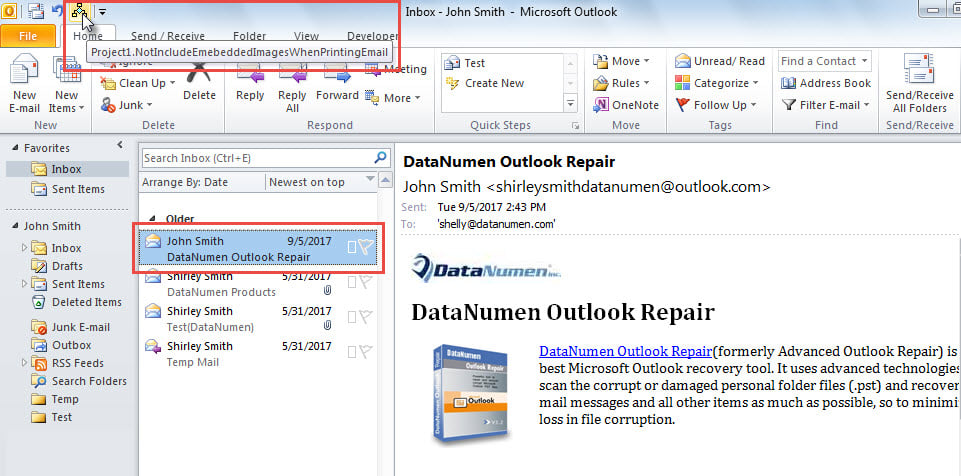
- 然後,將新的宏添加到快速訪問工具欄。
- 最終,您可以立即嘗試使用此宏。
- 首先,選擇或開啟來源郵件。
- 然後,單擊快速訪問工具欄中的宏按鈕。

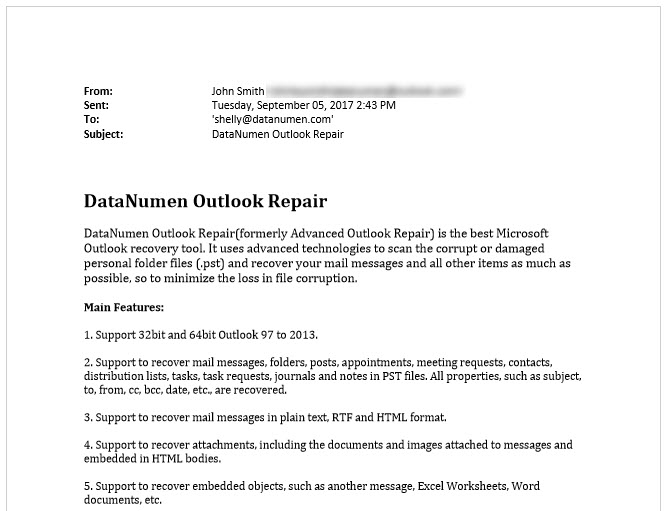
- 電子郵件將立即打印出來,但不帶有嵌入式圖像,該圖像類似於以下屏幕截圖:

有效保護您的Outlook數據
如今,數據總是不安全,因為存在太多潛在風險,例如硬件故障,軟件故障,病毒感染等。 Outlook數據也是如此。 因此,您必須努力保護Outlook數據。 例如,您應該定期進行PST備份。 另外,您需要學習如何使用 掃描儀 修復Outlook文件。 最後但並非最不重要的一點是,準備功能強大的外部維修工具也是必要的,例如 DataNumen Outlook Repair.
作者簡介:
Shirley Zhang是的數據恢復專家 DataNumen,Inc.是數據恢復技術的全球領導者,包括 恢復mdf 和Outlook修復軟件產品。 欲了解更多信息,請訪問 萬維網。datanumen.COM