
完成即時搜索後,您可能會在Outlook中獲得很多搜索結果。 在這種情況下,您可能需要快速訪問搜索結果中項目的父文件夾。 本文將教您如何使用VBA實現它。
閱讀上一篇文章後,“如何使用Outlook VBA獲取搜索結果的完整文件夾路徑”,許多用戶渴望另一種解決方案直接跳轉到搜索結果的文件夾。 因此,下面我們將逐步介紹這種方法。

跳轉到搜索結果中找到的項目的文件夾
- 首先,啟動 Outlook 應用程式。
- 然後,按“ Alt + F11”鍵按鈕訪問VBA編輯器。
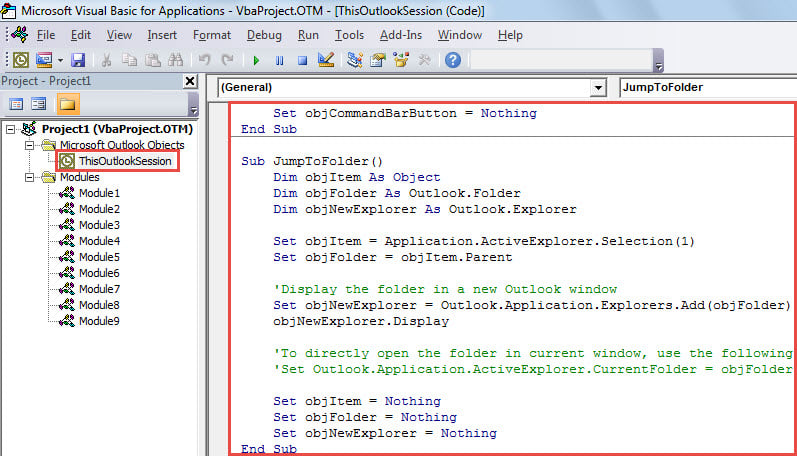
- 接下來,將以下VBA代碼複製到“ ThisOutlookSession”項目中。
Sub Application_ItemContextMenuDisplay(ByVal CommandBar As Office.CommandBar, ByVal Selection As Selection)
    Dim objCommandBarButton As Office.CommandBarButton

    If Selection.Count = 1 Then
       Set objCommandBarButton = CommandBar.Controls.Add(msoControlButton)

       With objCommandBarButton
            .Style = msoButtonIconAndCaption
            .Caption = "Jump To Folder"
            .FaceId = 331
            .OnAction = "Project1.ThisOutlookSession.JumpToFolder"
       End With
    End If

    Set objCommandBarButton = Nothing
End Sub

Sub JumpToFolder()
    Dim objItem As Object
    Dim objFolder As Outlook.Folder
    Dim objNewExplorer As Outlook.Explorer

    Set objItem = Application.ActiveExplorer.Selection(1)
    Set objFolder = objItem.Parent

    'Display the folder in a new Outlook window
    Set objNewExplorer = Outlook.Application.Explorers.Add(objFolder)
    objNewExplorer.Display

    'To directly open the folder in current window, use the following line instead
    'Set Outlook.Application.ActiveExplorer.CurrentFolder = objFolder

    Set objItem = Nothing
    Set objFolder = Nothing
    Set objNewExplorer = Nothing
End Sub
- 之後,退出當前窗口。
- 最後,您可以嘗試一下。
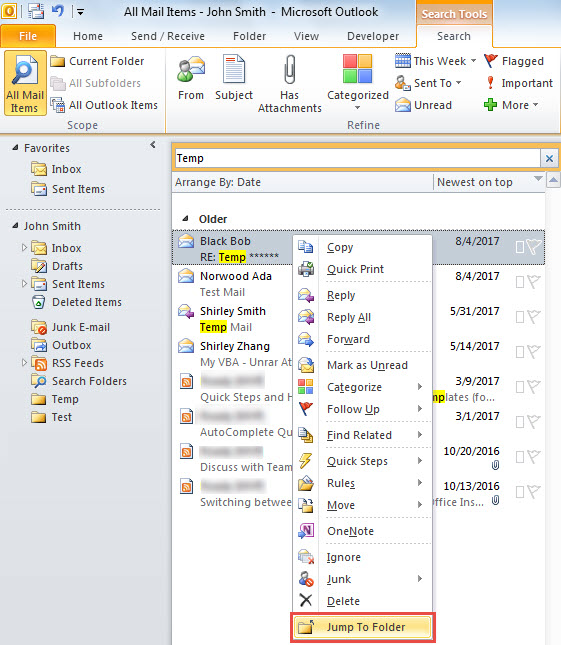
- 首先,執行搜索,例如搜索主題中包含“臨時”文本的電子郵件。
- 然後,在搜索結果中選擇一封電子郵件。
- 隨後,右鍵單擊它,然後在上下文菜單中選擇“跳轉到文件夾”。

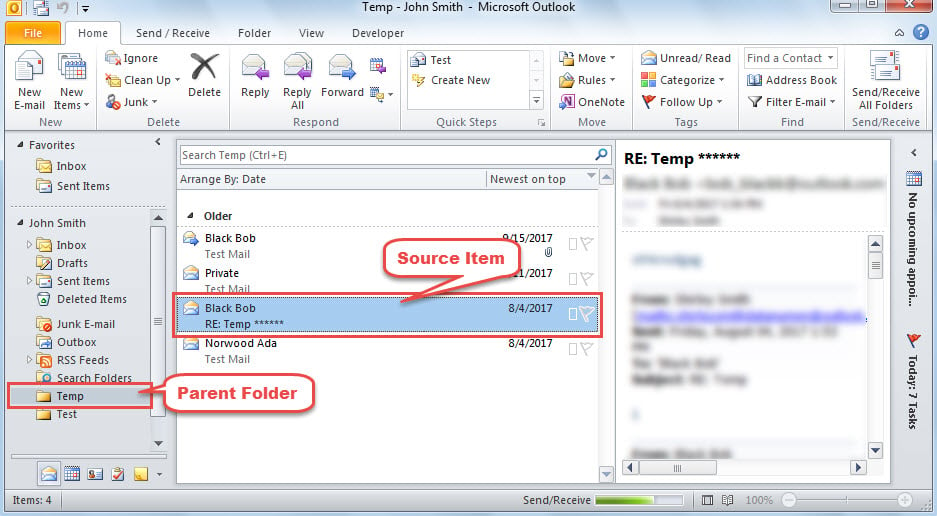
- 一次,將顯示一個新的Outlook資源管理器,並打開所選項目的父文件夾,如下面的屏幕截圖所示。

永不懼怕Outlook崩潰
通常,當Outlook崩潰時,許多用戶會感到恐慌,並擔心他們的Outlook數據將被損壞。 實際上,只要您採取足夠的預防措施,您的數據就永遠不會消失。 例如,如果您備份了Outlook文件,則可以 恢復PST 數據僅來自備份。 如果沒有備份,您仍然可以使用內置的修復工具來嘗試修復文件。 最糟糕的是,當Scanpst無法產生效果時,您可以使用經驗豐富且可靠的工具,例如 DataNumen Outlook Repair.
作者簡介:
Shirley Zhang是的數據恢復專家 DataNumen,Inc.是數據恢復技術的全球領導者,包括 sql恢復 和Outlook修復軟件產品。 欲了解更多信息,請訪問 萬維網。datanumen.COM