
也許您已經創建了幾封電子郵件草稿,希望重用它們 很多次。 如果是這樣,為什麼不批量將它們另存為Outlook模板? 本文將教您通過VBA一次完成它。
默認情況下,Outlook僅允許用戶一次將一封電子郵件另存為模板。 換句話說,您不能將多個草稿電子郵件另存為模板。 如您所見,當您選擇多個郵件並轉到“文件”>“另存為”時,在“另存為類型”列表中找不到“ Outlook模板”格式,只有“僅文本”可用。 但是,下面我們將向您介紹如何批量實現它。
批量將多份草稿電子郵件另存為Outlook模板
- 首先,觸發Outlook VBA編輯器。
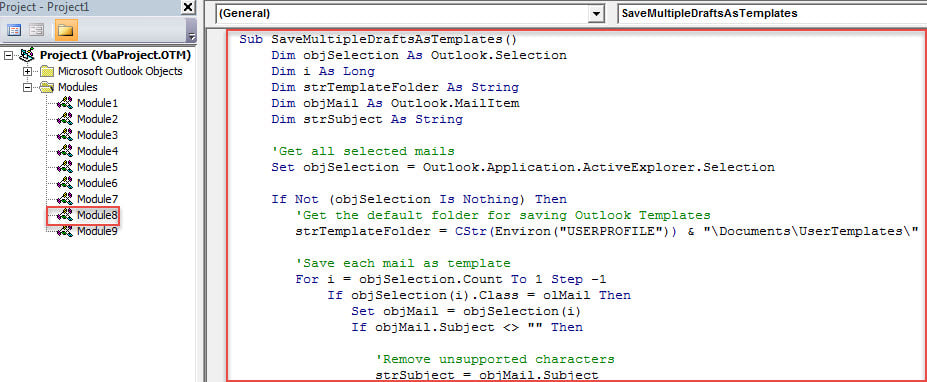
- 在新的“ Microsoft Visual Basic for Applications”窗口中,複製並粘貼下面的VBA代碼。
Sub SaveMultipleDraftsAsTemplates()
    Dim objSelection As Outlook.Selection
    Dim i As Long
    Dim strTemplateFolder As String
    Dim objMail As Outlook.MailItem
    Dim strSubject As String

    'Get all selected mails
    Set objSelection = Outlook.Application.ActiveExplorer.Selection

    If Not (objSelection Is Nothing) Then
       'Get the default folder for saving Outlook Templates
       strTemplateFolder = CStr(Environ("USERPROFILE")) & "\Documents\UserTemplates\"

       'Save each mail as template
       For i = objSelection.Count To 1 Step -1
           If objSelection(i).Class = olMail Then
              Set objMail = objSelection(i)
              If objMail.Subject <> "" Then

                 'Remove unsupported characters
                 strSubject = objMail.Subject
                 strSubject = Replace(strSubject, "/", " ")
                 strSubject = Replace(strSubject, "\", " ")
                 strSubject = Replace(strSubject, ":", "")
                 strSubject = Replace(strSubject, "?", " ")
                 strSubject = Replace(strSubject, Chr(34), " ")

                 objMail.SaveAs strTemplateFolder & strSubject & ".oft", olTemplate
              Else
                 objMail.SaveAs strTemplateFolder & "Template" & i & ".oft", olTemplate
              End If
           End If
       Next

       'Open the folder of Templates
       Shell "Explorer.exe" & " " & strTemplateFolder, vbNormalFocus
    End If
End Sub
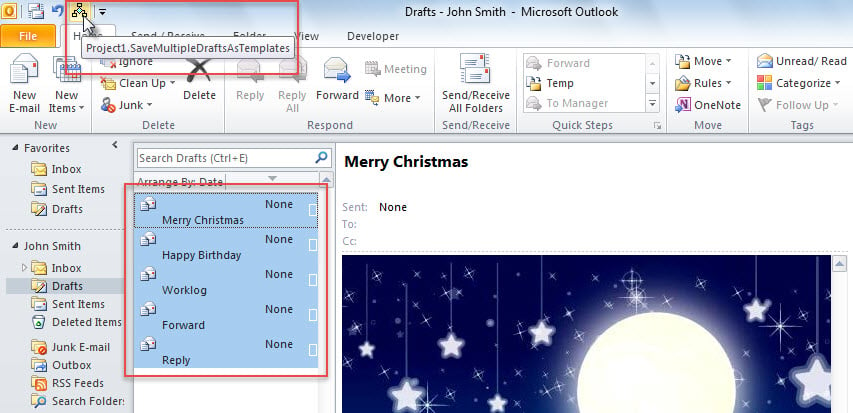
- 之後,為方便以後,建議將此宏附加到快速訪問工具欄(QAT)。 有關詳細步驟,您可以閱讀“如何在Outlook中運行VBA代碼“不"
- 最終,您可以按照以下操作進行拍攝。
- 首先,選擇要保存為模板的電子郵件草稿。
- 然後,單擊QAT中的宏按鈕。

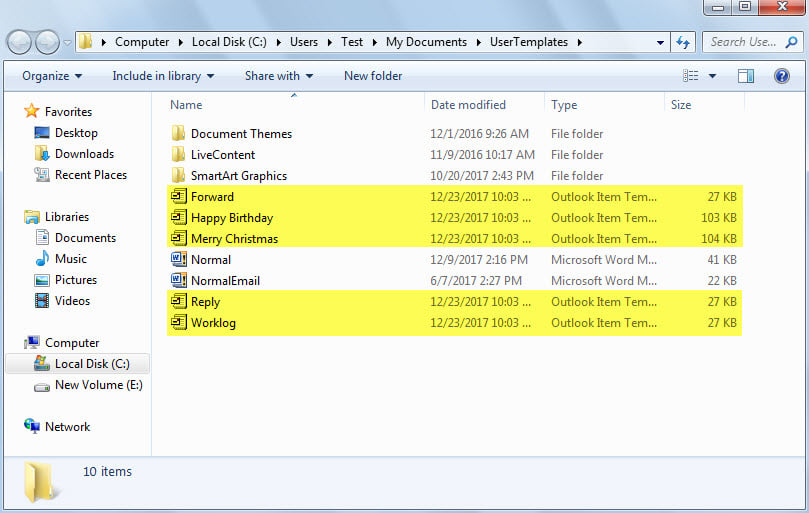
- 宏完成後,將顯示用於保存默認Outlook模板的Windows文件夾。 您可以看到所選電子郵件草稿中的模板在那邊。

收件箱修復工具仍然可能失敗
當涉及內部Outlook修復工具– Scanpst時,很多用戶將不勝感激。 毫無疑問,該實用程序確實能夠解決Outlook中的大多數小問題。 但是,它並不是完全完美的。 它仍然可能失敗並帶來許多錯誤。 例如,在嚴重的情況下 Outlook損壞,它無法修復損壞的PST文件。 在這種情況下,您無需使用其他工具,而是使用功能更強大的尖端第三方工具,例如 DataNumen Outlook Repair.
作者簡介:
Shirley Zhang是的數據恢復專家 DataNumen,Inc.是數據恢復技術的全球領導者,包括 sql恢復 和Outlook修復軟件產品。 欲了解更多信息,請訪問 萬維網。datanumen.COM