
如果您想將多個 Outlook 電子郵件批量導出到單個 Word 文檔中,您可以使用本文中顯示的 VBA 代碼。 它可以幫助您在幾秒鐘內完成這項任務。
之前的文章中曾經介紹過如何將Outlook郵件轉成Word文檔——”將 Outlook 電子郵件轉換為 Word 文檔的 2 種有效方法”。 然而,在那個 p 中提到的 2 意味著ost 如果您希望將許多電子郵件批量導出到一個 Word 文檔中,則將無能為力。 因此,在這裡我們將教您另一種方法。 現在,請繼續閱讀以詳細了解它。
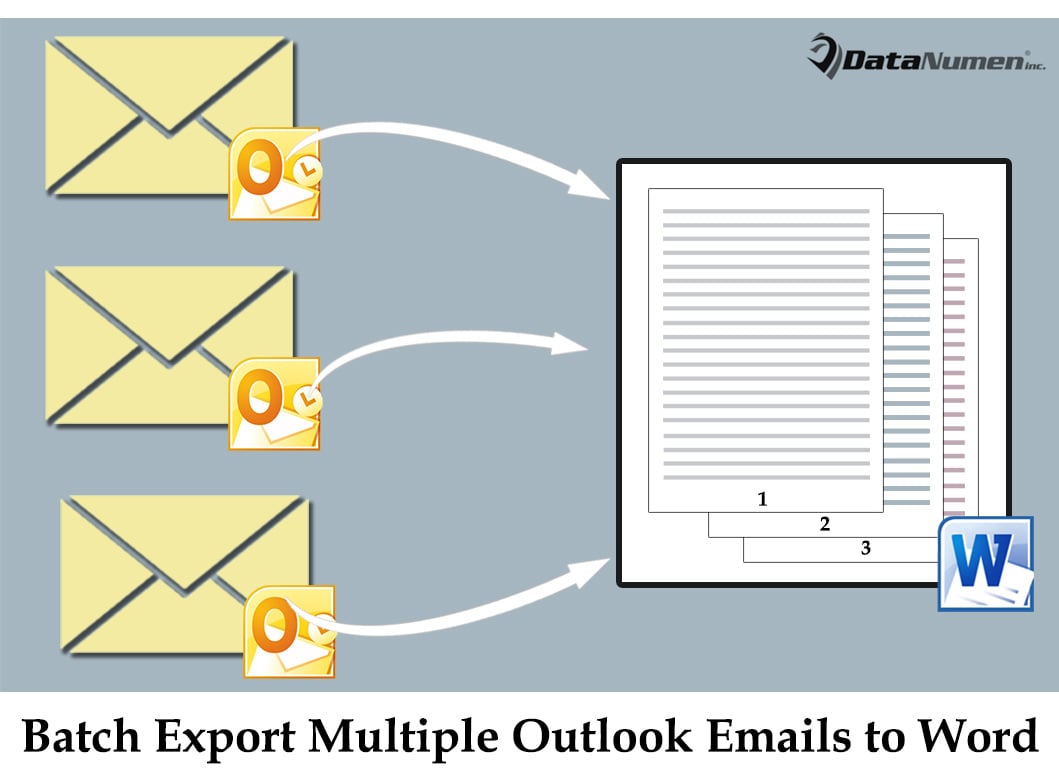
批量導出多個 Outlook 電子郵件到一個 Word 文檔中
- 到tar然後啟動Outlook程序。
- 然後,進入主 Outlook 窗口後,您需要按“Alt + F11”鍵按鈕。
- 接下來您將可以訪問 Outlook VBA 編輯器,您應該在其中打開一個空白模塊。
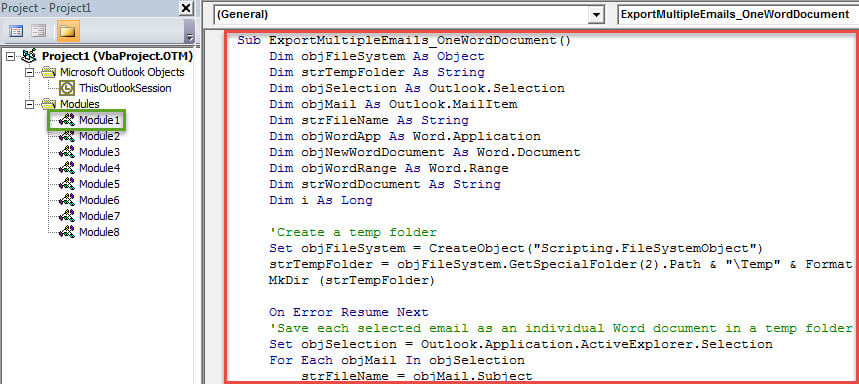
- 隨後,將下面的 VBA 代碼複製到打開的模塊窗口中。
Sub ExportMultipleEmails_OneWordDocument()
    Dim objFileSystem As Object
    Dim strTempFolder As String
    Dim objSelection As Outlook.Selection
    Dim objMail As Outlook.MailItem
    Dim strFileName As String
    Dim objWordApp As Word.Application
    Dim objNewWordDocument As Word.Document
    Dim objWordRange As Word.Range
    Dim strWordDocument As String
    Dim i As Long

    'Create a temp folder
    Set objFileSystem = CreateObject("Scripting.FileSystemObject")
    strTempFolder = objFileSystem.GetSpecialFolder(2).Path & "\Temp" & Format(Now, "YYYYMMDDhhmmss")
    MkDir (strTempFolder)

    On Error Resume Next
    'Save each selected email as an individual Word document in a temp folder
    Set objSelection = Outlook.Application.ActiveExplorer.Selection
    For Each objMail In objSelection
        strFileName = objMail.Subject

        'Remove the unsupported characters in email subject
        strFileName = Replace(strFileName, "/", " ")
        strFileName = Replace(strFileName, "\", " ")
        strFileName = Replace(strFileName, ":", "")
        strFileName = Replace(strFileName, "?", " ")
        strFileName = Replace(strFileName, Chr(34), " ")

        objMail.SaveAs strTempFolder & "\" & strFileName & ".doc", olDoc
    Next

    'Merge all the Word documents into a single document
    Set objWordApp = CreateObject("Word.Application")
    Set objNewWordDocument = objWordApp.Documents.Add

    strWordDocument = Dir(strTempFolder & "\" & "*.doc")
    i = 0
    Do Until strWordDocument = ""
       i = i + 1
       Set objWordRange = objNewWordDocument.Range
       With objWordRange
           .Collapse wdCollapseEnd
           If i > 1 Then
             .InsertBreak wdSectionBreakNextPage
             .End = objNewWordDocument.Range.End
             .Collapse wdCollapseEnd
           End If
           .InsertFile strTempFolder & "\" & strWordDocument
      End With
      strWordDocument = Dir()
    Loop

    'Change the path as per your own needs
    objNewWordDocument.SaveAs "E:\Exported Emails " & Format(Now, "YYYY-MM-DD hh-mm-ss")
    objWordApp.Quit

    'Delete the temp folder
    objFileSystem.DeleteFolder (strTempFolder)
End Sub
- 之後,最好將此新 VBA 項目添加到快速訪問工具欄或功能區。
- 最終,您可以嘗試一下。
- 首先,選擇多個 Outlook 電子郵件。
- 然後找到並單擊新添加的宏按鈕。
- 提示“完成”後,您可以瀏覽到預定義的本地文件夾,找到一個新的 Word 文檔。
- 打開此文檔,您可以在其中看到所有選定的電子郵件都已導出。
在附近放置一個強大的恢復工具
儘管功能眾多,Outlook 仍然無法避免錯誤。 如果您習慣於將錯誤放在一邊,隨著它們的堆積,Outlook 肯定會崩潰。 在這一點上,必須再次使用強大而有效的恢復工具,例如 DataNumen Outlook Repair。 精通 PST修復. 只要有了它,您將不再需要擔心 Outlook 數據丟失。
作者簡介:
Shirley Zhang是的數據恢復專家 DataNumen,Inc.是數據恢復技術的全球領導者,包括 損壞的mdf 和Outlook修復軟件產品。 欲了解更多信息,請訪問 萬維網。datanumen.COM