
在本文中,我們很高興為您提供3種不帶腳註和尾註即可打印Word文檔的實用方法。
腳註和尾註有助於說明Word文檔中的晦澀之處。 話雖這麼說,但在印刷時,您可能不需要在紙上放置任何腳註和尾註。 遺憾的是,沒有直接的方法可以像使用標記一樣將它們排除在打印之外。 相反,您可以在此處選擇以下解決方法來完成所需的操作。
方法1:在“草稿”視圖下操作
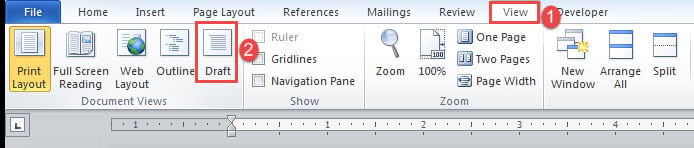
- 首先,讓我們以腳註為例。 單擊功能區中的“查看”選項卡。
- 接下來單擊“草稿”。

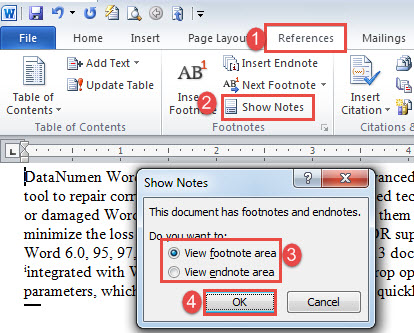
- 然後單擊“參考”,然後單擊“顯示註釋”。
- 在打開的框中,選擇“查看腳註區域”或“查看尾註區域”框。
- 點擊“確定”。

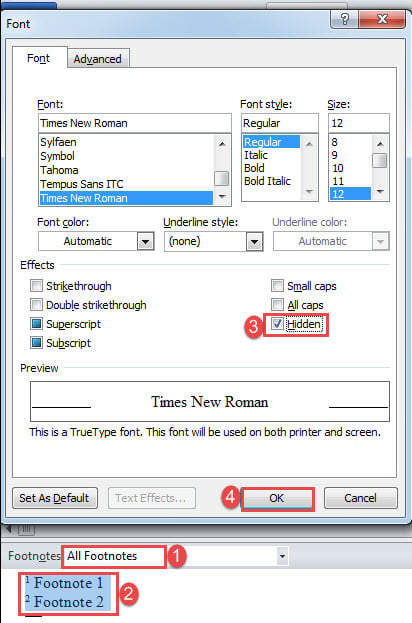
- 在屏幕底部,單擊下拉按鈕以選擇“所有腳註”。
- 然後按“ Ctrl + A”選擇所有腳註。
- 接下來按“ Ctrl + D”打開“字體”框。
- 選中“隱藏”框,然後單擊“確定”。

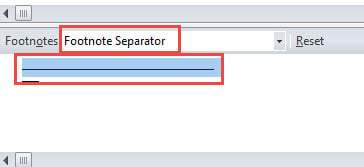
- 接下來,在下拉菜單上選擇“ Footnote分隔符”。
- 選擇腳註分隔符。

- 重複步驟8和9。
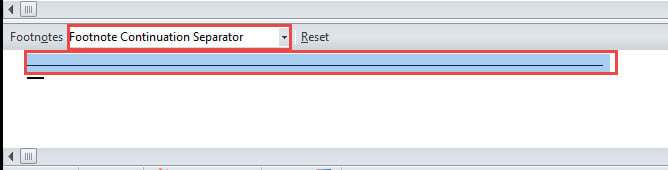
- 然後選擇“ Footnote Continuation Separator”。
- 選擇腳註繼續分隔符。

- 重複步驟8和9。
現在,腳註參考編號在正文中仍將可見。 如果還需要隱藏它們,請按照下列步驟操作:
- 單擊“主頁”選項卡,然後單擊“查找”上的下拉按鈕。
- 選擇“高級查找”。

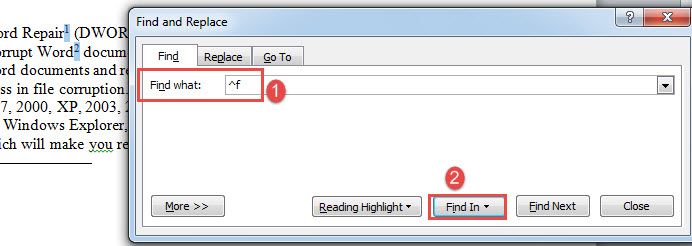
- 接下來,在“查找內容”文本框中輸入“ ^ f”。 如果要處理尾註參考,請輸入“ ^ e”。
- 單擊“查找”,然後選擇“主文檔”。
- 現在,所有腳註參考號都處於選擇狀態。 將其格式化為隱藏文本。


現在有最後一步。 單擊“文件”,然後單擊“選項”,打開“ Word選項”框。 在打開的框中,單擊“顯示”,並確保未選中“打印隱藏的文本”框,然後單擊“確定”。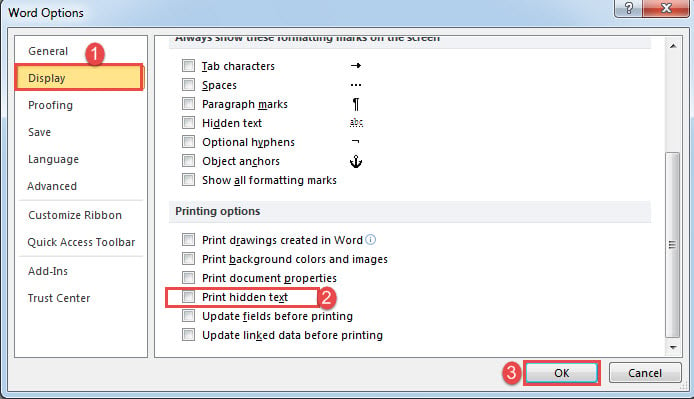
對於尾註,過程非常相同。
方法2:隱藏樣式
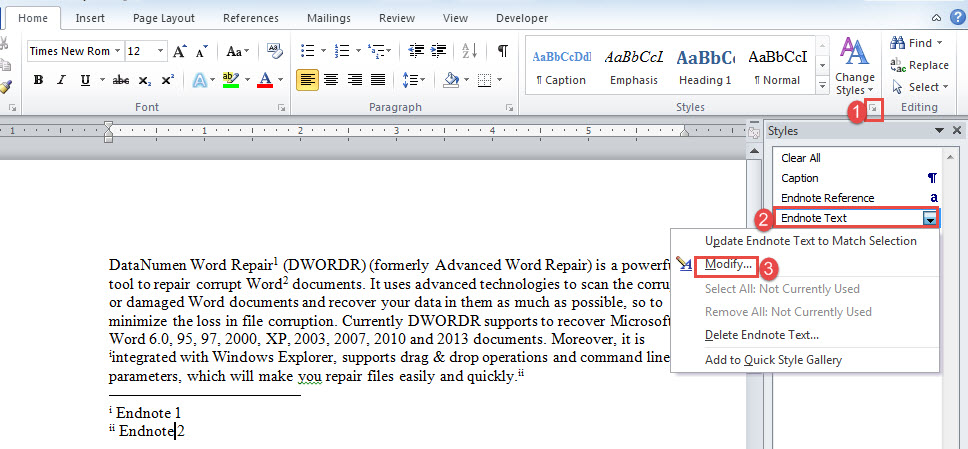
- 首先,通過單擊“樣式”組中的箭頭按鈕打開“樣式”窗口。
- 例如,如果我們這次選擇隱藏尾註,請右鍵單擊“尾註文本”樣式。
- 選擇“修改”。

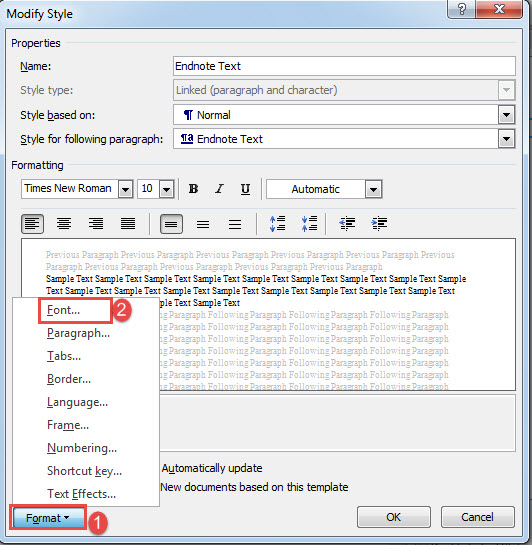
- 在“修改樣式”框中,單擊“格式”,然後選擇“字體”。
- 在“字體”框中,選中“隱藏”框,然後單擊“確定”。

- 然後在“修改樣式”框中單擊“確定”。
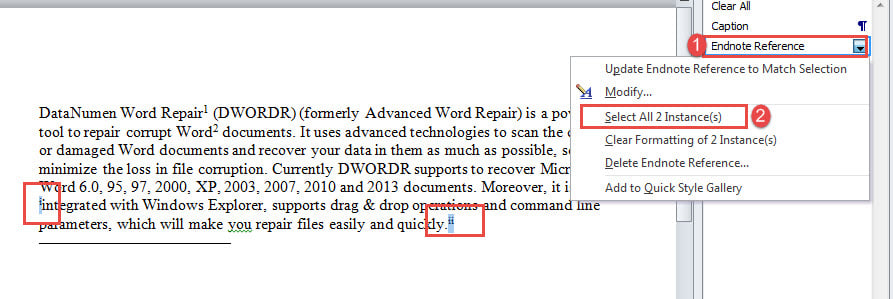
- 接下來在“樣式”窗口中,右鍵單擊“尾註參考”。
- 選擇“選擇所有XX實例”。
- 現在所有尾註參考文獻都處於選擇狀態。 將其格式化為隱藏文本。

- 如您所見,尾註分隔符仍然存在,因此您也需要將其隱藏。 請按照方法1中的步驟。
方法3:使用Word VBA
- 首先,按“ Alt + F11”打開VBA編輯器。
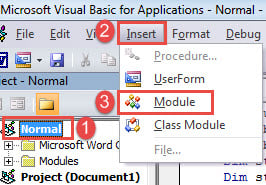
- 接下來,點擊左側欄中的“常規”。
- 然後單擊“插入”和“模塊”。

- 雙擊以打開新模塊並粘貼以下代碼:
Sub PrintWithoutFootnotesAndEndnotes()
  Dim objDoc As Document
  Dim nFootnoteRefFontColorIndex As Integer
  Dim nFootnoteTxtFontColorIndex As Integer
  Dim nFootnoteSeparatorFontColorIndex As Integer
  Dim nFootnoteContinuationSeparatorColorIndex As Integer
  Dim nEndnoteRefFontColorIndex As Integer
  Dim nEndnoteTxtFontColorIndex As Integer
  Dim nEndnoteSeparatorFontColorIndex As Integer
  Dim nEndnoteContinuationSeparatorColorIndex As Integer

  Set objDoc = ActiveDocument

  With objDoc
    '  Save the current color index.
    nFootnoteRefFontColorIndex = .Styles("Footnote Reference").Font.ColorIndex
    nFootnoteTxtFontColorIndex = .Styles("Footnote Text").Font.ColorIndex
    nFootnoteSeparatorFontColorIndex = .Footnotes.Separator.Font.ColorIndex
    nFootnoteContinuationSeparatorColorIndex = .Footnotes.ContinuationSeparator.Font.ColorIndex

    nEndnoteRefFontColorIndex = .Styles("Endnote Reference").Font.ColorIndex
    nEndnoteTxtFontColorIndex = .Styles("Endnote Text").Font.ColorIndex
    nEndnoteSeparatorFontColorIndex = .Endnotes.Separator.Font.ColorIndex
    nEndnoteContinuationSeparatorColorIndex = .Endnotes.ContinuationSeparator.Font.ColorIndex

    .Styles("Footnote Reference").Font.ColorIndex = wdWhite
    .Styles("Footnote Text").Font.ColorIndex = wdWhite
    .Footnotes.Separator.Font.ColorIndex = wdWhite
    .Footnotes.ContinuationSeparator.Font.ColorIndex = wdWhite

    .Styles("Endnote Reference").Font.ColorIndex = wdWhite
    .Styles("Endnote Text").Font.ColorIndex = wdWhite
    .Endnotes.Separator.Font.ColorIndex = wdWhite
    .Endnotes.ContinuationSeparator.Font.ColorIndex = wdWhite
  End With

  Dialogs(wdDialogFilePrint).Show

  With objDoc
    '  Restore the color index
    .Styles("Footnote Reference").Font.ColorIndex = nFootnoteRefFontColorIndex
    .Styles("Footnote Text").Font.ColorIndex = nFootnoteTxtFontColorIndex
    .Footnotes.Separator.Font.ColorIndex = nFootnoteSeparatorFontColorIndex
    .Footnotes.ContinuationSeparator.Font.ColorIndex = nFootnoteContinuationSeparatorColorIndex

    .Styles("Endnote Reference").Font.ColorIndex = nEndnoteRefFontColorIndex
    .Styles("Endnote Text").Font.ColorIndex = nEndnoteTxtFontColorIndex
    .Endnotes.Separator.Font.ColorIndex = nEndnoteSeparatorFontColorIndex
    .Endnotes.ContinuationSeparator.Font.ColorIndex = nEndnoteContinuationSeparatorColorIndex
  End With
End Sub
- 最後,單擊“運行”。

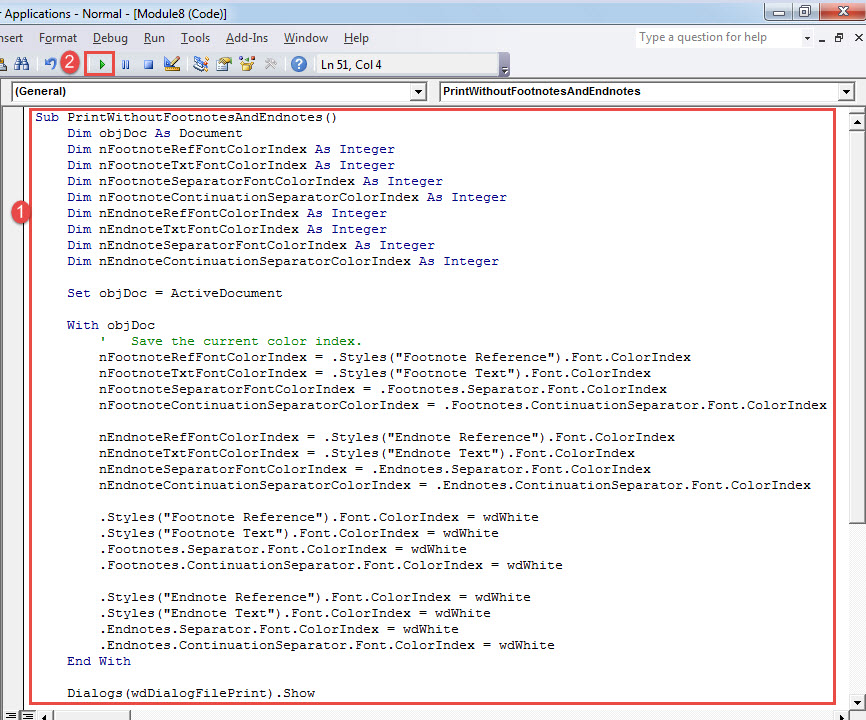
運行宏將打印不帶腳註和尾註的文檔,同時使它們在原始文件中保持完整。
處理單詞問題
Word有時會失敗。 這絕對威脅到我們寶貴文件的安全。 但是,如果您在使用Word時遇到任何問題,總會有一個工具可以 文字復原.
作者簡介:
陳薇薇(Vera Chen)是 DataNumen,Inc.是數據恢復技術的全球領導者,包括 恢復Excel 以及 pdf 維修軟件產品。 欲了解更多信息,請訪問 萬維網。datanumen.COM