
在本文中,我們想向您展示 3 種快速刪除 Word 文檔中圖片超鏈接的方法。
有時,當我們在線複製圖片時,我們發現它嵌入了超鏈接。 而在Word文檔中,不小心點擊了圖片,可能會跳轉到圖片的網址。 這不僅令人惱火,而且弄亂了文檔的視覺效果,如下所示:
因此,我們選擇去除圖片中的超鏈接,以避免這種意外的頁面跳轉。 開始了。
方法 1:從一張圖片中刪除超鏈接
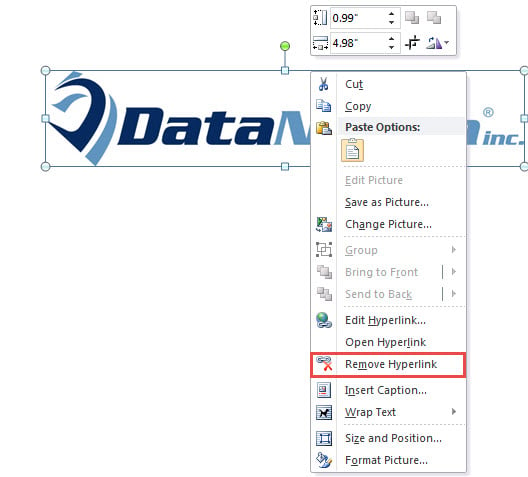
- 首先,右鍵單擊圖片。
- 然後在上下文菜單上,選擇“刪除超鏈接”。

方法二:批量刪除文檔中所有圖片的超鏈接
有一種方法可以從文檔中刪除所有超鏈接。 首先按“Ctrl+A”選擇所有內容。 然後按“Ctrl+Shift+F9”來取消所有超鏈接。 供您參考,這種方式會清除圖片和文本上的所有超鏈接。 然而,我們的目標是僅從圖片中刪除超鏈接。 所以我們將不得不利用一個宏來完成這項工作。
- 首先,按“ Alt + F11”以在Word中觸發VBA編輯器。
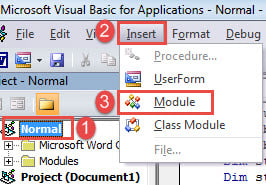
- 然後在編輯器中,單擊“Normal”項目。
- 接下來在菜單欄上,單擊“插入”。
- 然後在下拉菜單中選擇“模塊”。

- 現在雙擊模塊以打開其右側的編碼區域並將以下宏粘貼到那裡:
Sub RemoveAllHyperlinksFromPicturesInOneDocument()
  Dim objInlinePicture As InlineShape
  Dim objPicture As Shape

  If ActiveDocument.InlineShapes.Count > 0 Then
    For Each objInlinePicture In ActiveDocument.InlineShapes
      objInlinePicture.Select

      While Selection.Hyperlinks.Count > 0
        Selection.Hyperlinks(1).Delete
      Wend
    Next
  End If

  If ActiveDocument.Shapes.Count > 0 Then
    For Each objPicture In ActiveDocument.Shapes
      objPicture.Select

      While Selection.Hyperlinks.Count > 0
        Selection.Hyperlinks(1).Delete
      Wend
    Next
  End If
End Sub
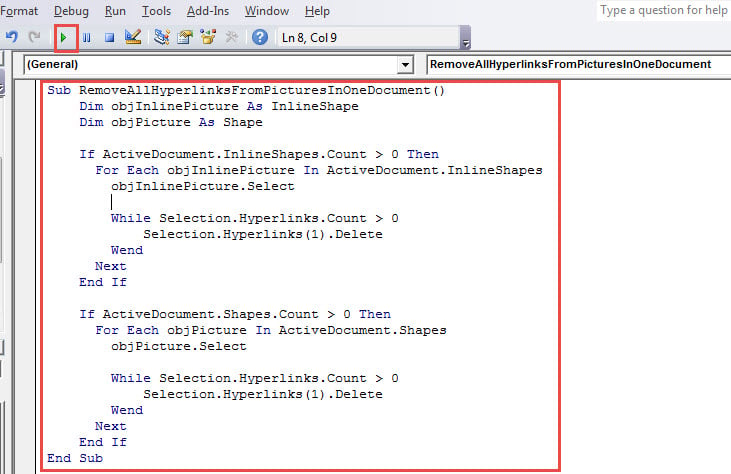
- 最後但並非最不重要的是,單擊菜單欄上的“運行”以執行代碼。

方法三:批量刪除多文檔圖片中的超鏈接
- 首先,將所有目標檔案整理到一個資料夾中。
- 然後重複方法 2 中的步驟以安裝並運行以下宏:
Sub RemoveAllHyperlinksFromPicturesInMultipleDocuments()
  Dim objInlinePicture As InlineShape
  Dim objPicture As Shape
  Dim StrFolder As String
  Dim strFile As String
  Dim objDoc As Document
  Dim dlgFile As FileDialog

  Set dlgFile = Application.FileDialog(msoFileDialogFolderPicker)


  With dlgFile
    If .Show = -1 Then
      StrFolder = .SelectedItems(1) & "\"
    Else
      MsgBox ("No Folder is selected!")
      Exit Sub
    End If
  End With

  strFile = Dir(StrFolder & "*.doc*", vbNormal)

  While strFile <> ""
    Set objDoc = Documents.Open(FileName:=StrFolder & strFile)
    Set objDoc = ActiveDocument

    If ActiveDocument.InlineShapes.Count > 0 Then
      For Each objInlinePicture In ActiveDocument.InlineShapes
        objInlinePicture.Select
        While Selection.Hyperlinks.Count > 0
          Selection.Hyperlinks(1).Delete
        Wend
      Next
    End If

    If ActiveDocument.Shapes.Count > 0 Then
      For Each objPicture In ActiveDocument.Shapes
        objPicture.Select
        While Selection.Hyperlinks.Count > 0
          Selection.Hyperlinks(1).Delete
        Wend
      Next
    End If

    objDoc.ActiveWindow.ActivePane.View.SeekView = wdSeekMainDocument
    objDoc.Save
    strFile = Dir()
  Wend
End Sub
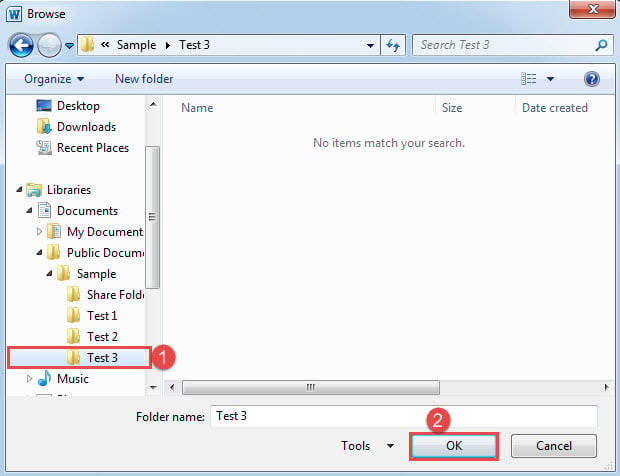
- 在打開的“瀏覽”窗口中,選擇您在步驟 1 中設置的文件夾,然後單擊“確定”繼續。

小心你在Word中的操作
Word 並非萬無一失,因此任何錯誤的操作都可能導致崩潰或更糟,從而導致文檔損壞。 在您可以更加關注自己的操作技巧和習慣的同時,您還可以購買一個實用程序 文檔恢復 預先。
作者簡介:
陳薇薇(Vera Chen)是 DataNumen,Inc.是數據恢復技術的全球領導者,包括 恢復XLS 以及 pdf 維修軟件產品。 欲了解更多信息,請訪問 萬維網。datanumen.COM