
在這篇文章中,我們很高興向您展示兩種快速跳到 Word 文件中特定段落的方法。
Word中有“轉到”功能,通過該功能我們可以快速跳至特定的頁面,節,書籤等。但是很遺憾,內置功能無法單擊我們將其帶到指定的段落。 話雖如此,我們有義務向您介紹一些解決方法。
方法1:轉到沒有段落編號的文檔中的特定段落
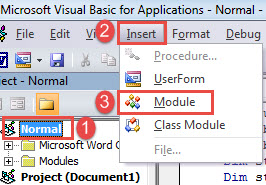
- 首先,按下「Alt+F11」鍵,即可在 Word 中開啟 VBA 編輯器。
- 然後在左側欄中單擊“普通”。
- 接下來,單擊“插入”,然後在其下拉菜單上選擇“模塊”。

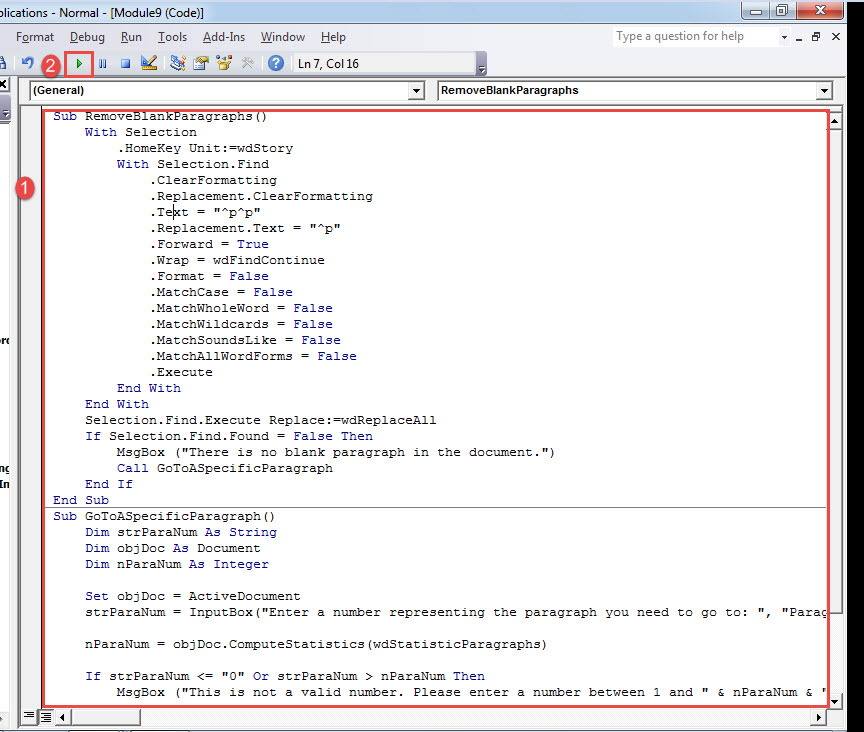
- 現在,雙擊新模塊將其打開。 將以下代碼粘貼到此處:
Sub RemoveBlankParagraphs()
  With Selection
    .HomeKey Unit:=wdStory
    With Selection.Find
      .ClearFormatting
      .Replacement.ClearFormatting
      .Text = "^p^p"
      .Replacement.Text = "^p"
      .Forward = True
      .Wrap = wdFindContinue
      .Format = False
      .MatchCase = False
      .MatchWholeWord = False
      .MatchWildcards = False
      .MatchSoundsLike = False
      .MatchAllWordForms = False
      .Execute
    End With
  End With
  Selection.Find.Execute Replace:=wdReplaceAll
  If Selection.Find.Found = False Then
    MsgBox ("There is no blank paragraph in the document.")
    Call GoToASpecificParagraph
  End If
End Sub

Sub GoToASpecificParagraph()
  Dim strParaNum As String
  Dim objDoc As Document
  Dim nParaNum As Integer

  Set objDoc = ActiveDocument
  strParaNum = InputBox("Enter a number representing the paragraph you need to go to: ", "Paragraph Number")

  nParaNum = objDoc.ComputeStatistics(wdStatisticParagraphs)

  If strParaNum <= "0" Or strParaNum > nParaNum Then
    MsgBox ("This is not a valid number. Please enter a number between 1 and " & nParaNum & ".")
  End If

  objDoc.Paragraphs(strParaNum).Range.Select

End Sub
- 點擊“運行”。

- 多次運行宏,直到出現以下消息框。

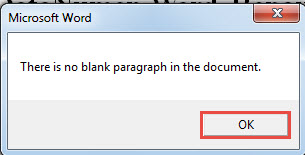
然後單擊“確定”。 我們多次單擊“運行”按鈕的原因是要刪除文檔中的所有空白段落。 默認情況下,Word將它們視為普通段落。 因此,最終結果可能不是我們想要輸入的確切段落。
- 然後在下一個打開的框中,輸入一個數字,代表您需要訪問的段落。
- 然後點擊“確定”。

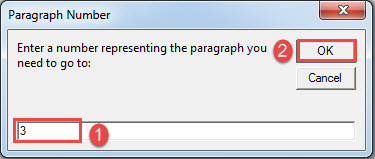
你會看到目標段落已被選取。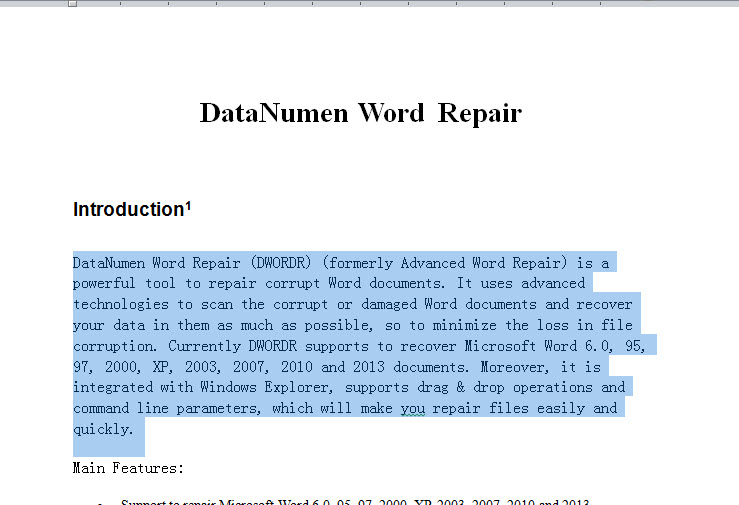
方法2:轉到帶有段落編號的文檔中的特定段落
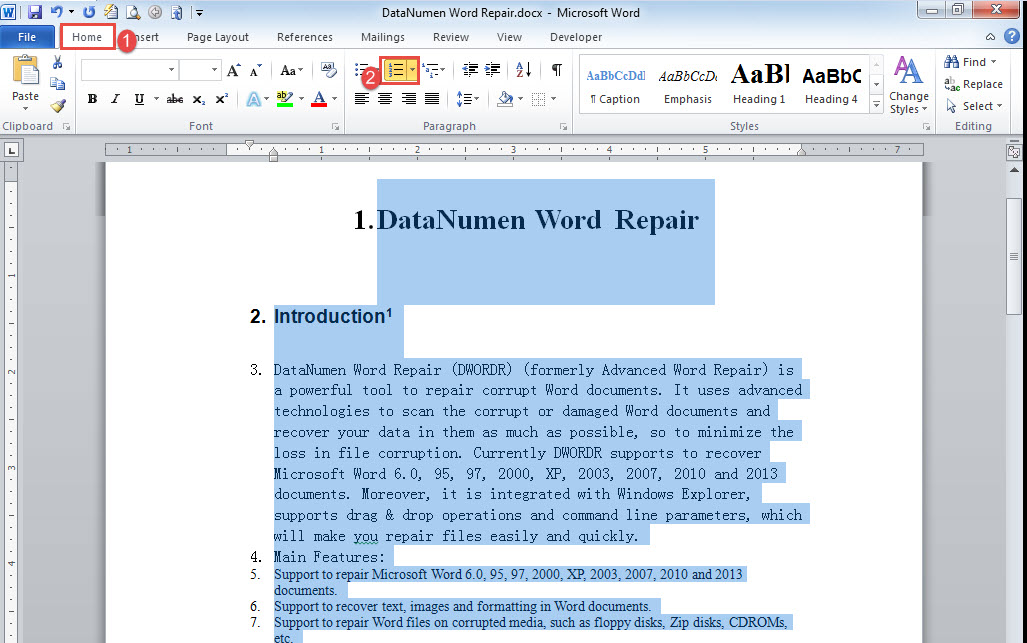
- 首先,按“ Ctrl + A”選擇文檔中的所有文本。
- 然後在“主頁”選項卡下單擊“編號”。

- 接下來,按照方法1中的相同步驟安裝和運行宏。
- 只有這次用下面的宏替換宏:
Sub GoTOParaInDocWithParaNum()
  Dim strParaNum As String
  Dim objPara As Paragraph
  Dim objDoc As Document
  Dim nParaNum As Integer

  Set objDoc = ActiveDocument

  strParaNum = InputBox("Enter a paragraph number following with a period:", "Paragraph Number")

  nParaNum = objDoc.ComputeStatistics(wdStatisticParagraphs)

  If strParaNum <= "0" Or strParaNum > nParaNum Then
    MsgBox ("This is not a valid number. Please enter a number between 1 and " & nParaNum & ".")
  End If

  For Each objPara In objDoc.Paragraphs
    If strParaNum = objPara.Range.ListFormat.ListString Then
      objPara.Range.Select
    End If
  Next
End Sub
- 接下來單擊“運行”或單擊“ F5”。
- 在打開的框中, 輸入帶句號的段落號 在文本框中。
- 點擊“確定”繼續。

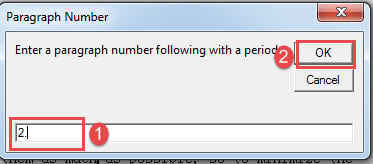
同樣,目標段落現在應該已經選定了。
修復損壞的文件
一旦發現文檔已損壞,您將無法再走運,希望下次打開它時,文檔會再次出現。 相反,您必須抓住時間來獲得卓越的工具 文件損壞 維修,每一分鐘都在維修過程中。
作者簡介:
陳薇薇(Vera Chen)是 DataNumen,Inc.是數據恢復技術的全球領導者,包括 修復xlsx 以及 pdf 維修軟件產品。 欲了解更多信息,請訪問 萬維網。datanumen.COM