
在這篇文章中,我們將重點放在在 Word 中快速重命名文件的兩種巧妙方法。
在Word中起草時,我們會不時地不斷更改文件名。 但是每次,我們都必須先關閉文檔,然後才能重命名。 這完全不方便。 默認情況下,我們無法重命名打開的文件。 但是藉助宏,這是可能的。
以下是2個可以解決此問題的宏。
方法1:重命名Word中的文檔
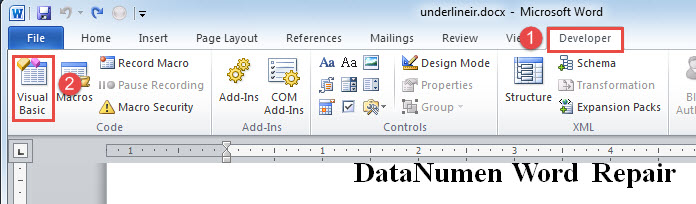
- 首先,按下「開發工具」標籤,然後按下「Visual Basic」開啟 Word VBA 編輯器。
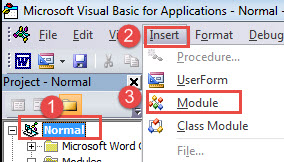
- 接下來單擊“普通”項目。
- 然後單擊“插入”,然後選擇“模塊”。
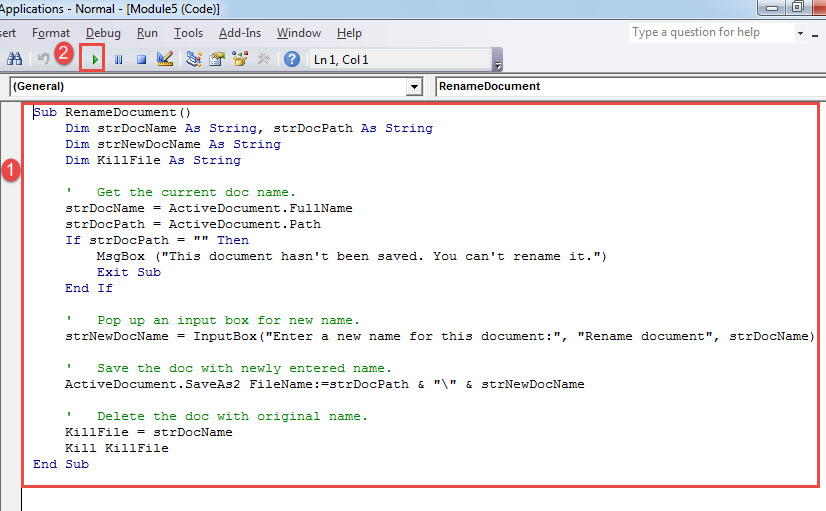
- 雙擊新模塊以打開編碼區域,然後在其中粘貼以下代碼:
Sub RenameDocument()
  Dim strDocName As String, strDocPath As String
  Dim strNewDocName As String
  Dim KillFile As String

  '  Get the current doc name.
  strDocName = ActiveDocument.FullName
  strDocPath = ActiveDocument.Path
  If strDocPath = "" Then
    MsgBox ("This document hasn't been saved. You can't rename it.")
    Exit Sub
  End If

  '  Pop up an input box for new name.
  strNewDocName = InputBox("Enter a new name for this document:", "Rename document", strDocName)

  '  Save the doc with newly entered name.
  ActiveDocument.SaveAs2 FileName:=strDocPath & "\" & strNewDocName

  '  Delete the doc with original name.
  KillFile = strDocName
  Kill KillFile
End Sub
- 現在單擊“運行”或單擊“ F5”。

- 將彈出一個輸入框。 只需在文本框中輸入新名稱,然後單擊“確定”即可。

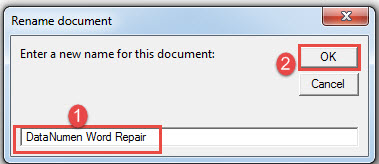
現在,文檔將以新名稱存儲在同一位置。 運行宏將刪除原始文件。
方法2:重命名文檔並附加日期信息
在許多情況下,文檔將使用進行修訂的日期重命名。 在這種情況下,文件名的主要部分僅在後面帶有日期字符串的情況下保持相同。 例如,這是一個沒有日期字符串的文檔。
為了添加它,我們可以運行以下宏:
Sub RenameDocumentWithDate()
  Dim strDocName, strDocNameNoExten, strDocFullName, strDocPath As String
  Dim strNewDocName As String
  Dim KillFile As String
  Dim strDate As String

  '  Get the current doc name.
  strDocName = ActiveDocument.Name
  strDocFullName = ActiveDocument.FullName
  strDocNameNoExten = Left(strDocName.Name, Len(strDocName.Name) - 5)
  strDocPath = ActiveDocument.Path
  strDate = Format(Date, "mm - dd - yyyy")

  If strDocPath = "" Then
    MsgBox ("This document hasn't been saved. You can't rename it.")
    Exit Sub
  End If

  '  Save the doc in new name with date.
  ActiveDocument.SaveAs2 FileName:=strDocPath & "\" & strDocNameNoExten & " " & strDate
  KillFile = strDocFullName
  Kill KillFile
End Sub
您可以按照方法1中的確切步驟安裝和運行上面的宏。 它應該工作得很漂亮。 您會看到當前日期字符串位於原始名稱之後,例如下面: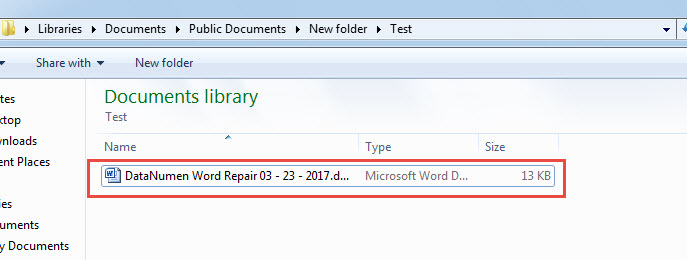
Word文檔損壞的解決方案
我們無法透過一勞永逸的方法來防止文件損壞。我們能做的就是做好備份,並盡可能避免人為錯誤。其中最重要的一點是熟悉文件損壞後的處理方法。正確的做法是獲取… 文檔恢復 工具盡快。
作者簡介:
陳薇薇(Vera Chen)是 DataNumen,Inc.是數據恢復技術的全球領導者,包括 Excel損壞 以及 pdf 維修軟件產品。 欲了解更多信息,請訪問 萬維網。datanumen.COM