
在本文中,我們想向您展示 2 種快速有效的方法,通過 Word 宏來獲取 2 個特定日期或時間之間的差異。
計算兩個具體日期或時間之間剩餘的天數或時間並不困難。 您可以自己進行數學計算,也可以使用日期或持續時間計算器。 在這裡,我們想向您展示 2 種宏方式,它們使您能夠在 Word 中獲取日期或時差。 以下是詳細步驟:
獲取日期差異
- 首先,開啟 Word。
- 如果已經激活,則單擊“開發人員”選項卡。
- 接下來,單擊“Visual Basic”以打開 VBA 編輯器。 你可以參考 如何將背景音樂插入Word文檔 將“開發人員”添加到功能區。 或者,如果您不願意,也可以按“Alt+ F11”代替。

- 現在,單擊“普通”,然後單擊“插入”。
- 在列表菜單上,選擇“模塊”。
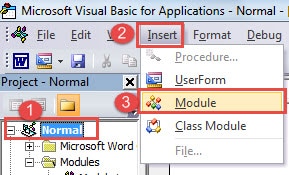
- 接下來雙擊新建模塊進入編輯區。
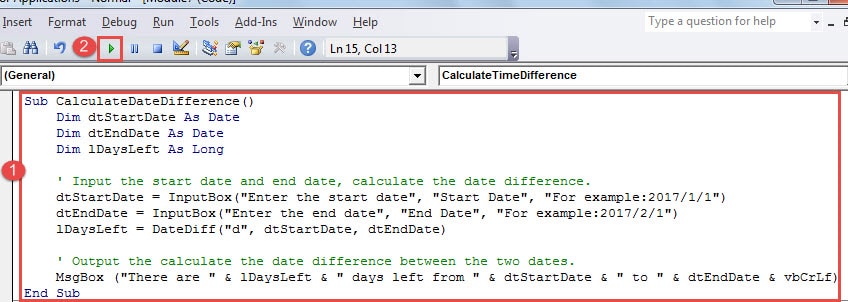
- 粘貼以下代碼:
Sub CalculateDateDifference()
  Dim dtStartDate As Date
  Dim dtEndDate As Date
  Dim lDaysLeft As Long

  '  Input the start date and end date, calculate the date difference.
  dtStartDate = InputBox("Enter the start date","Start Date","For example:2017/1/1")
  dtEndDate = InputBox("Enter the end date","End Date","For example:2017/2/1")
  lDaysLeft = DateDiff("d", dtStartDate, dtEndDate)

  '  Output the calculate the date difference between the two dates.
  MsgBox ("There are " & lDaysLeft & " days left from " & dtStartDate & " to " & dtEndDate & vbCrLf)
End Sub
- 單擊“運行”以運行代碼。

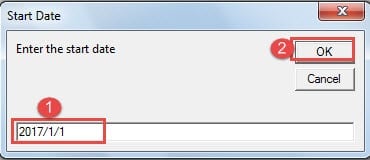
- 現在您會看到一個「開始日期」對話方塊。在文字方塊中輸入開始日期,然後按一下「確定」。

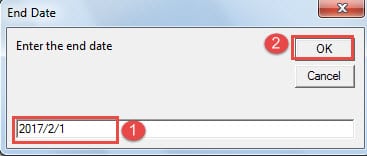
- 接下來是“結束日期”對話框。 同樣,輸入結束日期並單擊“確定”。

- 然後會彈出一個消息框,指示 2 個日期之間的差異。

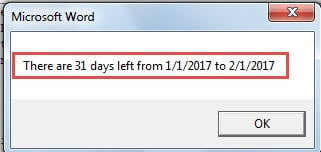
如果您需要將結果插入到文檔中,您可以通過更改代碼行“MsgBox(“從“" & dtStartDate & " 到“" & dtEndDate & vbCrLf,還剩下" & lDaysLeft & "天”)“要”Selection.Text = “從“ & dtStartDate & ”到“ & dtEndDate”還剩下“ & lDaysLeft & ”天” & vbCrLf“。
獲取時差
- 首先重複上面的前6個步驟。
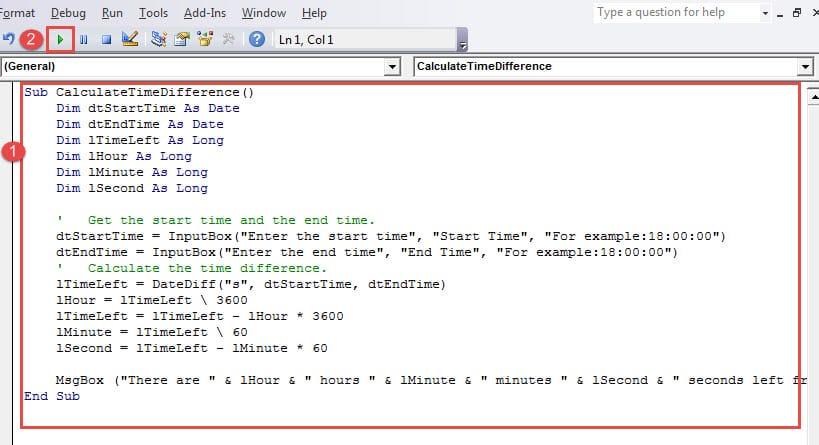
- 然後粘貼這些代碼:
Sub CalculateTimeDifference()
  Dim dtStartTime As Date
  Dim dtEndTime As Date
  Dim lTimeLeft As Long
  Dim lHour As Long
  Dim lMinute As Long
  Dim lSecond As Long

  '  Get the start time and the end time.
  dtStartTime = InputBox("Enter the start time","Start Time", "For example:18:00:00")
  dtEndTime = InputBox("Enter the end time","End Time", "For example:18:00:00")
  '  Calculate the time difference.
  lTimeLeft = DateDiff("s", dtStartTime, dtEndTime)
  lHour = lTimeLeft \ 3600
  lTimeLeft = lTimeLeft - lHour * 3600
  lMinute = lTimeLeft \ 60
  lSecond = lTimeLeft - lMinute * 60

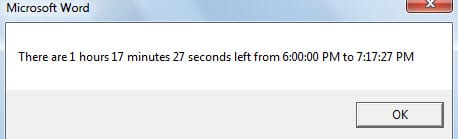
  MsgBox ("There are " & lHour & " hours " & lMinute & " minutes " & lSecond & " seconds left from " & dtStartTime & " to " & dtEndTime & vbCrLf)
End Sub
- 記得點擊“運行”。

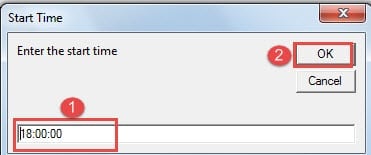
- 在「開始時間」方塊中,輸入開始時間,例如「18:00:00」。

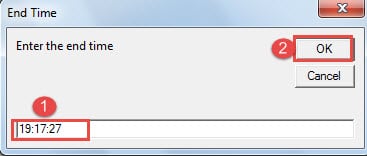
- 然後在“結束時間”對話框中輸入結束時間並單擊“確定”。 您可以在出現的消息框中檢查結果。

降低文件丟失風險
有時,Word 可能會突然停止工作,使我們的文件處於極大的危險之中。 因此,為了減少文件損壞的機會,我們建議您進行定期備份。 另外,得到一個 Word文件恢復產品 當您發現自己需要修復損壞的文件時,這是必要的。
作者簡介:
陳薇薇(Vera Chen)是 DataNumen,Inc.是數據恢復技術的全球領導者,包括 Excel xls 數據修復工具 以及 pdf 維修軟件產品。 欲了解更多信息,請訪問 萬維網。datanumen.COM