
在今天的文章中,我們將與大家分享兩種從 Word 文件中提取單一頁面的快速方法。
有時在Word文檔中,每個頁面可能包含非常獨立的內容,例如表格。 您可能需要將不同的表發送給不同的人。 然後,您必須將每個頁面的每個表另存為單獨的文件。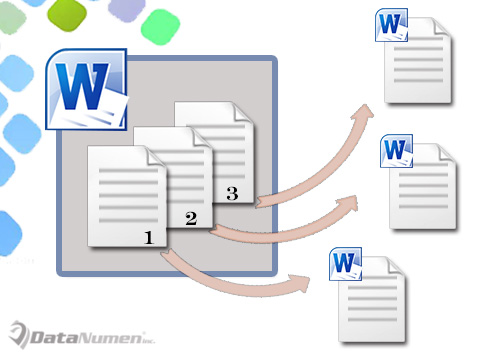
我們想到的第一個想法應該是經典的複制粘貼。 然而,涉及選擇的任何事物有時都可能令人討厭,因為拖動和選擇可以輕易地使根本沒有選擇的一端結束。 因此,我們建議您使用宏的2種快速方法來完成這項工作。
方法1:提取當前頁並將其另存為新文檔
- 首先,將遊標放在要提取的頁面上。
- 單擊“開發人員”選項卡,然後單擊“ Visual Basic”以調用VBA編輯器。 如果未激活“顯影器”,則只需按“ Alt + F11”。

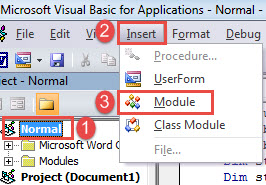
- 其次,單擊“正常”項目。
- 接下來單擊“插入”選項卡,然後選擇“模塊”。

- 雙擊新模塊以打開編輯區域。
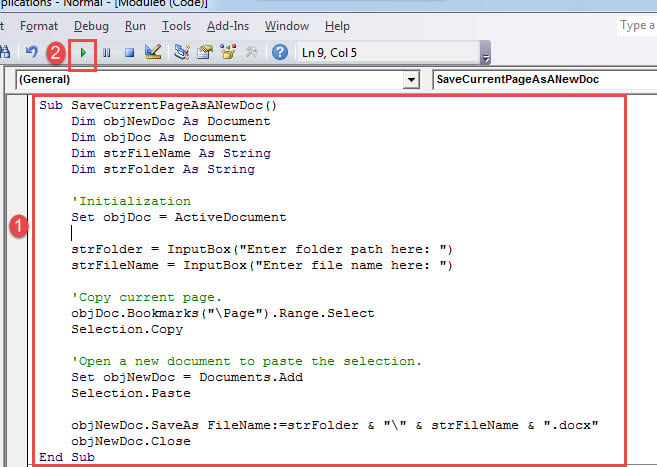
- 然後在其中粘貼以下代碼:

Sub SaveCurrentPageAsANewDoc()
  Dim objNewDoc As Document
  Dim objDoc As Document
  Dim strFileName As String
  Dim strFolder As String

  '  Initialization
  Set objDoc = ActiveDocument

  strFolder = InputBox("Enter folder path here: ")
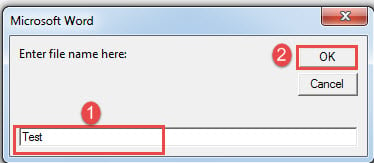
  strFileName = InputBox("Enter file name here: ")

  '  Copy current page.
  objDoc.Bookmarks("\Page").Range.Select
  Selection.Copy

  '  Open a new document to paste the selection.
  Set objNewDoc = Documents.Add
  Selection.Paste

  objNewDoc.SaveAs FileName:=strFolder & "\" & strFileName & ".docx"
  objNewDoc.Close
End Sub
- 最後,點擊“運行”按鈕。

現在將有2個輸入框。 在第一個輸入框中輸入要在其中存儲新文檔的路徑。 並在第二個上輸入新的文檔名稱。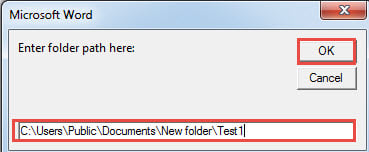
方法2:提取每個頁面並將其另存為新文檔
以下宏將使您能夠提取文檔的每個單獨頁面。
- 首先,按“ Ctrl +主頁”轉到文檔的開頭。
- 然後按照方法1中相同的步驟安裝和運行宏。
- 這次用這個替換宏:
Sub SaveEachPageAsADoc()
  Dim objNewDoc As Document
  Dim objDoc As Document
  Dim nPageNumber As Integer
  Dim strFolder As String
  Dim objFileName As Range

  '  Initialization
  Set objDoc = ActiveDocument

  strFolder = InputBox("Enter folder path here: ")

  '  Copy each page in the document to paste it into a new one.
  For nPageNumber = 1 To ActiveDocument.ComputeStatistics(wdStatisticPages)
    Application.Browser.Target = wdBrowsePage
    ActiveDocument.Bookmarks("\page").Range.Select
    Selection.Copy

    Set objNewDoc = Documents.Add
    Selection.Paste

    '  Save new doc with the name of "Page" & nPageNumber and get the first 20 characters of the new doc as part of the file name.
    Set objFileName = objNewDoc.Range(Start:=0, End:=20)
    objNewDoc.SaveAs FileName:=strFolder & "\" & "Page " & nPageNumber & " " & objFileName & ".docx"
    objNewDoc.Close
    Application.Browser.Next
  Next nPageNumber
End Sub
處理單詞問題
Word 總是會遇到各種各樣的問題。關鍵在於學會正確解決這些問題。當然,最推薦的方法是使用一款功能強大的 Word 編輯器。 文字復原 工具。 您應該抓住每一分鐘來恢復數據,以免為時已晚。
作者簡介:
陳薇薇(Vera Chen)是 DataNumen,Inc.是數據恢復技術的全球領導者,包括 損壞的xlsx 以及 pdf 維修軟件產品。 欲了解更多信息,請訪問 萬維網。datanumen.COM