
在本文中,我們將為您提供2種快速簡便的方法,將您的Word文檔中的節提取到另一個或幾個中。
從一個文檔到另一個文檔提取內容的情況經常發生。 在上一篇文章中,我們討論瞭如何從文檔中提取頁面。 有關詳細信息,您可以參考本文: 從Word文檔中提取單個頁面的2種快速方法
今天,我們將向您展示如何按部分提取。 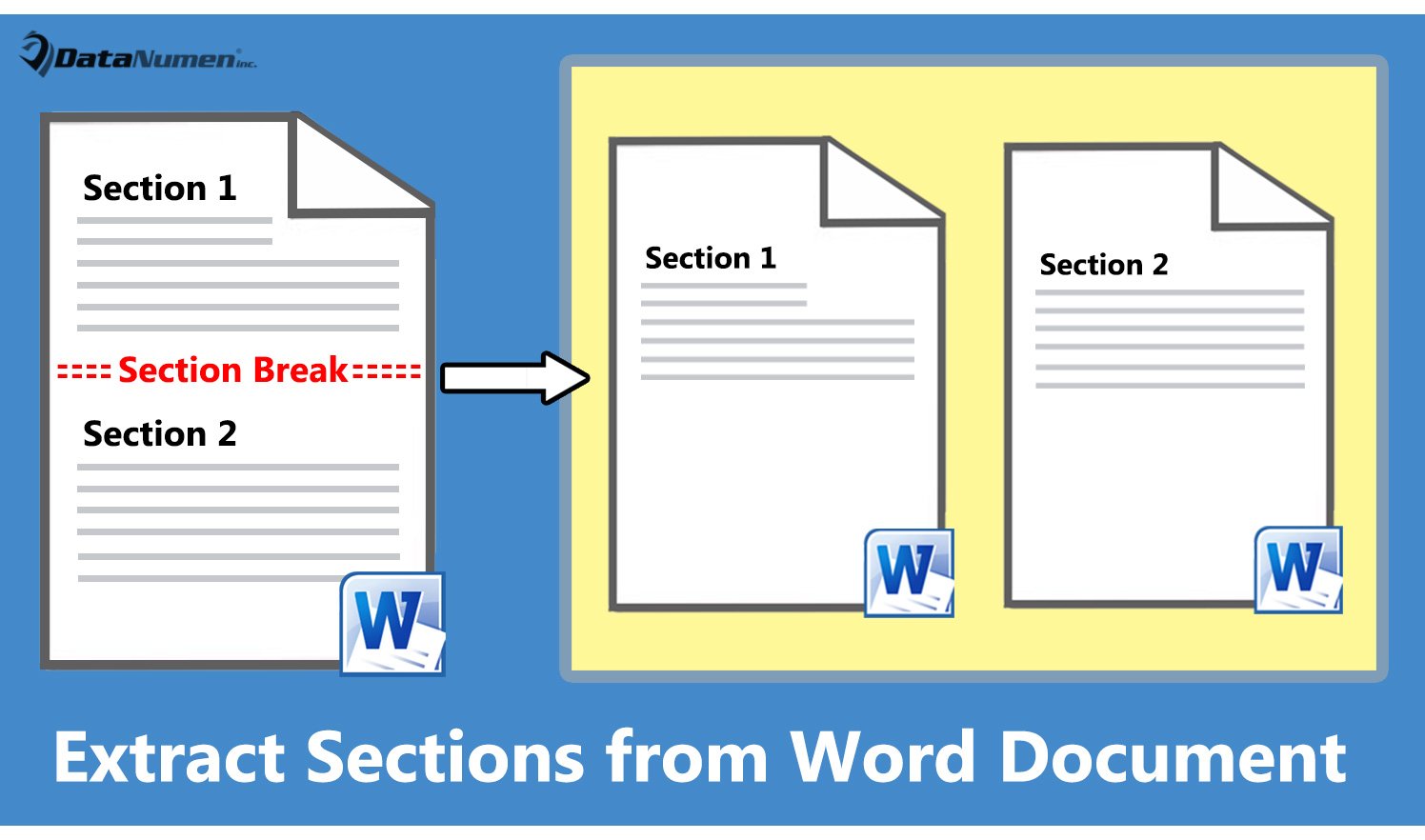
方法1:將當前節提取到一個新文檔
- 首先,將遊標定位到目標區域。
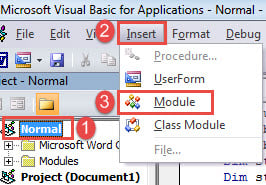
- 接下來按“ Alt + F11”以在Word中調用VBA編輯器。
- 然後在左列,單擊“正常”。
- 然後在菜單欄上單擊“插入”。
- 然後在該下拉菜單上選擇“模塊”。

- 雙擊打開新模塊,並在其中粘貼以下代碼:
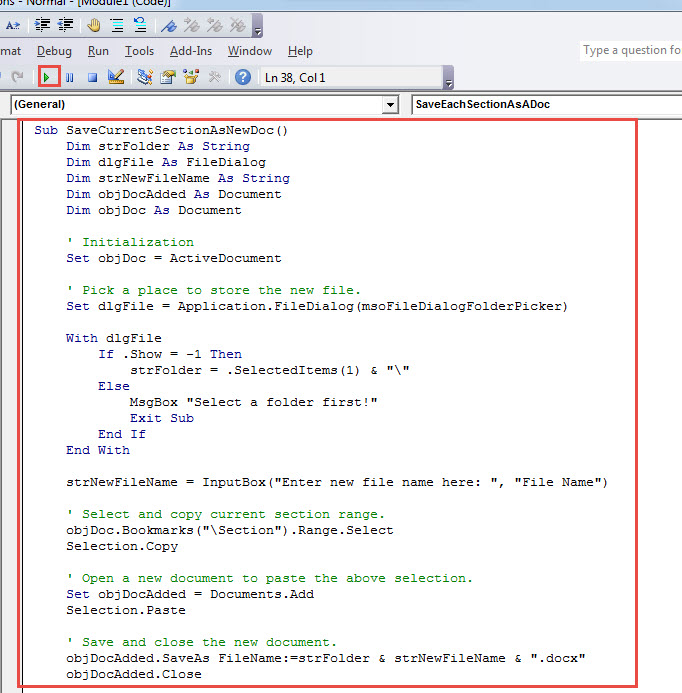
Sub SaveCurrentSectionAsNewDoc()
  Dim strFolder As String
  Dim dlgFile As FileDialog
  Dim strNewFileName As String
  Dim objDocAdded As Document
  Dim objDoc As Document

  ' Initialization
  Set objDoc = ActiveDocument

  ' Pick a place to store the new file.
  Set dlgFile = Application.FileDialog(msoFileDialogFolderPicker)

  With dlgFile
    If .Show = -1 Then
      strFolder = .SelectedItems(1) & "\"
    Else
      MsgBox "Select a folder first!"
      Exit Sub
    End If
  End With

  strNewFileName = InputBox("Enter new file name here: ", "File Name")

  ' Select and copy current section range.
  objDoc.Bookmarks("\Section").Range.Select
  Selection.Copy

  ' Open a new document to paste the above selection.
  Set objDocAdded = Documents.Add
  Selection.Paste

  ' Save and close the new document.
  objDocAdded.SaveAs FileName:=strFolder & strNewFileName & ".docx"
  objDocAdded.Close
End Sub
- 接下來,單擊菜單欄上的“運行”或單擊“ F5”。

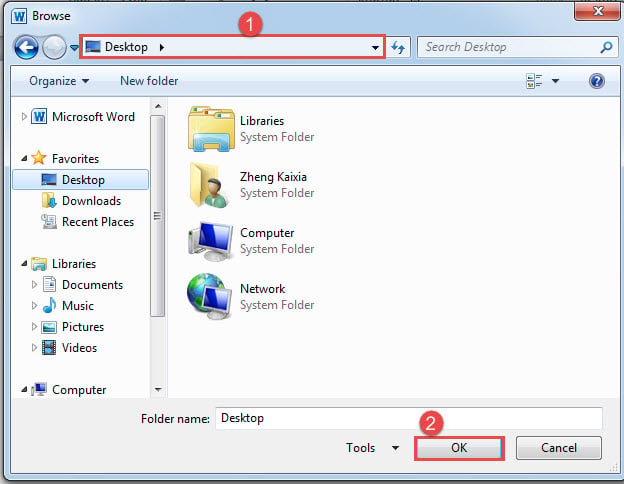
- 然後將彈出“瀏覽”窗口。 選擇一個存儲新文檔的位置,然後單擊“確定”。

- 然後在“文件名”框中,輸入新文件的名稱,然後單擊“確定”。

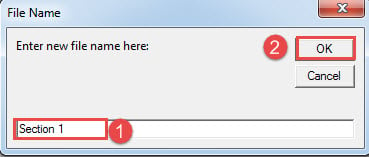
現在,您已將該部分提取到一個新文檔中。
方法2:將文檔中的每個節提取到單個新的節
這種方法可以幫助您批量處理文檔中的所有部分。 當然,我們也將需要一個宏。
- 首先,開啟目標文件。
- 然後按照方法1中的步驟安裝並運行宏。
- 只有這次用該宏替換該宏:
Sub SaveEachSectionAsADoc()
  Dim objDocAdded As Document
  Dim objDoc As Document
  Dim nSectionNum As Integer
  Dim strFolder As String

  Dim dlgFile As FileDialog

  ' Initialization
  Set objDoc = ActiveDocument

  Set dlgFile = Application.FileDialog(msoFileDialogFolderPicker)

  ' Pick a location to keep new files.
  With dlgFile
    If .Show = -1 Then
      strFolder = .SelectedItems(1) & "\"
    Else
      MsgBox "Select a folder first!"
      Exit Sub
    End If
  End With

  ' Step through each section in current document, copy and paste each to a new one.
  For nSectionNum = 1 To ActiveDocument.Sections.Count
    Selection.GoTo What:=wdGoToSection, Which:=wdGoToNext, Name:=nSectionNum
    ActiveDocument.Sections(nSectionNum).Range.Copy

    Set objDocAdded = Documents.Add
    Selection.Paste

    ' Save and close new documents.
    objDocAdded.SaveAs FileName:=strFolder & "Section " & nSectionNum & ".docx"
    objDocAdded.Close
  Next nSectionNum
End Sub
- 不過,在“瀏覽”窗口中,選擇一個存儲路徑,然後單擊“確定”。
修復惱人的單詞錯誤
使用它時經常會遇到一些Word錯誤。 可能令人煩惱,我們必須花一些時間 恢復單詞 盡快地。 因為我們延遲的時間越長,數據丟失的後果就越嚴重。 因此,建議您事先掌握維修工具。
作者簡介:
陳薇薇(Vera Chen)是 DataNumen,Inc.是數據恢復技術的全球領導者,包括 損壞的XLS 以及 pdf 維修軟件產品。 欲了解更多信息,請訪問 萬維網。datanumen.COM