
1. Wstęp
Kosz to wbudowana w system Windows siatka bezpieczeństwa dla usuniętych plików. Dopóki plik nadal się w nim znajduje, jego odzyskanie zajmuje tylko kilka kliknięć. Ten przewodnik wyjaśnia, jak odzyskać usunięte pliki z Kosza w systemie Windows, w tym pliki w lokalizacjach zewnętrznych, sieciowych i synchronizowanych z OneDrive.
1.1 Co obejmuje ten przewodnik
- Odzyskiwanie plików, które nadal znajdują się w Koszu
- Przywracanie usuniętych plików do ich oryginalnej lokalizacji
- Przywracanie usuniętych plików do nowej lokalizacji, gdy brakuje oryginalnego folderu
1.2 Czego nie obejmuje ten przewodnik
- Pliki usunięte za pomocą Shift + Usunięcia, które całkowicie pomijają Kosz
- Pliki usunięte lub opróżnione z Kosza. W takim przypadku zaznacz ten przewodnik aby odzyskać pliki.
- Pliki, które przekroczyły limit miejsca w Koszu i zostały trwale usunięte
2. Odzyskaj usunięte pliki z Kosza
Jeżeli plik został usunięty z dysku lokalnego za pomocą Usunięcia klawisz lub prawy przycisk myszy Usunięcia Po poleceniu trafi on prosto do Kosza. Aby go odzyskać, wykonaj następujące 3 kroki:
2.1 Otwórz Kosz
Użyj dowolnej z następujących metod:
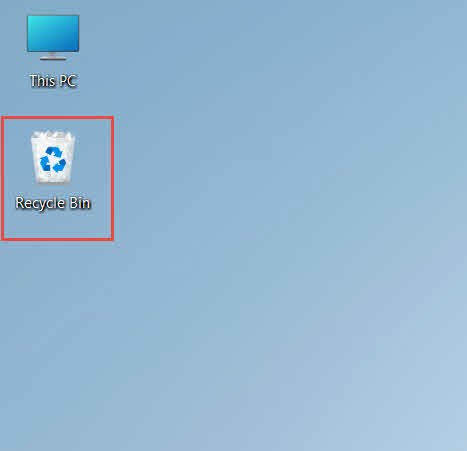
- Dwukrotnie kliknij Kosz ikona na pulpicie

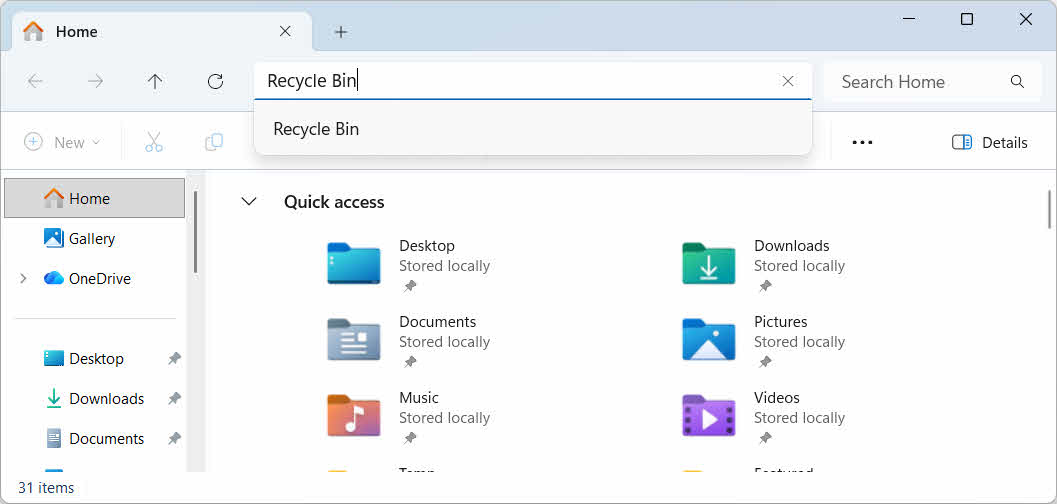
- Otwórz Eksplorator plików i wprowadź Kosz w pasku adresu

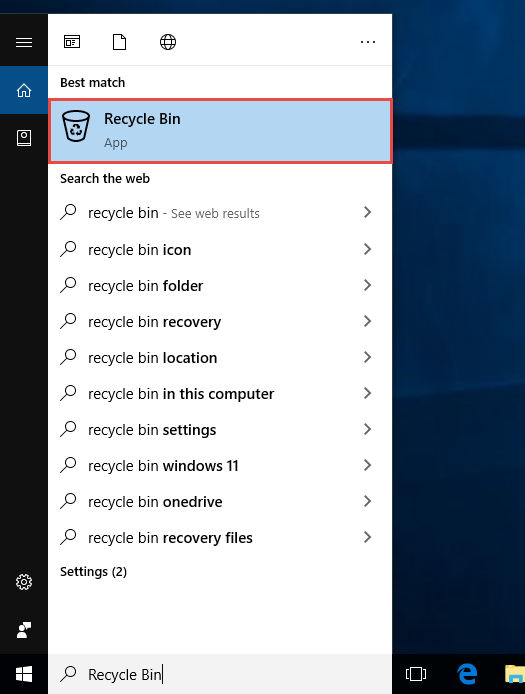
- Typ Kosz do wyszukiwarki Windows i wybierz ją z wyników

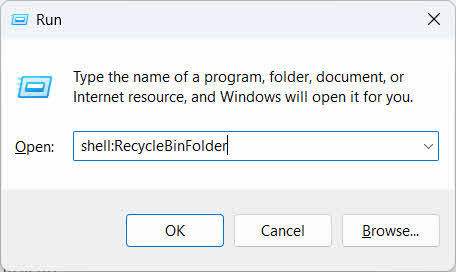
- Naciśnij przycisk Win + Rtyp shell: RecycleBinFolderi naciśnij Enter

2.2 Znajdź usunięty plik lub folder
Po otwarciu Kosza znajdź poszukiwane przedmioty, korzystając z jednej z poniższych metod:
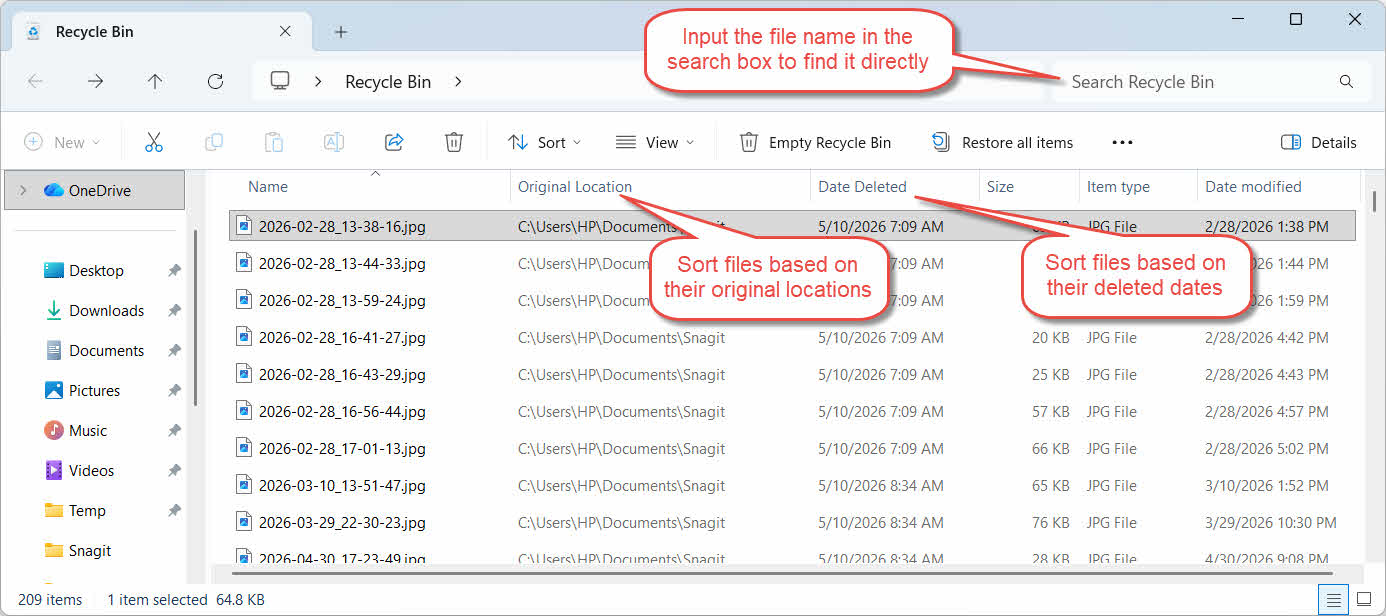
- Wpisz nazwę pliku w polu wyszukiwania w prawym górnym rogu
- Kliknij Data usunięcia nagłówek kolumny umożliwiający sortowanie według ostatnich usunięć
- Sprawdź Oryginalna lokalizacja kolumna, aby potwierdzić, że plik pochodzi z oczekiwanego folderu
2.3 Przywracanie plików lub folderów
Aby przywrócić jeden lub więcej elementów:
- Wybierz pojedynczy plik lub przytrzymaj Ctrl i kliknij, aby wybrać wiele plików lub przytrzymaj Shift i kliknij, aby wybrać zakres
- Kliknij prawym przyciskiem myszy zaznaczenie i wybierz Przywróć
- Otwórz oryginalny folder, aby sprawdzić, czy plik powrócił

Aby przywrócić wszystkie elementy z Kosza jednocześnie, kliknij Przywróć wszystkie elementy na pasku narzędzi bez konieczności wcześniejszego wybierania pojedynczego pliku.
3. Przywróć usunięte pliki z Kosza do innej lokalizacji
Przywróć Polecenie zawsze zwraca plik do jego oryginalnego folderu. W niektórych sytuacjach konieczne jest przeniesienie go w inne miejsce.
3.1 Kiedy należy stosować tę metodę
- Oryginalny folder już nie istnieje
- Nowy plik o tej samej nazwie już istnieje w oryginalnym folderze
- Nie masz uprawnień dostępu do oryginalnego folderu
- Nie masz pewności, z którego folderu pochodzi plik
- Chcesz przejrzeć plik przed odłożeniem go na pierwotne miejsce
3.2 Przeciągnij lub wytnij plik z Kosza
Aby przenieść plik z Kosza do wybranego folderu:
- Otwórz Kosz
- Wybierz plik lub folder, który chcesz przywrócić.
- Aby przenieść plik lub folder do folderu docelowego, użyj jednej z następujących metod:
- Przeciągnij go bezpośrednio do okna folderu docelowego
- Naciśnij przycisk Ctrl + X aby go wyciąć, otwórz folder docelowy i naciśnij Ctrl + V wkleić to
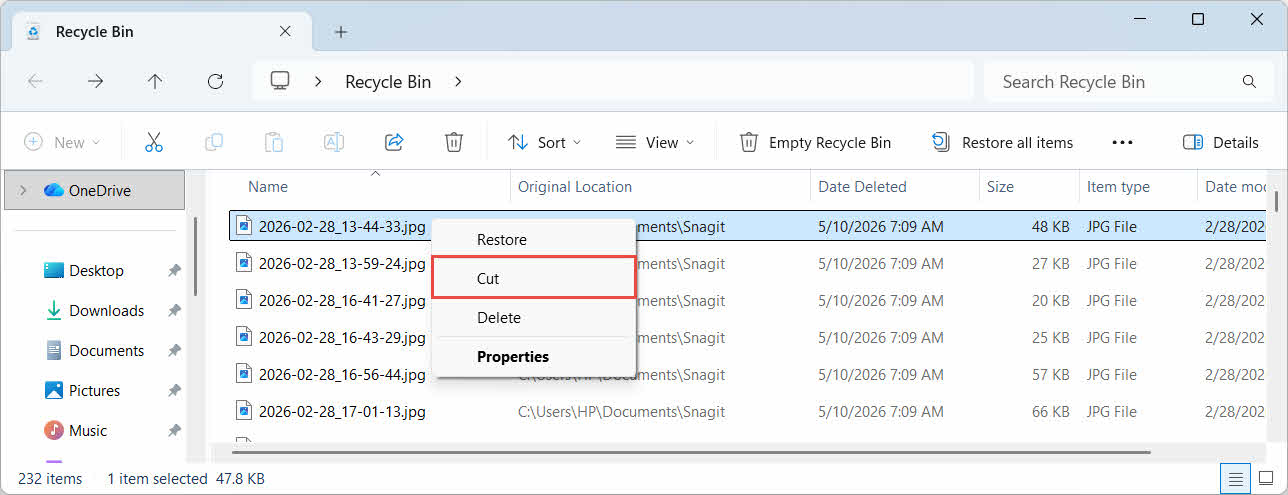
- Kliknij prawym przyciskiem myszy zaznaczenie i wybierz Ciąć, otwórz folder docelowy, kliknij prawym przyciskiem myszy i wybierz makaron wkleić to

4. Odzyskiwanie plików z Kosza na dyskach zewnętrznych, sieciowych i w chmurze
Kroki Sekcja 2 Załóżmy, że plik został usunięty z głównego dysku komputera. Pamięć zewnętrzna, sieciowa i synchronizowana z chmurą zachowują się inaczej.
4.1 Dyski twarde zewnętrzne i dyski flash USB
System Windows traktuje zewnętrzne dyski twarde (w tym dyski SSD podłączone przez USB) tak samo jak dyski wewnętrzne: każdy z nich ma domyślnie swój własny, ukryty folder Kosz. Nośniki wymienne, takie jak dyski flash USB i karty SD, są traktowane inaczej i domyślnie nie mają Kosza, więc usunięte z nich pliki są natychmiast usuwane.
4.1.1 Włączanie obsługi Kosza dla dysku
W przypadku zewnętrznego dysku twardego sprawdź, czy obsługa Kosza jest włączona:
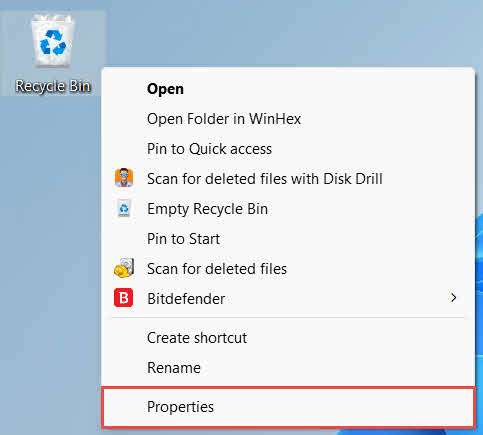
- Kliknij prawym przyciskiem myszy Kosz ikonę na pulpicie i wybierz Właściwości

- W Kosz Lokalizacja Z listy wybierz wiersz dla dysku zewnętrznego. Pojawia się on tutaj dopiero po podłączeniu dysku i przypisaniu mu litery dysku.
- Pod Ustawienia dla wybranej lokalizacji, Upewnić się rozmiar niestandardowy jest wybrany, nie Nie przenoś plików do Kosza. Usuń pliki natychmiast po ich usunięciu.

- Kliknij Aplikuj, następnie OK
Każdy dysk zachowuje to ustawienie niezależnie, dzięki czemu obsługa Kosza może być wyłączona na dysku zewnętrznym, nawet jeśli obsługa Kosza pozostaje włączona na dysku systemowym.
W przypadku dysku flash USB lub karty SD, folder ten w ogóle nie pojawi się we właściwościach Kosza, ponieważ system Windows domyślnie nie tworzy folderu Kosz na nośnikach wymiennych. Włączenie tej opcji wymaga edycji rejestru:
- Naciśnij przycisk Win + Rtyp regedit, naciśnij Enteri zatwierdź monit
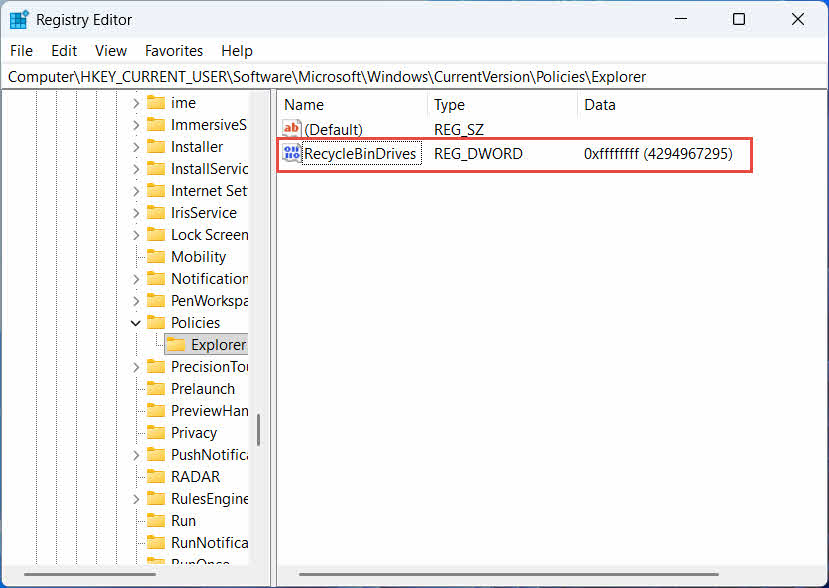
- Przejdź do HKEY_CURRENT_USER \ Software \ Microsoft \ Windows \ CurrentVersion \ Policies \ Explorer, Jeśli badacz klucz nie istnieje pod Polityka, kliknij prawym przyciskiem myszy Polityka, Wybierz Nowości -> Klawiszi nazwij to badacz
- Kliknij prawym przyciskiem myszy pusty obszar w prawym panelu i wybierz Nowości -> DWORD (32-bit) Valuei nazwij to RecycleBinDrives
- Kliknij dwukrotnie RecycleBinDrives, ustaw Baza do Szesnastkowy, wchodzić ffffffff jako dane wartości i kliknij OK

- Powtórz kroki od 2 do 4 w HKEY_LOCAL_MACHINE \ SOFTWARE \ Microsoft \ Windows \ CurrentVersion \ Policies \ Explorer
- Zrestartuj komputer
Aby cofnąć zmianę, usuń RecycleBinDrives Wartość z obu lokalizacji. Ponieważ wiąże się to z edycją rejestru, najpierw utwórz punkt przywracania i zastanów się, czy w przypadku dysków używanych sporadycznie nie lepiej będzie skorzystać z kopii zapasowych.
4.1.2 Przywracanie plików
Po włączeniu Kosza na dysku przywrócenie pliku odbywa się zgodnie z procedurą opisaną w Sekcja 2.3.
Usunięcie pliku z mapowanego dysku sieciowego lub folderu współdzielonego powoduje jego bezpośrednie usunięcie z serwera. Nie przechodzi on przez lokalny Kosz na komputerze. Jeśli jednak włączony jest Kosz na serwerze, można odzyskać z niego usunięte pliki.
4.2.1 Kosz po stronie serwera (jeśli włączony)
Niektóre serwery plików umożliwiają Kopie w tle (usługa kopiowania woluminów w tle), która umożliwia przywrócenie wcześniejszych wersji udostępnionego folderu, dzięki czemu możesz odzyskać usunięte pliki za pomocą tej funkcji:
- Kliknij prawym przyciskiem myszy folder nadrzędny w udziale sieciowym i wybierz Właściwości
- Otwórz Poprzednie wersje .
- Wybierz wersję sprzed usunięcia i kliknij Przywróć
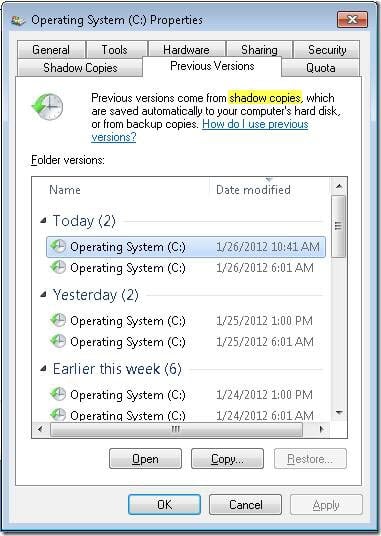
4.2.2 Co zrobić, jeśli nie ma kosza na serwerze
Jeśli opcja Poprzednie wersje Jeśli karta jest pusta lub niedostępna, udział nie ma skonfigurowanego odzyskiwania na podstawie migawek. Skontaktuj się z administratorem sieci, aby sprawdzić, czy serwer ma własny harmonogram tworzenia kopii zapasowych.
4.3 Kosz OneDrive (foldery synchronizowane z chmurą)
Foldery synchronizowane z OneDrive mogą obejmować dwa oddzielne Kosze: lokalny Kosz systemu Windows i internetowy Kosz OneDrive. To, w którym z nich znajduje się plik, zależy od miejsca, w którym został usunięty.
4.3.1 Lokalne usuwanie zsynchronizowanego pliku (przenosi się zarówno do lokalnego, jak i internetowego Kosza)
Jeśli usuniesz zsynchronizowany plik z Eksploratora plików na swoim komputerze, trafi on do lokalnego Kosza dokładnie tak, jak opisano w Sekcja 2, a klient synchronizacji OneDrive również odzwierciedla usunięcie w chmurze, dzięki czemu plik staje się możliwy do odzyskania także z Kosza internetowego OneDrive.
4.3.2 Usuwanie inicjowane z chmury (tylko Kosz internetowy, od maja 2026 r.)
Jeśli plik zostanie usunięty z chmury, na przykład za pośrednictwem witryny OneDrive lub innego zsynchronizowanego urządzenia, zachowanie uległo zmianie od maja 2026 roku: Microsoft przestał wysyłać do lokalnego Kosza systemu Windows polecenia usunięcia inicjowane z chmury. Plik usunięty w ten sposób znika z folderu lokalnego i nie pojawia się w lokalnym Koszu, a jego odzyskanie jest możliwe tylko z Kosza internetowego usługi OneDrive lub programu SharePoint.
4.3.3 Przywracanie z OneDrive.com
Aby przywrócić plik z Kosza internetowego usługi OneDrive:
- Zaloguj się na onedrive.live.com or onedrive.com
- Wybierz Kosz w okienku nawigacji
- Wybierz plik lub folder i kliknij Przywróć
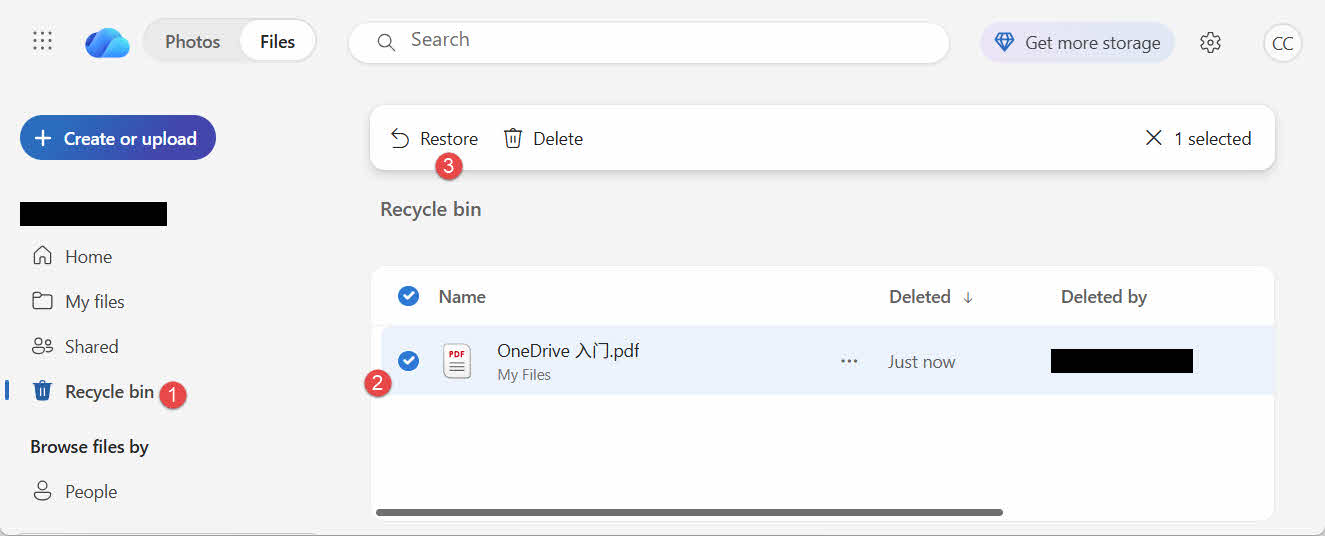
Osobiste konta Microsoft przechowują usunięte elementy przez okres do 30 dni, natomiast konta służbowe lub szkolne przechowują je przez okres do 93 dni.
5. Rozwiązywanie problemów z odzyskiwaniem Kosza
5.1 Brak ikony Kosza na pulpicie
Kosz nadal istnieje, nawet jeśli jego ikona na pulpicie została ukryta. Aby przywrócić ikonę:
- Kliknij pulpit prawym przyciskiem myszy i wybierz Personalizacja
- Otwórz Tematy, następnie Ustawienia ikony na pulpicie
- Sprawdź Kosz i kliknij OK
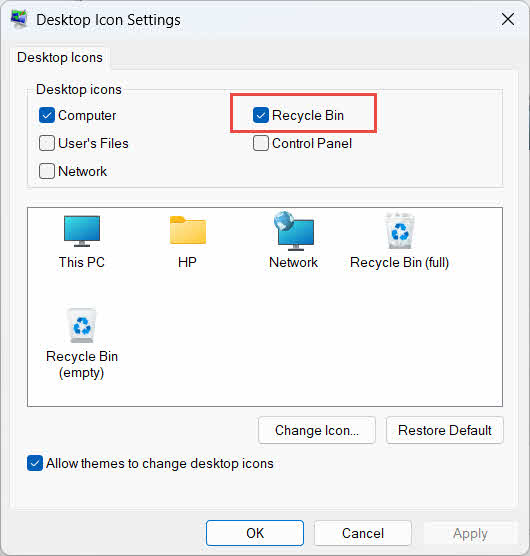
Możesz również otworzyć go bezpośrednio, wpisując Kosz w wyszukiwarce systemu Windows, Eksploratorze plików lub za pomocą kombinacji klawiszy Win + R, zgodnie z opisem w Sekcja 2.1.
5.2 Plik nie znajduje się w Koszu
Jeśli poszukiwane przez Ciebie pliki nie znajdują się w Koszu, rozważ następujące przyczyny:
- Został usunięty z dysku zewnętrznego bez obsługi Kosza (zobacz Sekcja 4.1)
- Został usunięty z dysku sieciowego (zobacz Sekcja 4.2)
- Został usunięty bezpośrednio z usługi OneDrive w Internecie (zobacz Sekcja 4.3)
- Został trwale usunięty, na przykład za pomocą Shift + Usunięcialub Kosz został opróżniony
Jeżeli plik został trwale usunięty, jego odzyskanie wymaga specjalnego oprogramowania do odzyskiwania danych, takiego jak DataNumen Data Recovery, a nie do Kosza. Najpierw przestań zapisywać nowe pliki na tym dysku, aby zmniejszyć ryzyko nadpisania danych.
5.3 Opcja przywracania jest nieaktywna, brakuje jej lub nie działa
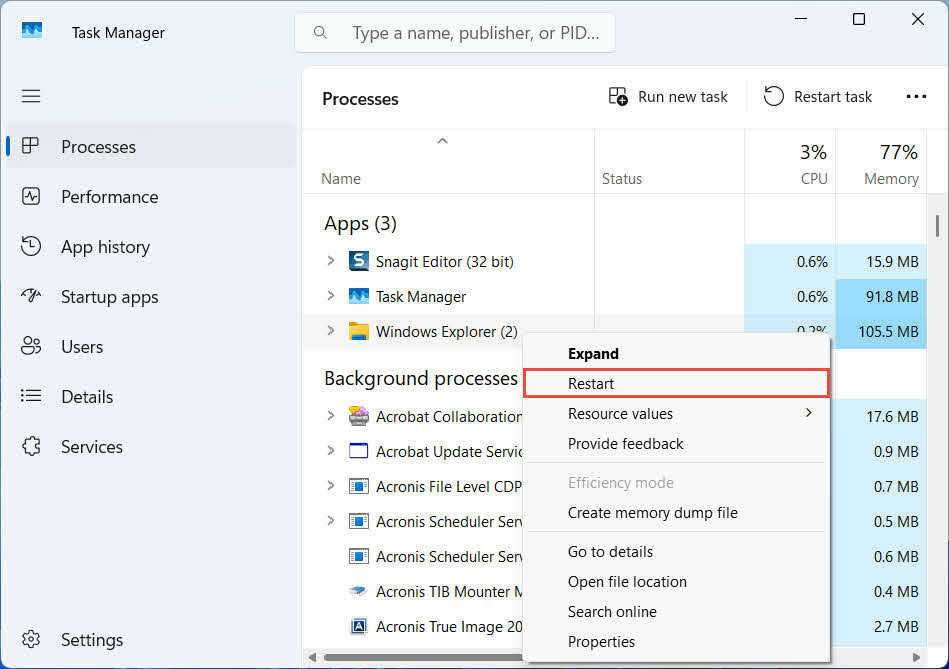
Dzieje się tak zazwyczaj, gdy wybrane elementy pochodzą z lokalizacji, która już nie istnieje, lub gdy wewnętrzny indeks Kosza jest niezsynchronizowany. Wypróbuj poniższe rozwiązania:
- Uruchom ponownie Eksplorator plików: użyj kombinacji klawiszy Ctrl + Alt + Del, aby otworzyć Menedżera zadań, kliknij prawym przyciskiem myszy Windows Exploreri wybierz restart

- Przywracaj elementy pojedynczo, a nie partiami
- If Przywróć nadal się nie pojawia, przeciągnij plik ręcznie, jak opisano w Sekcja 3.2
5.4 „Odmowa dostępu” lub błędy uprawnień podczas przywracania
Wskazuje to na problem z uprawnieniami do oryginalnego folderu, a nie do samego pliku. Sprawdź, czy:
- Jesteś zalogowany na tym samym koncie, na którym usunąłeś plik
- Uprawnienia folderu docelowego nadal umożliwiają dostęp do zapisu dla Twojego konta
- Eksplorator plików nie jest blokowany przez zasady na komputerze zarządzanym lub służbowym
Jeżeli uprawnienia oryginalnego folderu uległy zmianie, przywróć plik do innej lokalizacji, postępując zgodnie z poniższymi instrukcjami: Sekcja 3.
5.5 Kosz wydaje się pusty, ale go nie opróżniam
Pliki mogą zniknąć z Kosza bez konieczności jego ręcznego opróżniania:
- Funkcja Storage Sense może zostać skonfigurowana tak, aby automatycznie usuwała elementy po określonej liczbie dni
- Kosz osiągnął limit rozmiaru, więc system Windows usunął najstarsze elementy, aby zrobić miejsce (patrz Sekcja 6.1)
- Inne konto na współdzielonym komputerze go opróżniło
- Zasady grupy na zarządzanym urządzeniu wymuszają automatyczne opróżnianie
5.6 Przywrócony plik jest uszkodzony, pusty lub nie można go otworzyć
Przywracanie pliku jedynie cofa go do poprzedniej wersji, ale go nie naprawia. Jeśli plik był już uszkodzony przed usunięciem lub był zapisywany w momencie usunięcia, po przywróceniu nadal może się nie otworzyć. W takim przypadku problem leży w uszkodzeniu pliku, a nie w Koszu, i wymaga… narzędzie do naprawy nadaje się do tego formatu pliku, a nie do kolejnej próby odzyskania.
6. Zarządzanie Koszem i jego konfiguracja
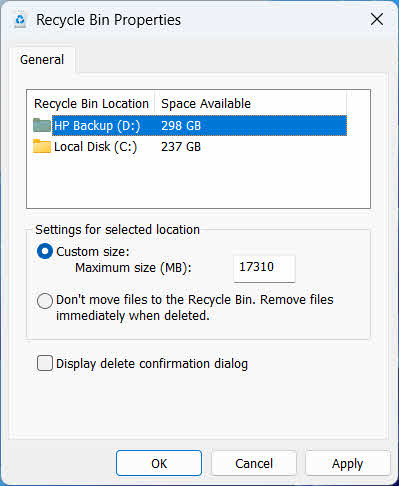
6.1 Zmiana rozmiaru przestrzeni dyskowej Kosza
Każdy dysk ma swój własny przydział Kosza. Aby go sprawdzić lub zmienić:
- Kliknij prawym przyciskiem myszy Kosz ikona i wybierz Właściwości
- Wybierz dysk z listy lokalizacji Kosza
- Dodaj rozmiar niestandardowy i wprowadź Maksymalny rozmiar (MB)lub wybierz Nie przenoś plików do Kosza. Usuń pliki natychmiast po ich usunięciu. aby wyłączyć go dla tego dysku
- Kliknij OK
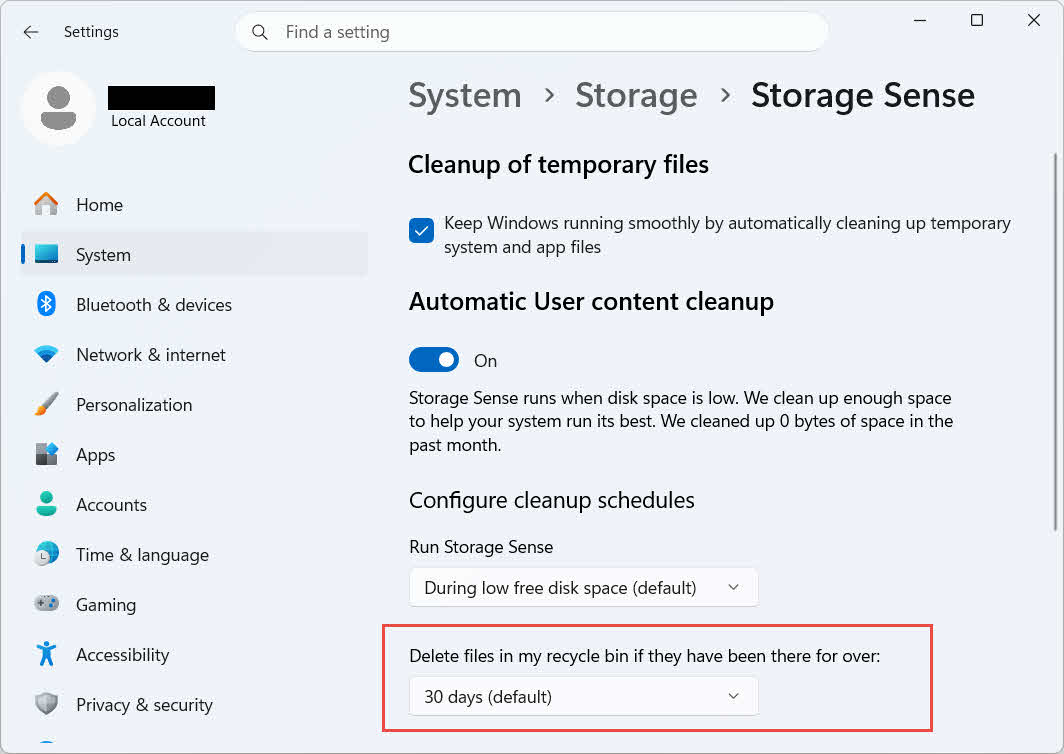
System Windows oferuje również osobną opcję czyszczenia opartą na wieku: przejdź do Ustawienia -> System -> Pamięć masowa -> Czujnik pamięci masowej i nastaw Usuń pliki z mojego kosza, jeśli były tam przez ponad wybraną liczbę dni. Domyślny okres przechowywania to 30 dni.
6.2 Włączanie okna dialogowego potwierdzenia usunięcia
System Windows 11 domyślnie nie wyświetla monitu o potwierdzenie przed przeniesieniem plików do Kosza. Aby włączyć tę funkcję:
- Kliknij prawym przyciskiem myszy Kosz ikona i wybierz Właściwości
- Sprawdź Wyświetla okno dialogowe potwierdzenia usunięcia
- Kliknij OK
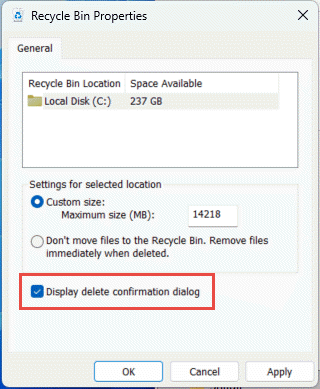
To ustawienie nie zapobiega trwałemu usunięciu, np. Shift + Usunięcia lub usunięcia z dysków nieobsługujących Kosza.
6.3 Ustawianie plików tak, aby pomijały Kosz (i dlaczego należy tego unikać)
To samo Nie przenoś plików do Kosza. Usuń pliki natychmiast po ich usunięciu. opcja objęta Sekcja 6.1 Można zastosować tę opcję do dowolnego dysku, aby każde usunięcie było trwałe. To natychmiast zwalnia miejsce na dysku, ale eliminuje jedyną opcję szybkiego odzyskiwania opisaną w tym przewodniku, dlatego najlepiej jest ją zarezerwować dla dysków, które nie zawierają plików osobistych, takich jak dedykowany wolumin roboczy lub tymczasowy.
7. Najlepsze praktyki zapobiegające utracie danych w przyszłości
7.1 Włącz historię plików lub rozwiązanie kopii zapasowej
Kosz chroni tylko przed przypadkowym usunięciem, a nie przed awarią dysku lub opróżnieniem Kosza. Włączanie Historii plików (Panel sterowania -> System i zabezpieczenia -> Historia plików)

lub narzędzie do tworzenia kopii zapasowych innej firmy dodaje drugą warstwę ochrony z własną historią wersji.
7.2 Używaj synchronizacji w chmurze dla ważnych folderów
Synchronizacja pulpitu, dokumentów i zdjęć z usługą OneDrive lub inną usługą w chmurze powoduje utworzenie Kosza internetowego opisanego w Sekcja 4.3 jako dodatkowa ścieżka odzyskiwania, niezależna od lokalnego Kosza.
7.3 Sprawdź dokładnie przed opróżnieniem Kosza
Przed kliknięciem Empty Recycle Bin, sortuj według Data usunięcia i przeskanuj w poszukiwaniu nowych plików. Po opróżnieniu, jedyną opcją pozostaje dedykowane oprogramowanie do odzyskiwania danych, a sukces nie jest gwarantowany.
8. FAQ
P: Czy nadal mogę odzyskać plik po opróżnieniu Kosza?
O: Nie przez sam Kosz. W tym momencie plik jest oznaczany jako usunięty na poziomie systemu plików, ale może nadal fizycznie znajdować się na dysku, dopóki nie zostanie nadpisany. Narzędzia takie jak DataNumen Data Recovery Są one zaprojektowane do skanowania i rekonstrukcji tego typu danych. Należy jak najszybciej zaprzestać używania dysku, aby zwiększyć szanse na pomyślne odzyskanie danych.
P: Czy na komputerze Mac jest coś podobnego do Kosza w systemie Windows?
O: Tak, nazywa się Kosz i działa w ten sam sposób: otwórz Kosz, kliknij plik prawym przyciskiem myszy i wybierz „Odłóż”. Ten przewodnik dotyczy konkretnie Kosza systemu Windows. ten przewodnik dotyczy konkretnie Mac Trash.
P: Jak długo pliki pozostają w Koszu, zanim zostaną automatycznie usunięte?
A: Lokalny Kosz nie ma domyślnie ustalonego limitu czasu; elementy są usuwane tylko wtedy, gdy osiągnięty zostanie limit rozmiaru lub gdy funkcja Storage Sense jest skonfigurowana do usuwania starych elementów (patrz Sekcja 6.1Kosz internetowy usługi OneDrive korzysta ze stałego okna: 30 dni w przypadku kont osobistych i do 93 dni w przypadku kont służbowych lub szkolnych (zobacz Sekcja 4.3).
P: Czy powinienem przywrócić plik do oryginalnej lokalizacji czy do nowej?
A: Przywracanie do oryginalnej lokalizacji (Sekcja 2) jest prostsze i zachowuje oryginalną ścieżkę pliku. Przywróć do innej lokalizacji (Sekcja 3) jeśli oryginalny folder już nie istnieje lub zawiera już plik o tej samej nazwie.
P: Czy mogę odzyskać pliki usunięte z dysku flash USB za pomocą Kosza?
O: Domyślnie nie. Dyski flash i karty SD nie otrzymują folderu Kosz, chyba że włączysz go ręcznie, jak wyjaśniono w Sekcja 4.1.
P: Dlaczego opcja Przywróć jest wyszarzona lub jej brakuje?
A: Zwykle jest to spowodowane brakiem oryginalnego folderu lub niezsynchronizowanym indeksem Kosza. Zobacz Sekcja 5.3 w celu wprowadzenia poprawek.
P: Co zrobić, jeśli Kosz jest pusty, a ja nigdy go nie opróżniłem?
A: Funkcja Storage Sense, osiągnięcie limitu rozmiaru, inne konto użytkownika lub ustawienie zasad grupy mogą automatycznie wyczyścić to pole. Zobacz Sekcja 5.5.
P: Jaki program może odzyskać pliki, które nie znajdują się już w Koszu?
A: Dedykowane oprogramowanie do odzyskiwania danych, takie jak DataNumen Data Recovery, skanuje dysk na niższym poziomie w celu znalezienia danych, do których system plików już się nie odwołuje, czego sam interfejs Kosza nie potrafi zrobić.
P: Czy przywrócenie pliku gwarantuje jego prawidłowe otwarcie?
O: Nie. Przywrócenie pliku powoduje jedynie jego powrót do folderu; nie naprawia żadnych uszkodzeń, które plik miał już przed usunięciem lub w jego trakcie. Zobacz Sekcja 5.6.
9. Wniosek
Odzyskiwanie usuniętych plików z Kosza jest proste, o ile element nadal tam jest: otwórz Kosz, znajdź plik i przywróć go. Dyski zewnętrzne, udziały sieciowe i foldery zsynchronizowane z OneDrive mają swoje własne warunki, a powyższe sekcje dotyczące rozwiązywania problemów i konfiguracji obejmują sytuacje, w których standardowy proces przywracania nie przebiega zgodnie z oczekiwaniami. Jeśli plik został trwale usunięty lub Kosz został już opróżniony, kolejnym krokiem jest dedykowane oprogramowanie do odzyskiwania danych, a nie sam Kosz.
O autorze
Qian Gua Jest specjalistą w dziedzinie odzyskiwania danych z ponad 10-letnim doświadczeniem w systemach plików Windows, technologiach pamięci masowej i rozwiązaniach odzyskiwania danych po awarii. Z powodzeniem przeprowadził tysiące użytkowników przez krytyczne scenariusze utraty danych w środowiskach prywatnych i korporacyjnych.
Qian specjalizuje się w metodologiach odzyskiwania danych z systemu Windows, analizie systemu plików i strategiach tworzenia kopii zapasowych. Jego bogate doświadczenie praktyczne obejmuje odzyskiwanie danych z dysków, wdrażanie kompleksowych rozwiązań do tworzenia kopii zapasowych oraz rozwiązywanie złożonych problemów z systemem plików. NTFS, FAT, exFAT i ReFS. Pracował z różnymi narzędziami i technikami odzyskiwania danych, od wbudowanych narzędzi systemu Windows po profesjonalne oprogramowanie do odzyskiwania danych.
Dzięki swojej twórczości technicznej Qian poświęca się przekazywaniu użytkownikom praktycznej wiedzy na temat ochrony i odzyskiwania cennych danych. Jest na bieżąco z najnowszymi osiągnięciami w zakresie technologii odzyskiwania plików w systemie Windows, innowacjami w zakresie urządzeń pamięci masowej i najlepszymi praktykami w zakresie ochrony danych. Kiedy nie pomaga użytkownikom w odzyskaniu ich danych,ost fileQian lubi badać nowe technologie przechowywania danych i dzielić się wskazówkami dotyczącymi bezpieczeństwa danych, które zapobiegają ich utracie w przyszłości.
Masz pytania dotyczące tego przewodnika lub potrzebujesz pomocy w odzyskiwaniu danych? Qian zaprasza opinie i sugestie w celu ulepszenia zasobów odzyskiwania danych.