
Outlook သည် ပူးတွဲပါဖိုင်များကို တိုက်ရိုက်ချုံ့ခြင်းကို ခွင့်မပြုသော်လည်း၊ RAR ဖိုင်၊ လေညင်းကဲ့သို့ သဘောပေါက်ရန် ဤဆောင်းပါးတွင် ဖော်ပြထားသော VBA ကုဒ်ကို သင်အသုံးပြုနိုင်သေးသည်။
ကျွန်ုပ်တို့အားလုံးသိသည့်အတိုင်း၊ ကြီးမားသောဖိုင်များစွာကို အီးမေးလ်တစ်ခုသို့ ပူးတွဲသည့်အခါ၊ Outlook တွင် ပူးတွဲပါဖိုင်အရွယ်အစားကန့်သတ်ချက်နှင့်ပတ်သက်၍ သင်သတိပေးချက်ရနိုင်ဖွယ်ရှိသည်။ ထို့အပြင်၊ အီးမေးလ်တစ်ခုတွင် ပူးတွဲပါဖိုင်များ အလွန်ကြီးမားပါက၊ ၎င်းကို အောင်မြင်စွာ ပေးပို့ရန် ပိုမိုခက်ခဲလာမည်ဖြစ်သည်။ ထို့ကြောင့် ဤကဲ့သို့သော ပူးတွဲပါဖိုင်များကို ရင်ဆိုင်ရာတွင်၊ ၎င်းတို့ကို ချုံ့ရန် ရွေးချယ်နိုင်သည်။ RAR ပူးတွဲပါဖိုင်များ၏ အရွယ်အစားကို အတိုင်းအတာတစ်ခုအထိ လျှော့ချနိုင်သည့် ဖိုင်။
ယေဘုယျအားဖြင့် ဖိုင်များကို ချုံ့ရန် RAR ဖိုင်၊ Outlook သည် ချုံ့ခြင်းအတွက် ဇာတိအင်္ဂါရပ်ကို မပံ့ပိုးပေးသော local drive တွင်သာ ၎င်းကို သင်ရရှိနိုင်ပါသည်။ သို့သော်၊ များစွာသောသူတို့သည် Outlook တွင် ၎င်းကို တိုက်ရိုက်ပြီးမြောက်ရန် မျှော်လင့်ကြသည်။ ထို့ကြောင့်၊ ဤနေရာတွင် Outlook VBA ဖြင့် ၎င်းကို မည်သို့ရယူရမည်ကို သင်ပေးပါမည်။
Attachments အားလုံးကို အမြန် Compress လုပ်ပါ။ RAR သင်၏ Outlook အီးမေးလ်တွင်ဖိုင်
- အစပိုင်းတွင် သင်၏ Outlook အက်ပ်ကို စတင်ပါ။
- ထို့နောက် ပင်မ Outlook ဝင်းဒိုးတွင် “Alt + F11” ခလုတ်များကို နှိပ်ပါ။
- ထို့နောက် သင်သည် “Microsoft Visual Basic for Applications” window ကို ဝင်ရပါမည်။ ဗလာ module တစ်ခုဖွင့်ရန်လိုအပ်သည်။
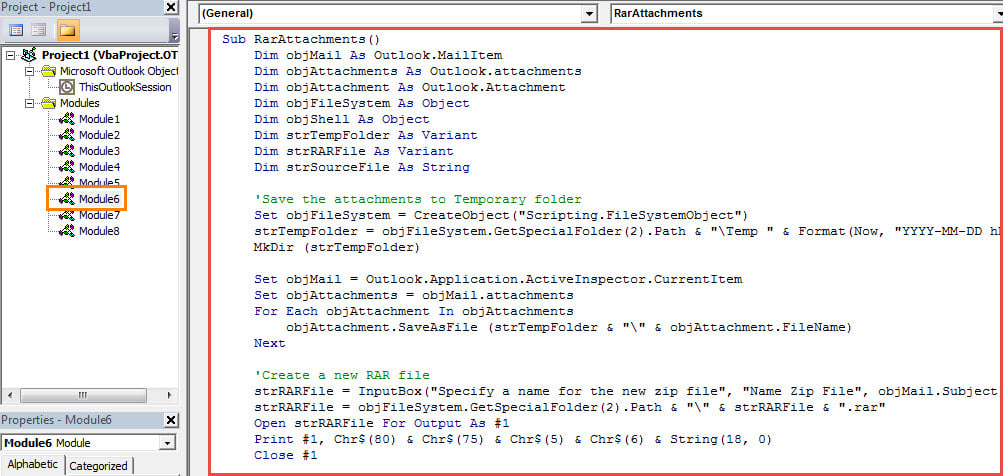
- ထို့နောက်၊ အောက်ပါ VBA ကုဒ်ကို ဤ module ထဲသို့ ကူးယူပြီး ကူးထည့်ပါ။
Sub RarAttachments()
    Dim objMail As Outlook.MailItem
    Dim objAttachments As Outlook.attachments
    Dim objAttachment As Outlook.Attachment
    Dim objFileSystem As Object
    Dim objShell As Object
    Dim strTempFolder As Variant
    Dim strRARFile As Variant
    Dim strSourceFile As String

    'Save the attachments to Temporary folder
    Set objFileSystem = CreateObject("Scripting.FileSystemObject")
    strTempFolder = objFileSystem.GetSpecialFolder(2).Path & "\Temp " & Format(Now, "YYYY-MM-DD hh-mm-ss")
    MkDir (strTempFolder)

    Set objMail = Outlook.Application.ActiveInspector.CurrentItem
    Set objAttachments = objMail.attachments
    For Each objAttachment In objAttachments
        objAttachment.SaveAsFile (strTempFolder & "\" & objAttachment.FileName)
    Next

    'Create a new RAR file
    strRARFile = InputBox("Specify a name for the new zip file", "Name Zip File", objMail.Subject)
    strRARFile = objFileSystem.GetSpecialFolder(2).Path & "\" & strRARFile & ".rar"
    Open strRARFile For Output As #1
    Print #1, Chr$(80) & Chr$(75) & Chr$(5) & Chr$(6) & String(18, 0)
    Close #1

    Set objShell = CreateObject("Shell.Application")

    'Add the files to the New RAR file
    strSourceFile = Dir(strTempFolder)

    While strSourceFile <> ""
          'Change "C:\Program Files (x86)\WinRAR\WinRAR.exe" to the location where your WinRAR is installed
          objShell.Run Chr(34) & "C:\Program Files (x86)\WinRAR\WinRAR.exe" & Chr(34) & " a -r" & Chr(34) & strRARFile & Chr(34) & " " & Chr(34) & strSourceFile & Chr(34)
          strSourceFile = Dir
    Wend

    'Delete all the attachments
    Set objAttachments = objMail.attachments

    While objAttachments.Count > 0
          objAttachments.Item(1).Delete
    Wend

    'Add the new RAR file to the current email
    objMail.attachments.Add strRARFile

    'Prompt you
    MsgBox "Complete!", vbExclamation
End Sub
- ထို့နောက် သင်၏ Outlook မက်ခရိုလုံခြုံရေးအဆင့်ကို အနိမ့်သို့ပြောင်းပါ။
- နောက်ပိုင်းတွင်၊ အဆင်ပြေစွာဝင်ရောက်နိုင်ရန်၊ Quick Access Toolbar တွင် မက်ခရိုကို ထည့်နိုင်သည်။
- နောက်ဆုံးမှာ သင်ကြိုးစားနိုင်မှာပါ။
- ပထမဦးစွာ ပူးတွဲပါဖိုင်များစွာပါသော အီးမေးလ်ကို ဖွင့်ပါ။
- ထို့နောက် Quick Access Toolbar ရှိ မက်ခရိုခလုတ်ကို နှိပ်ပါ။
- ထို့နောက် အသစ်အတွက် အမည်တစ်ခု ထည့်သွင်းရန် လိုအပ်မည်ဖြစ်သည်။ RAR ဖိုင်ကို "OK" ကိုနှိပ်ပါ။
- ထို့နောက် မူရင်း ပူးတွဲပါဖိုင်အားလုံးကို အသစ်ဖြင့် အစားထိုးပါမည်။ RAR screenshot ကဲ့သို့ ဖိုင်

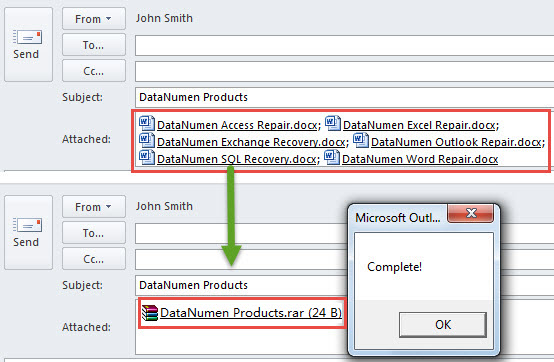
စုစည်း .RAR Outlook ရှိ ပူးတွဲပါဖိုင်များ
အလားတူပင်၊ Outlook သည် အသုံးပြုသူများအား ဖိုင်များကို တိုက်ရိုက်ဖြည်ခွင့်မပြုပါ။ .RAR ၎င်းတွင်ဖိုင်တစ်ခုရှိသည်။ ထို့ကြောင့်၊ အတွင်းပိုင်းဖိုင်များကိုကြည့်ရှုလိုပါက .RAR ပူးတွဲပါဖိုင်ကို သင့်စက်တွင်းဒရိုက်ဗ်တွင် သိမ်းဆည်းပြီး ချုံ့ရန် လိုအပ်သည်။ သို့သော်၊ ၎င်းသည် သံသယဖြစ်ဖွယ် ပျင်းစရာကောင်းသည်။ ကံကောင်းထောက်မစွာ၊ ကျွန်ုပ်၏ယခင်ဆောင်းပါးတွင်မိတ်ဆက်ခဲ့သော Outlook တွင်ဤအင်္ဂါရပ်ကိုရရှိရန် VBA ကိုသင်ဆက်လက်အသုံးပြုနိုင်သေးသည်။ဘယ်လို unrar လုပ်ရမလဲ .RAR VBA မှတဆင့် Outlook တွင် တိုက်ရိုက် ပူးတွဲပါဖိုင်များ"။
စာရေးသူနိဒါန်း:
Shirley Zhang သည် ဒေတာပြန်လည်ရယူရေးဆိုင်ရာ ကျွမ်းကျင်သူဖြစ်သည်။ DataNumen, Inc. အပါအဝင် ဒေတာပြန်လည်ရယူရေးနည်းပညာများတွင် ကမ္ဘာ့ခေါင်းဆောင်ဖြစ်သည်။ SQL Server အကျင့်ပျက်ခြစားမှု နှင့် outlook ပြုပြင်ရေး software ထုတ်ကုန်များ။ ပိုမိုသိရှိလိုပါကသွားရောက်ကြည့်ရှု www ။datanumen.com