
Programmai Excel ir plašs izmantošanas diapazons. Šajā rakstā mēs parādīsim, kā izveidot kalendāru darblapā, izmantojot makro.
Izņemot datu glabāšanu un analizēšanu programmā Excel, varat tos izmantot arī citu uzdevumu veikšanai. Piemēram, jūs varat apkopot informāciju, izmantojot programmu Excel, vai arī darblapā varat pierakstīt savu plānojumu. Šodien mēs esam atraduši jaunu lietojumu. Jūs varat izveidot kalendāru darblapā. Efektu var redzēt zemāk esošajā attēlā.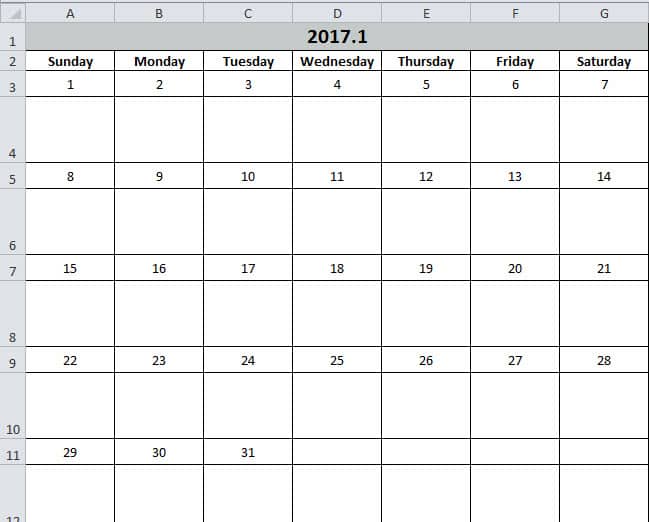
Šajā kalendārā varat ievadīt dažus uzdevumus. Un funkcija ir tāda pati kā memorands. Izmantojot programmu Excel, šie uzdevumi būs skaidrāki. Tagad izpildiet nākamajā daļā norādītās darbības un noskaidrojiet, kā tas darbojas.
Izveidojiet kalendāru
- Nospiediet tastatūras pogu “Alt + F11”, lai atvērtu darblapu.
- Pēc tam Visual Basic redaktorā ievietojiet jaunu moduli.
- Tagad kopējiet šādus kodus jaunajā modulī:
Sub Create_Monthly_Calender()
    Dim firstweekday As Integer, EndDay As Integer, _
    FirstWeekColumnIndex As Integer, AssignmentDate As Integer, _
    FirstCountNumber As Integer, SecondCountNumber As Integer, _
    LastDay As Range, objRange As Range, RowIndexofLastday As Integer, FirstCountforTargetRange As Integer, SecondCountforTargetRange As Integer

    firstday = InputBox("Input the year, month and the first day with this format: year/month/day")
    If firstday = "" Then Exit Sub


    Range("A1:G1").Merge
    Range("A1") = Year(firstday) & "." & Month(firstday)
    Range("A2") = "Sunday"
    Range("A2").AutoFill Destination:=Range("A2:G2"), Type:=xlFillDefault
    firstweekday = Application.WorksheetFunction.Weekday(firstday)
    Cells(3, firstweekday) = 1

    Select Case Month(firstday)
        Case 1, 3, 5, 7, 8, 10, 12
            EndDay = 31
        Case 4, 6, 9, 11
            EndDay = 30
        Case 2
            If (Year(firstday) Mod 4) = 0 And (Year(firstday) Mod 100) <> 0 Or ((Year(firstday) Mod 400) = 0) Then
                EndDay = 29
            Else
                EndDay = 28
            End If
    End Select

    For FirstWeekColumnIndex = 1 To (7 - firstweekday)
        Cells(3, firstweekday).Offset(0, FirstWeekColumnIndex) = Cells(3, firstweekday).Offset(0, FirstWeekColumnIndex - 1) + 1
    Next FirstWeekColumnIndex

    AssignmentDate = Range("G3") + 1
    For FirstCountNumber = 2 To 10 Step 2
        For SecondCountNumber = 0 To 6
            Cells(3, firstweekday).Offset(FirstCountNumber, 1 - firstweekday + SecondCountNumber) = AssignmentDate
            AssignmentDate = AssignmentDate + 1
            If Cells(3, firstweekday).Offset(FirstCountNumber, 1 - firstweekday + SecondCountNumber) = EndDay Then
                Exit For
            End If
        Next SecondCountNumber
        If Cells(3, firstweekday).Offset(FirstCountNumber, 1 - firstweekday + SecondCountNumber) = EndDay Then
            Exit For
        End If
    Next FirstCountNumber

    ’set format for the range
    With Range("A1")
        .HorizontalAlignment = xlCenter
        .VerticalAlignment = xlCenter
        .Font.Size = 16
        .Font.Bold = True
        .Interior.Color = RGB(196, 202, 201)
    End With

    With Range("A2:G2")
        .HorizontalAlignment = xlCenter
        .VerticalAlignment = xlCenter
        .Font.Bold = True
    End With

    For Each LastDay In ActiveSheet.UsedRange
        If LastDay = EndDay Then
            RowIndexofLastday = LastDay.Row
        End If
    Next

    For FirstCountforTargetRange = RowIndexofLastday To 3 Step -2
            With Range("A" & FirstCountforTargetRange, "G" & FirstCountforTargetRange)
                .HorizontalAlignment = xlCenter
                .VerticalAlignment = xlCenter
                .RowHeight = 20
            End With
    Next FirstCountforTargetRange

        For SecondCountforTargetRange = RowIndexofLastday + 1 To 4 Step -2
            With Range("A" & SecondCountforTargetRange, "G" & SecondCountforTargetRange)
                .HorizontalAlignment = xlCenter
                .VerticalAlignment = xlCenter
                .Font.Bold = True
                .RowHeight = 50
                .ColumnWidth = 12
            End With
    Next SecondCountforTargetRange

    Set objRange = Range("A1", "G" & (RowIndexofLastday + 1))
    With objRange.Borders
        .Color = vbBlack
        .Weight = xlThin
        .LineStyle = xlContinuous
    End With

    ActiveWindow.DisplayGridlines = False
    Cells(3, firstweekday).Offset(1, 0).Select
End Sub
Tādējādi ir ļoti vientuļš makro. Bet jūs varat to tieši izmantot. Un jums tas nav jāmaina.
- Pēc tam nospiediet tastatūras pogu “F5”.
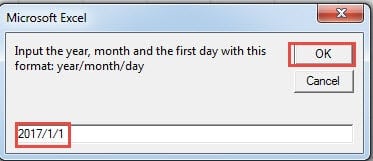
- Uznirstošajā logā ievadiet pirmās dienas datumu ar formātu “Gads / Mēnesis / Diena”. “Diena” var būt jebkura šī mēneša diena, šeit mēs ievadīsim “1”.

- Pēc tam noklikšķiniet uz pogas “OK”. Pēc tam jūs atgriezīsities pie redaktora. Lai pārbaudītu rezultātu, varat atgriezties pie darblapas.
Kalendārs jau ir parādīts darblapā. Un kursors tiks novietots pie pirmās dienas tukšās šūnas.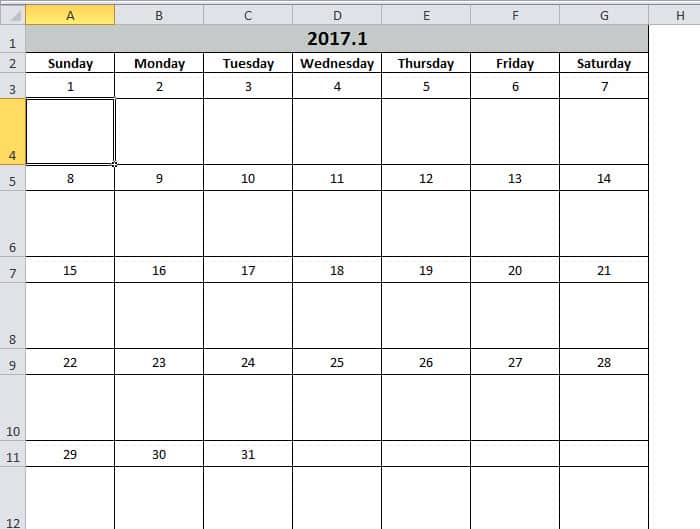
No otras puses, ja jūs neesat apmierināts ar šūnu formātu, jūs varat arī modificēt kodus atbilstoši savām vēlmēm. Izmantojot šo kalendāru, jūs noteikti uzlabosiet darba efektivitāti.
Excel nav mazāk pakļauts neveiksmēm
Ja bieži lietojat programmu Excel, nebūs grūti pamanīt, ka Excel vienmēr sabojājas. Vairumā gadījumu problēmu var atrisināt, izejot no programmas Excel un pēc tam to restartējot. Tomēr dažreiz var rasties nopietnas Excel kļūdas. Un šajā brīdī varat izmantot mūsu jaudīgo rīku, lai labot Excel xlsx datu kļūduIzmantojot šo rīku, gandrīz visas kļūdas var viegli novērst.
Autora ievads:
Anna Ma ir datu atkopšanas eksperte DataNumen, Inc., kas ir pasaules līderis datu atkopšanas tehnoloģiju, tostarp labot Word docx failu un perspektīvas remonta programmatūras produktus. Lai iegūtu vairāk informācijas, apmeklējiet vietni www.datanumen. Ar