
---
description: DataNumen NTFS Undelete is a powerful tool to restore and recover the deleted files and folders on NTFS drives.
title: NTFS Undelete Tool. Recover Deleted Files on NTFS Drives.
image: https://www.datanumen.com/wp-content/uploads/2020/04/datanumen-ntfs-undelete-20-boxshot.png
---


* [ ](https://www.facebook.com/DataNumen)
* [ ](https://www.linkedin.com/company/datanumen)
* [ ](https://twitter.com/DataNumen)

# DataNumen NTFS Undelete

DataNumen NTFS Undelete can restore your deleted files and folders on NTFS drives.

DataNumen NTFS Undelete provides you with:  
– Complete folder hierarchy recovery.  
– Support for all NTFS formats.  
– Smart rename & filtering.

[Free Download](https://download.datanumen.com/downloads/file/dntu.exe)20+ Years Of Experience

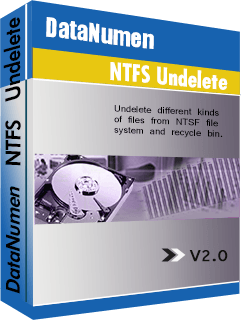
[ ![DataNumen NTFS Undelete Boxshot](https://www.datanumen.com/wp-content/uploads/2020/04/datanumen-ntfs-undelete-20-boxshot.png) ](https://download.datanumen.com/downloads/file/dntu.exe) 

![1,651 votes, average: 4.90 out of 5](https://www.datanumen.com/wp-content/themes/datanumen/images/rating_45.png "1,651 votes, average: 4.90 out of 5")   
**4.90 / 5 (from 1,651 votes)** 

* ### Overview
* ### Features
* ### How to Recover
* ### More Information
* ### Related Products

## Why DataNumen NTFS Undelete?

---

_![#1 Recovery Rate](https://www.datanumen.com/wp-content/themes/datanumen/images/top-one-recovery-rate-icon.png)_ 

#### #1 Recovery   
Rate

_![10+ Million Users](https://www.datanumen.com/wp-content/themes/datanumen/images/10-million-users-icon.png)_ 

#### 10+ Million   
Users

_![20+ Years of Experience](https://www.datanumen.com/wp-content/themes/datanumen/images/20-years-experience-icon.png)_ 

#### 20+ Years of   
Experience

_![100% Satisfaction Guarantee](https://www.datanumen.com/wp-content/themes/datanumen/images/100-satisfaction-guarantee-icon.png)_ 

#### 100% Satisfaction   
Guarantee

## Extremely Simple Interface

---

[](https://www.datanumen.com/wp-content/uploads/2019/10/datanumen-ntfs-undelete-20-start-wizard.png) 

#### Start Wizard 

[](https://www.datanumen.com/wp-content/uploads/2019/10/datanumen-ntfs-undelete-20-select-drives.png) 

#### Select Drives

[](https://www.datanumen.com/wp-content/uploads/2019/10/datanumen-ntfs-undelete-20-scan-options.png) 

#### Scan Options

[Free Download](https://download.datanumen.com/downloads/file/dntu.exe)20+ Years Of Experience

[Buy Now](https://www.datanumen.com/ntfs-undelete-order/)100% Satisfaction Guarantee

## Main Features

---

* Support to all versions of [NTFS](https://learn.microsoft.com/en-us/windows-server/storage/file-server/ntfs-overview) formats.
* Recover deleted files.
* Recover streams associated with the deleted files.
* Scan raw disk data exhaustively and search for deleted files of more than 70 known types, by using an internal expert system with extensive knowledge about the characteristics and structures of the file type specifications.
* Recover deleted files from recycle bin.
* Recover deleted folders and the whole folder hierarchy recursively.
* Rename files and folders automatically when duplicate exists.
* Use a simple wizard interface to instruct you go through the recovery process easily and efficiently.
* Filter and sort the deleted files and folders according to various criteria.

---

[Free Download](https://download.datanumen.com/downloads/file/dntu.exe)20+ Years Of Experience

[Buy Now](https://www.datanumen.com/ntfs-undelete-order/)100% Satisfaction Guarantee

## Using DataNumen NTFS Undelete to Undelete Files on NTFS Drives

---

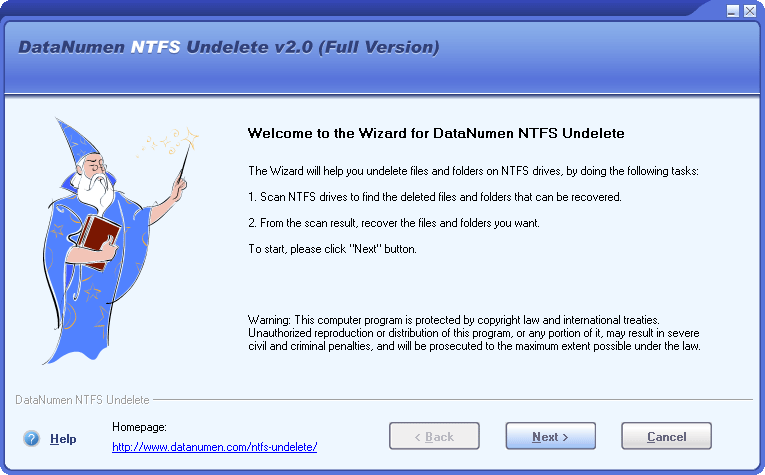
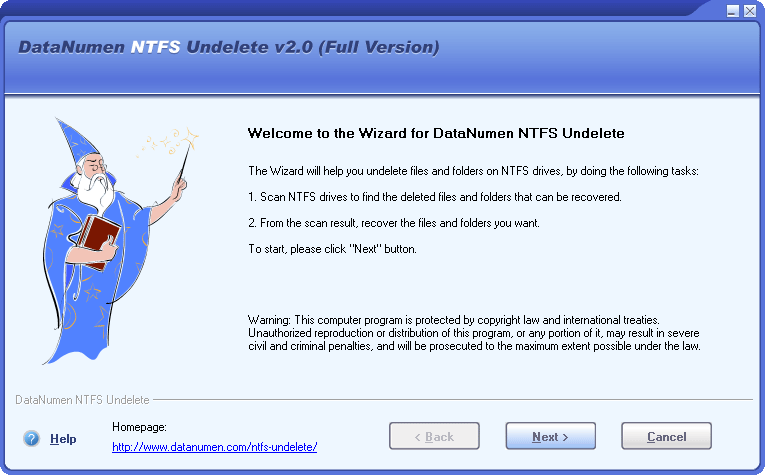
Start DataNumen NTFS Undelete. You will see the "Start Wizard" page, which will outline the main tasks performed in the undelete process:

![Start Wizard]()

Click the ![Next]() button to go to the next step.

**Note:** Before recovering deleted files on NTFS drives with DataNumen NTFS Undelete, you'd better close any other applications.

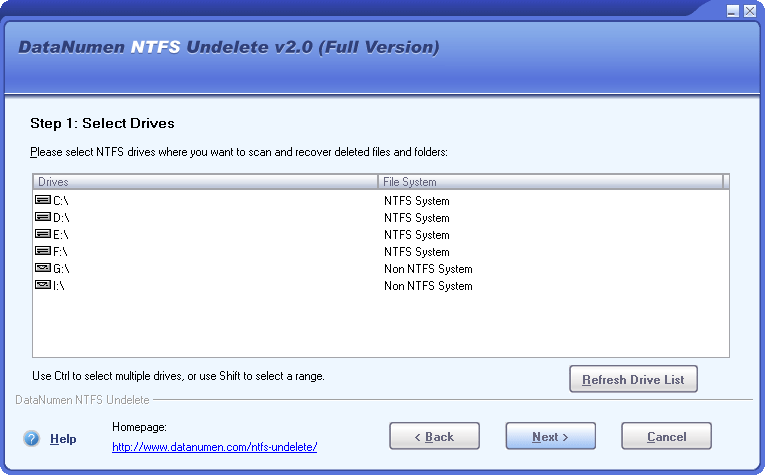
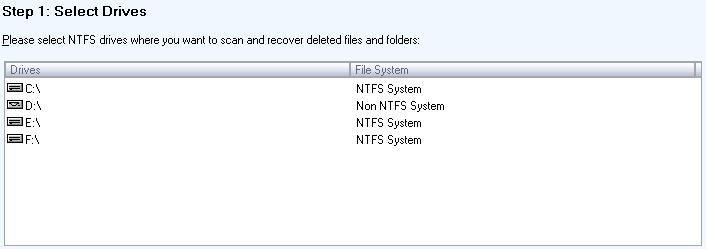
In this page, all the drives on your computers are listed, as follows:

![Select Drives]()

In the list, you can select one or multiple NTFS drives where you want to scan and recover deleted files and folders, then click the ![Next]() button to go to the next step.

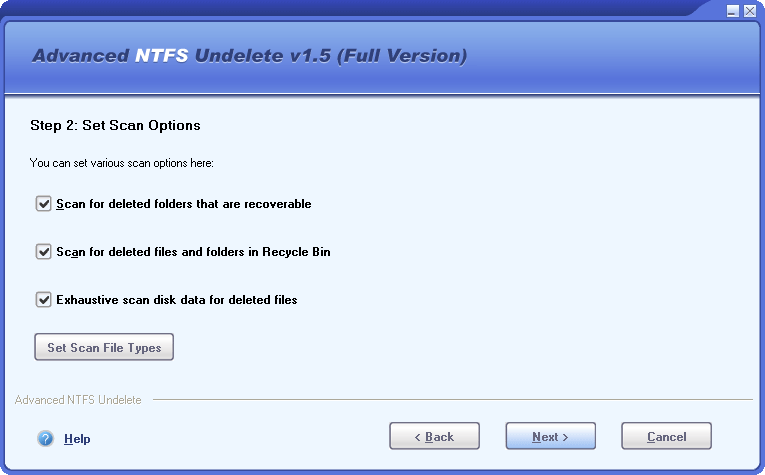
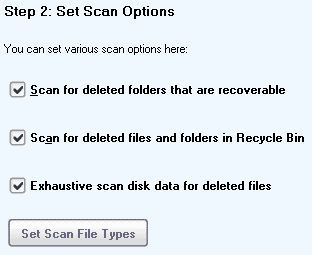
In this page, you can set the options for the scan process:

![Set Scan Options]()

then click the ![Next]() button to go to the next step.

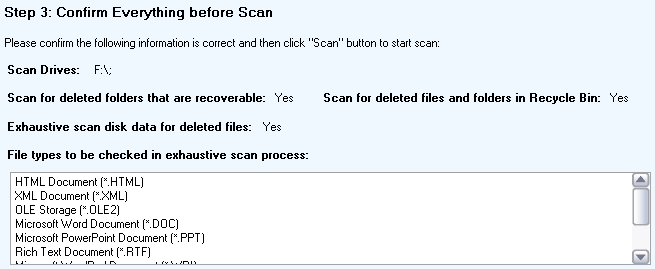
In this page, the drives you selected and the options you set for the scan process are all listed for you to confirm:

![Confirm Scan Options]()

If everything is OK, please click the ![Scan]() button to start the scan process.

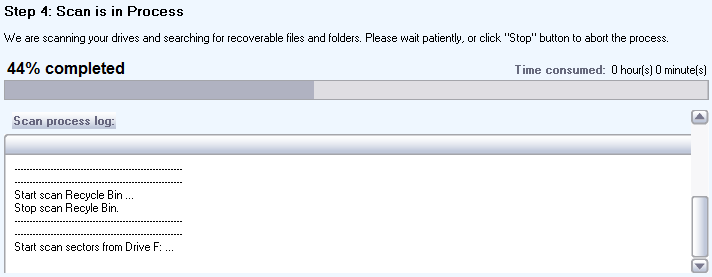
In this page, DataNumen NTFS Undelete will scan your drives and searching for recoverable files and folders:

![Scan Process]()

Progress bar

![Progress Bar]()

will indicate the scan progress.

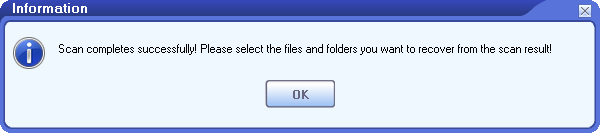
After the scan process, if any deleted files or folders are recoverable, you will see a message box like this:

![Scan Success Message Box]()

Click "OK" button, then we will go to the next page.

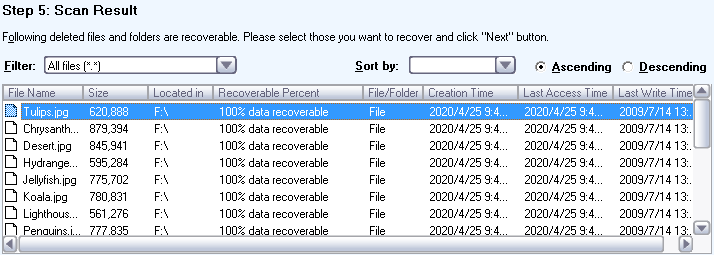
In the center of this page, all the deleted files that are found to be recoverable during the previous scan process are listed. If you enable "Scan for deleted folders that are recoverable" in the scan options, then the deleted folders that are recoverable are also listed.

![Scan Result]()

In the list, you can select one or multiple files or folders you want to recover, then click the ![Next]() button to go to the next step. You may filter or sort the list so that you can quickly find what you want and then make the selection.

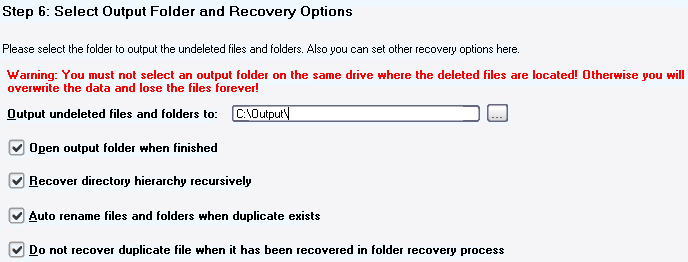
In this page, you can select the output folder for the undeleted files and folders:

![Set Recovery Options]()

Moreover, you can set other recovery options here. After that, please click the ![Next]() button to go to the next step.

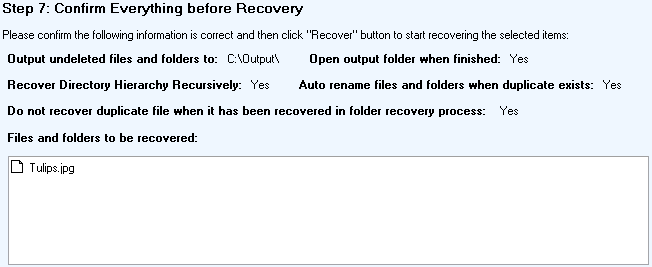
In this page, the files and folders you selected to recover, as well as the output folder and the options you set for the recovery process are all listed for you to confirm:

![Confirm Recovery Options]()

If everything is OK, please click the ![Recover]() button to start the recovery process.

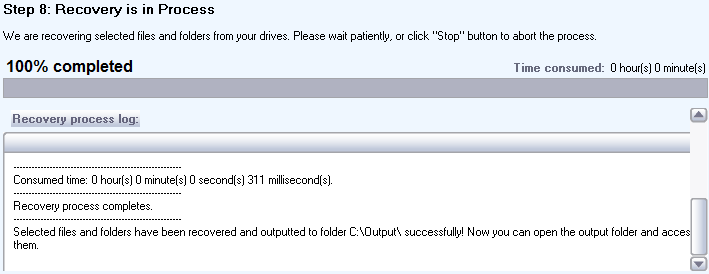
In this page, DataNumen NTFS Undelete will recover the files and folders you select from your drives according to the recovery options you set, and output them into the output folder you specified.

![Recovery Process]()

Progress bar

![Progress Bar]()

will indicate the recovery progress.

After the recovery process, if any deleted files or folders are recovered successfully, you will see a message box like this:![Recovery Success Message Box]()

Now you can open the output directory and access all the recovered files and folders.

## More Information

---

![Specifications]() Specifications 

![Case Studies]() Case Studies 

![FAQ]() FAQ 

![Help Documentation]() Help Documentation 

| **Version**                                          | 2.0 ([Version History](https://www.datanumen.com/news/))                              |
| ---------------------------------------------------- | ------------------------------------------------------------------------------------- |
| **Release Date**                                     | September 15th, 2014                                                                  |
| **Bitness**                                          | 32-bit                                                                                |
| **Supported File System**                            | NTFS                                                                                  |
| **Supported File Types**                             | More than 70 file types                                                               |
| **Deleted File Recovery Scenarios**                  | Accidental file deletion, deletion from the Recycle Bin, and emptying the Recycle Bin |
| **Recoverable Objects**                              | Files, folders, and NTFS alternate data streams                                       |
| **Automatic Renaming to Prevent Duplicate Names**    | Supported                                                                             |
| **Filtering and Sorting of Found Files and Folders** | Supported                                                                             |
| **Wizard Interface**                                 | Supported                                                                             |
| **Supported Languages**                              | English                                                                               |

#### Requirements

| **Operating System** | Windows                                                          |
| -------------------- | ---------------------------------------------------------------- |
| **Processor**        | Intel or equivalent (x86, x64)                                   |
| **Memory**           | 32 MB minimum (2 GB recommended)                                 |
| **Disk Space**       | 3 MB                                                             |
| **Privileges**       | Administrator privileges required for disk scanning and recovery |

[More Case Studies ](https://www.datanumen.com/case-studies/) 

[More Articles in Knowledgebase ](https://www.datanumen.com/knowledgebase/) 

## Related Products

---

![Datanumen Data Recovery 4.0 Boxshot]() 

### [DataNumen Data Recovery](https://www.datanumen.com/data-recovery/)

Recover lost and deleted files on your drives or disks.

[Details ](https://www.datanumen.com/data-recovery/) 

### ![DataNumen NTFS Undelete Boxshot]() DataNumen NTFS Undelete

[Free Download](https://download.datanumen.com/downloads/file/dntu.exe)

[Buy Now](https://www.datanumen.com/ntfs-undelete-order/)

![DataNumen]() 

Follow or like us on Facebook, LinkedIn and Twitter to get all promotions, latest news and updates on our products and company.

* [ ](https://www.facebook.com/DataNumen)
* [ ](https://www.linkedin.com/company/datanumen)
* [ ](https://twitter.com/DataNumen)

### Featured Products

* [DataNumen Outlook Repair](https://www.datanumen.com/outlook-repair/)
* [DataNumen SQL Recovery](https://www.datanumen.com/sql-recovery/)
* [DataNumen Exchange Recovery](https://www.datanumen.com/exchange-recovery/)
* [DataNumen Access Repair](https://www.datanumen.com/access-repair/)
* [DataNumen Excel Repair](https://www.datanumen.com/excel-repair/)
* [DataNumen PDF Repair](https://www.datanumen.com/pdf-repair/)
* [DataNumen Word Repair](https://www.datanumen.com/word-repair/)
* [DataNumen Zip Repair](https://www.datanumen.com/zip-repair/)

### [Latest news](https://www.datanumen.com/news/)

  * [DataNumen Outlook Drive Recovery 10.2 is released on May 9th, 2025](https://www.datanumen.com/outlook-drive-recovery/)
  * [DataNumen Outlook Repair 10.2 is released on April 15th, 2025](https://www.datanumen.com/outlook-repair/)
  * [DataNumen SQL Recovery 7.3 is released on February 19th, 2025](https://www.datanumen.com/sql-recovery/)

[ ](#masthead)

```json
{"@context":"https:\/\/schema.org","@graph":[{"@type":"WebPage","@id":"https:\/\/www.datanumen.com\/ntfs-undelete\/","url":"https:\/\/www.datanumen.com\/ntfs-undelete\/","name":"NTFS Undelete Tool. Recover Deleted Files on NTFS Drives.","isPartOf":{"@id":"https:\/\/www.datanumen.com\/#website"},"primaryImageOfPage":{"@id":"https:\/\/www.datanumen.com\/ntfs-undelete\/#primaryimage"},"image":{"@id":"https:\/\/www.datanumen.com\/ntfs-undelete\/#primaryimage"},"thumbnailUrl":"https:\/\/www.datanumen.com\/wp-content\/uploads\/2020\/04\/datanumen-ntfs-undelete-20-boxshot.png","datePublished":"2019-10-23T09:29:24+00:00","dateModified":"2026-07-29T04:02:26+00:00","description":"DataNumen NTFS Undelete is a powerful tool to restore and recover the deleted files and folders on NTFS drives.","breadcrumb":{"@id":"https:\/\/www.datanumen.com\/ntfs-undelete\/#breadcrumb"},"inLanguage":"en-US","potentialAction":[{"@type":"ReadAction","target":["https:\/\/www.datanumen.com\/ntfs-undelete\/"]}]},{"@type":"ImageObject","inLanguage":"en-US","@id":"https:\/\/www.datanumen.com\/ntfs-undelete\/#primaryimage","url":"https:\/\/www.datanumen.com\/wp-content\/uploads\/2020\/04\/datanumen-ntfs-undelete-20-boxshot.png","contentUrl":"https:\/\/www.datanumen.com\/wp-content\/uploads\/2020\/04\/datanumen-ntfs-undelete-20-boxshot.png","width":241,"height":320,"caption":"DataNumen NTFS Undelete Boxshot"},{"@type":"BreadcrumbList","@id":"https:\/\/www.datanumen.com\/ntfs-undelete\/#breadcrumb","itemListElement":[{"@type":"ListItem","position":1,"name":"Home","item":"https:\/\/www.datanumen.com\/"},{"@type":"ListItem","position":2,"name":"DataNumen NTFS Undelete"}]},{"@type":"WebSite","@id":"https:\/\/www.datanumen.com\/#website","url":"https:\/\/www.datanumen.com\/","name":"DataNumen","description":"","publisher":{"@id":"https:\/\/www.datanumen.com\/#organization"},"potentialAction":[{"@type":"SearchAction","target":{"@type":"EntryPoint","urlTemplate":"https:\/\/www.datanumen.com\/?s={search_term_string}"},"query-input":{"@type":"PropertyValueSpecification","valueRequired":true,"valueName":"search_term_string"}}],"inLanguage":"en-US"},{"@type":"Organization","@id":"https:\/\/www.datanumen.com\/#organization","name":"DataNumen, Inc.","url":"https:\/\/www.datanumen.com\/","logo":{"@type":"ImageObject","inLanguage":"en-US","@id":"https:\/\/www.datanumen.com\/#\/schema\/logo\/image\/","url":"https:\/\/www.datanumen.com\/wp-content\/uploads\/2020\/03\/favicon.png","contentUrl":"https:\/\/www.datanumen.com\/wp-content\/uploads\/2020\/03\/favicon.png","width":600,"height":600,"caption":"DataNumen, Inc."},"image":{"@id":"https:\/\/www.datanumen.com\/#\/schema\/logo\/image\/"},"sameAs":["https:\/\/www.facebook.com\/DataNumen","https:\/\/x.com\/DataNumen","https:\/\/www.linkedin.com\/company\/datanumen","https:\/\/myspace.com\/datanumen\/","https:\/\/www.pinterest.com\/datanumen\/data-recovery\/","https:\/\/www.youtube.com\/c\/DataNumen"]}]}
{
  "@context": "https://schema.org",
  "@type": "SoftwareApplication",
  "@id": "https://www.datanumen.com/ntfs-undelete/#software",
  "name": "DataNumen NTFS Undelete",
  "url": "https://www.datanumen.com/ntfs-undelete/",
  "downloadUrl": "https://download.datanumen.com/downloads/file/dntu.exe",
  "image": "https://www.datanumen.com/images/products/dntuboxst.jpg",
  "description": "DataNumen NTFS Undelete is an NTFS file recovery and undelete tool for recovering deleted files, folders, and NTFS alternate data streams, including files deleted accidentally, deleted from the Recycle Bin, or lost after emptying the Recycle Bin where possible.",
  "softwareVersion": "2.0",
  "dateModified": "2014-09-15",
  "releaseNotes": "https://www.datanumen.com/news/",
  "applicationCategory": "UtilitiesApplication",
  "applicationSubCategory": "File Recovery Software",
  "operatingSystem": "Windows",
  "processorRequirements": "Intel or equivalent (x86, x64)",
  "memoryRequirements": "32 MB minimum (2 GB recommended)",
  "storageRequirements": "3 MB",
  "permissions": "Administrator privileges required for disk scanning and recovery",
  "inLanguage": "English",
  "publisher": {
    "@type": "Organization",
    "name": "DataNumen",
    "url": "https://www.datanumen.com/",
    "logo": "https://www.datanumen.com/images/logo.png"
  },
  "featureList": [
    "Available as a 32-bit application",
    "Recover deleted data from NTFS file systems",
    "Identify and recover more than 70 file types",
    "Recover files deleted accidentally, deleted from the Recycle Bin, or lost after emptying the Recycle Bin",
    "Recover files, folders, and NTFS alternate data streams",
    "Automatically rename recovered files and folders to prevent duplicate names",
    "Filter and sort found files and folders",
    "Provide a wizard interface to guide the recovery process",
    "Available in English"
  ],
  "aggregateRating": {
    "@type": "AggregateRating",
    "ratingValue": "4.9",
    "bestRating": "5",
    "worstRating": "1",
    "ratingCount": "1651"
  },
  "offers": {
    "@type": "Offer",
    "name": "1 User License",
    "url": "https://www.datanumen.com/ntfs-undelete/buy/",
    "priceCurrency": "USD",
    "price": "29.95",
    "availability": "https://schema.org/InStock"
  }
}
```