
1. შესავალი
„ნარჩენების ურნა“ Windows-ის ჩაშენებული დამცავი ბადეა წაშლილი ფაილებისთვის. სანამ ფაილი მასშია, მის აღდგენას მხოლოდ რამდენიმე დაწკაპუნება სჭირდება. ეს სახელმძღვანელო განმარტავს, თუ როგორ აღადგინოთ წაშლილი ფაილები Windows-ის „ნარჩენების ურნიდან“, მათ შორის ფაილები გარე, ქსელური და OneDrive-თან სინქრონიზებული მდებარეობებიდან.
1.1 რას მოიცავს ეს სახელმძღვანელო
- ფაილების აღდგენა, რომლებიც ჯერ კიდევ ნაგვის ურნაშია
- წაშლილი ფაილების აღდგენა მათ თავდაპირველ ადგილას
- წაშლილი ფაილების ახალ ადგილას აღდგენა, როდესაც ორიგინალი საქაღალდე დაკარგულია
1.2 რას არ მოიცავს ეს სახელმძღვანელო
- ფაილები წაიშალა გადაიტანოს + წაშლა, რომლებიც მთლიანად გვერდს უვლიან ნაგვის ურნას
- ფაილები წაიშალა ან გაიწმინდა ნაგვის ურნიდან. ამ შემთხვევაში, შეამოწმეთ ეს სახელმძღვანელო ფაილების აღსადგენად.
- ფაილები, რომლებიც გადააჭარბეს Recycle Bin-ის შენახვის ლიმიტს და სამუდამოდ წაიშალა
2. წაშლილი ფაილების აღდგენა ნაგვის ურნიდან
თუ ფაილი წაიშალა ლოკალური დისკიდან შემდეგი მეთოდით: წაშლა ღილაკი ან მარჯვენა ღილაკით დაწკაპუნება წაშლა ბრძანების შეყვანის შემდეგ, ის პირდაპირ გადადის ნაგვის ურნაში. მისი აღდგენა შესაძლებელია შემდეგი 3 ნაბიჯით:
2.1 გახსენით ნაგვის ურნა
გამოიყენეთ შემდეგი მეთოდებიდან რომელიმე:
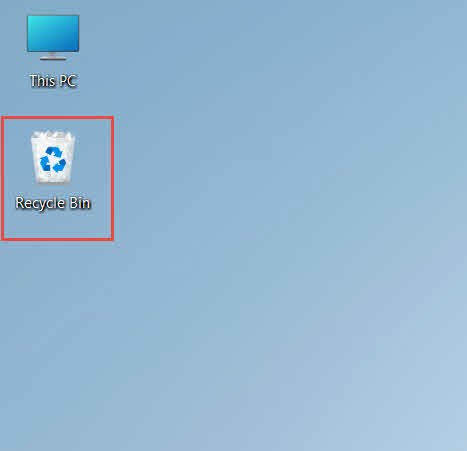
- ორჯერ დააწკაპუნეთ ნაგვის ურნა ხატულა სამუშაო მაგიდაზე

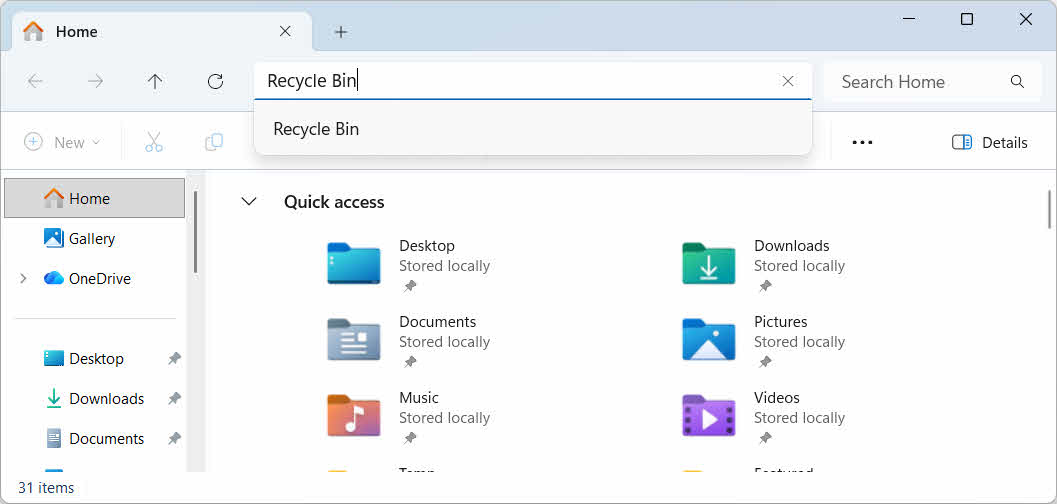
- გახსენით ფაილების მკვლევარი და შეიყვანეთ ნაგვის ურნა მისამართების ზოლში

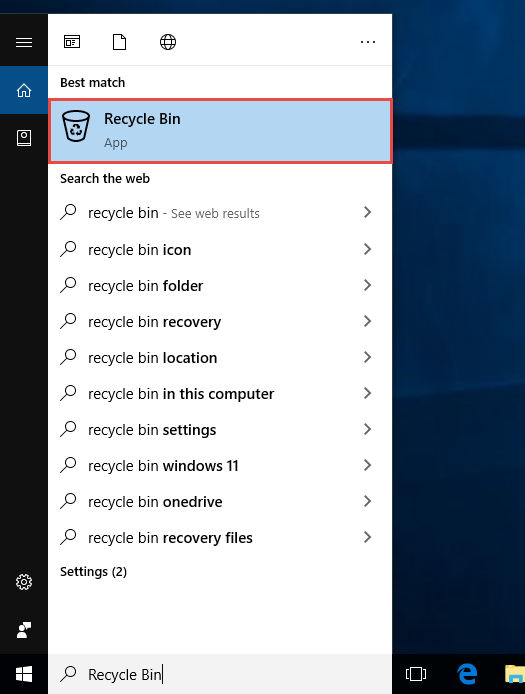
- ტიპი ნაგვის ურნა Windows-ის ძიებაში და შედეგებიდან აირჩიეთ

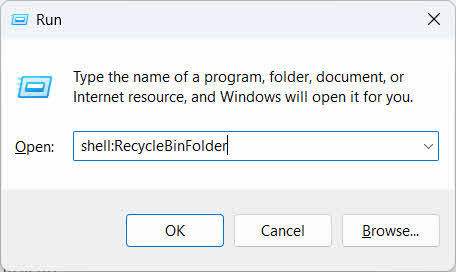
- პრეს მოიგე + Rტიპი shell:RecycleBinFolderდა პრესა შეიყვანეთ

2.2 წაშლილი ფაილის ან საქაღალდის პოვნა
ნაგვის ურნის გახსნის შემდეგ, იპოვეთ სასურველი ნივთები ერთ-ერთი შემდეგი მეთოდით:
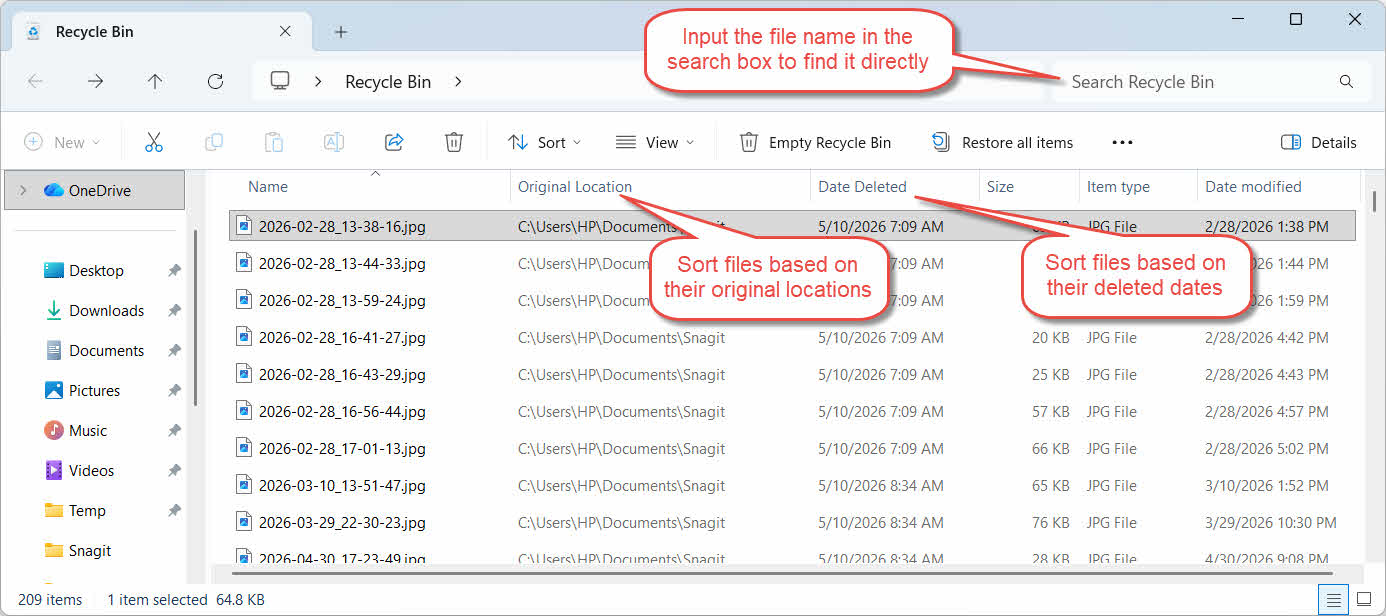
- შეიყვანეთ ფაილის სახელი ზედა მარჯვენა კუთხეში მდებარე საძიებო ველში
- დააჭირეთ წაშლის თარიღი სვეტის სათაური უახლესი წაშლილების მიხედვით დასალაგებლად
- შეამოწმე ორიგინალური ადგილმდებარეობა სვეტი იმის დასადასტურებლად, რომ ფაილი მომდინარეობს თქვენთვის სასურველი საქაღალდიდან
2.3 ფაილების ან საქაღალდეების აღდგენა
ერთი ან მეტი ერთეულის აღსადგენად:
- აირჩიეთ ერთი ფაილი ან გააჩერეთ Ctrl და დააწკაპუნეთ მრავალი ფაილის ასარჩევად, ან დააჭირეთ ღილაკს გადაიტანოს და დააწკაპუნეთ დიაპაზონის ასარჩევად
- დააწკაპუნეთ მარჯვენა ღილაკით არჩეულზე და აირჩიეთ აღდგენა
- გახსენით ორიგინალი საქაღალდე, რათა დაადასტუროთ, რომ ფაილი დაბრუნდა

ნაგვის ურნაში არსებული ყველა ელემენტის ერთდროულად აღსადგენად, დააწკაპუნეთ ყველა ერთეულის აღდგენა ხელსაწყოთა პანელში, წინასწარ რომელიმე ფაილის არჩევის გარეშე.
3. წაშლილი ფაილების აღდგენა ნაგვის ურნიდან სხვა ადგილას
ის აღდგენა ბრძანება ყოველთვის აბრუნებს ფაილს მის საწყის საქაღალდეში. ზოგიერთ სიტუაციაში საჭიროა მისი სხვაგან გადატანა.
3.1 როდის უნდა გამოიყენოთ ეს მეთოდი
- ორიგინალი საქაღალდე აღარ არსებობს
- ორიგინალურ საქაღალდეში უკვე არსებობს იგივე სახელის მქონე ახალი ფაილი
- თქვენ არ გაქვთ ორიგინალ საქაღალდეზე წვდომის უფლება
- დარწმუნებული არ ხართ, რომელი საქაღალდიდან არის ფაილი აღებული
- გსურთ ფაილის გადახედვა, სანამ მას თავდაპირველ ადგილას დააბრუნებთ
3.2 ფაილის გადათრევა ან ამოჭრა ნაგვის ურნიდან
ფაილის გადასატანად ნაგვის ურნიდან თქვენთვის სასურველ საქაღალდეში:
- გახსენით ნაგვის ურნა
- აირჩიეთ ფაილი ან საქაღალდე, რომლის აღდგენაც გსურთ.
- ფაილის ან საქაღალდის სამიზნე საქაღალდეში გადასატანად გამოიყენეთ შემდეგი მეთოდებიდან ერთ-ერთი:
- გადაიტანეთ ის პირდაპირ სამიზნე საქაღალდის ფანჯარაში
- პრეს Ctrl + X მის ამოსაჭრელად, გახსენით სამიზნე საქაღალდე და დააჭირეთ Ctrl + V ჩასმა
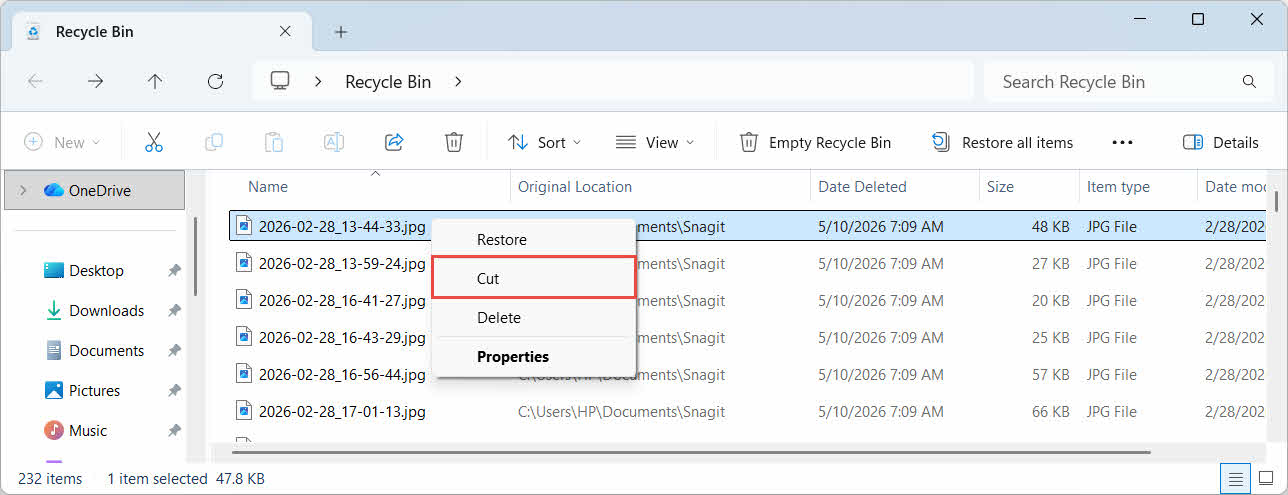
- დააწკაპუნეთ მაუსის მარჯვენა ღილაკით არჩეულზე და აირჩიეთ Cut, გახსენით სამიზნე საქაღალდე, დააწკაპუნეთ მაუსის მარჯვენა ღილაკით და აირჩიეთ Paste ჩასმა

4. ფაილების აღდგენა გარე, ქსელური და ღრუბლოვანი დისკებიდან ნაგვის ურნიდან
ნაბიჯები შიგნით სექცია 2 ვივარაუდოთ, რომ ფაილი წაიშალა თქვენი კომპიუტერის მთავარი დისკიდან. გარე, ქსელური და ღრუბელთან სინქრონიზებული მეხსიერება განსხვავებულად მუშაობს.
4.1 გარე მყარი დისკები და USB ფლეშ დრაივები
Windows გარე მყარ დისკებს (მათ შორის USB-ით დაკავშირებულ SSD-ებს) ისევე ეპყრობა, როგორც შიდა დისკებს: თითოეულ მათგანს სტანდარტულად აქვს საკუთარი დამალული „ნაგვის ურნის“ საქაღალდე. მოსახსნელი მედია, როგორიცაა USB ფლეშ დრაივები და SD ბარათები, განსხვავებულად ექცევა და სტანდარტულად არ აქვს „ნაგვის ურნა“, ამიტომ მათგან წაშლილი ფაილები მომენტალურად იშლება.
4.1.1 დისკისთვის Recycle Bin-ის მხარდაჭერის ჩართვა
გარე მყარი დისკის შემთხვევაში, დარწმუნდით, რომ ნაგვის ურნის მხარდაჭერა ჩართულია:
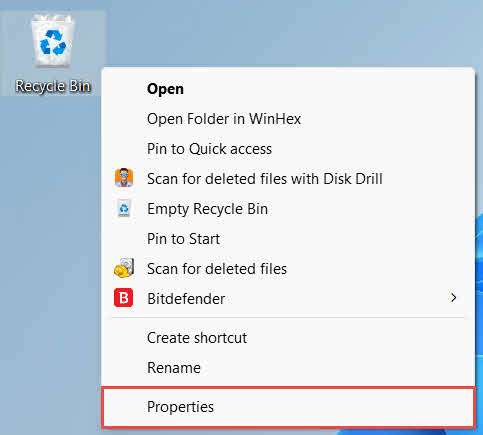
- მარჯვენა ღილაკით ნაგვის ურნა სამუშაო მაგიდაზე ხატულა და აირჩიეთ განცხადებები

- ამ ნაგვის ურნის მდებარეობა სიიდან აირჩიეთ გარე დისკის რიგი. ის აქ მხოლოდ მას შემდეგ გამოჩნდება, რაც დისკი დაკავშირებულია და დისკის ასო ექნება.
- ქვეშ პარამეტრები არჩეული მდებარეობისთვის, დარწმუნდი საბაჟო ზომა არჩეულია, არა არ გადაიტანოთ ფაილები ნაგვის ურნაში. წაშლის შემდეგ დაუყოვნებლივ წაშალეთ ფაილები.

- დაწკაპეთ მიმართვა, მაშინ OK
თითოეული დისკი ამ პარამეტრს დამოუკიდებლად ინარჩუნებს, ამიტომ გარე დისკზე შეიძლება გამორთული იყოს ნაგვის ურნის მხარდაჭერა, მაშინაც კი, როდესაც ის ჩართულია სისტემურ დისკზე.
USB ფლეშ დრაივის ან SD ბარათის შემთხვევაში, ის საერთოდ არ გამოჩნდება Recycle Bin Properties-ში, რადგან Windows სტანდარტულად არ ქმნის Recycle Bin საქაღალდეს მოსახსნელ მედიაზე. მისი გასააქტიურებლად საჭიროა რეესტრის რედაქტირება:
- პრეს მოიგე + Rტიპი regedit, დაჭერა შეიყვანეთდა დაამტკიცეთ მოთხოვნა
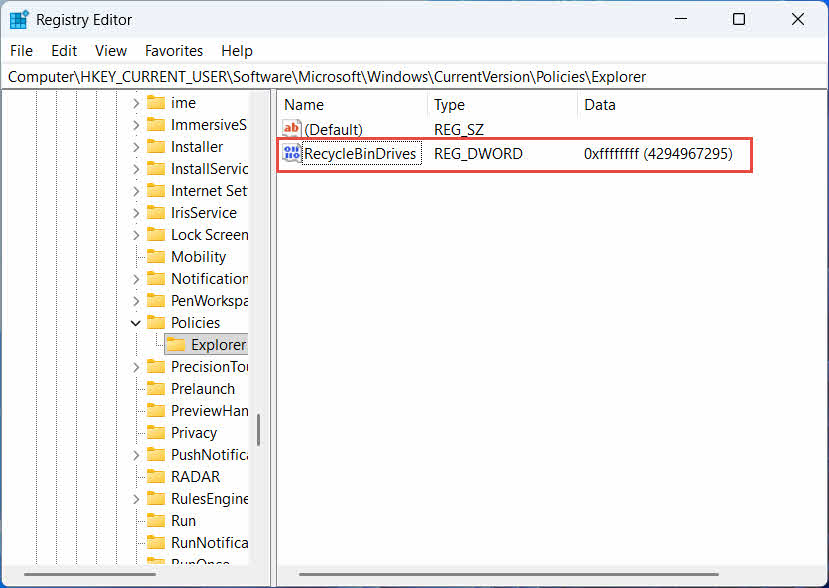
- ნავიგაცია HKEY_CURRENT_USER\Software\Microsoft\Windows\CurrentVersion\Policies\Explorer. თუ მკვლევარი გასაღები არ არსებობს პოლიტიკა, დააჭირეთ მაუსის მარჯვენა ღილაკს პოლიტიკა, აირჩიეთ ახალი -> ძირითადიდა დაარქვით სახელი მკვლევარი
- მარჯვენა პანელში ცარიელ ადგილას დააწკაპუნეთ მაუსის მარჯვენა ღილაკით, აირჩიეთ ახალი -> DWORD (32- ბიტი) ღირებულებადა დაარქვით სახელი RecycleBinDrives
- Double-click RecycleBinDrives, მითითებული ბაზა to თექვსმეტობითიშედი ფფფფფფ როგორც მნიშვნელობის მონაცემები და დააჭირეთ OK

- გაიმეორეთ 2-დან 4-მდე ნაბიჯები ქვემოთ HKEY_LOCAL_MACHINE \ SOFTWARE \ Microsoft \ Windows \ CurrentVersion \ Policies \ Explorer
- გადატვირთეთ კომპიუტერი
ცვლილების გასაუქმებლად, წაშალეთ RecycleBinDrives მნიშვნელობა ორივე მდებარეობიდან. რადგან ეს რეესტრის რედაქტირებას გულისხმობს, ჯერ შექმენით აღდგენის წერტილი და განიხილეთ, უფრო მარტივია თუ არა სარეზერვო ასლებზე დაყრდნობა იმ დისკებისთვის, რომლებსაც მხოლოდ ხანდახან იყენებთ.
4.1.2 ფაილების აღდგენა
მას შემდეგ, რაც დისკზე Recycle Bin ჩაირთვება, ფაილის აღდგენა მიჰყვება იმავე პროცესს, რაც აღწერილია სექცია 2.3.
ფაილის მიბმული ქსელური დისკიდან ან გაზიარებული საქაღალდიდან წაშლა მას პირდაპირ სერვერიდან შლის. ის არ გაივლის თქვენი კომპიუტერის ლოკალურ ნაგვის ურნაში. თუმცა, თუ სერვერის მხარეს ნაგვის ურნა ჩართულია, შეგიძლიათ წაშლილი ფაილების აღდგენა.
4.2.1 სერვერის მხარეს გადამუშავების ურნა (თუ ჩართულია)
ზოგიერთი ფაილის სერვერი საშუალებას იძლევა ჩრდილოვანი ასლები (ტომობრივი ჩრდილოვანი ასლის სერვისი), რომელიც საშუალებას გაძლევთ აღადგინოთ გაზიარებული საქაღალდის ადრინდელ ვერსიებზე, რათა ამ ფუნქციის გამოყენებით შეძლოთ წაშლილი ფაილების აღდგენა:
- ქსელის გაზიარების საცავში დააწკაპუნეთ მაუსის მარჯვენა ღილაკით მშობელ საქაღალდეზე და აირჩიეთ განცხადებები
- გახსნა წინა ვერსიები tab
- აირჩიეთ წაშლამდე დათარიღებული ვერსია და დააწკაპუნეთ აღდგენა
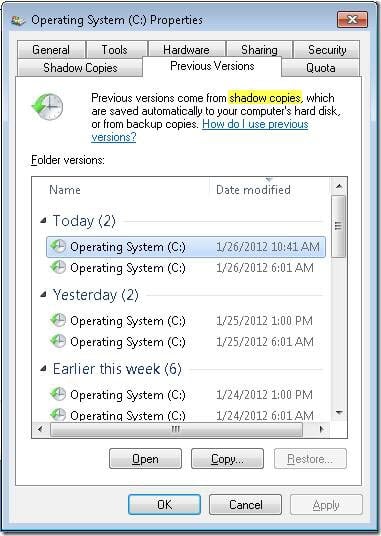
4.2.2 რა უნდა გავაკეთოთ, თუ სერვერის მხარეს ნაგვის ურნა არ არსებობს
თუ წინა ვერსიები ჩანართი ცარიელია ან მიუწვდომელია, გაზიარებულ რესურსს არ აქვს კონფიგურირებული სნეპშოტზე დაფუძნებული აღდგენა. დაუკავშირდით თქვენი ქსელის ადმინისტრატორს, რათა შეამოწმოთ, აქვს თუ არა სერვერს საკუთარი სარეზერვო ასლის შექმნის გრაფიკი.
4.3 OneDrive-ის გადამუშავების ურნა (ღრუბელთან სინქრონიზებული საქაღალდეები)
OneDrive-თან სინქრონიზებული საქაღალდეები შეიძლება შეიცავდეს ორ ცალკეულ გადამუშავების ურნას: ლოკალურ Windows-ის გადამუშავების ურნას და ვებ-ზე დაფუძნებულ OneDrive-ის გადამუშავების ურნას. რომელი ინახავს თქვენს ფაილს დამოკიდებულია იმაზე, თუ სად მოხდა წაშლა.
4.3.1 სინქრონიზებული ფაილის ლოკალური წაშლა (მიდის როგორც ლოკალურ, ასევე ვებ ნაგვის ურნაში)
თუ თქვენს კომპიუტერში ფაილების მკვლევარიდან სინქრონიზებულ ფაილს წაშლით, ის ლოკალურ ნაგავში მოხვდება ზუსტად ისე, როგორც ეს აღწერილია სექცია 2და OneDrive-ის სინქრონიზაციის კლიენტი ასევე ასახავს წაშლას ღრუბელში, ამიტომ ფაილის აღდგენა შესაძლებელი იქნება OneDrive-ის ვებ გადამუშავების ურნიდანაც.
4.3.2 ღრუბლოვანი ინიციატივით წაშლა (მხოლოდ ვებ-ნარჩენების ურნა, 2026 წლის მაისიდან)
თუ ფაილი ღრუბლოვანი მხრიდან წაიშლება, მაგალითად, OneDrive ვებსაიტის ან სხვა სინქრონიზებული მოწყობილობის მეშვეობით, ქცევა შეიცვალა 2026 წლის მაისიდან: Microsoft-მა შეწყვიტა ღრუბლოვანი ფაილების წაშლა ლოკალურ Windows-ის გადამუშავების ურნაში. ამ გზით წაშლილი ფაილი ქრება თქვენი ლოკალური საქაღალდიდან ლოკალურ გადამუშავების ურნაში გამოჩენის გარეშე და აღდგენა შესაძლებელია მხოლოდ OneDrive-ის ან SharePoint-ის ვებ გადამუშავების ურნიდან.
4.3.3 OneDrive.com-დან აღდგენა
OneDrive-ის ვებ-ნარჩენი ურნიდან ფაილის აღსადგენად:
- შესვლა onedrive.live.com or onedrive.com
- აირჩიეთ ნაგვის ურნა ნავიგაციის პანელში
- აირჩიეთ ფაილი ან საქაღალდე და დააჭირეთ აღდგენა
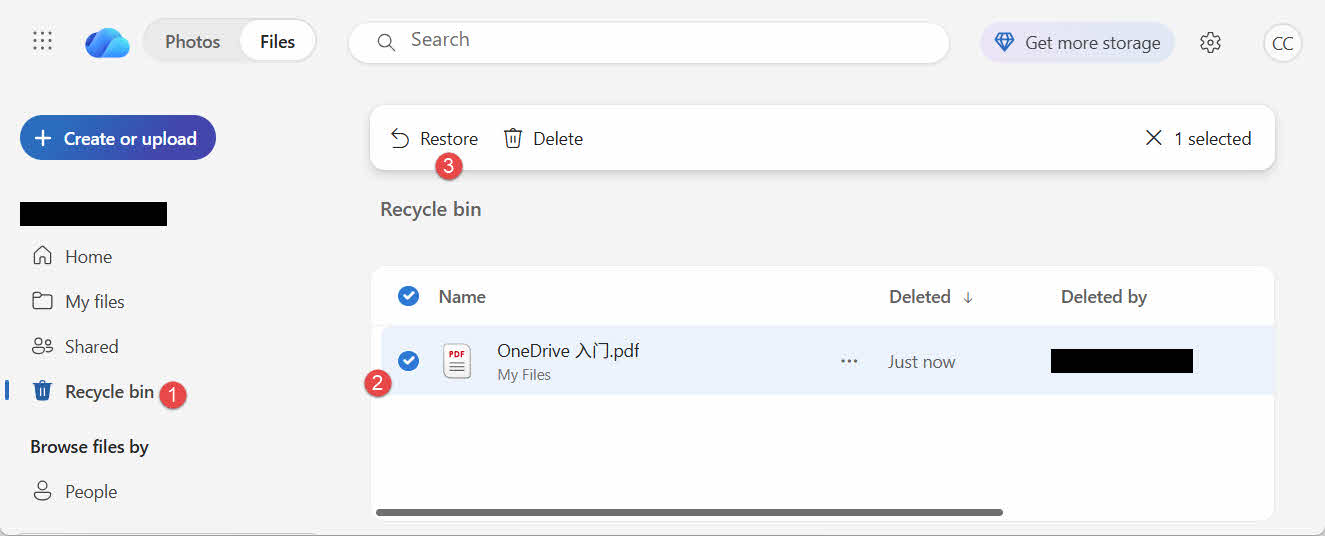
პირადი Microsoft-ის ანგარიშები წაშლილ ელემენტებს 30 დღემდე ინახავენ; სამსახურის ან სკოლის ანგარიშები კი - 93 დღემდე.
5. გადამუშავების ურნის აღდგენის პრობლემების მოგვარება
5.1 ნაგვის ურნის ხატულა სამუშაო მაგიდაზე არ არის
ნაგვის ურნა მაინც არსებობს, მაშინაც კი, თუ მისი სამუშაო მაგიდის ხატულა დამალულია. ხატულას აღსადგენად:
- დააწკაპუნეთ მაუსის მარჯვენა ღილაკით სამუშაო მაგიდაზე და აირჩიეთ personalize
- ღიაა თემები, მაშინ სამუშაო მაგიდის ხატულას პარამეტრები
- შეამოწმეთ ნაგვის ურნა და დაწკაპეთ OK
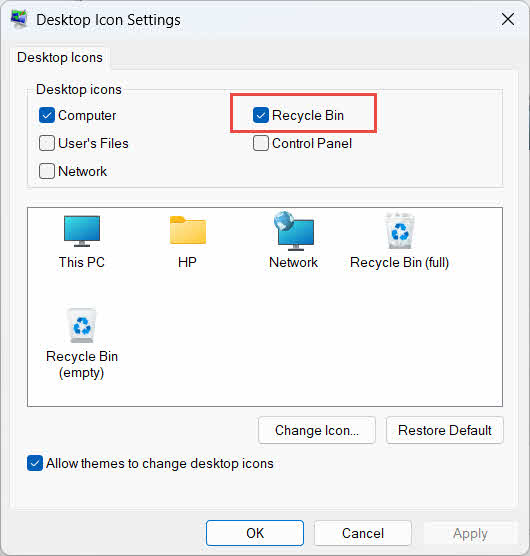
ასევე შეგიძლიათ პირდაპირ გახსნათ აკრეფით ნაგვის ურნა Windows Search-ში, File Explorer-ში ან Win + R-ის გამოყენებით, როგორც ეს აღწერილია სექცია 2.1.
5.2 ფაილი არ არის ნაგვის ურნაში
თუ თქვენთვის სასურველი ფაილები ნაგვის ურნაში არ არის, გაითვალისწინეთ შემდეგი მიზეზები:
- ის წაიშალა გარე დისკიდან Recycle Bin მხარდაჭერის გარეშე (იხ. სექცია 4.1)
- ის წაიშალა ქსელური დისკიდან (იხ. სექცია 4.2)
- ის პირდაპირ წაიშალა OneDrive-დან ვებგვერდზე (იხ. სექცია 4.3)
- ის სამუდამოდ წაიშალა, მაგალითად, გადაიტანოს + წაშლა, ან ნაგვის ურნა დაცარიელდა
თუ ფაილი სამუდამოდ წაიშალა, მისი აღდგენისთვის საჭიროა მონაცემთა აღდგენის სპეციალური პროგრამული უზრუნველყოფა, მაგალითად DataNumen Data Recovery, ნაგვის ურნის ნაცვლად. ჯერ შეწყვიტეთ ახალი ფაილების შენახვა ამ დისკზე, რათა შეამციროთ მონაცემების გადაწერის ალბათობა.
5.3 აღდგენის ვარიანტი ნაცრისფერია, აკლია ან არ მუშაობს
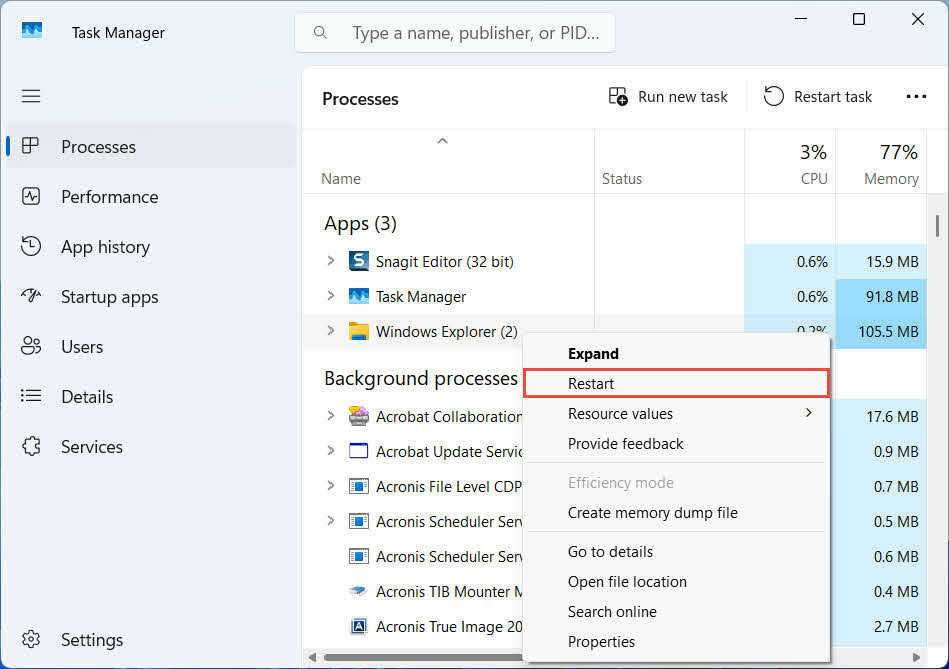
ეს ჩვეულებრივ ხდება, როდესაც არჩეული ელემენტები აღარ არსებობს ან როდესაც Recycle Bin-ის შიდა ინდექსი სინქრონიზებული არ არის. სცადეთ შემდეგი შესწორებები:
- გადატვირთეთ ფაილების მკვლევარი: გამოიყენეთ Ctrl + Alt + Del დავალებების მენეჯერის გასახსნელად, დააწკაპუნეთ მარჯვენა ღილაკით. Windows Explorerდა აირჩიეთ რესტარტი

- ელემენტების აღდგენა ჯგუფურად ნაცვლად, ცალ-ცალკე
- If აღდგენა თუ ისევ არ გამოჩნდება, ფაილი ხელით გადაიტანეთ, როგორც აღწერილია სექცია 3.2
5.4 აღდგენისას „წვდომა აკრძალულია“ ან ნებართვის შეცდომები
ეს მიუთითებს ორიგინალ საქაღალდეზე ნებართვების პრობლემაზე და არა თავად ფაილზე. შეამოწმეთ, რომ:
- თქვენ შესული ხართ იმავე ანგარიშით, რომლითაც წაშალეთ ფაილი
- დანიშნულების საქაღალდის ნებართვები კვლავ იძლევა თქვენი ანგარიშისთვის ჩაწერის წვდომის უფლებას
- ფაილების მკვლევარი არ არის დაბლოკილი პოლიტიკით მართულ ან სამუშაო კომპიუტერზე
თუ ორიგინალი საქაღალდის ნებართვები შეიცვალა, აღადგინეთ ფაილი სხვა ადგილას, შემდეგნაირად: სექცია 3.
5.5 ნაგვის ურნა ცარიელი ჩანს, მაგრამ მე არ ვაცარიელებ
ფაილები შეიძლება გაქრეს ნაგვის ურნიდან ისე, რომ ვინმემ ხელით არ დაცალა ისინი:
- Storage Sense შეიძლება კონფიგურირებული იყოს ისე, რომ ელემენტები ავტომატურად წაშალოს გარკვეული რაოდენობის დღეების შემდეგ.
- ნაგვის ურნამ მიაღწია ზომის ლიმიტს, ამიტომ Windows-მა ადგილის გასათავისუფლებლად უძველესი ელემენტები წაშალა (იხ. სექცია 6.1)
- გაზიარებულ კომპიუტერზე არსებულმა სხვა ანგარიშმა ის დაცალა
- მართულ მოწყობილობაზე ჯგუფური პოლიტიკა ავტომატურად ასუფთავებს მოწყობილობას.
5.6 აღდგენილი ფაილი დაზიანებულია, ცარიელია ან არ იხსნება
აღდგენა მხოლოდ ფაილს უკან აბრუნებს და არა აღადგენს მას. თუ ფაილი წაშლამდე უკვე დაზიანებული იყო, ან თუ წაშლის მომენტში მასზე იწერებოდა, აღდგენის შემდეგაც შეიძლება ვერ გაიხსნას. ამ შემთხვევაში, პრობლემა ფაილის დაზიანებაა და არა ნაგვის ურნის პრობლემა და საჭიროა... სარემონტო ინსტრუმენტი შესაფერისია ამ ფაილის ფორმატისთვის და არა სხვა აღდგენის მცდელობისთვის.
6. ნაგვის ურნის მართვა და კონფიგურაცია
6.1 ნაგვის ურნის ზომის შეცვლა
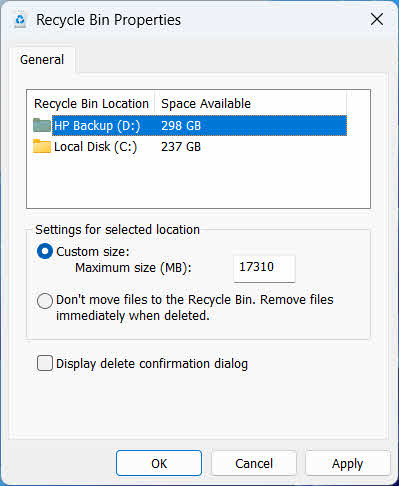
თითოეულ დისკს აქვს საკუთარი „ნარჩენების ურნის“ განლაგება. მისი გადასახედად ან შესაცვლელად:
- მარჯვენა ღილაკით ნაგვის ურნა ხატულა და აირჩიეთ განცხადებები
- აირჩიეთ დისკი ნაგვის ურნის მდებარეობების სიიდან
- არჩევა საბაჟო ზომა და შევა მაქსიმალური ზომა (მბ), ან აირჩიეთ არ გადაიტანოთ ფაილები ნაგვის ურნაში. წაშლის შემდეგ დაუყოვნებლივ წაშალეთ ფაილები. რომ გამორთოთ ის ამ დისკისთვის
- დაწკაპეთ OK
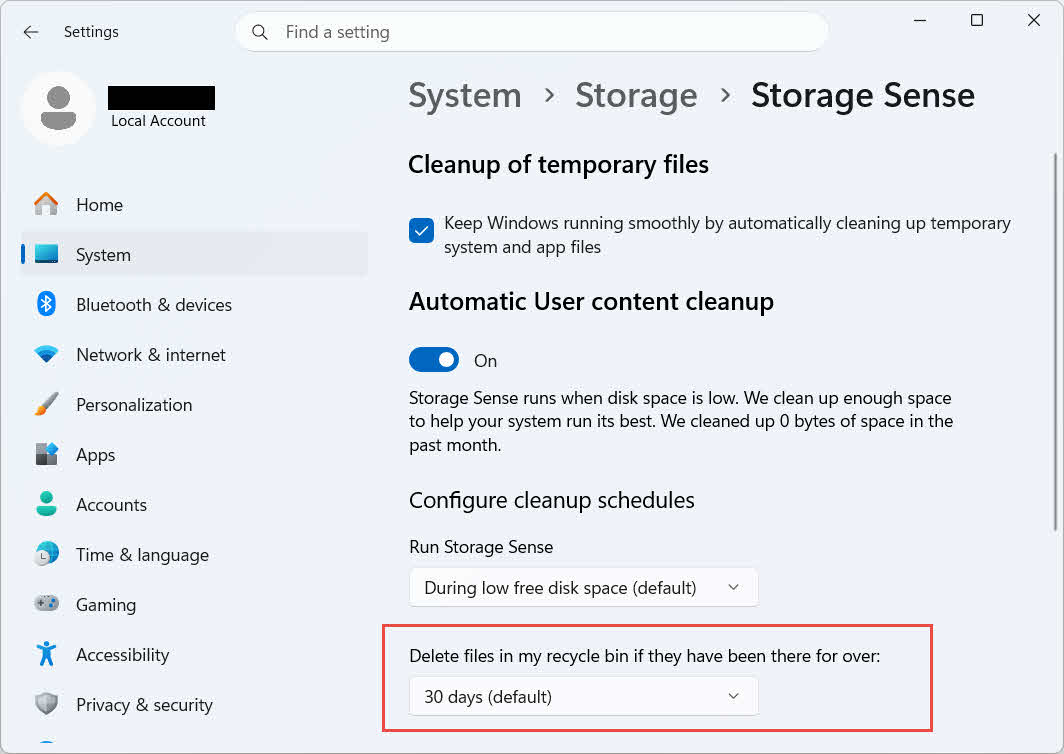
Windows ასევე გთავაზობთ ასაკზე დაფუძნებულ ცალკეულ გასუფთავების ვარიანტს: გადადით პარამეტრები -> სისტემა -> შენახვა -> შენახვის სენსორი და დადგენილი წაშალე ფაილები ჩემს ნაგვის ურნიდან, თუ ისინი იქ უკვე დიდი ხანია არიან არჩეული დღეების რაოდენობა. ნაგულისხმევი შენახვის პერიოდია 30 დღე.
6.2 წაშლის დადასტურების დიალოგური ფანჯრის ჩართვა
Windows 11-ში ფაილების ნაგავში გადატანამდე სტანდარტულად დადასტურების მოთხოვნა არ გამოჩნდება. მის ჩასართავად:
- მარჯვენა ღილაკით ნაგვის ურნა ხატულა და აირჩიეთ განცხადებები
- შეამოწმეთ წაშლის დადასტურების დიალოგური ფანჯრის ჩვენება
- დაწკაპეთ OK
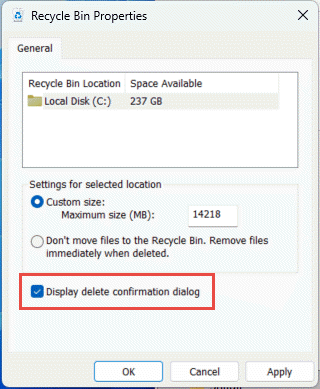
ეს პარამეტრი არ უშლის ხელს მუდმივ წაშლას, მაგალითად გადაიტანოს + წაშლა ან წაშლა დისკებიდან Recycle Bin მხარდაჭერის გარეშე.
6.3 ფაილების დაყენება ნაგვის ურნის გვერდის ავლით (და რატომ უნდა ავიცილოთ თავიდან ეს)
იგივე არ გადაიტანოთ ფაილები ნაგვის ურნაში. წაშლის შემდეგ დაუყოვნებლივ წაშალეთ ფაილები. ვარიანტი, რომელიც მოიცავს სექცია 6.1 შეიძლება გამოყენებულ იქნას ნებისმიერ დისკზე, რათა ყველა წაშლა სამუდამოდ გახდეს. ეს მყისიერად ათავისუფლებს დისკის ადგილს, მაგრამ შლის ამ სახელმძღვანელოში აღწერილი სწრაფი აღდგენის ერთადერთ ვარიანტს, ამიტომ ის საუკეთესოდ ინახება დისკებზე, რომლებიც არ ინახავს პერსონალურ ფაილებს, როგორიცაა სპეციალური ნაკაწრი ან დროებითი ტომი.
7. საუკეთესო პრაქტიკა მომავალში მონაცემთა დაკარგვის თავიდან ასაცილებლად
7.1 ფაილების ისტორიის ან სარეზერვო ასლის შექმნის გადაწყვეტის ჩართვა
გადამუშავების ურნა მხოლოდ შემთხვევითი წაშლისგან იცავს და არა დისკის გაუმართაობის ან უკვე დაცარიელებული გადამუშავების ურნისგან. ფაილების ისტორიის ჩართვა (საკონტროლო პანელი -> სისტემა და უსაფრთხოება -> ფაილების ისტორია)

ან მესამე მხარის სარეზერვო ასლის შექმნის ინსტრუმენტი დაამატებს დაცვის მეორე ფენას საკუთარი ვერსიის ისტორიით.
7.2 მნიშვნელოვანი საქაღალდეებისთვის ღრუბლოვანი სინქრონიზაციის გამოყენება
დესკტოპის, დოკუმენტების და სურათების OneDrive-თან ან სხვა ღრუბლოვან სერვისთან სინქრონიზაცია გაძლევთ ვებ-ნარჩენების ურნას, რომელიც აღწერილია სექცია 4.3 როგორც დამატებითი აღდგენის გზა, ადგილობრივი ნაგვის ურნისგან დამოუკიდებელი.
7.3 ნაგვის ურნის დაცლამდე ორჯერ შეამოწმეთ
დაწკაპუნებამდე ცარიელი ნაგვის ყუთი, დალაგება წაშლის თარიღი და დაასკანირეთ ყველაფერი, რაც ახლახანს არის გამოყენებული. მისი დაცლის შემდეგ, ერთადერთი ვარიანტი მონაცემთა აღდგენის სპეციალური პროგრამული უზრუნველყოფაა და წარმატება გარანტირებული არ არის.
8. კითხვა
კითხვა: შემიძლია თუ არა ფაილის აღდგენა ნაგვის ურნის დაცლის შემდეგ?
A: არა თავად Recycle Bin-ის მეშვეობით. ამ ეტაპზე ფაილი მონიშნულია, როგორც წაშლილი ფაილური სისტემის დონეზე, მაგრამ შეიძლება ფიზიკურად მაინც იყოს დისკზე, სანამ არ გადაიწერება. ისეთი ინსტრუმენტები, როგორიცაა DataNumen Data Recovery შექმნილია ამ ტიპის მონაცემების სკანირებისა და რეკონსტრუქციისთვის. წარმატებული აღდგენის შანსების გასაზრდელად, რაც შეიძლება მალე შეწყვიტეთ დისკის გამოყენება.
კითხვა: Mac-ს აქვს Windows-ის ნაგვის ურნის მსგავსი რამ?
ა: დიახ, მას Trash ჰქვია და იგივე პრინციპით მუშაობს: გახსენით Trash, დააწკაპუნეთ მაუსის მარჯვენა ღილაკით ფაილზე და აირჩიეთ Put Back (უკან დაბრუნება). ეს სახელმძღვანელო კონკრეტულად Windows-ის გადამუშავების ურნას ეხება. და ეს სახელმძღვანელო კონკრეტულად Mac Trash-ს მოიცავს.
კითხვა: რამდენ ხანს რჩება ფაილები ნაგვის ურნაში, სანამ ავტომატურად არ წაიშლება?
A: ლოკალურ ნაგვის ურნას სტანდარტულად არ აქვს ფიქსირებული დროის ლიმიტი; ელემენტები წაიშლება მხოლოდ მაშინ, როდესაც ზომის ლიმიტი მიიღწევა ან როდესაც Storage Sense კონფიგურირებულია ძველი ელემენტების წასაშლელად (იხ. სექცია 6.1). OneDrive-ის ვებ-ნარჩენების ურნა იყენებს ფიქსირებულ ფანჯარას: 30 დღე პირადი ანგარიშებისთვის და 93 დღემდე სამსახურის ან სკოლის ანგარიშებისთვის (იხ. სექცია 4.3).
კითხვა: ფაილი თავდაპირველ ადგილას უნდა აღვადგინო თუ ახალ ადგილას?
A: აღდგენა საწყის ადგილას (სექცია 2) უფრო მარტივია და ინარჩუნებს ფაილის თავდაპირველ გზას. აღდგენა სხვა ადგილას (სექცია 3) თუ ორიგინალი საქაღალდე აღარ არსებობს ან უკვე შეიცავს იმავე სახელის მქონე ფაილს.
კითხვა: შემიძლია USB ფლეშ დრაივიდან წაშლილი ფაილების აღდგენა ნაგვის ურნის გამოყენებით?
A: ნაგულისხმევად არა. ფლეშ დრაივებს და SD ბარათებს არ ექნებათ Recycle Bin საქაღალდე, თუ მას ხელით არ ჩართავთ, როგორც ეს ახსნილია სექცია 4.1.
კითხვა: რატომ არის აღდგენის ოფცია ნაცრისფერი ან არ არის?
A: ეს, როგორც წესი, გამოწვეულია ორიგინალი საქაღალდის არარსებობით ან არასინქრონიზებული ნაგვის ურნის ინდექსით. იხილეთ სექცია 5.3 გამოსწორებისთვის.
კითხვა: რა მოხდება, თუ ნაგვის ურნა ცარიელია, მაგრამ მე ის არასდროს დამიცარიელებია?
A: შენახვის სენსორს, მიღწეულ ზომის ლიმიტს, სხვა მომხმარებლის ანგარიშს ან ჯგუფური პოლიტიკის პარამეტრს შეუძლია ავტომატურად გაასუფთაოს ეს. იხილეთ სექცია 5.5.
კითხვა: რომელ პროგრამულ უზრუნველყოფას შეუძლია იმ ფაილების აღდგენა, რომლებიც აღარ არის ნაგავში?
A: მონაცემთა აღდგენის სპეციალური პროგრამული უზრუნველყოფა, როგორიცაა DataNumen Data Recovery, სკანირებს დისკს უფრო დაბალ დონეზე, რათა იპოვოს მონაცემები, რომლებსაც ფაილური სისტემა აღარ მოიხსენიებს, რაც თავად Recycle Bin ინტერფეისს არ შეუძლია.
კითხვა: ფაილის აღდგენა იძლევა თუ არა გარანტიას, რომ ის სწორად გაიხსნება?
A: არა. აღდგენა მხოლოდ ფაილს აბრუნებს საქაღალდეში; ის არ ასწორებს ფაილზე წაშლამდე ან წაშლის დროს მიყენებულ რაიმე დაზიანებას. იხილეთ სექცია 5.6.
9. დასკვნა
წაშლილი ფაილების აღდგენა „ნაგვის ურნიდან“ მარტივია, თუ ფაილი ისევ იქ არის: გახსენით „ნაგვის ურნა“, იპოვეთ ფაილი და აღადგინეთ იგი. გარე დისკებს, ქსელის გაზიარებებს და OneDrive-თან სინქრონიზებულ საქაღალდეებს საკუთარი პირობები აქვთ და ზემოთ მოცემული პრობლემების მოგვარებისა და კონფიგურაციის განყოფილებები მოიცავს იმ სიტუაციებს, როდესაც სტანდარტული აღდგენის პროცესი მოსალოდნელზე სწრაფად არ მიდის. თუ ფაილი სამუდამოდ წაიშალა ან „ნაგვის ურნა“ უკვე დაცარიელებულია, შემდეგი ნაბიჯი მონაცემთა აღდგენის სპეციალური პროგრამული უზრუნველყოფაა და არა თავად „ნაგვის ურნა“.
ავტორის შესახებ
ციან გუა არის მონაცემთა აღდგენის სპეციალისტი, რომელსაც 10 წელზე მეტი გამოცდილება აქვს Windows-ის ფაილურ სისტემებში, შენახვის ტექნოლოგიებსა და კატასტროფების შემდეგ აღდგენის გადაწყვეტილებებში. მან წარმატებით გაუწია დახმარება ათასობით მომხმარებელს მონაცემთა დაკარგვის კრიტიკული სცენარების გადაჭრაში, როგორც პირად, ასევე საწარმო გარემოში.
ციანი სპეციალიზირებულია Windows-ის მონაცემთა აღდგენის მეთოდოლოგიებში, ფაილური სისტემის ანალიზსა და პრევენციული სარეზერვო ასლების სტრატეგიებში. მისი ფართო პრაქტიკული გამოცდილება მოიცავს მონაცემების აღდგენას დისკებიდან, ყოვლისმომცველი სარეზერვო ასლების გადაწყვეტილებების დანერგვას და ფაილური სისტემის რთული პრობლემების მოგვარებას. NTFS, FAT, exFAT და ReFS ტომები. მას უმუშავია სხვადასხვა აღდგენის ხელსაწყოებსა და ტექნიკასთან, ჩაშენებული Windows-ის უტილიტებიდან დაწყებული პროფესიონალური მონაცემთა აღდგენის პროგრამული უზრუნველყოფით დამთავრებული.
თავისი ტექნიკური ნაშრომების მეშვეობით, ციანი ორიენტირებულია მომხმარებლებისთვის პრაქტიკული ცოდნით უზრუნველყოფაზე, რათა დაიცვან და აღადგინონ მათი ღირებული მონაცემები. ის მუდმივად ინფორმირებულია Windows-ის ფაილების აღდგენის ტექნოლოგიების, შენახვის მოწყობილობების ინოვაციებისა და მონაცემთა დაცვის საუკეთესო პრაქტიკის შესახებ. როდესაც ის არ ეხმარება მომხმარებლებს საკუთარი მონაცემების აღდგენაში,ost fileს, ციანს სიამოვნებს მონაცემთა შენახვის ახალი ტექნოლოგიების კვლევა და მონაცემთა უსაფრთხოების რჩევების გაზიარება, რომლებიც მომავალში მონაცემთა დაკარგვას თავიდან აგაცილებთ.
გაქვთ შეკითხვები ამ სახელმძღვანელოსთან დაკავშირებით ან გჭირდებათ დახმარება მონაცემთა აღდგენაში? ციანი კეთილი იყოს თქვენი მობრძანება. გამოხმაურება და წინადადებები ამ მონაცემთა აღდგენის რესურსების გასაუმჯობესებლად.