
如果您在 Outlook 中配置了多個電子郵件帳戶,並希望根據用於發送的不同電子郵件帳戶在外發電子郵件中使用不同的字體,則可以使用本文介紹的方法。
許多用戶希望 Outlook 可以根據他們用於發送的不同電子郵件帳戶在外發電子郵件中自動選擇和使用不同的字體。 但是,默認情況下,Outlook 沒有這樣的功能。 幸運的是,您仍然可以藉助 VBA 代碼來實現這一點。 現在,我們將詳細介紹這種方法。
發送電子郵件時自動為不同的帳戶使用不同的字體
- 首先,啟動 Outlook 應用程式。
- 然後,在隨後的 Outlook 主窗口中,您應該按“Alt + F11”鍵。
- 接下來,您將進入一個新窗口——“Microsoft Visual Basic for Applications”。
- 在此窗口中,將需要找到並打開“ ThisOutlookSession”項目。
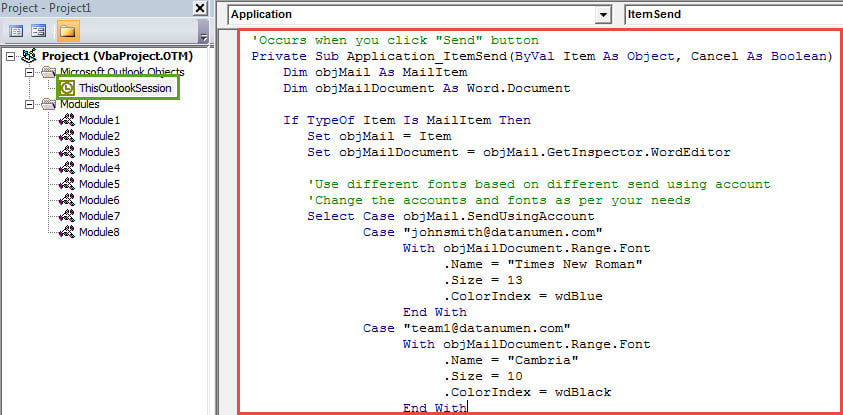
- 隨後,將以下VBA代碼複製並粘貼到該項目中。
'Occurs when you click "Send" button
Private Sub Application_ItemSend(ByVal Item As Object, Cancel As Boolean)
    Dim objMail As MailItem
    Dim objMailDocument As Word.Document

    If TypeOf Item Is MailItem Then
       Set objMail = Item
       Set objMailDocument = objMail.GetInspector.WordEditor

       'Use different fonts based on different send using account
       'Change the accounts and fonts as per your needs
       Select Case objMail.SendUsingAccount
              Case "johnsmith@datanumen.com"
                   With objMailDocument.Range.Font
                        .Name = "Times New Roman"
                        .Size = 13
                        .ColorIndex = wdBlue
                   End With
              Case "team1@datanumen.com"
                   With objMailDocument.Range.Font
                        .Name = "Cambria"
                        .Size = 10
                        .ColorIndex = wdBlack
                   End With
              Case "johnsmith_jonny@outlook.com"
                   With objMailDocument.Range.Font
                        .Name = "Segoe Script"
                        .Size = 8
                        .ColorIndex = wdDarkYellow
                   End With
      End Select

      objMail.Save
    End If
End Sub
- 在那之後,您最好簽署此代碼。
- 首先,單擊工具欄中的“工具”按鈕。
- 然後從下拉列表中選擇“數字簽名”選項。
- 稍後您可以按照屏幕上的說明完成此任務。
- 然後,您可以退出當前窗口,然後繼續更改Outlook宏設置以允許已簽名的VBA項目。
- 從現在開始,每次發送電子郵件時,Outlook 都會根據要發送的電子郵件帳戶自動更改外發電子郵件中的字體。
為意外的 Outlook 崩潰做好準備
由於 Outlook 的脆弱性,使用者在使用 Outlook 時必須隨時做好應對各種問題的準備。毫無疑問,最關鍵的步驟之一就是定期備份 Outlook 資料。有了備份,即使原始 Outlook 資料在崩潰中損壞,您仍然可以… 恢復Outlook 輕鬆從備份中復原資料。此外,建議您在 Outlook 中安裝強大的修復工具,例如: DataNumen Outlook Repair. 當備份失敗時它會派上用場。
作者簡介:
Shirley Zhang是的數據恢復專家 DataNumen,Inc.是數據恢復技術的全球領導者,包括 sql損壞 和Outlook修復軟件產品。 欲了解更多信息,請訪問 萬維網。datanumen.COM