
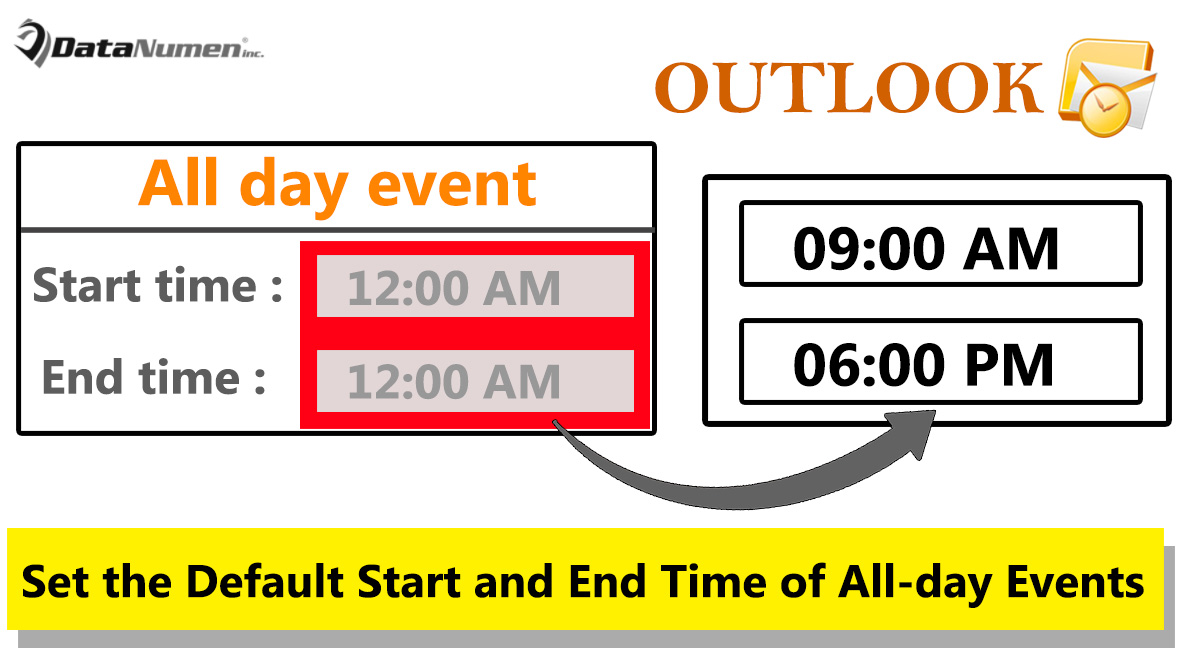
預設情況下,您無法在 Outlook 中根據需要變更全天事件的開始和結束時間。本文將向您展示如何根據您的工作時間設定全天事件的預設開始和結束時間。
如您所見,當您在約會中啟用“全天事件”選項時,“開始時間”和“結束時間”欄位都會顯示為灰色。這意味著您無法根據需要更改它們。因此,接下來我們將介紹一種方法,讓您可以根據 Outlook 中的工作時間設定全天事件的預設開始時間和結束時間。
根據工作時間設定全天活動的預設開始和結束時間
- 首先,啟動 Outlook 程式。
- 進入主 Outlook 屏幕後,您可以按“Alt + F11”鍵按鈕。
- 隨後,您將可以訪問 Outlook VBA 編輯器窗口。
- 在當前的“Microsoft Visual Basic for Applications”窗口中,您需要打開“ThisOutlookSession”項目窗口。
- 然後將以下 VBA 代碼複製到該項目中。
Public WithEvents objInspectors As Outlook.Inspectors
Public WithEvents objAppointment As Outlook.AppointmentItem

Private Sub Application_Startup()
    Set objInspectors = Outlook.Application.Inspectors
End Sub

Private Sub objInspectors_NewInspector(ByVal Inspector As Inspector)
    If Inspector.CurrentItem.Class = olAppointment Then
       Set objAppointment = Inspector.CurrentItem
    End If
End Sub

Private Sub objAppointment_PropertyChange(ByVal Name As String)
    Dim dOccuringDate As Date

    If Name = "AllDayEvent" Then
       If objAppointment.AllDayEvent = True Then
          dOccuringDate = Format(objAppointment.Start, "Short Date")

          'Change the Start and End Time as per Working Hours
          With objAppointment
               .AllDayEvent = False
               .Start = dOccuringDate & " 9:00:00 AM"
               .End = dOccuringDate & " 6:00:00 PM"
          End With
       End If
    End If
End Sub

Private Sub objAppointment_Open(Cancel As Boolean)
    If objAppointment.AllDayEvent = True Then
       dOccuringDate = Format(objAppointment.Start, "Short Date")

       With objAppointment
            .AllDayEvent = False
            .Start = dOccuringDate & " 9:00:00 AM"
            .End = dOccuringDate & " 6:00:00 PM"
       End With
    End If
End Sub
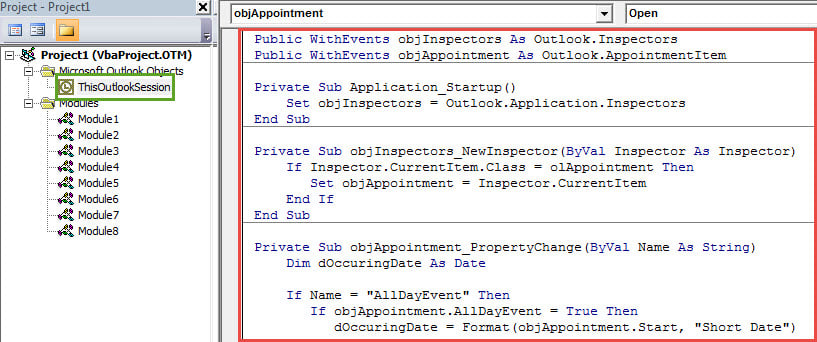
- 之後,您需要簽署此代碼。 單擊“工具”>“簽名”。
- 在隨後出現的對話框中,按照屏幕上的說明將數字證書分配給新的 VBA 項目。
- 稍後您應該更改 Outlook 宏設置以允許使用數字簽名的宏。
- 最後,您可以重新啟動 Outlook 應用程式來啟動此巨集。
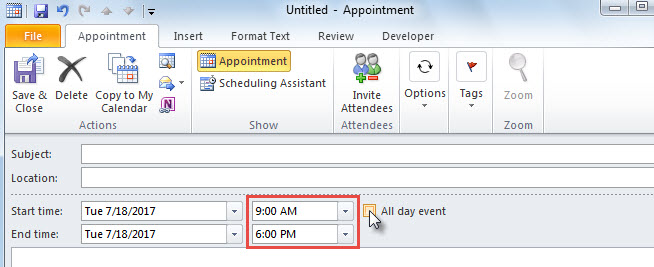
- 從現在起,每次您在 Outlook 約會中啟用「全天事件」選項時,約會的開始時間和結束時間都會更改為您的工作時間,如下圖所示:

從受損的 Outlook 文件中檢索寶貴數據
儘管 Outlook 擁有多種不同的功能,但這並不意味著它完全無懈可擊。 它仍然可能由於各種因素而損壞,例如電子郵件攜帶的病毒、人為不當處理等。 因此,除了定期進行 PST 數據備份之外,您最好在附近準備一個強大的外部 PST 修復工具,例如 DataNumen Outlook Repair。 它可以 維修PST 短時間內的問題。
作者簡介:
Shirley Zhang是的數據恢復專家 DataNumen,Inc.是數據恢復技術的全球領導者,包括 mdf修復 和Outlook修復軟件產品。 欲了解更多信息,請訪問 萬維網。datanumen.COM