
向無效收件者地址發送電子郵件時,您會收到郵件無法送達的通知。此時,如果您想從聯絡人中刪除這些電子郵件地址,可以使用本文中介紹的方法。
您是否收到過無法送達的電子郵件通知,其中列出了無效的電子郵件地址? 通常,您將在向無效收件人地址發送電子郵件後收到此類電子郵件。 在這種情況下,通常建議從 Outlook 聯繫人中刪除這些電子郵件地址,以防止下次意外向他們發送郵件。 現在,在下面,我們將與您分享一個快速的解決方案來獲得它。
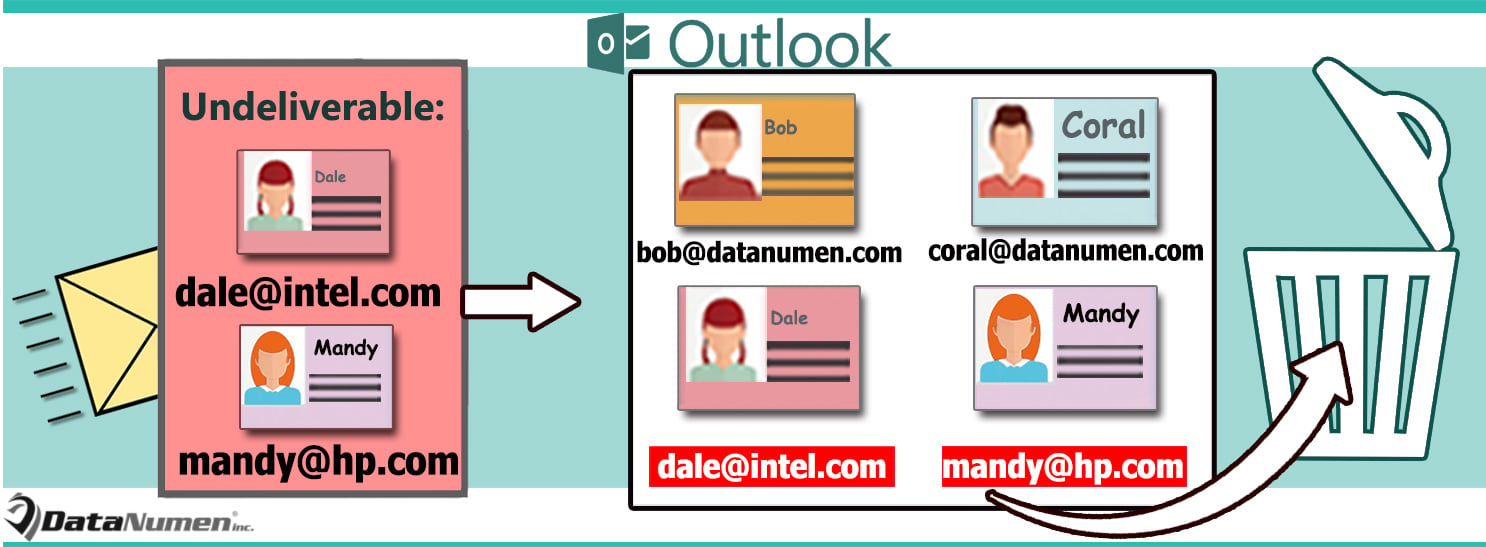
從聯繫人中刪除無法送達的電子郵件的無效收件人地址
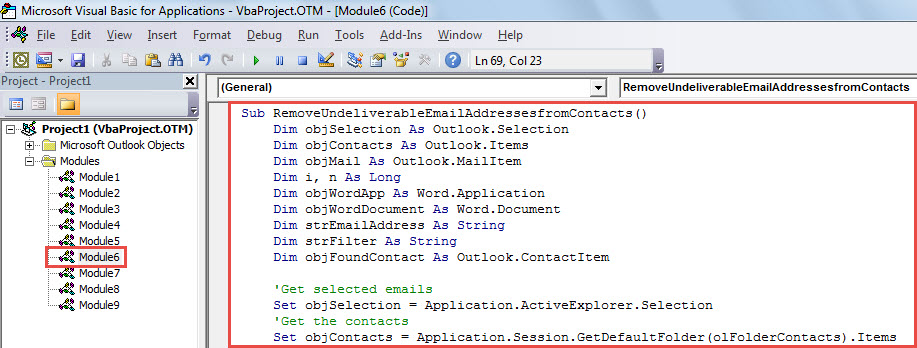
- 首先,在 Outlook 視窗中,按下「Alt + F11」開啟 VBA 編輯器。
- 接下來,您可以將以下 VBA 代碼放入一個未使用的項目或模塊中。
Sub RemoveUndeliverableEmailAddressesfromContacts()
    Dim objSelection As Outlook.Selection
    Dim objContacts As Outlook.Items
    Dim objMail As Outlook.MailItem
    Dim i, n As Long
    Dim objWordApp As Word.Application
    Dim objWordDocument As Word.Document
    Dim strEmailAddress As String
    Dim strFilter As String
    Dim objFoundContact As Outlook.ContactItem

    'Get selected emails
    Set objSelection = Application.ActiveExplorer.Selection
    'Get the contacts
    Set objContacts = Application.Session.GetDefaultFolder(olFolderContacts).Items

    On Error Resume Next
    For Each objMail In objSelection
        objMail.Display

        Set objWordDocument = objMail.GetInspector.WordEditor
        Set objWordApp = objWordDocument.Application
        Set objSearchRange = objWordDocument.Range

        'Extract email addresses via wildcards
        With objWordApp.Selection.Find
            .Text = "[A-z,0-9]{1,}\@[A-z,0-9,.]{1,}"
            .MatchWildcards = True
            .Execute
        End With

        While objWordApp.Selection.Find.Found
              strEmailAddress = objWordApp.Selection.Text

              'Remove the invalid email addresses from the associated contacts
              strFilter = "[Email1Address] = " & strEmailAddress
              Set objFoundContact = objContacts.Find(strFilter)
              If Not (objFoundContact Is Nothing) Then
                 With objFoundContact
                     .Email1Address = ""
                     .Email1DisplayName = ""
                     .Save
                 End With
                 strFilter = ""
                 Set objFoundContact = Nothing
              Else
                 strFilter = "[Email2Address] = " & strEmailAddress
                 Set objFoundContact = objContacts.Find(strFilter)
                 If Not (objFoundContact Is Nothing) Then
                    With objFoundContact
                        .Email2Address = ""
                        .Email2DisplayName = ""
                        .Save
                    End With
                    strFilter = ""
                    Set objFoundContact = Nothing
                 Else
                    strFilter = "[Email3Address] = " & strEmailAddress
                    Set objFoundContact = objContacts.Find(strFilter)
                    If Not (objFoundContact Is Nothing) Then
                       With objFoundContact
                           .Email3Address = ""
                           .Email3DisplayName = ""
                           .Save
                       End With
                       strFilter = ""
                       Set objFoundContact = Nothing
                    End If
                End If
             End If

             objWordApp.Selection.Find.Execute
        Wend

       objMail.Close olDiscard
    Next

    MsgBox "Completed!", vbInformation
End Sub
- 之後,關閉當前窗口。
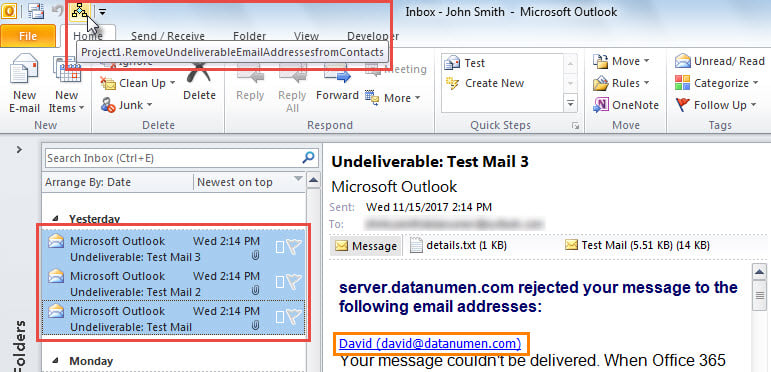
- 稍後,將新宏添加到快速訪問工具欄。 可以參考文章——》如何在Outlook中運行VBA代碼“。
- 最後,您可以按照以下步驟運行此宏:
- 首先,選擇“無法送達”的電子郵件。
- 然後,單擊快速訪問工具欄中的宏。

- 宏完成後,您將收到提示“已完成”的消息。
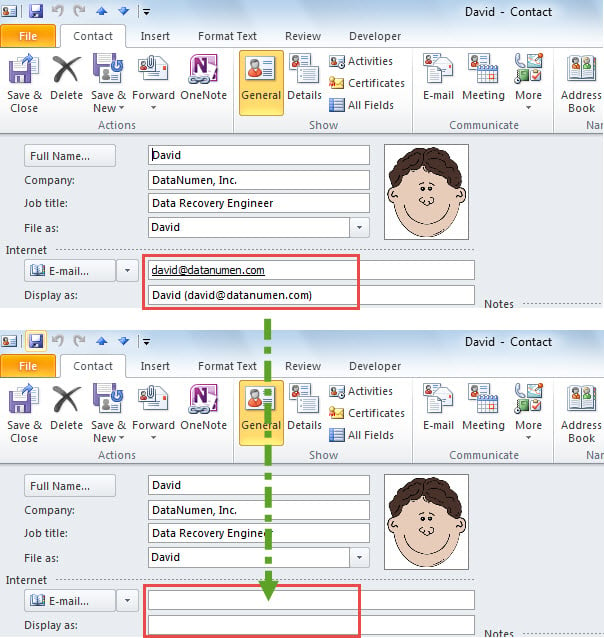
- 現在,您可以檢查關聯的聯繫人,其中無效的電子郵件地址已被刪除,如下圖所示:

解決 Outlook 錯誤和損壞
眾所周知,由於各種原因,Outlook 可能會受到問題和損壞的影響。 因此,如果您是 Outlook 新手,最好做好一些有效的預防措施,例如定期進行數據備份、使用強大可靠的 Outlook修復 實用程序,例如 DataNumen Outlook Repair,等等。
作者簡介:
Shirley Zhang是的數據恢復專家 DataNumen,Inc.是數據恢復技術的全球領導者,包括 恢復SQL 和Outlook修復軟件產品。 欲了解更多信息,請訪問 萬維網。datanumen.COM