
如果要導出所有Outlook文件夾及其“收藏夾”部分中的項目,可以參考本文。 在這裡,我們將向您展示如何快速完成此任務。
通常,“收藏夾”部分中的文件夾及其項目非常重要,並且經常需要。 因此,有時您可能需要將它們導出到本地驅動器。 以標準方式,您必須按照“收藏夾”中的文件夾創建Windows文件夾,並將項目作為MSG文件一一保存在本地驅動器中。 那太乏味了。 因此,這裡我們將公開一種更有效的方法。 現在繼續閱讀。
將“收藏夾”部分中的所有文件夾和項目導出到Windows文件夾
- 首先,請參考“在Outlook中訪問VBA編輯器如何在Outlook中運行VBA代碼“。
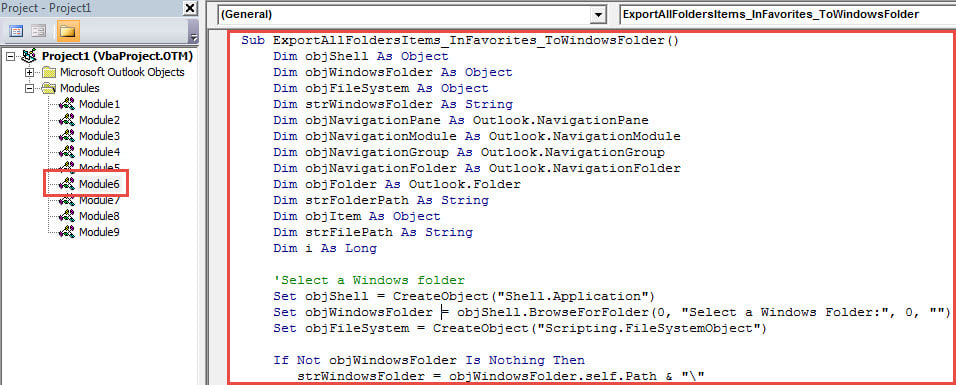
- 然後,將以下代碼複製到一個空模塊中。
Sub ExportAllFoldersItems_InFavorites_ToWindowsFolder()
    Dim objShell As Object
    Dim objWindowsFolder As Object
    Dim objFileSystem As Object
    Dim strWindowsFolder As String
    Dim objNavigationPane As Outlook.NavigationPane
    Dim objNavigationModule As Outlook.NavigationModule
    Dim objNavigationGroup As Outlook.NavigationGroup
    Dim objNavigationFolder As Outlook.NavigationFolder
    Dim objFolder As Outlook.Folder
    Dim strFolderPath As String
    Dim objItem As Object
    Dim strFilePath As String
    Dim i As Long

    'Select a Windows folder
    Set objShell = CreateObject("Shell.Application")
    Set objWindowsFolder = objShell.BrowseForFolder(0, "Select a Windows Folder:", 0, "")
    Set objFileSystem = CreateObject("Scripting.FileSystemObject")

    If Not objWindowsFolder Is Nothing Then
       strWindowsFolder = objWindowsFolder.self.Path & "\"

       'Get "Favorites" section
       Set objNavigationPane = Application.ActiveExplorer.NavigationPane
       Set objNavigationModule = objNavigationPane.Modules.GetNavigationModule(olModuleMail)
       Set objNavigationGroup = objNavigationModule.NavigationGroups.GetDefaultNavigationGroup(olFavoriteFoldersGroup)

       'Export the folders and items in "Favorites" section
       For Each objNavigationFolder In objNavigationGroup.NavigationFolders
           Set objFolder = objNavigationFolder.Folder
           strFolderPath = strWindowsFolder & objFolder.Name
           objFileSystem.CreateFolder strFolderPath

           For Each objItem In objFolder.Items
               strSubject = objItem.Subject
               strFileName = strSubject & ".msg"

               i = 0
               Do Until False
                  strFilePath = strFolderPath & "\" & strFileName
                  If objFileSystem.FileExists(strFilePath) Then
                     i = i + 1
                     strFileName = strSubject & " (" & i & ").msg"
                  Else
                     Exit Do
                  End If
               Loop

               objItem.SaveAs strFilePath, olMSG
          Next
       Next

       'Open the Windows folder
       Call Shell("explorer.exe " & strWindowsFolder, vbNormalFocus)
    End If
End Sub
- 然後,單擊工具欄中的“運行”圖標。
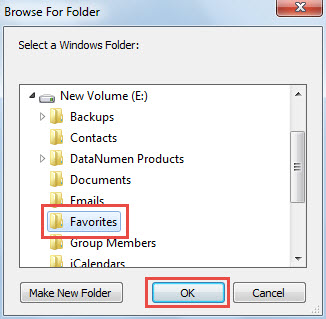
- 接下來,在彈出對話框中,選擇目標Windows文件夾,然後單擊“確定”。

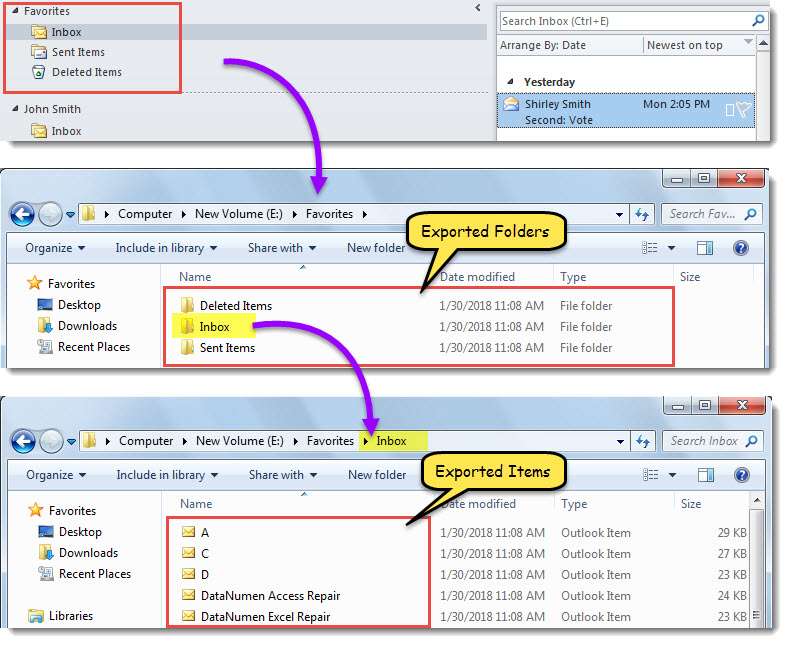
- 宏完成後,將顯示Windows文件夾。
- 在此Windows文件夾中,文件夾及其“收藏夾”部分中的項目已導出,如以下屏幕截圖所示。

從備份還原Outlook數據
強烈建議定期備份Outlook文件。 這是因為如果您遭受Outlook文件損壞,則可以 恢復Outlook 輕鬆備份數據。 但是,如果沒有這樣的備份,則必須嘗試費勁的Outlook修復程序。 那時,收件箱修復工具不會有太多幫助。 您必須藉助修復外部工具,例如 DataNumen Outlook Repair.
作者簡介:
Shirley Zhang是的數據恢復專家 DataNumen,Inc.是數據恢復技術的全球領導者,包括 損壞的SQL 和Outlook修復軟件產品。 欲了解更多信息,請訪問 萬維網。datanumen.COM