
如果您要計算在特定日期或特定月份或年份的傳入電子郵件數,則可以使用本文介紹的快速方法。 它將教您如何使用VBA進行快速獲取。
當計算在特定日期或期間收到的電子郵件數量時,許多習慣於使用Outlook搜索文件夾,這使我們可以將在特定日期或日期範圍內收到的所有電子郵件收集到一個搜索文件夾中。 然後,我們可以對郵件文件夾使用“顯示項目總數”功能來獲取它。 但是,毫無疑問,這種方法很麻煩。 因此,在這裡我們將教給您另一個技巧,可以利用Outlook VBA幫助您獲取總數。 現在繼續閱讀以了解詳細的步驟和代碼。
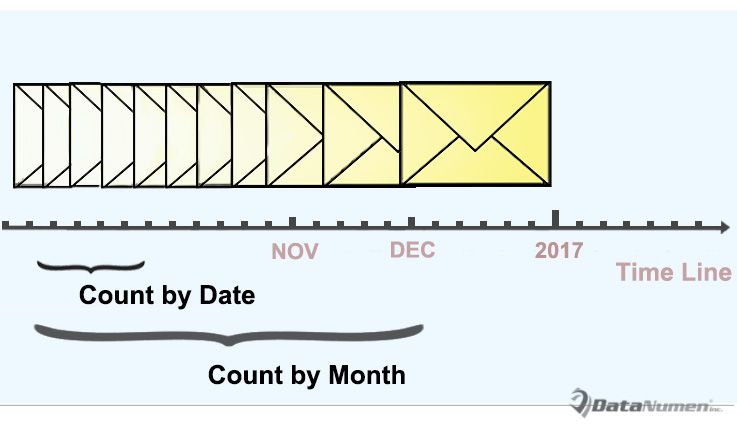
按日期統計收到的電子郵件
- 首先,請正確啟動 Outlook 程式。
- 然後,您可以切換到“開發人員”選項卡,然後單擊“ Visual Basic”按鈕。
- 接下來,在彈出的Outlook VBA編輯器窗口中,可以通過“插入”>“模塊”打開一個新模塊。
- 隨後,將以下VBA代碼複製到新模塊中。
'The following codes are working to count by day
Sub CountReceivedEmailsbyDay()
    Dim objItems As Outlook.Items
    Dim objItem As Object
    Dim objMail As Outlook.MailItem
    Dim strDay As String
    Dim dReceivedTime As Date
    Dim strReceivedDate As String
    Dim i, n As Long
    Dim strMsg As String
    Dim nPrompt As Integer

    Set objItems = Outlook.Application.ActiveExplorer.CurrentFolder.Items

    objItems.SetColumns ("ReceivedTime")
    strDay = InputBox("Enter the specific day.(Format: yyyy-mm-dd)", "Specify Date")

    If strDay <> "" Then
       n = 0
       For i = 1 To objItems.Count
           If objItems.Item(i).Class = olMail Then
              Set objMail = objItems.Item(i)
              dReceivedTime = objMail.ReceivedTime
              strReceivedDate = Year(dReceivedTime) & "-" & Month(dReceivedTime) & "-" & Day(dReceivedTime)
              If strReceivedDate = strDay Then
                 n = n + 1
              End If
           End If
       Next i

       strMsg = "You have received " & n & " emails on " & strDay & "."
       nPrompt = MsgBox(strMsg, vbExclamation, "Count Received Emails")
    Else
       nPrompt = MsgBox("Please input the specific day!", vbExclamation)
    End If
End Sub
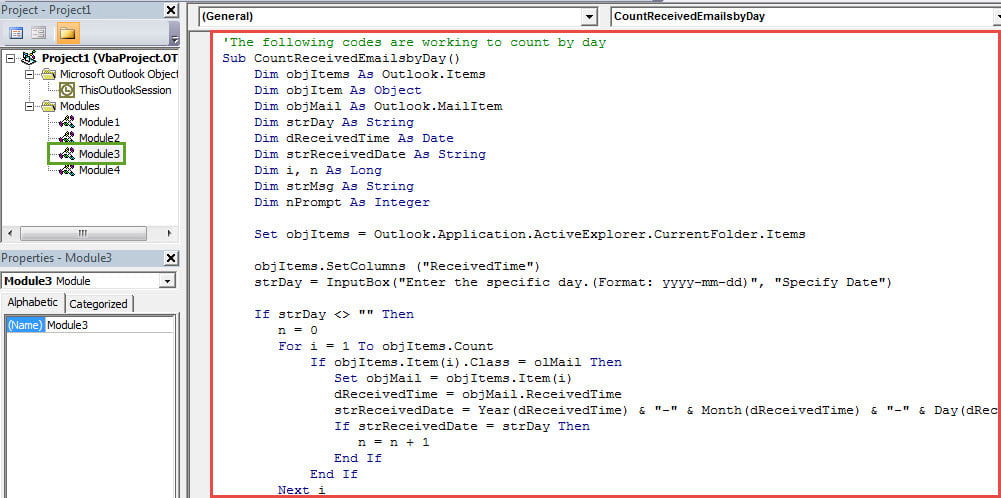
請注意: 上面的代碼用於按日期統計收到的電子郵件。
- 之後,您可以像往常一樣將新的宏添加到快速訪問工具欄。
- 最後,您可以嘗試一下。
- 首先,選擇收件箱文件夾。
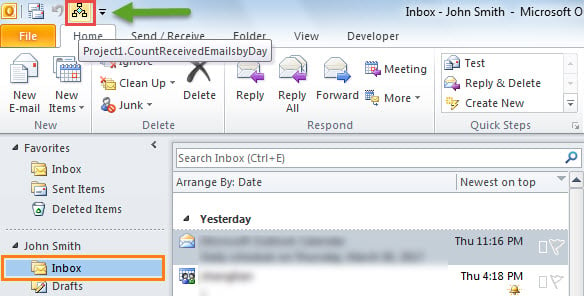
- 然後單擊快速訪問工具欄中的按鈕。

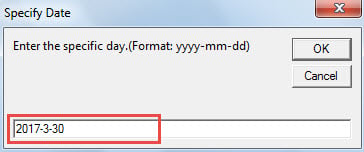
- 接下來,您需要以“ yyyy-mm-dd”的格式輸入特定日期。

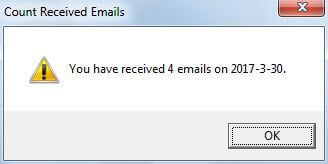
- 最後,您將收到總計數的提示,如下圖所示:

按月或年計數傳入的電子郵件
由於上面的代碼指定為按天計數,因此,如果要按月或年計數,則需要對代碼進行一些更改。
- 首先,將所有“ strDay”更改為 月 or 年.
- 其次,將行“ strDay = InputBox(“輸入指定的日期。(格式:yyyy-mm-dd)”,“指定日期”))替換為:
- strMonth = InputBox(“輸入特定月份。(格式:yyyy-mm)”,“指定月份”)
- strYear = InputBox(“輸入特定年份。(格式:yyyy)”,“指定年份”)
- 第三,將“ strReceivedDate = Year(dReceivedTime)&“-”&Month(dReceivedTime)&“-”&Day(dReceivedTime)”行更改為:
- strReceivedDate =年(dReceivedTime)和“-”和月(dReceivedTime) [一個月]
- strReceivedDate =年(dReceivedTime) [一年]。
Outlook崩潰後會發生什麼
許多使用者都遇到過 Outlook 崩潰的情況。最好的情況是,重啟 Outlook 後,所有資料都會恢復,也就是說不會再有任何問題。然而,最糟糕的情況是,您可能會遇到嚴重的問題。 PST腐敗。 到那時,假設您沒有最新的數據備份,那麼毫無疑問,您最後的選擇就是出色的修復工具,例如 DataNumen Outlook Repair.
作者簡介:
Shirley Zhang是的數據恢復專家 DataNumen,Inc.是數據恢復技術的全球領導者,包括 sql恢復 和Outlook修復軟件產品。 欲了解更多信息,請訪問 萬維網。datanumen.COM