
有時,您可能需要快速查找特定Windows文件夾中的最後修改文件並將其附加到Outlook電子郵件。 在這種情況下,您可以利用本文介紹的方法。
有些使用者希望 Outlook 能快速找到並把 Windows 資料夾中最後修改的檔案(例如最近建立、修改或儲存的檔案)加入電子郵件中。然而,Outlook 本身並沒有提供這樣的直接功能。因此,下面我們將介紹一段 VBA 程式碼,它可以輕鬆實現此功能。
將Windows文件夾中的最後修改的文件附加到電子郵件
- 首先,您應該啟動Outlook應用程序。
- 然後,進入Outlook主窗口後,可以按“ Alt + F11”鍵按鈕。
- 接下來,您將成功訪問Outlook VBA編輯器窗口。
- 隨後,您應該找到並打開一個未被使用的模塊。
- 然後將以下VBA代碼複製並粘貼到此模塊窗口中。
Sub AttachLastModifiedSpecificFile()
    Dim objShell As Object
    Dim objSelectedFolder As Object
    Dim objFileSystem As Object
    Dim strSourceFolderPath As String
    Dim objSourceFolder As Object
    Dim objFile As Object
    Dim dLastModifiedDate As Date
    Dim strLastModifiedFilePath As String
    Dim objMail As Outlook.MailItem

    On Error GoTo ErrorHandler
    'Select a local source folder
    Set objShell = CreateObject("Shell.Application")
    Set objSelectedFolder = objShell.BrowseForFolder(0, "Select the source folder", 0, "")
    strSourceFolderPath = objSelectedFolder.self.Path

    Set objFileSystem = CreateObject("Scripting.FileSystemObject")
    Set objSourceFolder = objFileSystem.GetFolder(strSourceFolderPath)

    If objSourceFolder.Files.Count > 0 Then
       For Each objFile In objSourceFolder.Files
           'Find the last modified file within "xlsx" file type in the selected Windows folder
           If (objFile.DateLastModified > dLastModifiedDate) And (objFileSystem.GetExtensionName(objFile) = "xlsx") Then
              'You can add or change criteria, such as
              'Left(objFile.Name, 4) = "Test" ---> file whose name begins with "Test"
              '(objFile / 1024) / 1024 > 2 --> File exceeds 2 MB
              'Note: Use "And" to connect more than one criteria
              strLastModifiedFilePath = objFile.Path
              dLastModifiedDate = objFile.DateLastModified
           End If
       Next

       If strLastModifiedFilePath <> "" Then
          'Confirm attaching it to the current outlook email
          strMsg = "The last modified file in the " & Chr(34) & strSourceFolderPath & Chr(34) & " is: " & vbCrLf & vbCrLf & "File: " & strLastModifiedFilePath & vbCrLf & "Date: " & dLastModifiedDate & vbCrLf & vbCrLf & "Do you want to attach it?"
          nPrompt = MsgBox(strMsg, vbQuestion + vbYesNo, "Confirm Attaching Last Modified File")

          If nPrompt = vbYes Then
             Set objMail = Outlook.Application.ActiveInspector.CurrentItem
             objMail.Attachments.Add strLastModifiedFilePath
         End If
      Else
         MsgBox "No file in the selected folder can meet your predefined criteria!", vbExclamation + vbOKOnly
      End If
    Else
      MsgBox "No file exists in the selected Windows folder!", vbExclamation + vbOKOnly
    End If

ErrorHandler:
    Exit Sub
End Sub
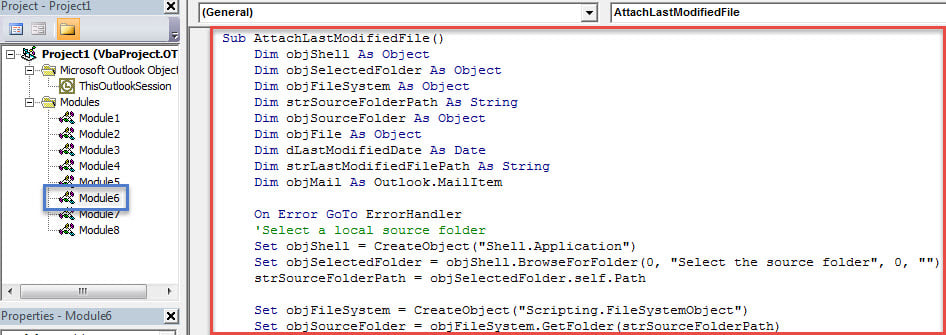
- 之後,您可以退出當前的VBA編輯器窗口,然後繼續將新的宏添加到“快速訪問工具欄”或“消息”窗口的功能區中。
- 稍後,您需要將Outlook宏安全級別更改為低。
- 最終您可以嘗試一下。
- 首先,照常創建和編寫新的Outlook電子郵件。
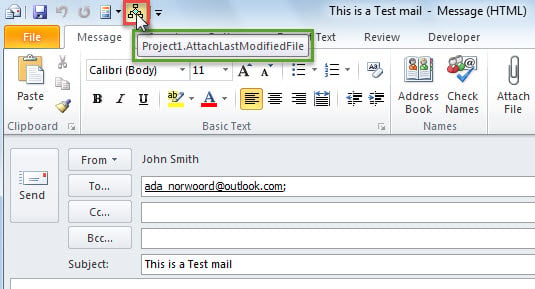
- 然後點擊快速訪問工具欄中的宏按鈕,如下圖所示:

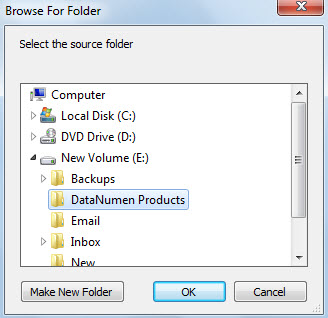
- 接下來,您將需要選擇一個源Windows文件夾,然後單擊“確定”。

- 如果所選的Windows文件夾中有這樣的文件,則會出現類似以下屏幕截圖的提示:

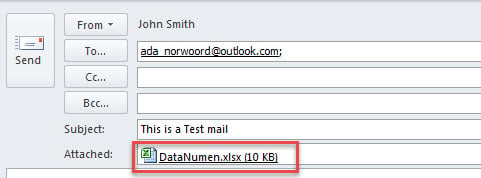
- 當您單擊“是”時,將立即附加該文件。


盡快解決Outlook問題
每當您遇到任何Outlook問題時,建議盡快解決。 在這種情況下,您最好準備一個健壯的 Outlook修復 預先使用的工具,例如 DataNumen Outlook Repair。 它能夠修復PST錯誤並有效地拯救Outlook數據。
作者簡介:
Shirley Zhang是的數據恢復專家 DataNumen,Inc.是數據恢復技術的全球領導者,包括 損壞的mdf 和Outlook修復軟件產品。 欲了解更多信息,請訪問 萬維網。datanumen.COM