
如果您經常需要更改多個約會的提醒時間,這篇文章將對您有很大幫助。 這裡的方法可以有效的省去你手動去一一更改提醒時間的麻煩。
上一篇文章–分批創建和更改日曆項目提醒的3個步驟》分享了批量更改多個約會提醒時間的方法。 然而,它仍然要求您首先更改視圖設置,然後手動更改約會的提醒。 因此,在這裡我們將向您介紹一種更有效的方法。 這裡我們將展示詳細的步驟和具體的VBA代碼。 因此,您不必擔心沒有 VBA 知識。 請繼續閱讀。
批量更改多個約會的提醒時間
- 首先,啟動 Outlook 程式。
- 然後,參考“訪問VBA編輯器”如何在Outlook中運行VBA代碼“。
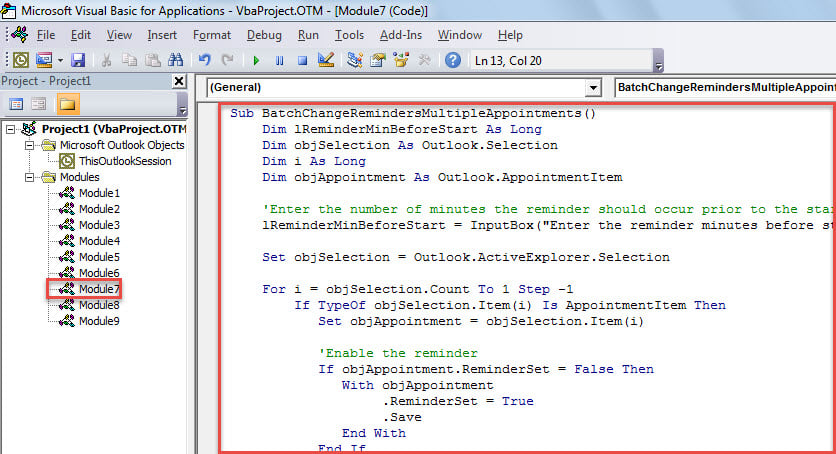
- 接下來,將以下VBA代碼複製並粘貼到未使用的模塊中。
Sub BatchChangeRemindersMultipleAppointments()
 Dim lReminderMinBeforeStart As Long
 Dim objSelection As Outlook.Selection
 Dim i As Long
 Dim objAppointment As Outlook.AppointmentItem

 'Enter the number of minutes the reminder should occur prior to the start of the appointment
 lReminderMinBeforeStart = InputBox("Enter the reminder minutes before start:", , "45")

 Set objSelection = Outlook.ActiveExplorer.Selection

 For i = objSelection.Count To 1 Step -1
 If TypeOf objSelection.Item(i) Is AppointmentItem Then
 Set objAppointment = objSelection.Item(i)

 'Enable the reminder
 If objAppointment.ReminderSet = False Then
 With objAppointment
 .ReminderSet = True
 .Save
 End With
 End If

 With objAppointment
 .ReminderMinutesBeforeStart = lReminderMinBeforeStart
 .Save
 End With
 End If
 Next

 'Prompt you of "Complete"
 MsgBox "Complete!", vbInformation + vbOKOnly
End Sub
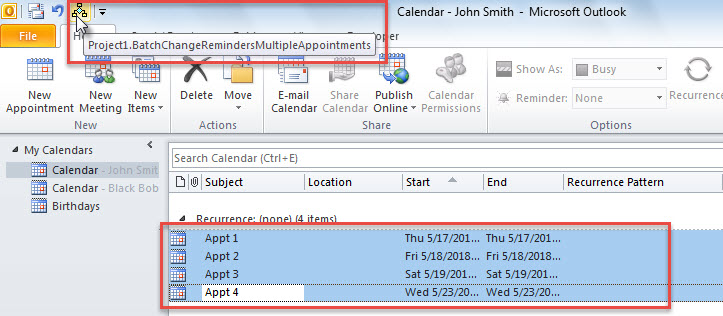
- 之後,將此宏添加到功能區或快速訪問工具欄。
- 最後,您可以嘗試一下。
- 首先,選擇您想要的約會。
- 然後,單擊宏按鈕。

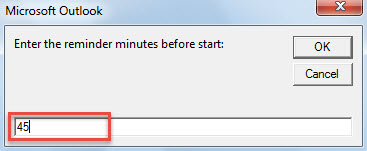
- 接下來,在彈出的對話方塊中,輸入預約開始前的提醒分鐘數。

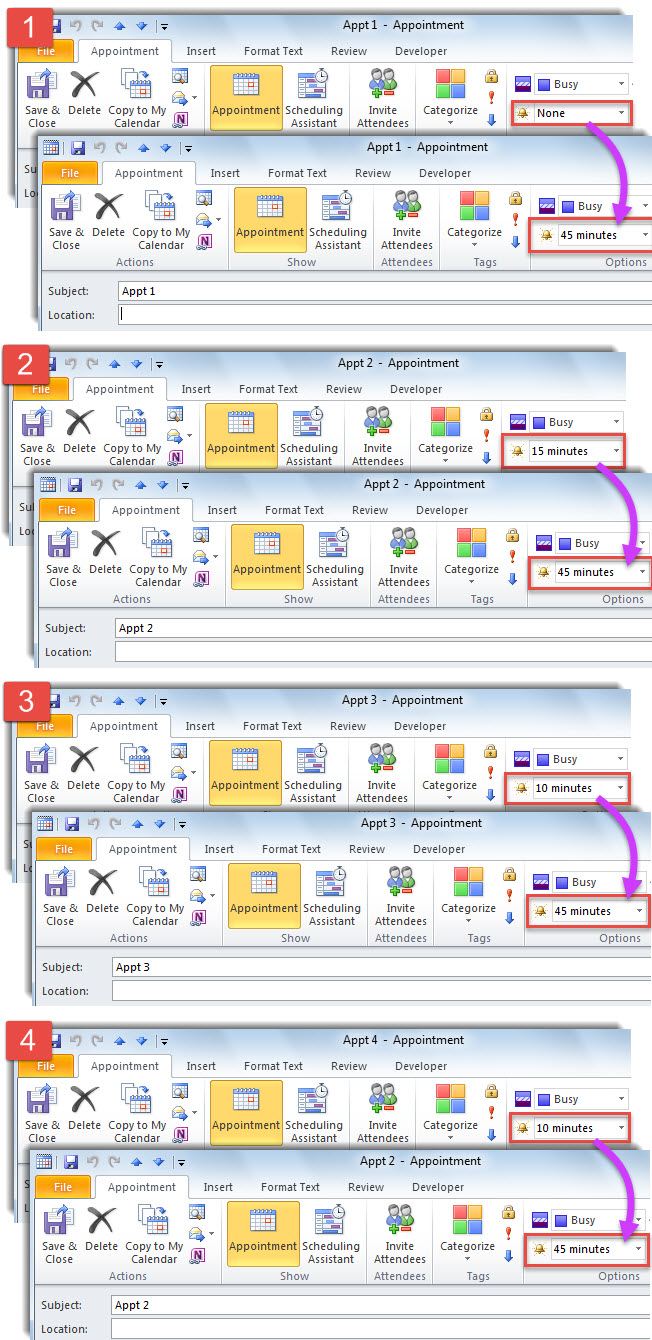
- 現在,您可以檢查所選約會的提醒時間,這些時間已根據您的需要進行修改。

消除Outlook錯誤
如果您經常在 Outlook 中遇到各種錯誤,您應該採取一些強有力的措施。 例如,您需要立即備份您的 Outlook PST 文件,掃描文件中的病毒並查殺牠們,了解如何有效地使用 Scanpst 來 修復PST 問題並獲取外部修復工具,例如 DataNumen Outlook Repair。 當您遇到收件箱修復工具無法解決的麻煩問題時,它會派上用場。
作者簡介:
Shirley Zhang是的數據恢復專家 DataNumen,Inc.是數據恢復技術的全球領導者,包括 SQL修復 和Outlook修復軟件產品。 欲了解更多信息,請訪問 萬維網。datanumen.COM