
有些用戶在 Outlook 中使用“全部答复”時,總是將除原始發件人之外的所有收件人移至“抄送”字段。 本文將介紹一種使用 Outlook VBA 實現自動化移動的方法。
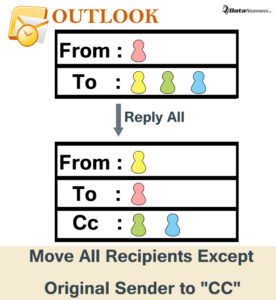 默認情況下,當您選擇“全部回复”回复郵件時,原來“收件人”字段中的所有收件人仍會出現在回复郵件的“收件人”字段中。 然而,許多用戶希望將所有收件人移至“抄送”字段,而僅將原始發件人移至“收件人”字段。 針對這個需求,這裡公開一段VBA代碼,可以自動實現。
自動將除原始發件人之外的所有收件人移至“全部回复”中的“抄送”字段
- 首先,啟動Outlook程序。
- 然後在Outlook主窗口中,按“ Alt + F11”鍵按鈕。
- 接下來您將進入 Outlook VBA 編輯器。
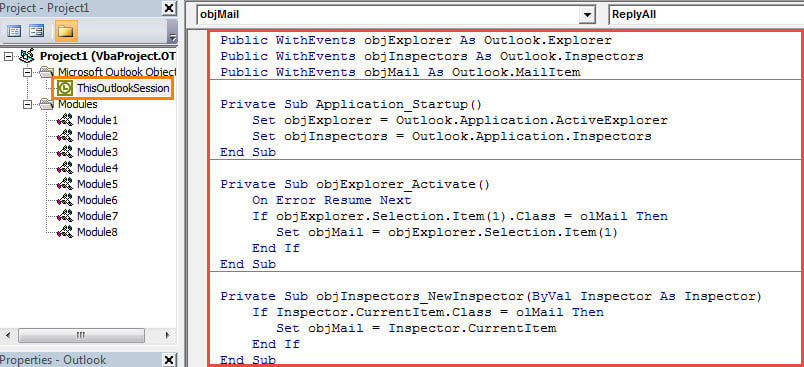
- 隨後,您應該找到並打開“ThisOutlookSession”項目。
- 稍後您需要將以下 VBA 代碼複製並粘貼到該項目窗口中。
Public WithEvents objExplorer As Outlook.Explorer
Public WithEvents objInspectors As Outlook.Inspectors
Public WithEvents objMail As Outlook.MailItem

Private Sub Application_Startup()
    Set objExplorer = Outlook.Application.ActiveExplorer
    Set objInspectors = Outlook.Application.Inspectors
End Sub

Private Sub objExplorer_Activate()
    On Error Resume Next
    If objExplorer.Selection.Item(1).Class = olMail Then
       Set objMail = objExplorer.Selection.Item(1)
    End If
End Sub

Private Sub objInspectors_NewInspector(ByVal Inspector As Inspector)
    If Inspector.CurrentItem.Class = olMail Then
       Set objMail = Inspector.CurrentItem
    End If
End Sub

Private Sub objMail_ReplyAll(ByVal Response As Object, Cancel As Boolean)
    Dim objReplyAll As Outlook.MailItem
    Dim objRecipient As Outlook.recipient
    Dim objCCRecipient As Outlook.recipient
    Dim strSender As String

    Set objReplyAll = objMail.ReplyAll

    strSender = objMail.SenderEmailAddress

    For Each objRecipient In objMail.Recipients
        'Exclude yourself
        If objRecipient.Address <> "youremail@datanumen.com" Then
           'Add the recipients as CC recipients
           Set objCCRecipient = objReply.Recipients.Add(objRecipient.Address)
           objCCRecipient.Type = olCC
        End If
    Next

    'Keep original sender in To field
    objReplyAll.To = strSender
    objReplyAll.Display

    Cancel = True
End Sub
- 之後,您應該簽署此宏,然後更改 Outlook 宏設置以允許數字簽名的宏。
- 最後,您可以重新啟動 Outlook 來啟動新的 VBA 專案。
- 從現在開始,每次您使用“全部回复”回復電子郵件時,您都會看到所有收件人都已移至“抄送”字段,而“收件人”字段中僅包含原始發件人。
如果 PST 損壞,請不要驚慌
如果您的 PST 文件包含大量有價值的數據,例如客戶信息等,一旦您的 PST 文件損壞,您一定會感到擔心。 但是,如果您最近備份過文件,您就永遠不會驚慌。 備份將使您能夠取回您的 損壞的Outlook 輕鬆輕鬆地獲取數據。 但如果沒有這樣的備份,您仍然可以使用有效的恢復工具,例如 DataNumen Outlook Repair.
作者簡介:
Shirley Zhang是的數據恢復專家 DataNumen,Inc.是數據恢復技術的全球領導者,包括 修復SQL 和Outlook修復軟件產品。 欲了解更多信息,請訪問 萬維網。datanumen.COM