
在本文中,我們將為您提供五種方法來將表格單元格的填充顏色快速應用於整個行,列或表格。
您可能會注意到,當您在Word中的表格單元中進行複制時,只會得到單元內容,而不會獲得填充顏色。 因此,我們想向您展示五個解決方法來解決此問題。 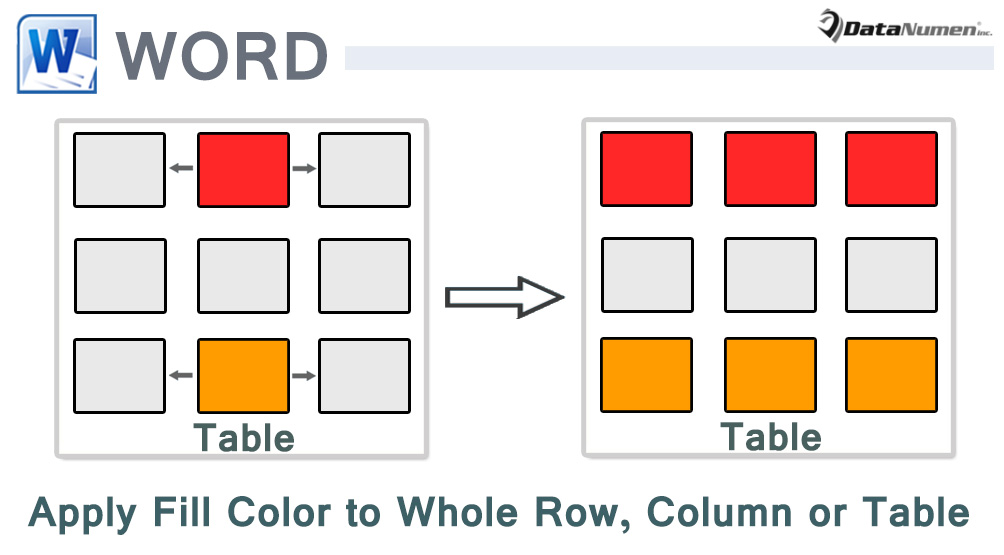
方法1:手動獲取表格單元格的RGB值
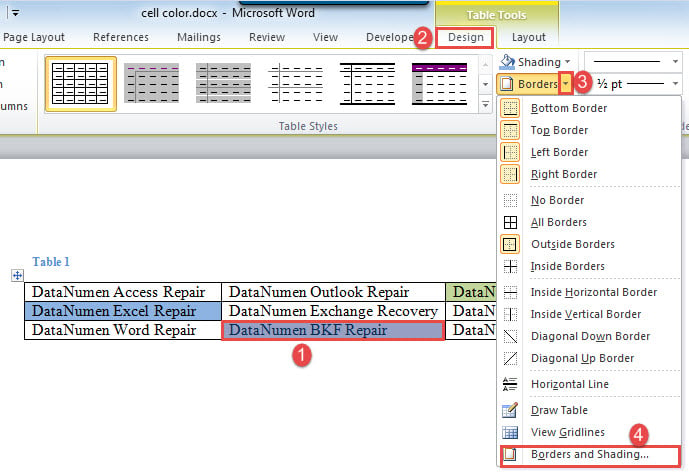
- 首先,選擇需要獲取其填充顏色的單元格。
- 接下來,單擊“設計”選項卡。
- 在“陰影”下找到命令,然後單擊該命令的下拉按鈕。
- 在菜單上,選擇“邊框和底紋”以打開相同名稱的對話框。

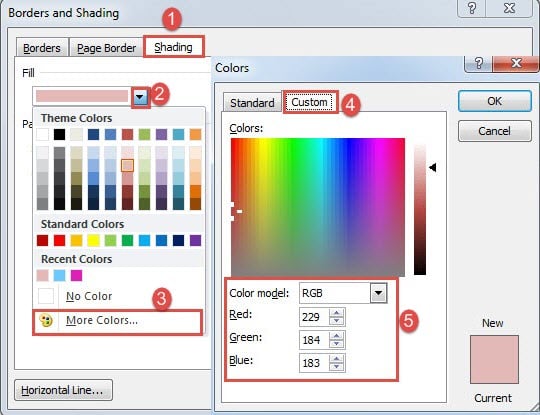
- 接下來在打開的框中,單擊“底紋”選項卡。
- 轉到“填充”字段,然後單擊下拉按鈕。
- 然後選擇“更多顏色”以打開“顏色”框。
- 在“顏色模型”字段中選擇“ RGB”。 獲取下面的RGB值。

- 然後關閉所有對話框,並將遊標放在目標儲存格內。或者,您可以選擇多個儲存格、行、列,甚至整個表格。
- 然後單擊“底紋”命令上的下拉按鈕以選擇“更多顏色”。
- 在“自定義”選項卡下輸入RGB值,然後單擊“確定”。
方法2:打開“顯示格式”窗格
想法類似,即取得 RGB 值,然後將其套用於目標儲存格、行、列或整個表格。
- 首先,將插入指針放置在已填充的單元格內。
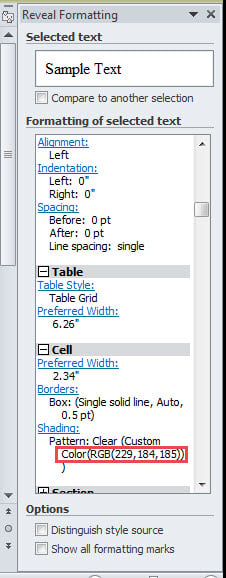
- 接下來按“ Shift + F1”打開“顯示格式”窗格。 並且您將能夠在“陰影”部分下看到該單元的RGB值。

- 請按照方法9中的步驟11到1。
方法3:通過VBA將一個單元格的填充顏色應用於整個表
正如字幕所暗示的,這是將整個表格合併為一種顏色的方法。
- 首先,將插入指針放置在彩色單元格內。
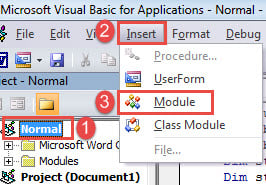
- 按“ Alt + F11”觸發VBA編輯器。
- 接下來,單擊“普通”項目,然後單擊“插入”選項卡。
- 然後在該菜單上選擇“模塊”。

- 雙擊打開它。
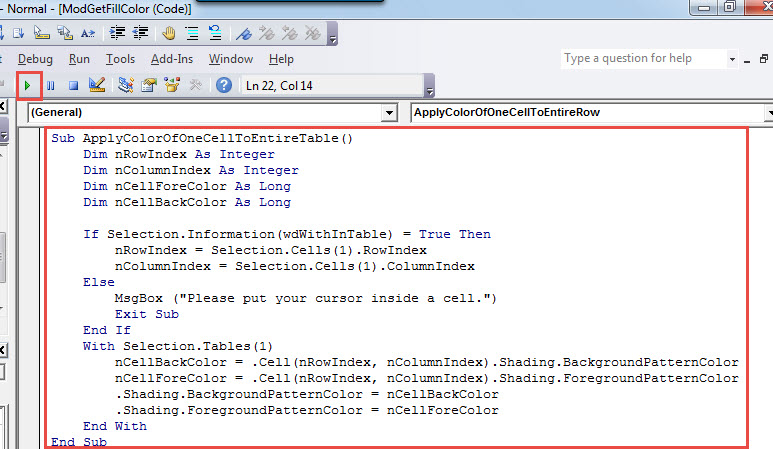
- 並在其中粘貼以下代碼:
Sub ApplyColorOfOneCellToEntireTable()
  Dim nRowIndex As Integer
  Dim nColumnIndex As Integer
  Dim nCellForeColor As Long
  Dim nCellBackColor As Long

  If Selection.Information(wdWithInTable) = True Then
    nRowIndex = Selection.Cells(1).RowIndex
    nColumnIndex = Selection.Cells(1).ColumnIndex
  Else
    MsgBox ("Please put your cursor inside a cell.")
    Exit Sub
  End If
  With Selection.Tables(1)
    nCellBackColor = .Cell(nRowIndex, nColumnIndex).Shading.BackgroundPatternColor
    nCellForeColor = .Cell(nRowIndex, nColumnIndex).Shading.ForegroundPatternColor
    .Shading.BackgroundPatternColor = nCellBackColor
    .Shading.ForegroundPatternColor = nCellForeColor
  End With
End Sub
- 最後,單擊“運行”或單擊“ F5”。

方法4:通過VBA將一個單元格的填充顏色應用於整個行
- 首先,將光標放在單元格內。
- 接下來,按照與方法3完全相同的步驟安裝並運行宏。
- 接下來,將以下代碼替換為這些代碼:
Sub ApplyColorOfOneCellToEntireRow()
  Dim nRowIndex As Integer
  Dim nCellForeColor As Long
  Dim nCellBackColor As Long

  If Selection.Information(wdWithInTable) = True Then
    nRowIndex = Selection.Cells(1).RowIndex
    nCellBackColor = Selection.Cells(1).Shading.BackgroundPatternColor
    nCellForeColor = Selection.Cells(1).Shading.ForegroundPatternColor
  Else
    MsgBox ("Please put your cursor inside a cell.")
    Exit Sub
  End If
  With Selection.Tables(1).Rows(nRowIndex).Shading
    .BackgroundPatternColor = nCellBackColor
    .ForegroundPatternColor = nCellForeColor
  End With
End Sub
方法5:通過VBA將一個單元格的填充顏色應用於整個列
- 可能首先將光標放在單元格內。
- 然後正確安裝並運行宏。
- 用這個替換宏:
Sub ApplyColorOfOneCellToEntireColumn()
  Dim nColumnIndex As Integer
  Dim nCellForeColor As Long
  Dim nCellBackColor As Long

  If Selection.Information(wdWithInTable) = True Then
    nColumnIndex = Selection.Cells(1).ColumnIndex
    nCellBackColor = Selection.Cells(1).Shading.BackgroundPatternColor
    nCellForeColor = Selection.Cells(1).Shading.ForegroundPatternColor
  Else
    MsgBox ("Please put your cursor inside a cell.")
    Exit Sub
  End If
  With Selection.Tables(1).Columns(nColumnIndex).Shading
    .BackgroundPatternColor = nCellBackColor
    .ForegroundPatternColor = nCellForeColor
  End With
End Sub
處理單詞問題
使用Word的過程中總是存在問題。 因此,有必要學習正確的技巧來應對所有這些令人討厭的問題。 您必須採取的措施之一就是掌握 字詞修復 提前使用工具。 這樣,一旦文檔損壞,您就不會驚慌。
作者簡介:
陳薇薇(Vera Chen)是 DataNumen,Inc.是數據恢復技術的全球領導者,包括 恢復Excel 以及 pdf 維修軟件產品。 欲了解更多信息,請訪問 萬維網。datanumen.COM