
在這篇文章中,我們將向您展示在 Word 文件中快速插入目錄的 3 種方法。
在Word中閱讀文檔時,可以使用目錄或導航窗格來幫助自己快速瀏覽內容。 但是,在打印時,導航窗格無法與文檔一起打印。 但是,前者確實如此。 因此,有必要將目錄插入到Word文檔中,尤其是較長的目錄。 以下是3種有效方法。
方法1:手動插入目錄
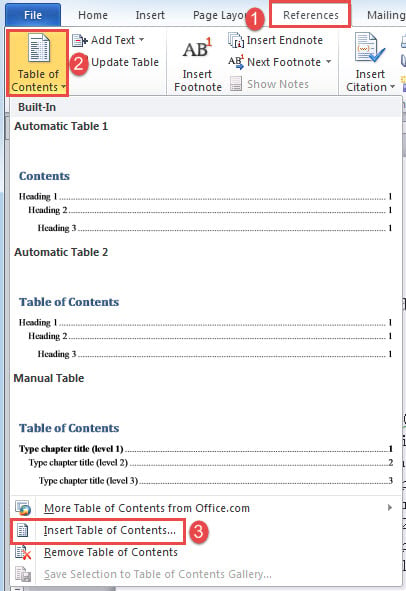
- 首先,將光標放在目錄要移到的位置。 單擊“參考”選項卡,然後單擊“目錄”命令。
- 接下來選擇“插入目錄”。
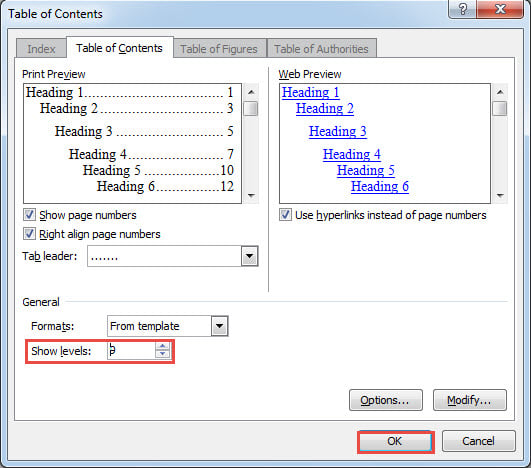
- 在打開的對話框中,根據需要設置配置,例如“顯示級別”。
- 點擊“確定”。

通常,我們會將目錄放在文件的第一頁。如果您之前已經新增過頁碼,您會發現正文現在從第 2 頁開始。這種情況就屬於此類。有些人希望正文像往常一樣從第 1 頁開始,目錄不計入頁碼。要實現這一點,您需要進行一些額外的操作。請閱讀本文以了解詳細說明: 如何在 Word 文件中從特定頁面開始新增頁碼
並記住在進行所有調整後要更新目錄。
方法2:運行Word宏
如您所見,插入目錄的手動方法有點麻煩,並且存在諸如重置頁碼的問題。 因此,我們建議您使用宏方法來完成此任務。 使用宏,您可以在幾秒鐘內自動執行整個過程。
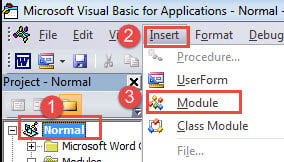
- 首先,按「Ctrl+Home」鍵跳到文件開頭。
- 然後按“ Alt + F11”觸發VBA編輯器。
- 接下來,單擊“正常”,然後單擊“插入”。
- 選擇“模塊”並雙擊以打開編輯區域。

- 然後在其中粘貼以下代碼:
Sub InsertTOC()
  Selection.InsertBreak Type:=wdSectionBreakNextPage
  Selection.HomeKey Unit:=wdStory
  With ActiveDocument
    .TablesOfContents.Add Range:=Selection.Range, RightAlignPageNumbers:= _
      True, UseHeadingStyles:=True, UpperHeadingLevel:=1, _
      LowerHeadingLevel:=9, IncludePageNumbers:=True, AddedStyles:="", _
      UseHyperlinks:=True, HidePageNumbersInWeb:=True, UseOutlineLevels:= _True
    .TablesOfContents(1).TabLeader = wdTabLeaderDots
    .TablesOfContents.Format = wdIndexIndent
  End With
  ActiveDocument.Sections(1).PageSetup.DifferentFirstPageHeaderFooter = True
  With ActiveDocument.Sections(2)
    .Footers(wdHeaderFooterPrimary).LinkToPrevious = False
    .Footers(wdHeaderFooterPrimary).PageNumbers.RestartNumberingAtSection = True
    .Footers(wdHeaderFooterPrimary).PageNumbers.StartingNumber = 1
  End With
  ActiveDocument.TablesOfContents(1).Update
End Sub
- 最後但並非最不重要的一點,單擊“運行”。

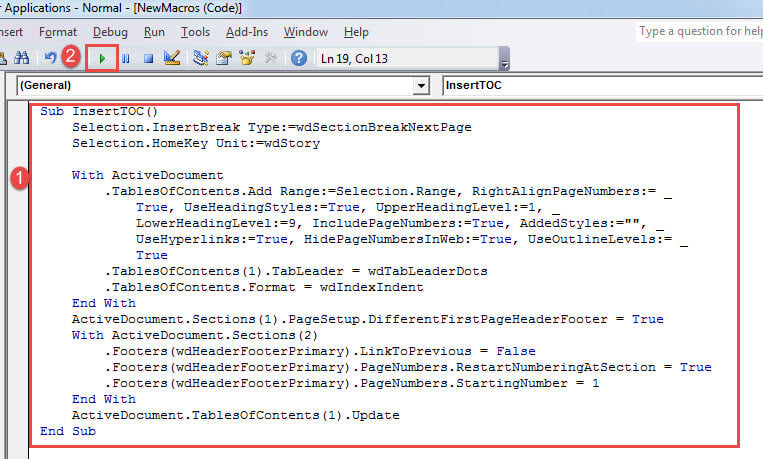
執行巨集後,新插入的目錄將位於第一頁,頁碼從第二頁開始。此外,目錄已更新。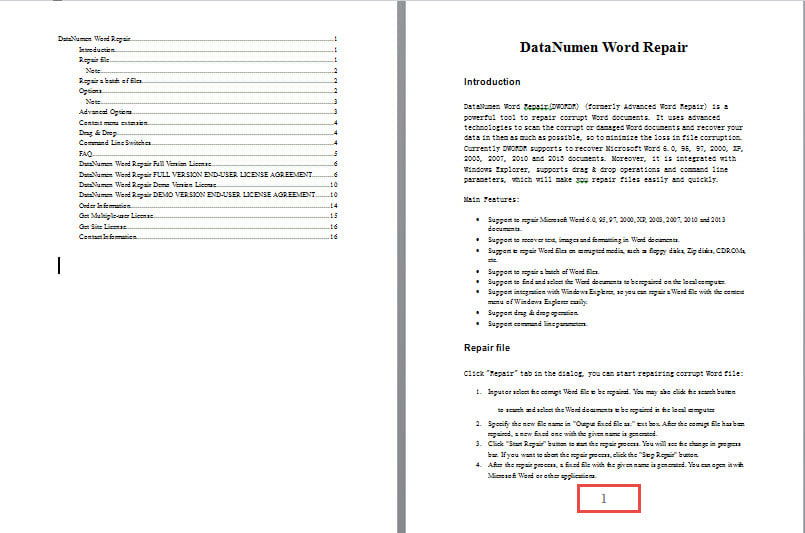
方法3:將目錄插入多個文檔
如果您喜歡批處理的簡便性,請使用以下宏:
Sub InsertTOCForMultiDoc()
  Dim objDoc As Document
  Dim strFile As String, strFolder As String

  '  Initialization
  strFolder = "C:\Users\Public\Documents\New folder\Test1\"
  strFile = Dir(strFolder & "*.docx", vbNormal)

  '  Precess each document in the folder.
  While strFile <> ""
    Set objDoc = Documents.Open(FileName:=strFolder & strFile)

    Selection.InsertBreak Type:=wdSectionBreakNextPage
    Selection.HomeKey Unit:=wdStory
    With ActiveDocument
      .TablesOfContents.Add Range:=Selection.Range, RightAlignPageNumbers:= _
        True, UseHeadingStyles:=True, UpperHeadingLevel:=1, _
        LowerHeadingLevel:=9, IncludePageNumbers:=True, AddedStyles:="", _
        UseHyperlinks:=True, HidePageNumbersInWeb:=True, UseOutlineLevels:= _
        True.TablesOfContents(1).TabLeader = wdTabLeaderDots
      .TablesOfContents.Format = wdIndexIndent
    End With
    ActiveDocument.Sections(1).PageSetup.DifferentFirstPageHeaderFooter = True
    With ActiveDocument.Sections(2)
      .Footers(wdHeaderFooterPrimary).LinkToPrevious = False
      .Footers(wdHeaderFooterPrimary).PageNumbers.RestartNumberingAtSection = True
      .Footers(wdHeaderFooterPrimary).PageNumbers.StartingNumber = 1
    End With
    ActiveDocument.TablesOfContents(1).Update

    objDoc.Save
    objDoc.Close
    strFile = Dir()
  Wend
End Sub
只需按照方法2中的相同步驟安裝和運行宏。
筆記
- 您必須首先將所有文檔放在同一目錄下。
- 別忘了用實際的文件夾路徑替換“ C:\ Users \ Public \ Documents \ New folder \ Test1 \”。 不要忘記最後一個“ \”。
Word修復工具
由於Word會突然崩潰,因此必須準備一個工具來 修詞 以及 Word 文件。及時恢復可以找回盡可能多的資料。因此,建議事先購買一款專業的恢復產品。
作者簡介:
陳薇薇(Vera Chen)是 DataNumen,Inc.是數據恢復技術的全球領導者,包括 Excel修復 以及 pdf 維修軟件產品。 欲了解更多信息,請訪問 萬維網。datanumen.COM