
發送會議邀請後,您可以在會議的“跟踪”頁面查看收件人的會議回复。 如果您想打印跟踪列表,您可以使用本文介紹的 3 種方法。
Outlook 為用戶提供了會議的“跟踪”功能。 它將列出所有與會者的所有回复。 因此,如果您希望查看誰接受您組織的會議以及誰拒絕,您只需訪問跟踪列表即可。 但是,沒有直接打印列表的功能。 為此,我們在這裡向您分享3種快速打印的方法。
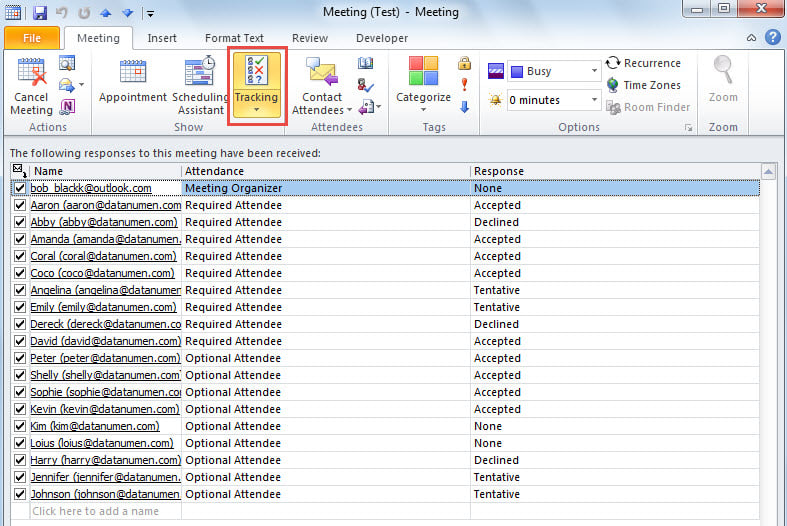
方法一:打印“追踪”截圖
- 首先,打開會議“跟踪”頁面。
- 接下來,創建一個新電子郵件。
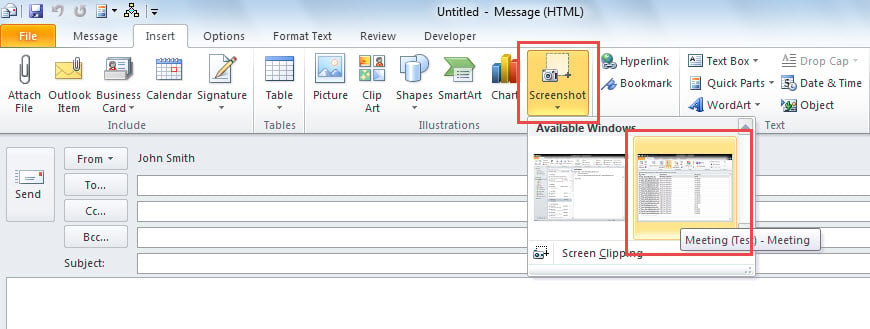
- 之後,切換到“插入”選項卡並單擊“屏幕截圖”按鈕。
- 稍後,從“可用窗口”列表中選擇“跟踪”屏幕截圖。

- 最後,點擊“文件”>“打印”,打印出“追踪”的截圖。
方法2:複製到Excel後打印
- 首先,造訪「追蹤」頁面。
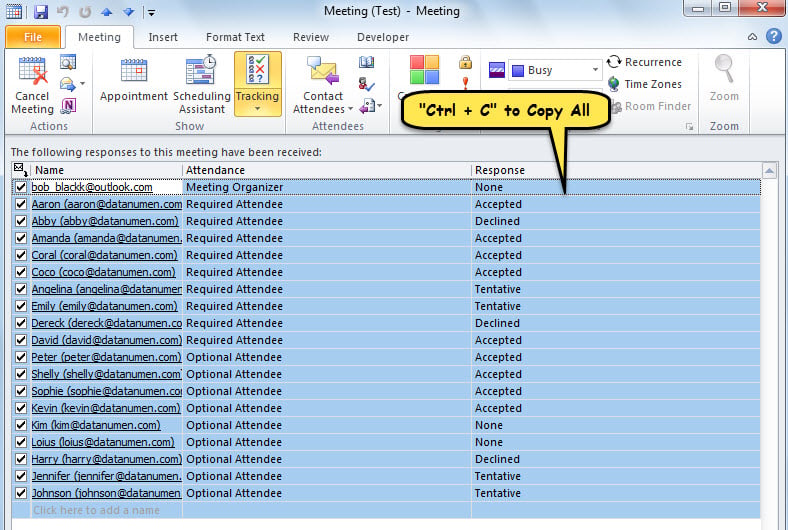
- 隨後,在“跟踪”列表中選擇一個條目。
- 接下來,按“Ctrl + A”選擇所有條目。
- 然後,按“Ctrl + C”複製它們。

- 然後,打開一個新的 Excel 文件。
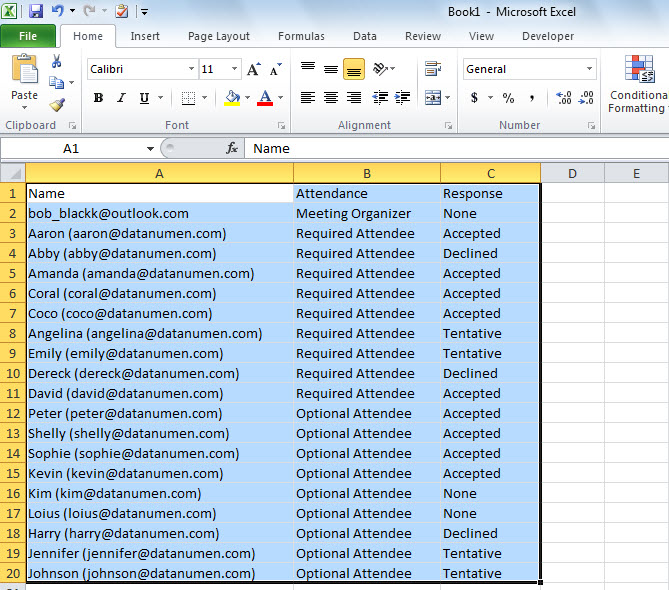
- 選擇“A1”單元格,然後按“Ctrl + V”粘貼複製的“跟踪”列表。

- 最後,在Excel中,轉到“文件”>“打印”來打印當前工作表。
方法 3:使用 Outlook VBA 打印
- 首先,通過引用“轉到 Outlook VBA 編輯器”如何在Outlook中運行VBA代碼“。
- 然後,請按照「啟用 MS Excel 物件庫」的說明進行操作。如何在 VBA 中新增物件庫引用“。
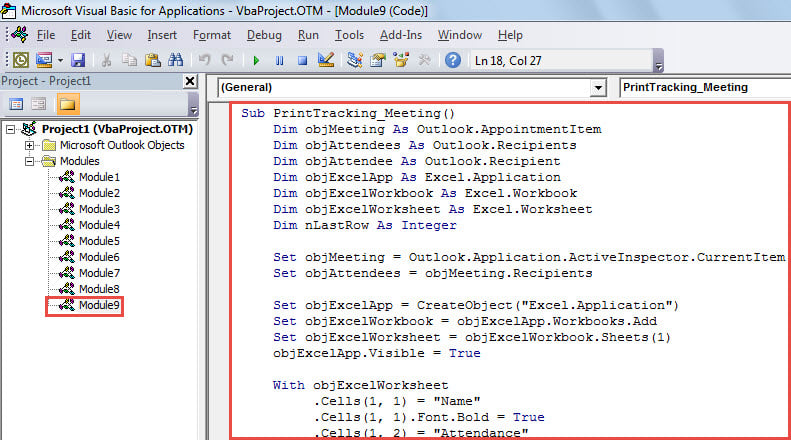
- 之後,將下面的代碼放入模塊中。
Sub PrintTracking_Meeting()
    Dim objMeeting As Outlook.AppointmentItem
    Dim objAttendees As Outlook.Recipients
    Dim objAttendee As Outlook.Recipient
    Dim objExcelApp As Excel.Application
    Dim objExcelWorkbook As Excel.Workbook
    Dim objExcelWorksheet As Excel.Worksheet
    Dim nLastRow As Integer

    Set objMeeting = Outlook.Application.ActiveInspector.CurrentItem
    Set objAttendees = objMeeting.Recipients

    Set objExcelApp = CreateObject("Excel.Application")
    Set objExcelWorkbook = objExcelApp.Workbooks.Add
    Set objExcelWorksheet = objExcelWorkbook.Sheets(1)
    objExcelApp.Visible = True

    With objExcelWorksheet
         .Cells(1, 1) = "Name"
         .Cells(1, 1).Font.Bold = True
         .Cells(1, 2) = "Attendance"
         .Cells(1, 2).Font.Bold = True
         .Cells(1, 3) = "Response"
         .Cells(1, 3).Font.Bold = True
    End With

    For Each objAttendee In objAttendees
        nLastRow = objExcelWorksheet.Range("A" & objExcelWorksheet.Rows.Count).End(xlUp).Row + 1

       Select Case objAttendee.MeetingResponseStatus
              Case olResponseAccepted
                   With objExcelWorksheet
                        .Range("A" & nLastRow) = objAttendee.Name
                        .Range("B" & nLastRow) = GetAttendance(objAttendee.Type)
                        .Range("C" & nLastRow) = "Accepted"
                   End With
              Case olResponseDeclined
                   With objExcelWorksheet
                        .Range("A" & nLastRow) = objAttendee.Name
                        .Range("B" & nLastRow) = GetAttendance(objAttendee.Type)
                        .Range("C" & nLastRow) = "Declined"
                   End With
              Case olResponseNone
                   With objExcelWorksheet
                        .Range("A" & nLastRow) = objAttendee.Name
                        .Range("B" & nLastRow) = GetAttendance(objAttendee.Type)
                        .Range("C" & nLastRow) = "None"
                   End With
              Case olResponseTentative
                   With objExcelWorksheet
                        .Range("A" & nLastRow) = objAttendee.Name
                        .Range("B" & nLastRow) = GetAttendance(objAttendee.Type)
                        .Range("C" & nLastRow) = "Tentative"
                   End With
              Case olResponseOrganized
                   With objExcelWorksheet
                        .Range("A" & nLastRow) = objAttendee.Name
                        .Range("B" & nLastRow) = GetAttendance(objAttendee.Type)
                        .Range("C" & nLastRow) = "Organized"
                   End With
       End Select
    Next

    objExcelWorksheet.Columns("A:C").AutoFit
    objExcelWorksheet.PrintOut
End Sub

Function GetAttendance(lType As Long) As String
    Select Case lType
           Case 0
                GetAttendance = "Meeting Organizer"
           Case 1
                GetAttendance = "Required Attendee"
           Case 2
                GetAttendance = "Optional Attendee"
    End Select
End Function
- 接下來,將此宏添加到快速訪問工具欄 (QAT)。
- 最後,打開會議並點擊 QAT 中的宏按鈕。
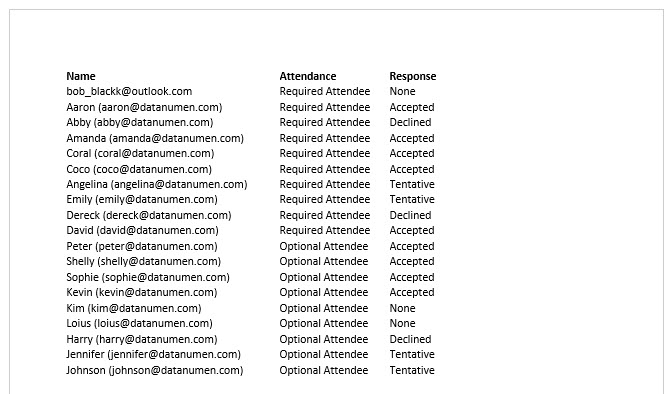
- 立即打印出會議的跟踪列表,如下圖所示。

取回有價值的Outlook數據
如果遇到 Outlook 檔案損壞的情況,首先可以檢查最新的 PST 備份。如果沒有可用的備份,也可以嘗試使用內建的修復工具。 掃描儀,嘗試 PST 修復。 然而,假設兩者都無法產生效果,您的最後手段是更強大且經過充分驗證的外部工具,例如 DataNumen Outlook Repair.
作者簡介:
Shirley Zhang是的數據恢復專家 DataNumen,Inc.是數據恢復技術的全球領導者,包括 SQL Server 腐敗 和Outlook修復軟件產品。 欲了解更多信息,請訪問 萬維網。datanumen.COM