
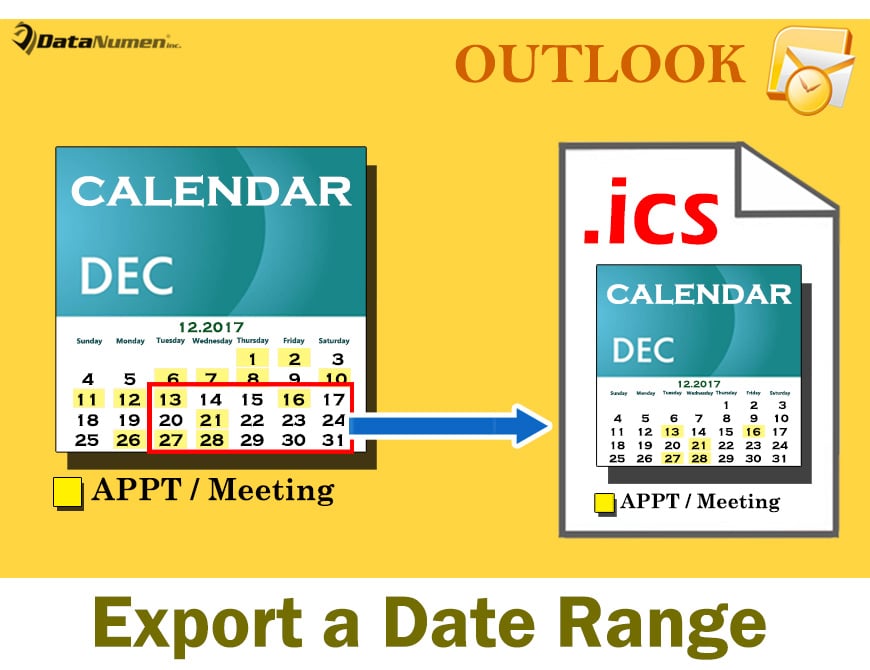
本文將向您介紹兩種將特定日期範圍的Outlook日曆導出為iCalendar(.ics)文件的方法。 您可以選擇自己喜歡的一種。
在Outlook中,您可以僅通過“另存為”功能將整個日曆導出為iCalendar(.ics)文件。 但是,如果您想將日曆的特定日期範圍快速導出為iCalendar,則內置的“另存為”或“導出”功能都無濟於事。 因此,在這裡我們將向您介紹2種方法。
方法1:通過“電子郵件日曆”功能導出
- 首先,啟動Outlook應用程序。
- 然後切換到“日曆”區域。
- 接下來,您應該在左側導航窗格中選擇特定的日曆。
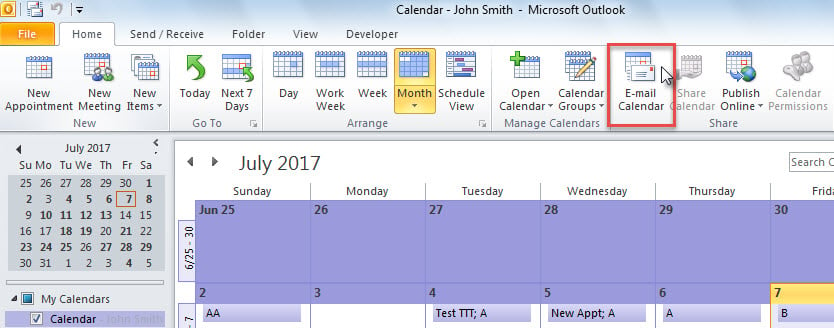
- 之後,您應該找到並點擊功能區中的“電子郵件日曆”按鈕。

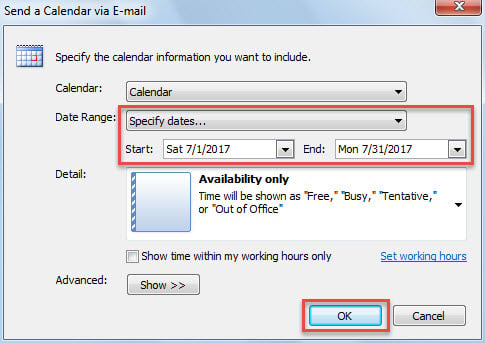
- 一次,將顯示一個新電子郵件,並帶有“通過電子郵件發送日曆”對話框。
- 現在,您可以在此對話框中指定日期範圍,如下圖所示:

- 單擊“確定”按鈕後,指定日期範圍內的日曆將轉換為當前電子郵件中隨附的iCalendar文件。
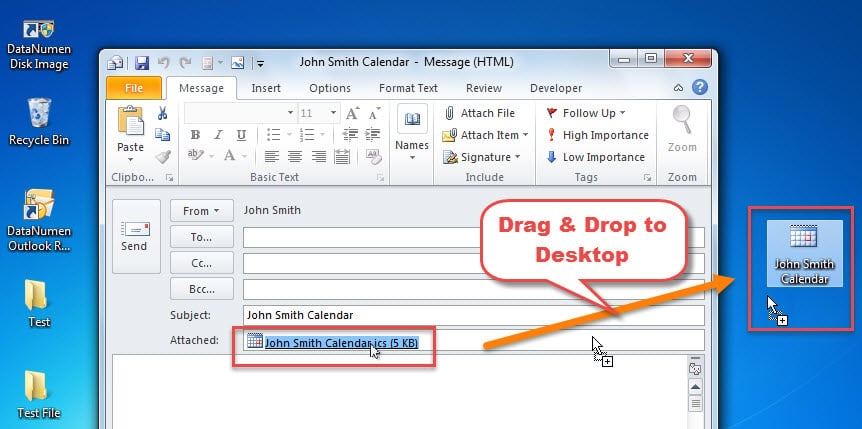
- 接下來,您可以縮小當前Outlook檢查器的範圍,直到看到Windows桌面為止。
- 最終,您可以將附件的ics文件拖放到桌面上,如下圖所示:

方法2:通過Outlook VBA導出
- 首先,在 Outlook 主視窗中,按下「Alt + F11」鍵/
- 接下來,您將成功進入Outlook VBA編輯器,在其中應打開一個空模塊。
- 隨後,將以下VBA代碼複製到該模塊中。
Sub ExportCalender_inSpecificDateRange_AsiCalendarFile()
    Dim objCalendarFolder As Outlook.Folder
    Dim objCalendarExporter As Outlook.CalendarSharing
    Dim dStartDate As Date
    Dim dEndDate As Date
    Dim objShell As Object
    Dim objSavingFolder As Object
    Dim strSavingFolder As String
    Dim striCalendarFile As String

    'Get the current Calendar folder
    Set objCalendarFolder = Outlook.Application.ActiveExplorer.CurrentFolder

    If Not objCalendarFolder Is Nothing And objCalendarFolder.DefaultItemType = olAppointmentItem Then
       Set objCalendarExporter = objCalendarFolder.GetCalendarExporter

       'Enter the specific start date and end date
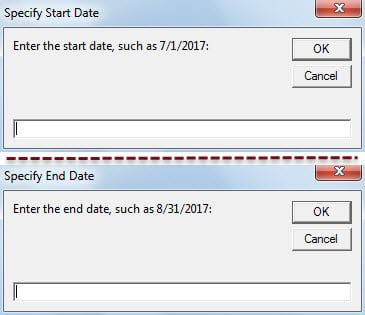
       dStartDate = InputBox("Enter the start date, such as 7/1/2017:", "Specify Start Date")
       dEndDate = InputBox("Enter the end date, such as 8/31/2017:", "Specify End Date")

       If dStartDate <> #1/1/4501# And dEndDate <> #1/1/4501# Then
          'Select a Windows folder for saving the exported iCalendar file
          Set objShell = CreateObject("Shell.Application")
          Set objSavingFolder = objShell.BrowseForFolder(0, "Select a folder:", 0, "")
          strSavingFolder = objSavingFolder.self.Path

          If strSavingFolder <> "" Then
             striCalendarFile = strSavingFolder & "\" & "Calendar from " & Format(dStartDate, "YYYY-MM-DD") & " to " & Format(dEndDate, "YYYY-MM-DD") & ".ics"

             'Export the calendar in specific date range
             With objCalendarExporter
                  .IncludeWholeCalendar = False
                  .StartDate = dStartDate
                  .EndDate = dEndDate
                  .CalendarDetail = olFullDetails
                  .IncludeAttachments = True
                  .IncludePrivateDetails = False
                  .RestrictToWorkingHours = False
                  .SaveAsICal striCalendarFile
            End With

            MsgBox "Calendar Exported Successfully!", vbInformation
          End If
      Else
          MsgBox "Open a calendar folder, please!", vbExclamation + vbOKOnly
      End If
    End If
End Sub
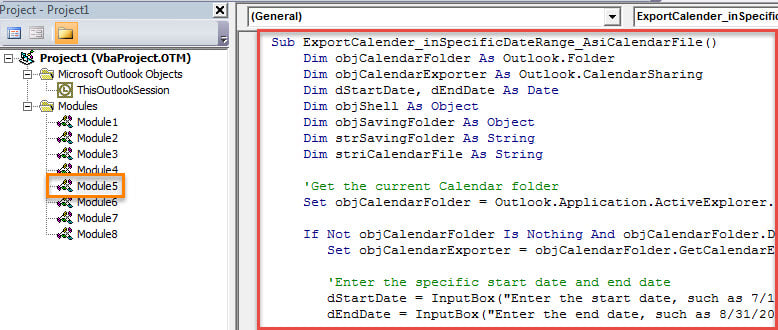
- 以後,您可以將新的宏添加到快速訪問工具欄。
- 最終,您可以嘗試此VBA項目。
- 首先,訪問要導出的日曆。
- 然後在快速訪問工具欄中單擊新的宏按鈕。
- 接下來,您需要指定日期範圍—開始日期和結束日期。

- 之後,您需要選擇一個Windows文件夾來保存ics文件。
- 最後,特定日期範圍內的日曆將作為ics文件導出。
採取足夠的預防措施,避免PST損壞
您應該接受毫無疑問的事實,即Outlook容易受到攻擊。 因此,建議定期進行PST備份。 另外,您應該留意所有潛在的危險,例如電子郵件中的偽裝病毒。 另外,謹慎地準備一個專門的 Outlook恢復 工具,例如 DataNumen Outlook Repair.
作者簡介:
Shirley Zhang是的數據恢復專家 DataNumen,Inc.是數據恢復技術的全球領導者,包括 恢復SQL 和Outlook修復軟件產品。 欲了解更多信息,請訪問 萬維網。datanumen.COM