
Bài viết sau đây hướng dẫn cách đánh dấu và tra cứu lịch bằng chuột. 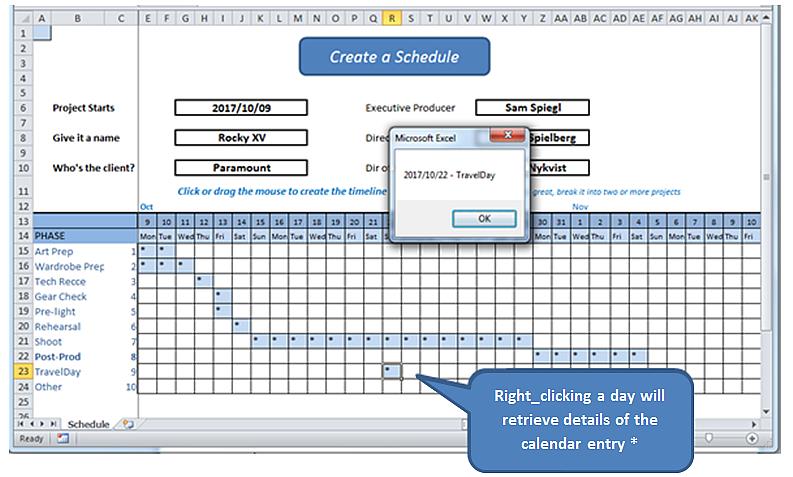
* Trong thế giới thực, chúng tôi sẽ mở một biểu mẫu để đọc và viết các mục nhật ký có ý nghĩa vào cơ sở dữ liệu. Bài tập này chỉ tiết lộ cơ chế nhấp chuột phải và tìm các chi tiết từ chính trang tính đó.
Trước khi chúng tôi bắt đầu, một vài từ giải thích về bảng tính, một mô hình hoạt động có thể được tìm thấy đây.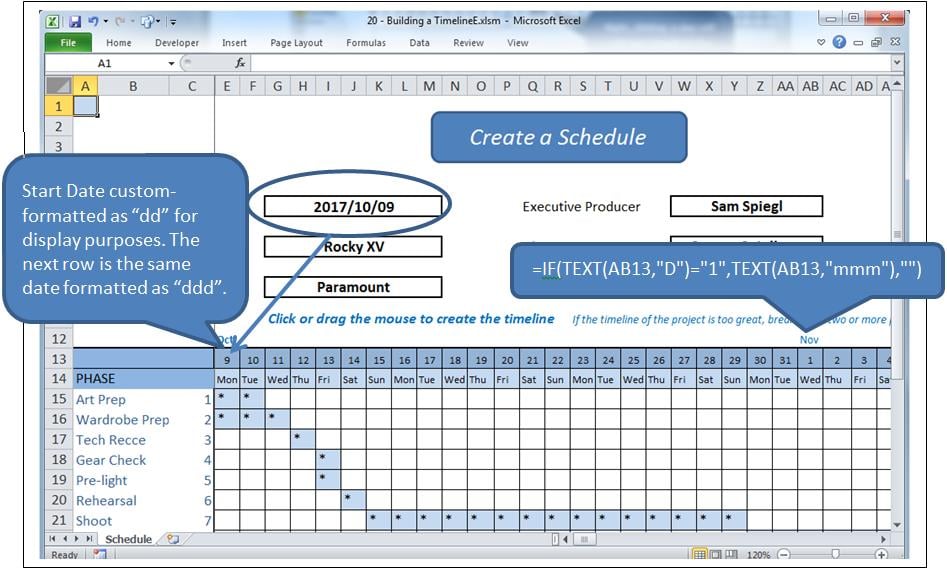
Quy Trình Chế Biến
Nhấp vào một ô trong lưới sẽ đánh dấu ô đó và thay đổi giá trị của nó. Nhấp và kéo sẽ đánh dấu một phạm vi và thay đổi giá trị của nó. Nếu một ô được điền, nó sẽ bị xóa, nếu không, nó sẽ được điền, trong trường hợp này là dấu “*”.
Ngược lại, nhấp chuột phải là yêu cầu cung cấp thông tin từ ô đã chọn.
Về cơ bản, có hai sự kiện được sử dụng, cùng với một số mô-đun.
- Worksheet_SelectionThay đổi được gọi khi một ô hoặc nhiều ô được chọn.
- Worksheet_ BeforeRightClick được gọi bằng nút chuột phải.
Vấn đề
Nhấp chuột phải vào một ô cũng tạo thành một lựa chọn, kích hoạt Lựa chọnThay đổi. Chúng ta sẽ phải để sự kiện đó diễn ra theo tiến trình của nó, xóa ô đã chọn trước khi nó trao quyền kiểm soát cho TrướcRightClick sự kiện, khi chúng tôi sẽ điền lại ô đã xóa. Nhưng hành động này sẽ kích hoạt Lựa chọn đã thay đổi sự kiện một lần nữa, sự kiện này phải bị dừng lại để xóa nó một lần nữa.
Điều này chúng ta sẽ làm với một cờ boolean gọi là blnLoading.
Những sự kiện
Nhập thông tin sau vào cửa sổ mã phía sau trang tính (nghĩa là không phải trong mô-đun).
Option Explicit

    Dim blnLoading As Boolean
    Dim sPhase As String
    Dim currCellValue As String
    Dim dDate As Date

    Private Sub Worksheet_SelectionChange(ByVal Target As Range)
     If ActiveCell.Row > 14 And ActiveCell.Row < 25 Then
         If ActiveCell.Column > 4 And ActiveCell.Column < 47 Then 'selection is valid

             On Error Resume Next
             currCellValue = Target.Value 'get the target value from (ByVal Target As Range)

             If blnLoading = True Then 'a value of True will force an exit from this event
                 blnLoading = False
                 Exit Sub
             End If

             sPhase = Cells(ActiveCell.Row, 1)
             If sPhase = "" Then Exit Sub

             If ActiveCell = "*" Then 'if the cell is populated, clear the selected range
                 Call ClearRange
                 Call UnblockCalendar
             Else
                 Call PopulateRange
             End If

             Call RedrawCells
             Range("A1").Select 'revive the SelectionChange event by changing selection.
             Exit Sub
         End If
     End If
End Sub

Private Sub Worksheet_BeforeRightClick(ByVal Target As Range, Cancel As Boolean)
     If currCellValue = "*" Then   'picked up by the previous event BEFORE it cleared it;
                                     'This means this is a valid diary entry with detail.
        blnLoading = True    'this will prevent the SelectionChange event (above) from running.
        Target.Select
        'currCell = Target.Address
        'Range(currCell).Select

            Target.Value = "*" 're-instate the value of the cell, since SelectionChange has cleared it
            Call PopulateRange
            dDate = Cells(13, ActiveCell.Column)
            sPhase = Cells(ActiveCell.Row, 1)
            MsgBox dDate & " - " & sPhase
        Cancel = True 'suppress Excel’s standard right_click menus
    End If
    Range("A1").Select
        blnLoading = False
End Sub
Điều này quan tâm đến hai Sự kiện.
Mã tham chiếu
Nối các phạm vi phổ biến và giảm dân số sau đây vào mã:
Sub ClearRange()
     Selection.FormulaR1C1 = ""
     With Selection.Interior
         .Pattern = xlNone
         .TintAndShade = 0
         .PatternTintAndShade = 0
     End With
End Sub

Sub PopulateRange()
     Selection.FormulaR1C1 = "*"
     With Selection.Interior
         .Pattern = xlSolid
         .PatternColorIndex = xlAutomatic
         .ThemeColor = xlThemeColorLight2
         .TintAndShade = 0.799981688894314
         .PatternTintAndShade = 0
     End With
End Sub
Bảo trì Gridlines
Chèn một mô-đun vào ứng dụng. Thêm đoạn mã sau để duy trì giao diện của lưới. Điều này đã được sao chép từ trình ghi vĩ mô, dự phòng và tất cả.
Option Explicit

Sub UnblockCalendar()
     Selection.FormulaR1C1 = ""
     With Selection
         Selection.Borders(xlDiagonalDown).LineStyle = xlNone
         Selection.Borders(xlDiagonalUp).LineStyle = xlNone
         Selection.Borders(xlEdgeLeft).LineStyle = xlNone
         Selection.Borders(xlEdgeTop).LineStyle = xlNone
         Selection.Borders(xlEdgeBottom).LineStyle = xlNone
         Selection.Borders(xlEdgeRight).LineStyle = xlNone
         Selection.Borders(xlInsideVertical).LineStyle = xlNone
         Selection.Borders(xlInsideHorizontal).LineStyle = xlNone
     End With
End Sub

Sub RedrawCells()
     Selection.Borders(xlDiagonalDown).LineStyle = xlNone
     Selection.Borders(xlDiagonalUp).LineStyle = xlNone
     With Selection.Borders(xlEdgeLeft)
         .LineStyle = xlContinuous
         .ColorIndex = 0
         .TintAndShade = 0
         .Weight = xlThin
     End With
     With Selection.Borders(xlEdgeTop)
         .LineStyle = xlContinuous
         .ColorIndex = 0
         .TintAndShade = 0
         .Weight = xlThin
     End With
     With Selection.Borders(xlEdgeBottom)
         .LineStyle = xlContinuous
         .ColorIndex = 0
         .TintAndShade = 0
         .Weight = xlThin
     End With
     With Selection.Borders(xlEdgeRight)
         .LineStyle = xlContinuous
         .ColorIndex = 0
         .TintAndShade = 0
         .Weight = xlThin
     End With
     With Selection.Borders(xlInsideVertical)
         .LineStyle = xlContinuous
         .ColorIndex = 0
         .TintAndShade = 0
         .Weight = xlThin
     End With
     With Selection.Borders(xlInsideHorizontal)
         .LineStyle = xlContinuous
         .ColorIndex = 0
         .TintAndShade = 0
         .Weight = xlThin
     End With
End Sub
Phòng chống thiên tai
Bất kỳ ai thường xuyên làm việc với Excel đều biết rằng các bảng tính xlsm phức tạp đôi khi có thể bị lỗi, làm hỏng tài liệu đang mở. Trong nhiều trường hợp hơn dự kiến, sổ làm việc bị hỏng không thể được khôi phục bằng các quy trình khôi phục của Excel. Nếu không có bản sao lưu, công việc đã thực hiện sẽ bị mất. Điều này có thể được ngăn chặn bằng các công cụ được thiết kế để thực hiện việc này. sửa lỗi excel.
Giới thiệu tác giả:
Felix Hooker là một chuyên gia phục hồi dữ liệu trong DataNumen, Inc., công ty hàng đầu thế giới về công nghệ khôi phục dữ liệu, bao gồm sửa chữa rar và các sản phẩm phần mềm phục hồi sql. Để biết thêm thông tin, hãy truy cập www.datanumennăm