
Kung nais mong mabilis na i-export ang lahat ng mga kalakip na imahe ng isang email sa Outlook sa isang worksheet ng Excel, maaari kang mag-refer sa artikulong ito. Ipapakita namin sa iyo ang isang mas mabisang paraan kaysa sa manu-manong pag-export.
Kapag nakatanggap ka ng email na naglalaman ng maraming kalakip na larawan, kung gusto mong gamitin ang mga ito para sa paggawa ng ulat sa Excel, dapat kang maghanap ng paraan kung saan maaaring i-export ang mga larawang ito sa isang worksheet sa Excel nang maramihan. Ngayon, ipapakilala namin sa iyo ang ganitong paraan sa mga sumusunod.
I-export ang Lahat ng Mga Attachment ng Imahe ng isang email sa isang Excel Worksheet
- Upang magsimula, i-access ang iyong application sa Outlook sa normal na paraan.
- Pagkatapos, sa window ng Outlook, pindutin ang mga pindutan ng key na "Alt + F11", na magdadala sa window ng "Microsoft Visual Basic for Applications".
- Sa screen na ito, kailangan mong buksan ang isang module na hindi ginagamit o direktang maglagay ng bago.
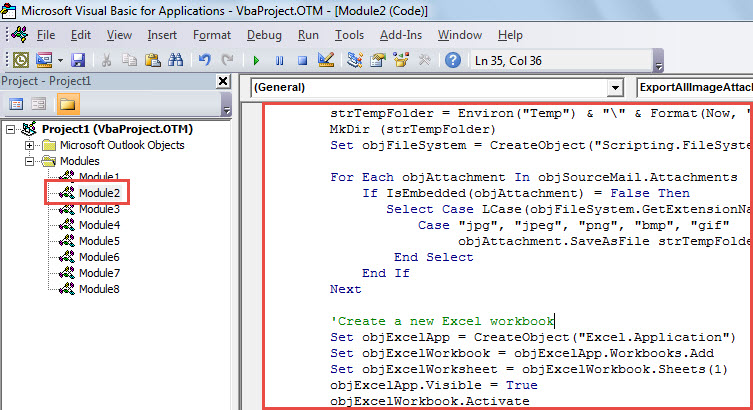
- Susunod, dapat mong kopyahin ang piraso ng VBA code sa ibaba sa modyul na ito.
Sub ExportAllImageAttachmentsToExcelWorksheet()
    Dim objSourceMail As Outlook.MailItem
    Dim objAttachment As Outlook.Attachment
    Dim strImage As String
    Dim objExcelApp As Excel.Application
    Dim objExcelWorkbook As Excel.Workbook
    Dim objExcelWorksheet As Excel.Worksheet
    Dim objFile As Object
    Dim objFiles As Object
    Dim nRow As Integer

    Select Case Outlook.Application.ActiveWindow.Class
           Case olInspector
                Set objSourceMail = ActiveInspector.currentItem
           Case olExplorer
                Set objSourceMail = ActiveExplorer.Selection.Item(1)
    End Select

    If Not (objSourceMail Is Nothing) Then

       'Save the image attachments to a temporary folder
       strTempFolder = Environ("Temp") & "\" & Format(Now, "yyyymmddhhmmss") & "\"
       MkDir (strTempFolder)
       Set objFileSystem = CreateObject("Scripting.FileSystemObject")

       For Each objAttachment In objSourceMail.Attachments
           If IsEmbedded(objAttachment) = False Then
              Select Case LCase(objFileSystem.GetExtensionName(objAttachment.filename))
                     Case "jpg", "jpeg", "png", "bmp", "gif"
                          objAttachment.SaveAsFile strTempFolder & objAttachment.filename
              End Select
           End If
       Next

       'Create a new Excel workbook
        Set objExcelApp = CreateObject("Excel.Application")
        Set objExcelWorkbook = objExcelApp.Workbooks.Add
        Set objExcelWorksheet = objExcelWorkbook.Sheets(1)
        objExcelApp.Visible = True
        objExcelWorkbook.Activate

        'Get the images in the temporary folder
        Set objFiles = objFileSystem.GetFolder(strTempFolder).Files

        'Insert the images into this new Excel worksheet
        For Each objFile In objFiles
            strImage = strTempFolder & Trim(objFile.Name)
            nRow = nRow + 1
            With objExcelWorksheet
                 .Range("A" & nRow).value = objFile.Name
                 'Change the height and width as per your needs
                 .Range("B" & nRow).ColumnWidth = 10
                 .Range("B" & nRow).RowHeight = 80
                 .Range("B" & nRow).Activate
                 With .Pictures.insert(strImage)
                      With .ShapeRange
                           .LockAspectRatio = msoTrue
                           .Width = 50
                           .Height = 70
                      End With
                 End With
                 .Columns("A").AutoFit
                 .Activate
            End With
       Next
    End If
End Sub

Function IsEmbedded(objCurAttachment As Outlook.Attachment) As Boolean
    Dim objPropertyAccessor As Outlook.propertyAccessor
    Dim strProperty As String

    Set objPropertyAccessor = objCurAttachment.propertyAccessor
    strProperty = objPropertyAccessor.GetProperty("http://schemas.microsoft.com/mapi/proptag/0x3712001E")

    If InStr(1, strProperty, "@") > 0 Then
       IsEmbedded = True
    Else
       IsEmbedded = False
    End If
End Function
- Pagkatapos nito, maaari kang lumabas sa macro.
- Pagkatapos, magtungo sa "File"> "Mga Pagpipilian"> "Quick Access Toolbar" upang idagdag ang macro na ito sa Quick Access Toolbar.
- Panghuli, maaari mong subukan ang macro na ito ngayon din.
- Una, pumili o magbukas ng isang mapagkukunang email.
- Pagkatapos, i-click ang pindutan ng macro sa Quick Access Toolbar.
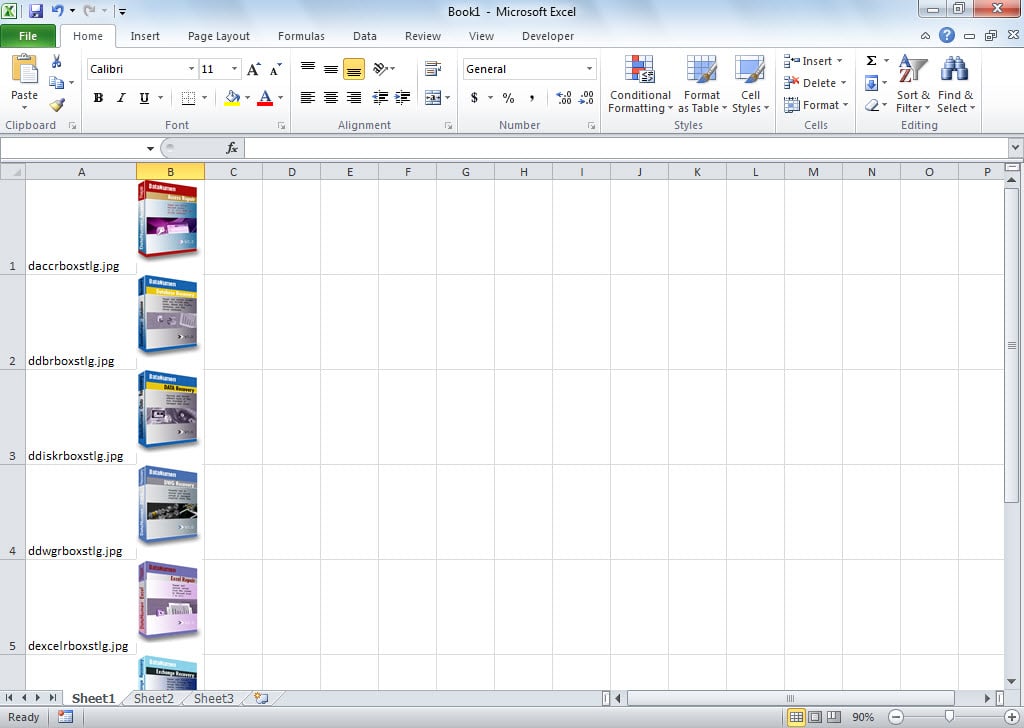
- Kapag nakumpleto ang macro, makakakuha ka ng isang worksheet ng Excel, ipinakita tulad ng sumusunod na screenshot:

Protektahan ang File ng Outlook mula sa Pagkuha ng Masira
Alam na ang Outlook ay madaling kapitan ng katiwalian. Samakatuwid, dapat nating maunawaan kung paano protektahan ang katiwalian sa form ng Outlook. Una, upang ma-block ang mga pag-atake ng virus, kinakailangang mag-install ng antivirus software at huwag kailanman mag-download ng hindi kilalang pagkakabit. Bukod, mas makakakuha tayo ng paghawak sa isang potent na tool sa pag-aayos, tulad ng DataNumen Outlook RepairMaaari itong mag-alok ng pinakamabisang lunas sa kaso ng Korapsyon sa Outlook.
Panimula ng May-akda:
Si Shirley Zhang ay isang dalubhasa sa pagbawi ng data sa DataNumen, Inc., na pinuno ng mundo sa mga teknolohiya sa pagbawi ng data, kasama ang sql paggaling at pananaw sa pag-aayos ng mga produktong software. Para sa karagdagang impormasyon pagbisita www.datanumen. Sa