
При создании новой задачи в Outlook, если вам часто необходимо устанавливать сегодняшнюю дату в качестве даты начала, вы, вероятно, захотите, чтобы Outlook автоматически выполнял это действие. В этой статье мы рассмотрим это требование и предложим простой способ его решения.
По умолчанию при создании новой задачи в Outlook, задача отображается с параметром «Дата начала» со значением «Нет», как показано на следующем рисунке. Однако чаще всего вы привыкли устанавливать дату начала на текущую дату. Поэтому вам приходится вручную вводить или выбирать дату в поле «Дата начала». В такой ситуации вы можете надеяться, что Outlook автоматически установит сегодняшнюю дату в качестве даты начала новой задачи. Хотя такой прямой функции нет, вы все же можете получить ее с помощью приведенного ниже кода VBA. Если вы не знакомы с VBA, обратитесь к «Как запустить код VBA в Outlook" тем временем.
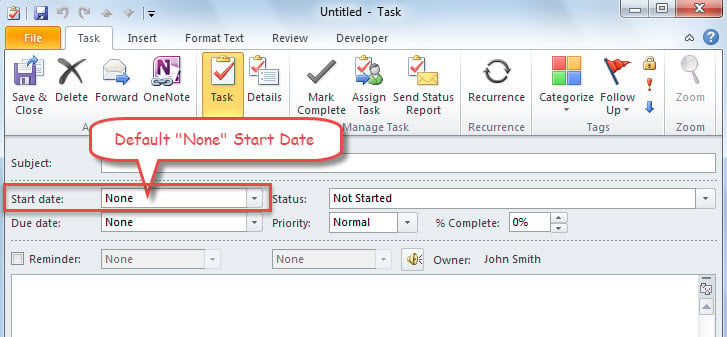
Автоматическая установка сегодняшней даты в качестве даты начала новой задачи
- Для начала запустите приложение Outlook.
- Затем нажмите «Alt + F11», чтобы запустить редактор Outlook VBA.
- Затем скопируйте следующий код в проект ThisOutlookSession.
Public WithEvents objInspectors As Outlook.Inspectors
Public WithEvents objTask As Outlook.TaskItem

Private Sub Application_Startup()
    Set objInspectors = Outlook.Application.Inspectors
End Sub

Private Sub objInspectors_NewInspector(ByVal Inspector As Inspector)
    If TypeOf Inspector.CurrentItem Is TaskItem Then
       Set objTask = Inspector.CurrentItem
    End If
End Sub

Private Sub objTask_Open(Cancel As Boolean)
    'When opening a fresh new task item
    If Len(objTask.Subject) = 0 And Len(objTask.Body) = 0 And objTask.startDate = #1/1/4501# And objTask.DueDate = #1/1/4501# Then

       'Set start date to today
       objTask.startDate = Date
    End If
End Sub
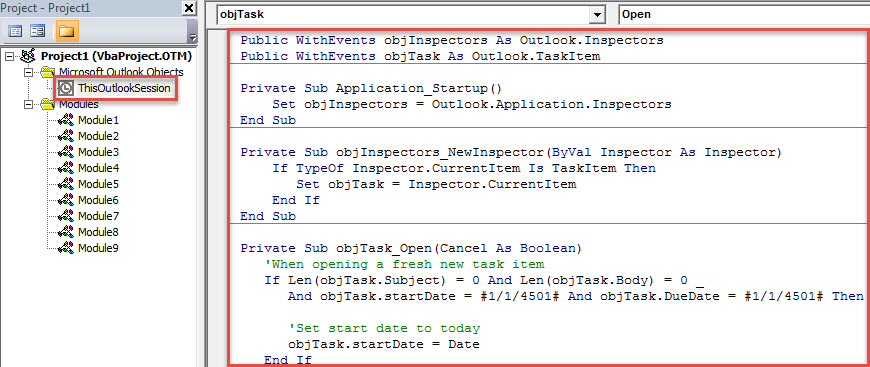
- После этого переместите курсор к первой подпрограмме «Application_Startup».
- Позже нажмите кнопку «F5».
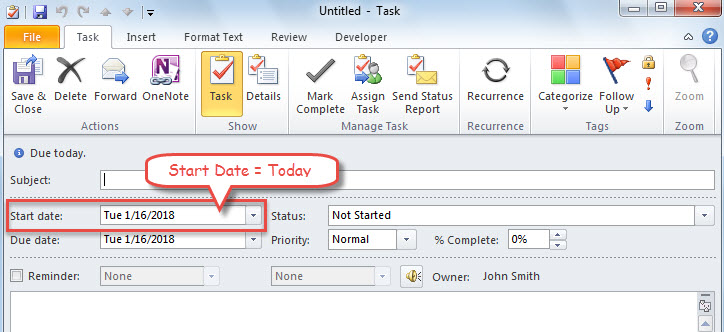
- С тех пор при каждом создании новой задачи Outlook автоматически устанавливает дату начала на текущую дату, то есть на сегодняшнюю, как показано на следующем изображении.

Остерегайтесь вредоносных макросов в Outlook
Хотя макрос VBA предоставляет пользователям много удобства и возможностей, он также приводит ко многим потенциальным рискам. Например, если вы настроили параметры макросов, чтобы разрешить все макросы без уведомления, когда электронное письмо с вредоносными макросами поступает в ваш почтовый ящик и вы открываете встроенные ссылки, ваш файл данных Outlook, как правило, подвергается атаке вирусов. В это время вы должны убить вирусы и попытаться Восстановление OutlookВ большинстве случаев встроенный инструмент Scanpst не справляется с этой задачей. Поэтому вам следует использовать более мощную утилиту, например, DataNumen Outlook Repair.
Об авторе:
Ширли Чжан — эксперт по восстановлению данных в DataNumen, Inc., которая является мировым лидером в области технологий восстановления данных, включая sql восстановление и программные продукты для ремонта Outlook. Для получения дополнительной информации посетите www.datanumen.com