
1. Innledning
Papirkurven er Windows' innebygde sikkerhetsnett for slettede filer. Så lenge en fil fortsatt er i den, tar det bare noen få klikk å gjenopprette den. Denne veiledningen forklarer hvordan du gjenoppretter slettede filer fra papirkurven i Windows, inkludert filer på eksterne steder, nettverkssteder og OneDrive-synkroniserte steder.
1.1 Hva denne veiledningen dekker
- Gjenopprette filer som fortsatt er i papirkurven
- Gjenopprette slettede filer til sin opprinnelige plassering
- Hente slettede filer til en ny plassering når den opprinnelige mappen mangler
1.2 Hva denne veiledningen ikke dekker
- Filer slettet med Skift + Delete, som omgår papirkurven fullstendig
- Filer slettet eller tømt fra papirkurven. I dette tilfellet, sjekk Denne guiden for å gjenopprette filene.
- Filer som overskred lagringsgrensen for papirkurven og ble slettet permanent
2. Gjenopprett slettede filer fra papirkurven
Hvis filen ble slettet fra en lokal stasjon med Delete tasten eller høyreklikk Delete kommandoen, går den rett til papirkurven. Gjenopprett den med følgende tre trinn:
2.1 Åpne papirkurven
Bruk en av følgende metoder:
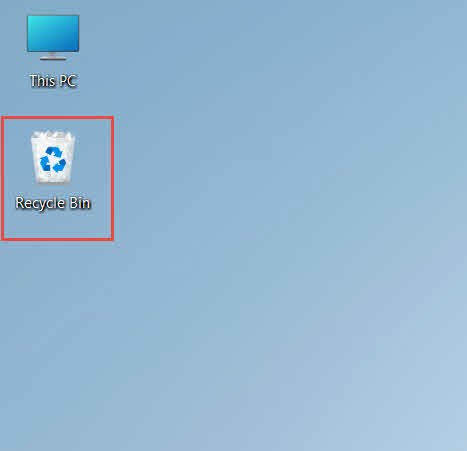
- Dobbeltklikk på Recycle Bin ikonet på skrivebordet

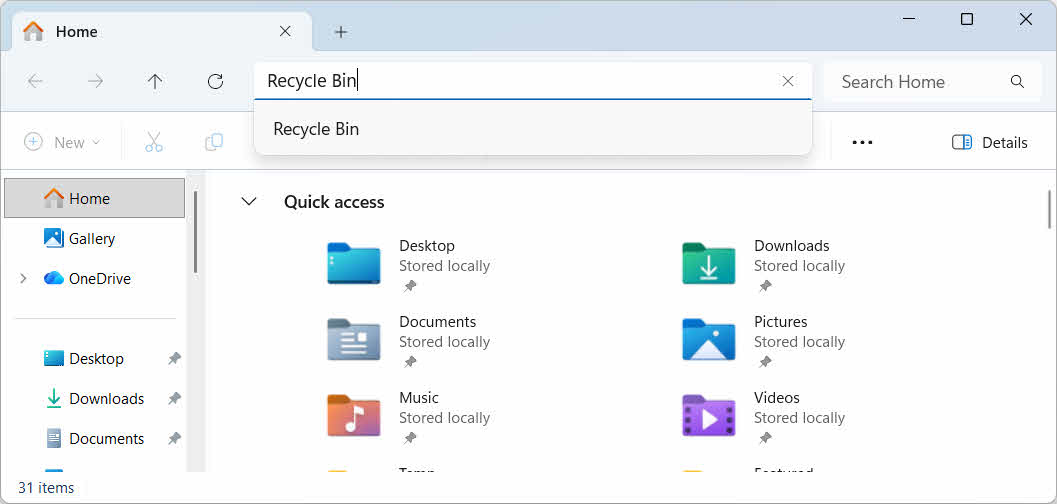
- Åpne Filutforsker og skriv inn Recycle Bin i adressefeltet

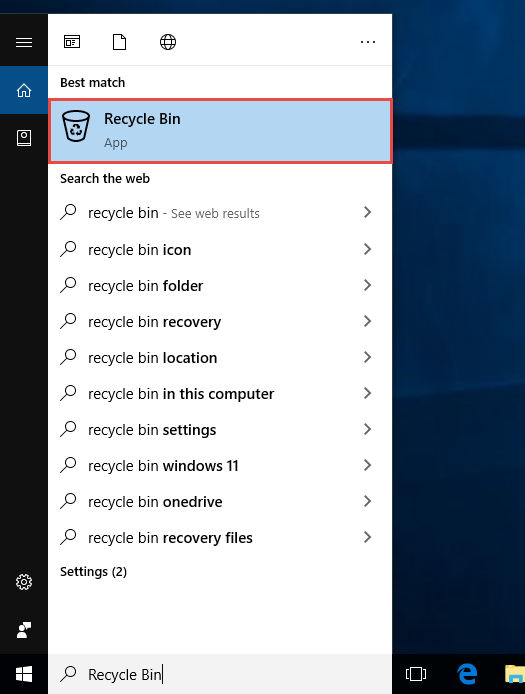
- typen Recycle Bin i Windows Søk og velg det fra resultatene

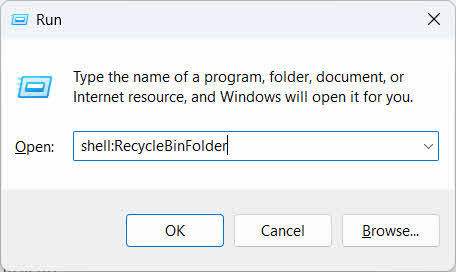
- Press Vinne + R, Type skall: RecycleBinFolder, og trykk Enter

2.2 Finn den slettede filen eller mappen
Når papirkurven er åpen, finn de ønskede elementene med en av disse metodene:
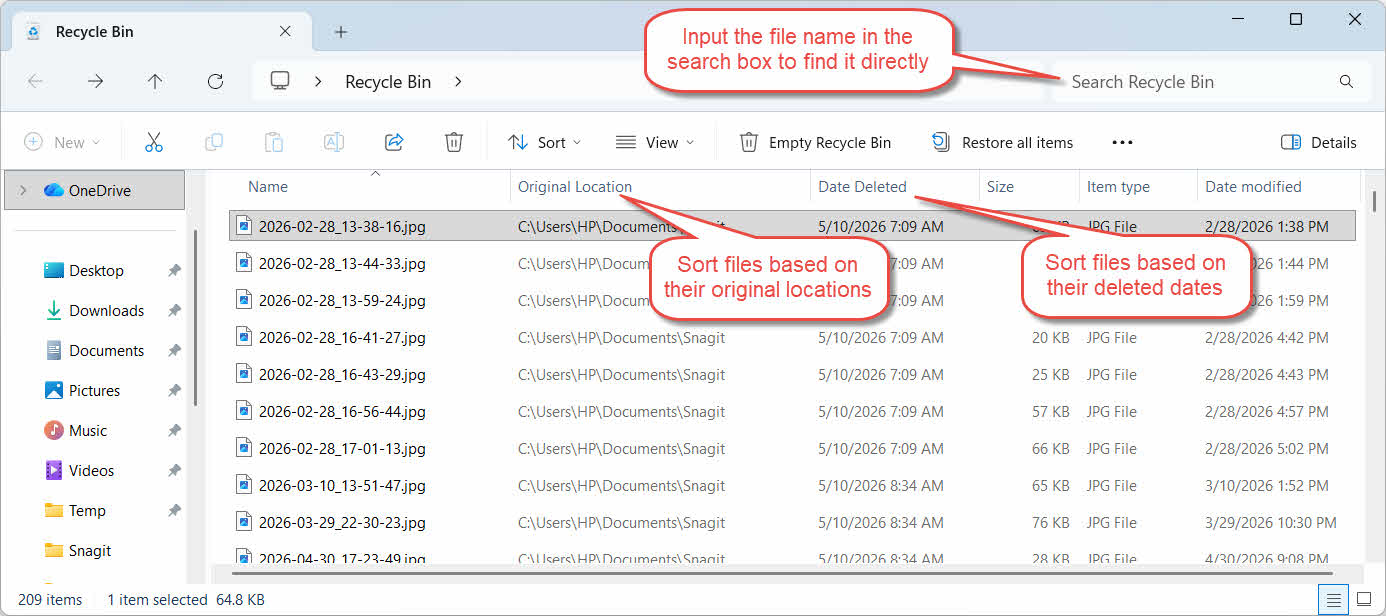
- Skriv inn filnavnet i søkefeltet øverst til høyre
- Klikk på Dato slettet kolonneoverskrift for å sortere etter de siste slettingene
- Sjekk Opprinnelig plassering kolonnen for å bekrefte at filen kom fra mappen du forventer
2.3 Gjenopprett filer eller mapper
Slik gjenoppretter du ett eller flere elementer:
- Velg én fil, eller hold inne Ctrl og klikk for å velge flere filer, eller hold inne Skift og klikk for å velge et område
- Høyreklikk på valget og velg Gjenopprette
- Åpne den opprinnelige mappen for å bekrefte at filen er tilbake

For å gjenopprette alle elementene i papirkurven samtidig, klikk på Gjenopprett alle elementene i verktøylinjen uten å velge noen enkeltfil først.
3. Gjenopprett slettede filer fra papirkurven til et annet sted
Ocuco Gjenopprette Kommandoen returnerer alltid en fil til den opprinnelige mappen. Noen situasjoner krever at du flytter den et annet sted i stedet.
3.1 Når du bør bruke denne metoden
- Den opprinnelige mappen finnes ikke lenger
- En ny fil med samme navn finnes allerede i den opprinnelige mappen
- Du har ikke tilgang til den opprinnelige mappen
- Du er ikke sikker på hvilken mappe filen kom fra
- Du vil se gjennom filen før du legger den tilbake på sin opprinnelige plass
3.2 Dra eller klipp ut filen fra papirkurven
Slik flytter du en fil fra papirkurven til en mappe du velger:
- Åpne papirkurven
- Velg filen eller mappen som skal gjenopprettes.
- Bruk én av følgende metoder for å flytte filen eller mappen til målmappen:
- Dra den direkte inn i målmappevinduet
- Press Ctrl + X For å klippe den ut, åpne målmappen og trykk på Ctrl + V å lime det inn
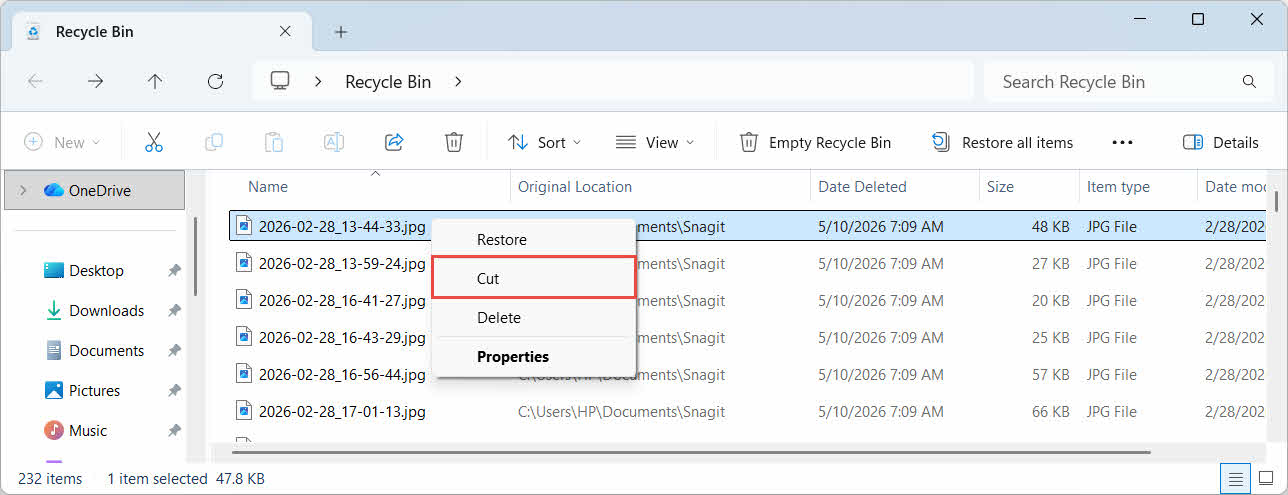
- Høyreklikk på valget og velg Kutt, åpne målmappen, høyreklikk og velg Pasta å lime det inn

4. Gjenopprette filer fra papirkurven på eksterne, nettverks- og skystasjoner
Trinnene inn § 2 anta at filen ble slettet fra datamaskinens hoveddisk. Ekstern, nettverks- og skysynkronisert lagring oppfører seg forskjellig.
4.1 Eksterne harddisker og USB-minnepinner
Windows behandler eksterne harddisker (inkludert SSD-er koblet til via USB) på samme måte som interne disker: hver av dem får sin egen skjulte papirkurvmappe som standard. Flyttbare medier som USB-minnepinner og SD-kort behandles annerledes og får ikke en papirkurv som standard, så filer som slettes fra dem fjernes umiddelbart.
4.1.1 Aktivere støtte for papirkurven for harddisken
For en ekstern harddisk, bekreft at støtte for papirkurven er aktivert:
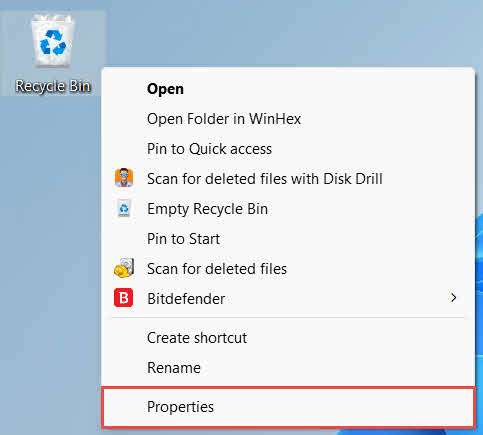
- Høyreklikk på Recycle Bin ikonet på skrivebordet og velg Eiendommer

- på Plassering av papirkurven liste, velg raden for den eksterne harddisken. Den vises bare her når harddisken er tilkoblet og har en stasjonsbokstav
- Under Innstillinger for valgt plassering, forsikre Egendefinert størrelse er valgt, ikke Ikke flytt filer til papirkurven. Fjern filer umiddelbart når de slettes.

- Klikk Påfør, deretter OK
Hver disk beholder denne innstillingen uavhengig, slik at en ekstern disk kan ha støtte for papirkurven slått av selv om den er på for systemdisken.
For en USB-minnepinne eller et SD-kort vil den ikke vises i Egenskaper for papirkurven i det hele tatt, fordi Windows ikke oppretter en papirkurvmappe på flyttbare medier som standard. Aktivering krever en registerredigering:
- Press Vinne + R, Type regedit, trykk Enter, og godkjenn ledeteksten
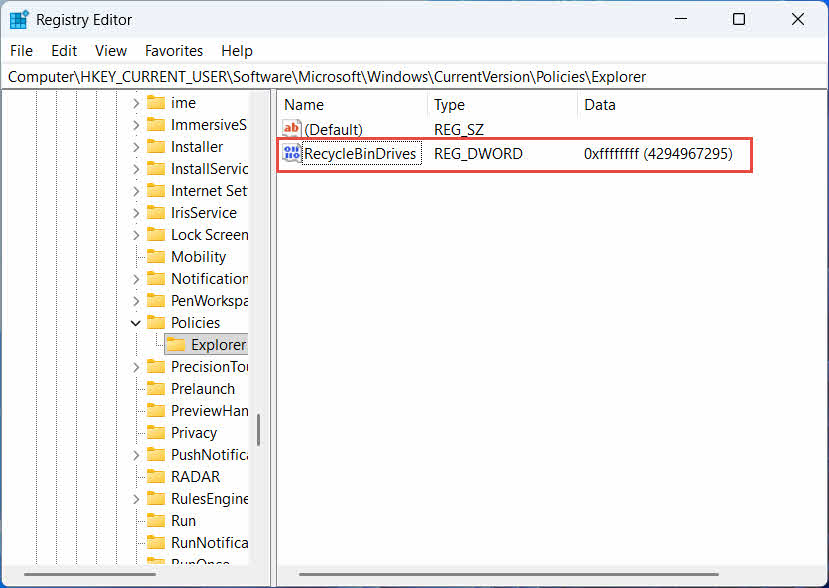
- naviger til HKEY_CURRENT_USER \ Software \ Microsoft \ Windows \ Currentversion \ Policies \ Explorer. Dersom Explorer nøkkelen finnes ikke under Policy, Høyreklikk Policy, plukke ut Ny -> nøkkel, og navngi det Explorer
- Høyreklikk på et tomt område i høyre rute, velg Ny -> DWORD (32-biters), og navngi det PapirkurvStasjoner
- Dobbeltklikk PapirkurvStasjoner, sett Base til Heksadesimal, Tast inn ffffffff som verdidataene, og klikk OK

- Gjenta trinn 2 til 4 under HKEY_LOCAL_MACHINE \ SOFTWARE \ Microsoft \ Windows \ Currentversion \ Policies \ Explorer
- Start datamaskinen på nytt
For å reversere endringen, slett PapirkurvStasjoner verdi fra begge stedene. Fordi dette innebærer redigering av registeret, bør du først opprette et gjenopprettingspunkt og vurdere om det er enklere å stole på sikkerhetskopier for stasjoner du bare bruker av og til.
4.1.2 Gjenopprette filer
Når papirkurven er aktivert for stasjonen, følger gjenoppretting av en fil den samme prosessen som er beskrevet i § 2.3.
Hvis du sletter en fil fra en tilordnet nettverksstasjon eller en delt mappe, fjernes den direkte fra serveren. Den går ikke gjennom datamaskinens lokale papirkurv. Men hvis en papirkurv på serversiden er aktivert, kan du gjenopprette slettede filer fra den.
4.2.1 Papirkurv på serversiden (hvis aktivert)
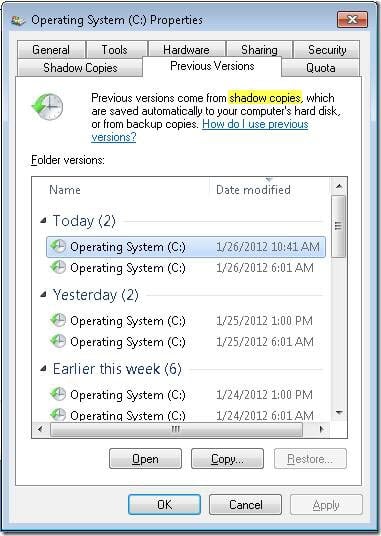
Noen filservere aktiverer Skyggekopier (Volumskyggekopieringstjeneste), som lar deg gjenopprette til tidligere versjoner av en delt mappe, slik at du kan gjenopprette slettede filer med denne funksjonen:
- Høyreklikk på den overordnede mappen på nettverksressursen og velg Eiendommer
- Åpne Tidligere versjoner tab
- Velg en versjon datert før slettingen og klikk Gjenopprette
4.2.2 Hva du skal gjøre hvis det ikke finnes noen papirkurv på serversiden
Dersom Tidligere versjoner Hvis fanen er tom eller utilgjengelig, har den delte ressursen ingen snapshot-basert gjenoppretting konfigurert. Kontakt nettverksadministratoren for å sjekke om serveren har sin egen sikkerhetskopieringsplan.
4.3 OneDrive papirkurv (skysynkroniserte mapper)
OneDrive-synkroniserte mapper kan involvere to separate papirkurver: den lokale Windows-papirkurven og den nettbaserte OneDrive-papirkurven. Hvilken som inneholder filen din, avhenger av hvor slettingen skjedde.
4.3.1 Lokal sletting av en synkronisert fil (går til både den lokale og nettbaserte papirkurven)
Hvis du sletter en synkronisert fil fra Filutforsker på PC-en, havner den i den lokale papirkurven nøyaktig som beskrevet i § 2, og OneDrive-synkroniseringsklienten speiler også slettingen til skyen, slik at filen også kan gjenopprettes fra OneDrive-nettpapirkurven.
4.3.2 Skyinitiert sletting (kun nettbasert papirkurv, siden mai 2026)
Hvis filen i stedet slettes fra skysiden, for eksempel via OneDrive-nettstedet eller en annen synkronisert enhet, har virkemåten endret seg siden mai 2026: Microsoft sluttet å sende skyinitierte slettinger til den lokale Windows-papirkurven. En fil som fjernes på denne måten forsvinner fra den lokale mappen uten å vises i den lokale papirkurven, og gjenoppretting er bare mulig fra OneDrive- eller SharePoint-nettpapirkurven.
4.3.3 Gjenoppretting fra OneDrive.com
Slik gjenoppretter du en fil fra OneDrives papirkurv:
- Logg inn på onedrive.live.com or onedrive.com
- Velg Recycle bin i navigasjonsruten
- Velg filen eller mappen og klikk på Gjenopprette
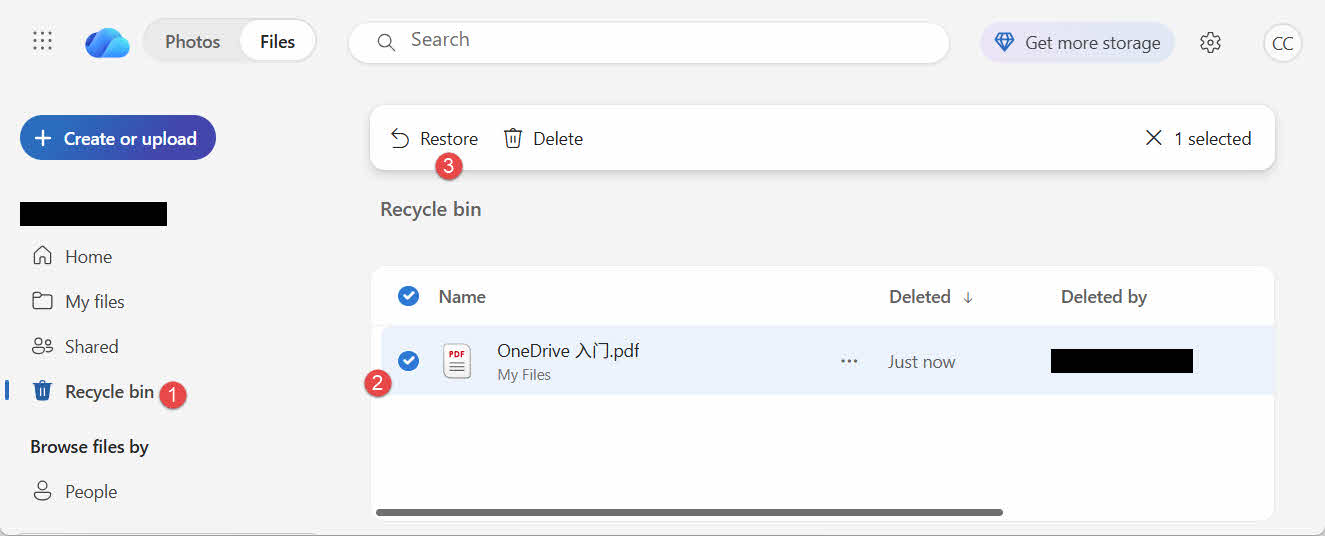
Personlige Microsoft-kontoer oppbevarer slettede elementer i opptil 30 dager, mens jobb- eller skolekontoer oppbevarer dem i opptil 93 dager.
5. Feilsøking av problemer med gjenoppretting av papirkurven
5.1 Papirkurvikon mangler på skrivebordet
Papirkurven finnes fortsatt selv om skrivebordsikonet er skjult. Slik gjenoppretter du ikonet:
- Høyreklikk på skrivebordet og velg Tilpasse
- Open temaer, deretter Innstillinger for skrivebordsikoner
- Trykk her Recycle Bin og klikk OK
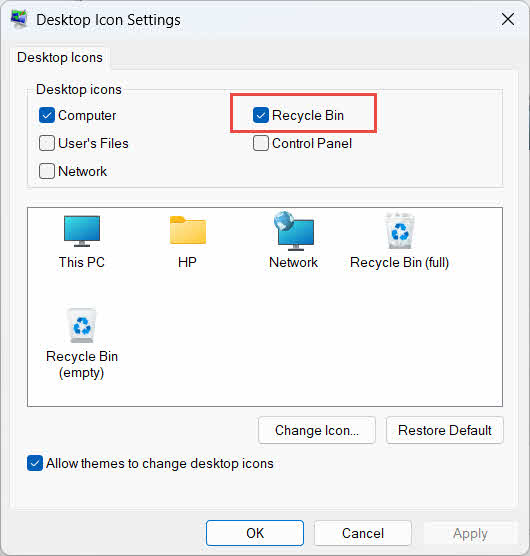
Du kan også åpne den direkte ved å skrive Recycle Bin i Windows Søk, Filutforsker eller ved å bruke Win + R, som beskrevet i § 2.1.
5.2 Filen er ikke i papirkurven
Hvis de ønskede filene ikke er i papirkurven, bør du vurdere disse årsakene:
- Den ble slettet fra en ekstern disk uten støtte for papirkurven (se § 4.1)
- Den ble slettet fra en nettverksstasjon (se § 4.2)
- Den ble slettet direkte fra OneDrive på nettet (se § 4.3)
- Den ble slettet permanent, for eksempel med Skift + Delete, eller papirkurven er tømt
Hvis filen ble slettet permanent, krever gjenoppretting av den dedikert programvare for datagjenoppretting, for eksempel DataNumen Data Recovery, i stedet for papirkurven. Slutt å lagre nye filer på den stasjonen først for å redusere sjansen for at dataene blir overskrevet.
5.3 Gjenopprettingsalternativet er nedtonet, mangler eller fungerer ikke
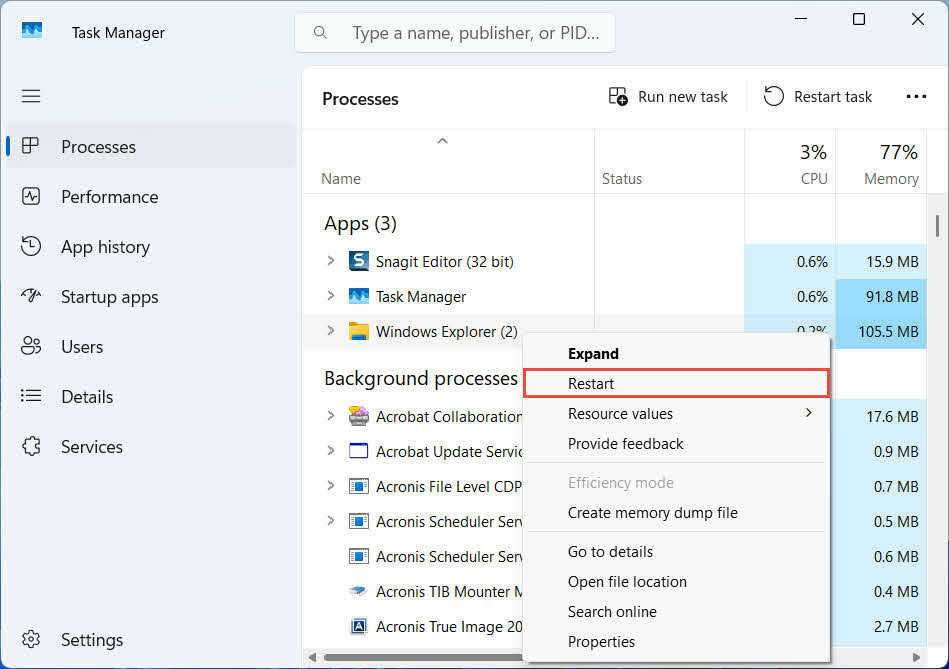
Dette skjer vanligvis når de valgte elementene kom fra en plassering som ikke lenger eksisterer, eller når papirkurvens interne indeks er usynkronisert. Prøv disse løsningene:
- Start Filutforsker på nytt: bruk Ctrl + Alt + Del for å åpne Oppgavebehandling, høyreklikk Windows Explorer, og velg Restart

- Gjenopprett elementer én om gangen i stedet for som en gruppe
- If Gjenopprette Hvis det fortsatt ikke vises, drar du filen ut manuelt som beskrevet i § 3.2
5.4 «Ingen tilgang»- eller tillatelsesfeil ved gjenoppretting
Dette peker på et rettighetsproblem på den opprinnelige mappen, ikke på selve filen. Sjekk at:
- Du er logget på med den samme kontoen som slettet filen
- Tillatelsene til målmappen gir fortsatt skrivetilgang for kontoen din.
- Filutforsker er ikke blokkert av en policy på en administrert datamaskin eller arbeidsdatamaskin
Hvis tillatelsene til den opprinnelige mappen har endret seg, kan du gjenopprette filen til en annen plassering i stedet, ved å følge § 3.
5.5 Papirkurven ser tom ut, men jeg tømmer den ikke
Filer kan forsvinne fra papirkurven uten at noen tømmer den manuelt:
- Storage Sense kan konfigureres til å slette elementer automatisk etter et angitt antall dager.
- Papirkurven nådde størrelsesgrensen, så Windows fjernet de eldste elementene for å gi plass (se § 6.1)
- En annen konto på delt datamaskin tømte den
- En gruppepolicy på en administrert enhet håndhever automatisk tømming
5.6 Gjenopprettet fil er ødelagt, tom eller kan ikke åpnes
Gjenoppretting flytter bare filen tilbake; den reparerer den ikke. Hvis filen allerede var skadet før sletting, eller hvis det ble skrevet til den i det øyeblikket den ble slettet, kan det hende at den fortsatt ikke åpnes etter gjenoppretting. I så fall er problemet filkorrupsjon, ikke et problem med papirkurven, og trenger et reparasjonsverktøy egnet til det filformatet i stedet for et nytt gjenopprettingsforsøk.
6. Administrere og konfigurere papirkurven
6.1 Endre lagringsstørrelsen på papirkurven
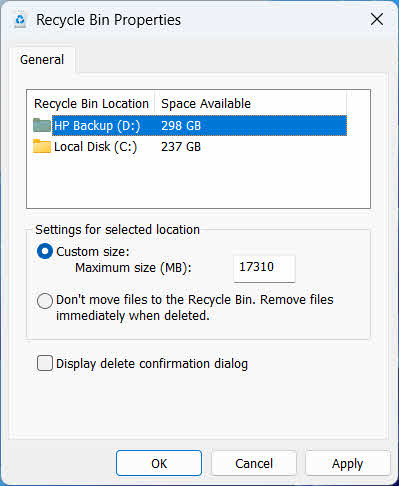
Hver disk har sin egen papirkurvtildeling. Slik ser du gjennom eller endrer du den:
- Høyreklikk på Recycle Bin ikonet og velg Eiendommer
- Velg en stasjon fra listen over plasseringer i papirkurven
- Velg Egendefinert størrelse og skriv inn en Maksimal størrelse (MB), eller velg Ikke flytt filer til papirkurven. Fjern filer umiddelbart når de slettes. å deaktivere den for den disken
- Klikk OK
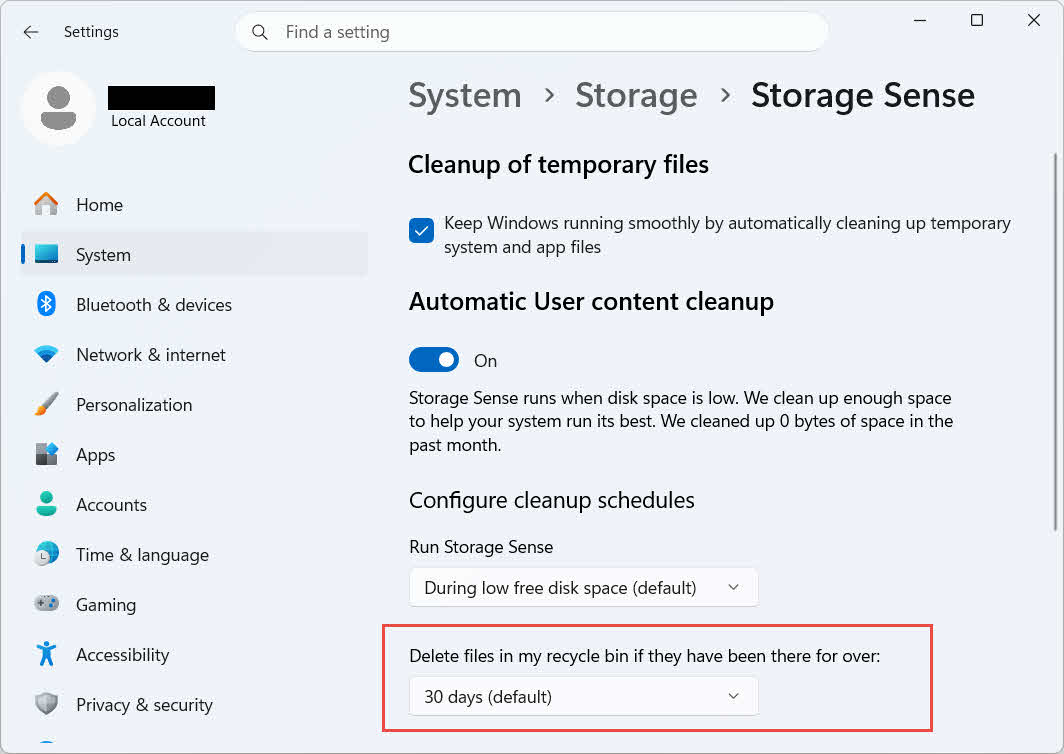
Windows tilbyr også et separat, aldersbasert oppryddingalternativ: gå til Innstillinger -> System -> Lagring -> Lagringssensor og sett Slett filer i papirkurven hvis de har ligget der i over et valgt antall dager. Standard oppbevaringsperiode er 30 dager.
6.2 Aktivere bekreftelsesdialogboksen for sletting
Windows 11 viser ikke som standard en bekreftelsesmelding før filer flyttes til papirkurven. Slik slår du det på:
- Høyreklikk på Recycle Bin ikonet og velg Eiendommer
- Trykk her Vis bekreftelsesdialogboks for sletting
- Klikk OK
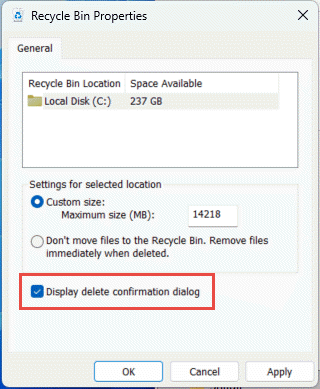
Denne innstillingen forhindrer ikke permanent sletting, for eksempel Skift + Delete eller slettinger fra stasjoner uten støtte for papirkurven.
6.3 Angi at filer skal omgå papirkurven (og hvorfor man bør unngå det)
Det samme Ikke flytt filer til papirkurven. Fjern filer umiddelbart når de slettes. alternativ dekket i § 6.1 kan brukes på hvilken som helst stasjon for å gjøre hver sletting permanent. Dette frigjør diskplass umiddelbart, men fjerner det eneste alternativet for hurtiggjenoppretting som denne veiledningen beskriver, så det er best reservert for stasjoner som ikke inneholder personlige filer, for eksempel et dedikert scratch- eller midlertidig volum.
7. Beste praksis for å forhindre fremtidig datatap
7.1 Aktiver filhistorikk eller en sikkerhetskopieringsløsning
Papirkurven beskytter bare mot utilsiktet sletting, ikke mot harddiskfeil eller en papirkurv som allerede er tømt. Slå på filloggen (Kontrollpanel -> System og sikkerhet -> Fillogg)

eller et tredjeparts sikkerhetskopieringsverktøy legger til et ekstra lag med beskyttelse med sin egen versjonshistorikk.
7.2 Bruk skysynkronisering for viktige mapper
Synkronisering av skrivebord, dokumenter og bilder til OneDrive eller en annen skytjeneste gir deg nettbasert papirkurv som er beskrevet i § 4.3 som en ekstra gjenopprettingssti, uavhengig av den lokale papirkurven.
7.3 Dobbeltsjekk før du tømmer papirkurven
Før du klikker Tøm papirkurven, sorter etter Dato slettet og skann etter noe som er nylig. Når den er tømt, er det eneste gjenværende alternativet dedikert programvare for datagjenoppretting, og suksess er ikke garantert.
8. FAQ
Spørsmål: Kan jeg fortsatt gjenopprette en fil etter at jeg har tømt papirkurven?
A: Ikke gjennom selve papirkurven. På det tidspunktet er filen merket som slettet på filsystemnivå, men kan fortsatt være fysisk tilstede på harddisken inntil den overskrives. Verktøy som DataNumen Data Recovery er bygget for å skanne etter og rekonstruere denne typen data. Slutt å bruke harddisken så snart som mulig for å øke sjansene for en vellykket gjenoppretting.
Spørsmål: Har Mac noe som ligner på Windows-papirkurven?
A: Ja, det kalles papirkurven, og det fungerer på samme måte: åpne papirkurven, høyreklikk på filen og velg Legg tilbake. Denne veiledningen dekker spesifikt papirkurven i Windows. Og Denne guiden dekker spesifikt Mac-søppelkassen.
Spørsmål: Hvor lenge blir filer liggende i papirkurven før de slettes automatisk?
A: Den lokale papirkurven har ingen fast tidsbegrensning som standard; elementer fjernes bare når størrelsesgrensen er nådd, eller når Storage Sense er konfigurert til å slette gamle elementer (se § 6.1). OneDrive-papirkurven på nett bruker et fast vindu: 30 dager for personlige kontoer og opptil 93 dager for jobb- eller skolekontoer (se § 4.3).
Spørsmål: Bør jeg gjenopprette en fil til den opprinnelige plasseringen eller til en ny?
A: Gjenoppretting til den opprinnelige plasseringen (§ 2) er enklere og bevarer filens opprinnelige sti. Gjenopprett til en annen plassering (§ 3) i stedet hvis den opprinnelige mappen ikke lenger finnes eller allerede inneholder en fil med samme navn.
Spørsmål: Kan jeg gjenopprette filer som er slettet fra en USB-minnepinne ved hjelp av papirkurven?
A: Ikke som standard. Flash-stasjoner og SD-kort får ikke en papirkurvmappe med mindre du aktiverer en manuelt, som forklart i § 4.1.
Spørsmål: Hvorfor er Gjenopprett-alternativet nedtonet eller mangler?
A: Dette skyldes vanligvis en manglende originalmappe eller en usynkronisert papirkurvindeks. Se § 5.3 for rettelser.
Spørsmål: Hva om papirkurven er tom, men jeg aldri har tømt den?
A: Storage Sense, en nådd størrelsesgrense, en annen brukerkonto eller en gruppepolicyinnstilling kan alle fjerne det automatisk. Se § 5.5.
Q: Hvilken programvare kan gjenopprette filer som ikke lenger er i papirkurven?
A: Dedikert programvare for datagjenoppretting, for eksempel DataNumen Data Recovery, skanner disken på et lavere nivå for å finne data som filsystemet ikke lenger refererer til, noe som ikke er noe papirkurvgrensesnittet i seg selv kan gjøre.
Spørsmål: Garanterer gjenoppretting av en fil at den åpnes riktig?
A: Nei. Gjenoppretting returnerer bare filen til en mappe; det reparerer ikke eventuelle skader filen allerede hadde før eller under slettingen. Se § 5.6.
9. konklusjon
Det er enkelt å gjenopprette slettede filer fra papirkurven så lenge elementet fortsatt er der: åpne papirkurven, finn filen og gjenopprett den. Eksterne stasjoner, nettverksressurser og OneDrive-synkroniserte mapper legger hver til sine egne betingelser, og feilsøkings- og konfigurasjonsdelene ovenfor dekker situasjoner der standard gjenopprettingsprosessen ikke går som forventet. Hvis filen ble slettet permanent eller papirkurven allerede er tømt, er dedikert programvare for datagjenoppretting neste trinn, ikke selve papirkurven.
om forfatteren
Qian Gua er en spesialist på datagjenoppretting med over 10 års erfaring innen Windows-filsystemer, lagringsteknologier og katastrofegjenopprettingsløsninger. Han har med hell veiledet tusenvis av brukere gjennom kritiske datatapscenarier i både personlige og bedriftsmiljøer.
Qian spesialiserer seg på datagjenopprettingsmetoder for Windows, filsystemanalyse og forebyggende sikkerhetskopieringsstrategier. Hans omfattende praktiske erfaring inkluderer gjenoppretting av data fra harddisker, implementering av omfattende sikkerhetskopieringsløsninger og feilsøking av komplekse filsystemproblemer på tvers av NTFS, FAT-, exFAT- og ReFS-volumer. Han har jobbet med diverse gjenopprettingsverktøy og -teknikker, fra innebygde Windows-verktøy til profesjonell programvare for datagjenoppretting.
Gjennom sin tekniske skriving er Qian dedikert til å gi brukere praktisk kunnskap til å beskytte og gjenopprette verdifulle data. Han holder seg oppdatert på den nyeste utviklingen innen Windows-filgjenopprettingsteknologier, innovasjoner for lagringsenheter og beste praksis for databeskyttelse. Når han ikke hjelper brukere med å gjenopprette dataene sineost fileQian liker å forske på nye lagringsteknologier og dele tips om datasikkerhet som forhindrer fremtidig datatap.
Har du spørsmål om denne veiledningen eller trenger du hjelp med datagjenoppretting? Qian ønsker deg velkommen tilbakemeldinger og forslag for å forbedre disse ressursene for datagjenoppretting.