
Als u verzonden e-mails in meerdere mappen opslaat en nu al deze verzonden e-mails per maand wilt tellen, kunt u dit artikel lezen. Hier zullen we een aanzienlijk snelle manier introduceren om het te krijgen.
Het vorige artikel - "Snel inkomende e-mails tellen op datum, maand of jaar via Outlook VBA”Heeft een manier gedeeld om e-mails per maand te tellen. Het is echter in staat om de e-mails in één map te verwerken. Als u e-mails in meerdere of zelfs alle e-mailmappen wilt tellen, moet u de andere middelen gebruiken. Daarom zullen we in het volgende een andere, veel snellere manier aan u blootstellen.
Tel de verzonden e-mails per maand
- Open om te beginnen de Outlook VBA-editor via "Alt + F11".
- Schakel vervolgens de verwijzing naar de "MS Excel-objectbibliotheek" in volgens de instructies.Hoe voeg je een verwijzing naar een objectbibliotheek toe in VBA?'.
- Plaats daarna de volgende VBA-code in een project of module.
Dim objDictionary As Object

Sub CountSentMailsByMonth()
    Dim objOutlookFile As Outlook.Folder
    Dim objFolder As Outlook.Folder
    Dim objExcelApp As Excel.Application
    Dim objExcelWorkbook As Excel.Workbook
    Dim objExcelWorksheet As Excel.Worksheet
    Dim varMonths As Variant
    Dim varItemCounts As Variant
    Dim nLastRow As Integer

    Set objDictionary = CreateObject("Scripting.Dictionary")
    Set objInbox = Outlook.Application.Session.GetDefaultFolder(olFolderInbox)

    'Get the default Outlook data file
    Set objOutlookFile = Outlook.Application.Session.GetDefaultFolder(olFolderInbox).Parent

    For Each objFolder In objOutlookFile.Folders
        If objFolder.DefaultItemType = olMailItem Then
           Call ProcessFolders(objFolder)
        End If
    Next

    Set objExcelApp = CreateObject("Excel.Application")
    objExcelApp.Visible = True
    Set objExcelWorkbook = objExcelApp.Workbooks.Add
    Set objExcelWorksheet = objExcelWorkbook.Sheets(1)

    With objExcelWorksheet
        .Cells(1, 1) = "Month"
        .Cells(1, 2) = "Count"
    End With

    varMonths = objDictionary.Keys
    varItemCounts = objDictionary.Items

    For i = LBound(varMonths) To UBound(varMonths)
        nLastRow = objExcelWorksheet.Range("A" & objExcelWorksheet.Rows.Count).End(xlUp).Row + 1
        With objExcelWorksheet
            .Cells(nLastRow, 1) = varMonths(i)
            .Cells(nLastRow, 2) = varItemCounts(i)
        End With
    Next

    objExcelWorksheet.Columns("A:B").AutoFit
End Sub

Sub ProcessFolders(ByVal objCurFolder As Outlook.Folder)
    Dim i As Long
    Dim objMail As Outlook.MailItem
    Dim strMonth As String

    For i = objCurFolder.Items.Count To 1 Step -1
        If objCurFolder.Items(i).Class = olMail Then
           Set objMail = objCurFolder.Items(i)
           'Change to your own email address
           If objMail.SenderEmailAddress = "you@datanumen.com" Then
              strMonth = Format(Year(objMail.SentOn) & "-" & Month(objMail.SentOn), "YYYY/MM")

              If objDictionary.Exists(strMonth) Then
                 objDictionary(strMonth) = objDictionary(strMonth) + 1
              Else
                 objDictionary.Add strMonth, 1
              End If
           End If
       End If
    Next
End Sub
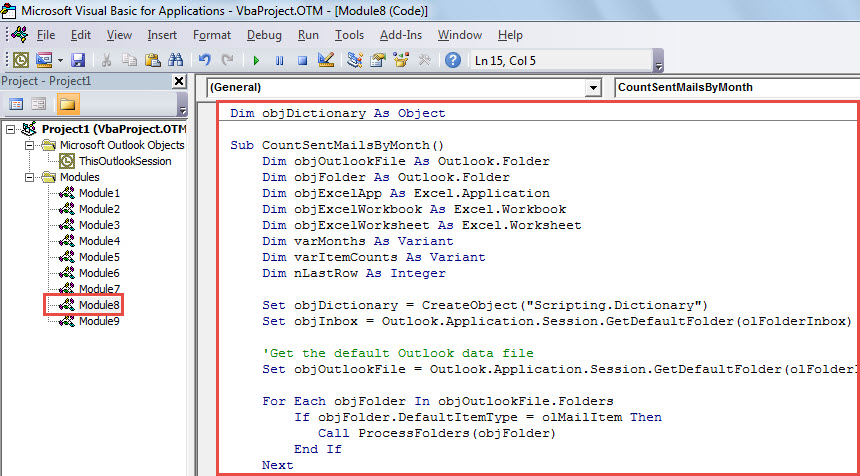
- Verplaats vervolgens de cursor naar de eerste subroutine.
- Druk vervolgens op "F5" om deze macro te activeren.
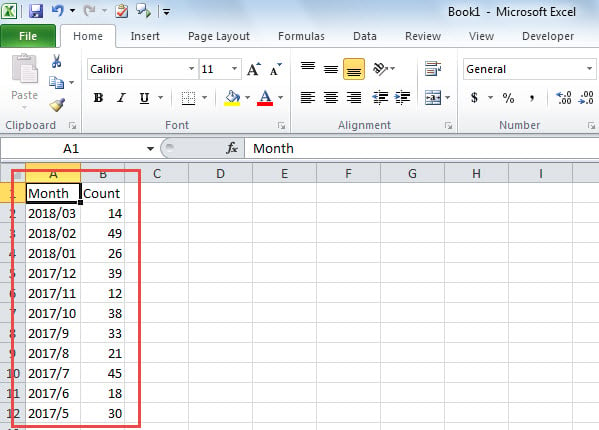
- Er verschijnt meteen een Excel-bestand met het aantal verzonden e-mails in elke maand, zoals weergegeven in de onderstaande afbeelding.

Raak niet in paniek bij corruptie in Outlook
U kunt zich zorgen maken wanneer u PST-schade tegenkomt. Maar in werkelijkheid kun je maar beter zo snel mogelijk kalmeren. Zoals we allemaal weten, is paniek hulpeloos en leidt het zelfs tot meer chaotische en serieuze problemen. U moet kalm blijven bij het overwegen van maatregelen, zoals nadenken of u een bijgewerkte back-up heeft en bedenken hoe u dat kunt doen reparatie PST - of je toevlucht moet nemen tot tools van derden, zoals DataNumen Outlook Repair of neem contact op met relevante professionals.
Auteur Introductie:
Shirley Zhang is een expert op het gebied van gegevensherstel in DataNumen, Inc., de wereldleider in technologieën voor gegevensherstel, waaronder reparatie mdf en Outlook-reparatiesoftwareproducten. Voor meer informatie bezoek www.datanumen.com